How to Set Up a Residential Proxy in Tor Browser
 ·August 18, 2026·4 min read
Tor Browser allows you to specify a proxy server at the connection stage. This is done through the browser’s network settings: simply open the connection settings, choose the proxy type, and enter the access details.
Installing and Launching the Browser
First, download and install Tor Browser from the official website. After installation, launch the browser. Depending on the interface version, access to the network settings may be available either through the startup connection window or through the general settings menu.
Works Where You Already Browse
Residential proxies work with popular browsers and everyday tasks.
If the settings open from the startup window, select Configure Connection. If the browser is already running, open the menu in the upper-right corner and go to “Settings.”
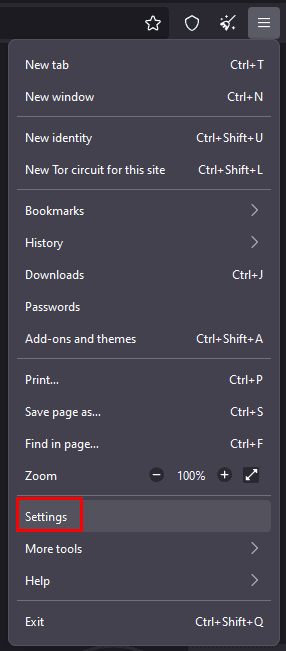
Where the Proxy Settings Are Located
In the connection settings, find the section related to network or connection settings. Usually, the required parameters are located in the Advanced block, where the Settings button is available.
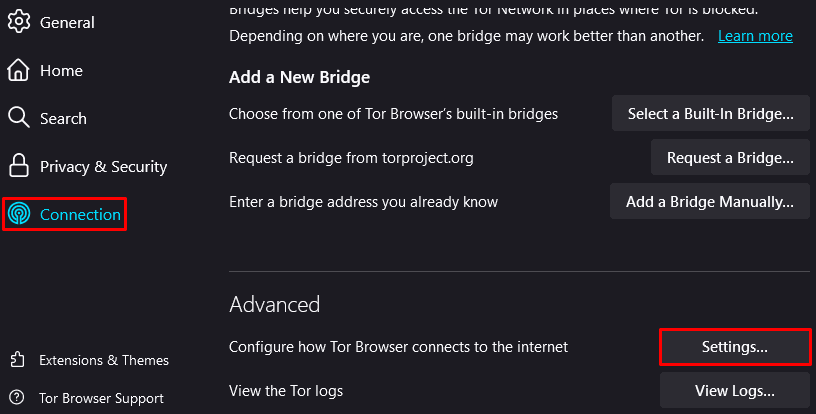
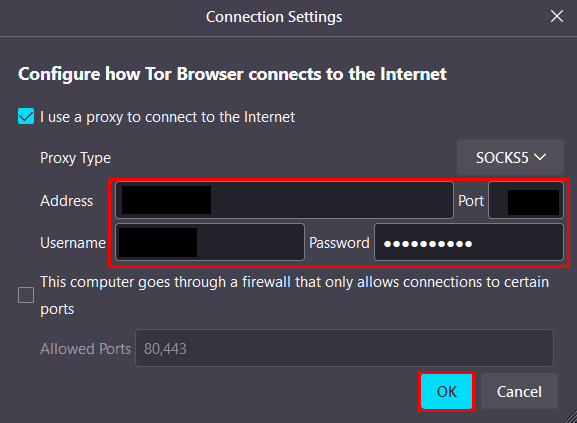
After opening the network settings window, enable the option I use a proxy to connect to the Internet or a similar switch. This will activate the fields for manually entering the proxy server settings.
What Data You Need to Enter
A standard set of parameters is required for the connection:
- proxy type;
- server address;
- port;
- username;
- password.
Tor Browser usually supports several proxy options, including HTTP, HTTPS, Socks4, and Socks5. The specific type depends on which protocol you plan to use.
After selecting the type, fill in the remaining fields with your details (this information can be found on our website, node-proxy.com).
Applying the Settings and Connecting
Once all fields are filled in, click OK to save the settings. Then return to the main connection window and click Connect.
After that, the browser will need a little time to establish the connection. Usually, the connection takes from a few seconds to a minute, depending on the network and proxy availability.
What Is Important to Consider
The proxy settings in Tor Browser are used for the initial network connection. Therefore, it is especially important to enter the parameters without errors: an incorrect address, port, or credentials will prevent the connection from being established.
Before saving, check the following:
- whether the proxy type matches the one you received;
- whether the server address is specified correctly;
- whether there is an error in the port;
- whether the username and password are entered correctly.
If the connection does not occur after clicking Connect, the first thing to do is recheck these parameters.
Conclusion
Setting up a proxy in Tor Browser comes down to a few steps: open the connection settings, enable proxy use, choose the protocol, enter the address, port, and authorization data, and then start the connection. If the network settings are filled in correctly, the browser establishes the connection without any additional manual configuration.