Residential Proxy Setup in Aezakmi Browser
Learn how to configure an HTTPS proxy in Aezakmi Browser. Attach a proxy to your profile, verify the connection, sync environment settings, and get started in just a few minutes.
Hands-on proxy guides, platform comparisons and field-tested know-how from our team.

Learn how to set up HTTP or SOCKS5 proxies in Accovod for individual profiles or the entire browser. Verify your IP address and configure proxy connections in just a few minutes.

Learn how to configure an HTTPS proxy in Aezakmi Browser. Attach a proxy to your profile, verify the connection, sync environment settings, and get started in just a few minutes.

Learn how to set up HTTP, HTTPS, or SOCKS5 proxies in Undetectable. Configure a proxy for each profile, verify the connection, and manage proxies with Proxy Manager.

Learn how to configure HTTP, HTTPS, SOCKS5, and SSH proxies in Surfinite. Add proxies to the Proxy List, verify the connection, and assign them to browser profiles in minutes.

Learn how to set up HTTP, HTTPS, and SOCKS5 proxies in Omnilogin. Configure a separate proxy for each browser profile, verify the connection, and manage profiles efficiently.

Learn how to set up HTTP and SOCKS5 proxies in MuLogin. Configure proxies for individual or batch browser profiles, verify the connection, and get started in minutes.

Learn how to set up a proxy in Logii Browser. Follow a step-by-step guide to create profiles, configure proxy settings, verify the connection, and manage multiple accounts efficiently.

Epic Privacy Browser is built on Chromium and supports proxy connections, but proxy configuration is handled through the operating system rather than the browser itself. There is no dedicated interface for entering a proxy IP address, port, username, and password, so users must configure these settings in Windows or macOS network settings. To connect a proxy, open the System section in Epic’s settings, access the system proxy configuration, enter the server details, save the changes, and provide authentication credentials if required. Once configured, browser traffic will be routed through the selected proxy. Epic focuses heavily on privacy by limiting advertising, analytics, and tracking components that collect user activity data. Its main advantages include a familiar Chromium-based interface, built-in privacy features, and support for system-wide proxies. The main drawbacks are the lack of a dedicated proxy manager, system-wide impact of proxy settings, and limited extension compatibility compared to standard Chromium browsers.

Antik Browser is a browser designed for working with multiple profiles on a single device. It allows flexible management of browser fingerprint parameters, configuration of separate profiles for different tasks, and connection of a proxy for each of them. This makes it possible to separate sessions, assign different IP addresses to different profiles, and control network parameters more precisely.

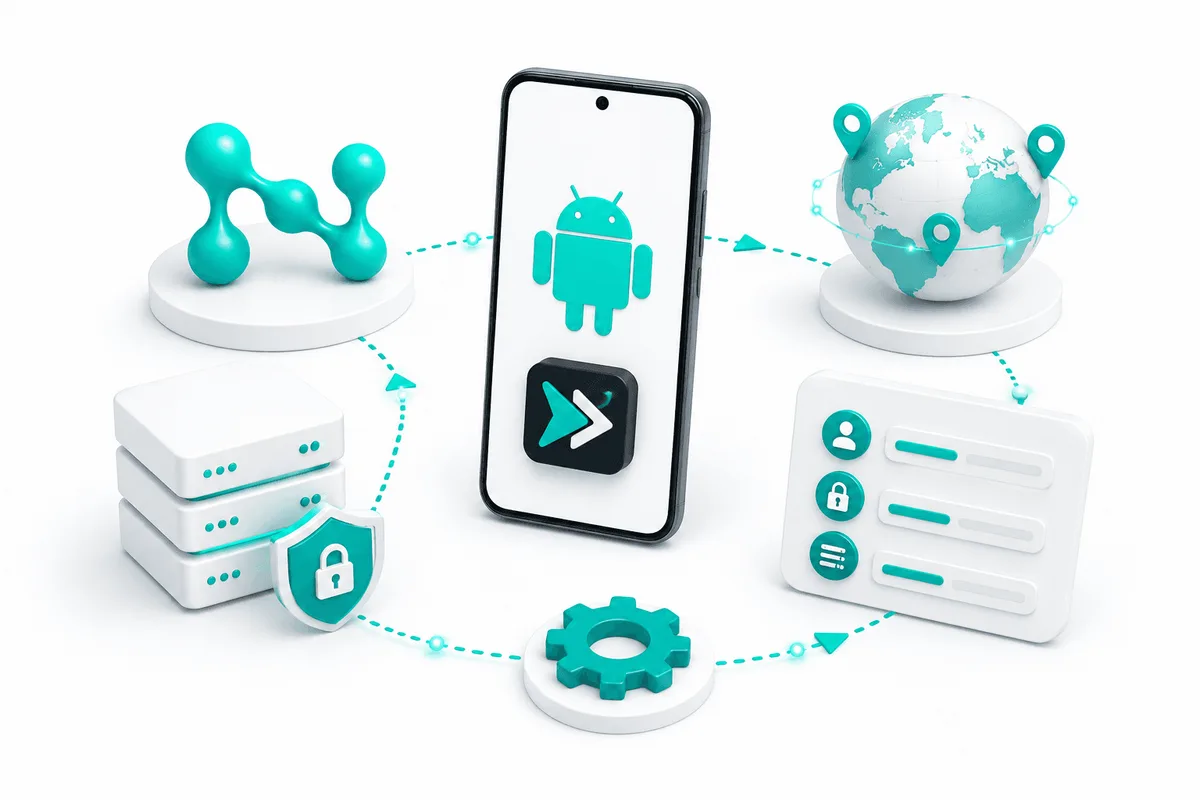
The article explains how to configure a Residential Proxy connection on Android using the V2BOX app. V2BOX supports multiple connection protocols and allows traffic to be routed through remote servers using encrypted connections. The guide covers the entire setup process, including installing V2BOX, creating a proxy list in the Node Proxy dashboard, adding a SOCKS configuration, and entering the required connection details. Once the configuration is saved, users can start the connection with Auto-connect and route their traffic through the selected proxy. Finally, the article recommends verifying the setup through an IP-checking service. If the displayed IP address matches the proxy IP, the configuration has been completed successfully.

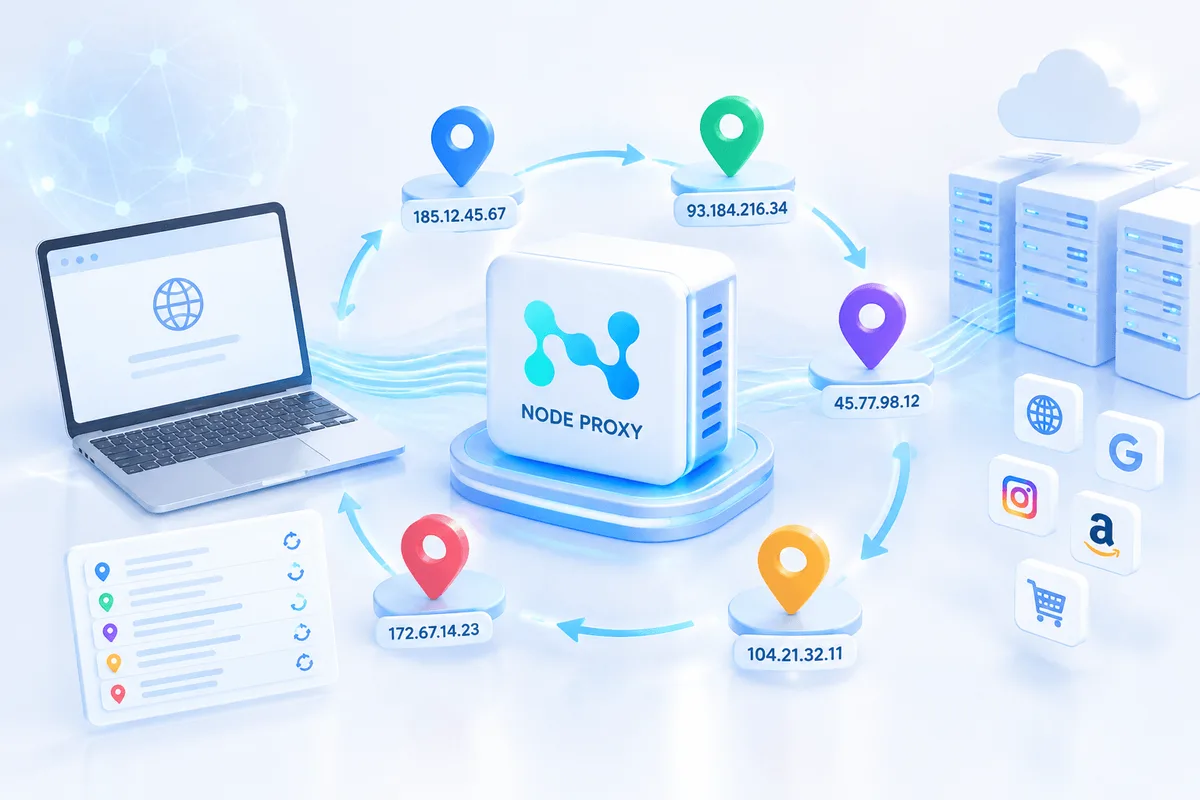
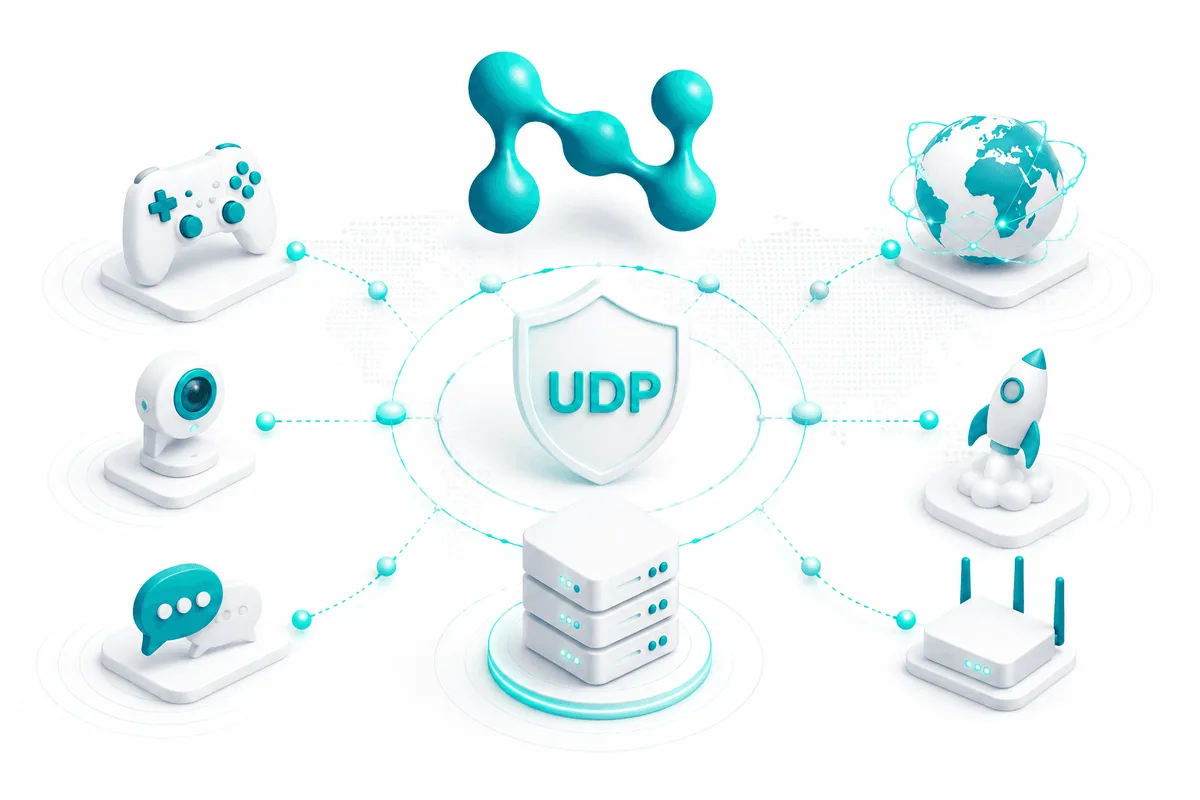
UDP proxies are specialized proxy servers for transmitting traffic over the UDP protocol. Unlike HTTP proxies and most TCP proxies, they are designed not for controlling and processing web requests in detail, but for fast packet forwarding with minimal latency. That is why they are used not for ordinary work with websites or APIs, but in scenarios where response speed matters: online gaming, voice communication, streaming, DNS infrastructure, and telemetry systems.

The article explains how to set up a proxy connection on Android using the Super Proxy app. Unlike the standard Wi-Fi proxy settings, the application allows users to save multiple profiles and switch between them without re-entering connection details. The guide shows how to install Super Proxy, create a proxy list in Node Proxy, add a new profile with the required settings, and start the connection. Once configured, the proxy can be tested using any IP-checking service. Overall, Super Proxy provides a simple way to manage proxy connections on Android, especially for users who frequently switch between different servers or configurations.

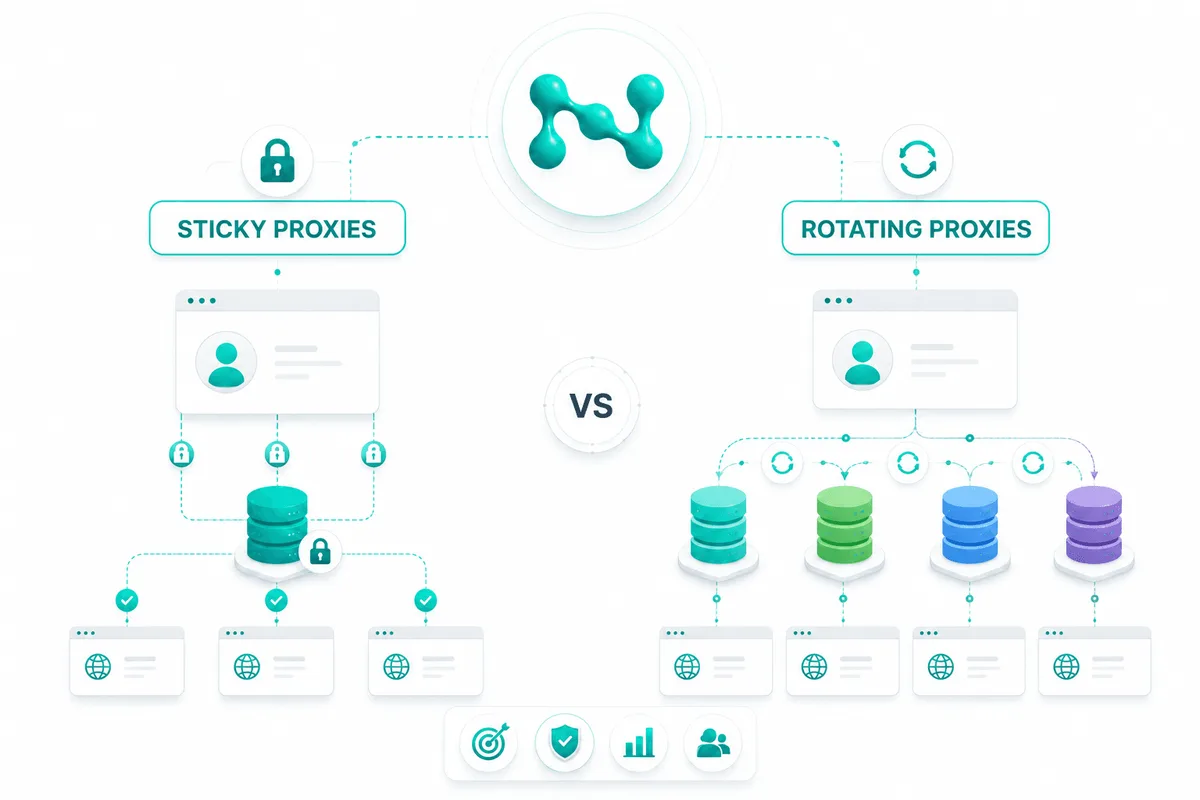
Sticky and rotating proxies explained: learn which mode fits your needs, compare session stability, IP rotation, benefits, and limitations for websites, accounts, and data collection.

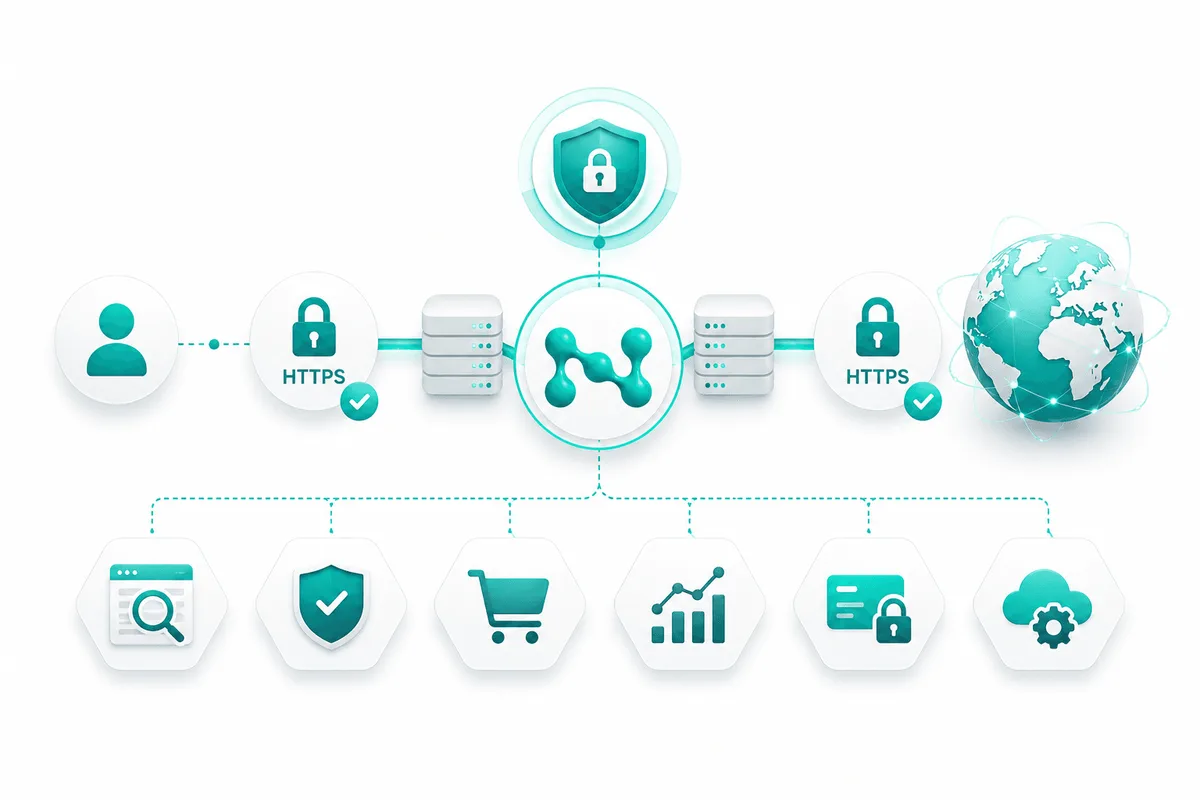
Learn what an SSL/HTTPS proxy is, how secure HTTPS traffic routing works, how it differs from regular proxies, and the scenarios where HTTPS proxies are most useful.

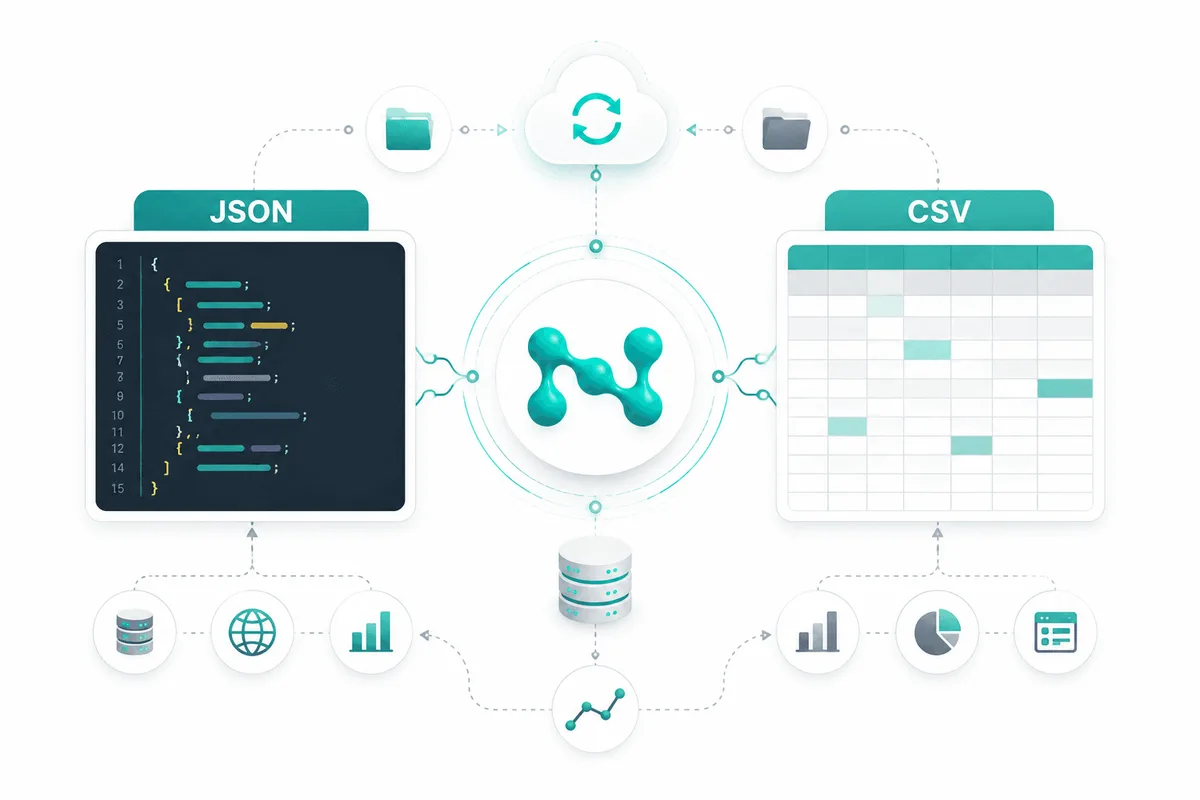
Learn the differences between JSON and CSV, and discover which format is best for data storage, exchange, and analysis. Compare their structure, benefits, limitations, and use cases.

Learn what a proxy script address (PAC file) is, how automatic proxy configuration works, how it differs from manual setup, and when it is the best choice.

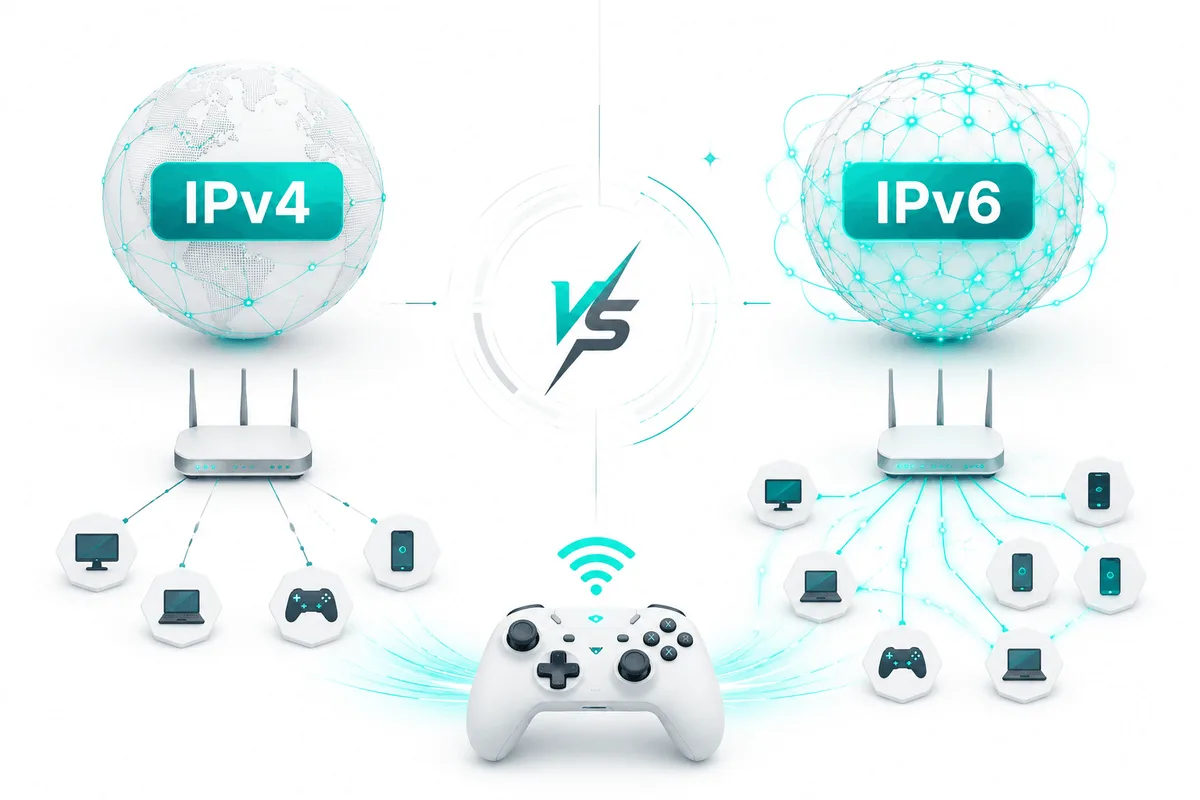
Learn the differences between IPv4 and IPv6 in gaming, how they affect ping, NAT, connectivity, and stability. Compare both protocols to choose the best option for gaming.

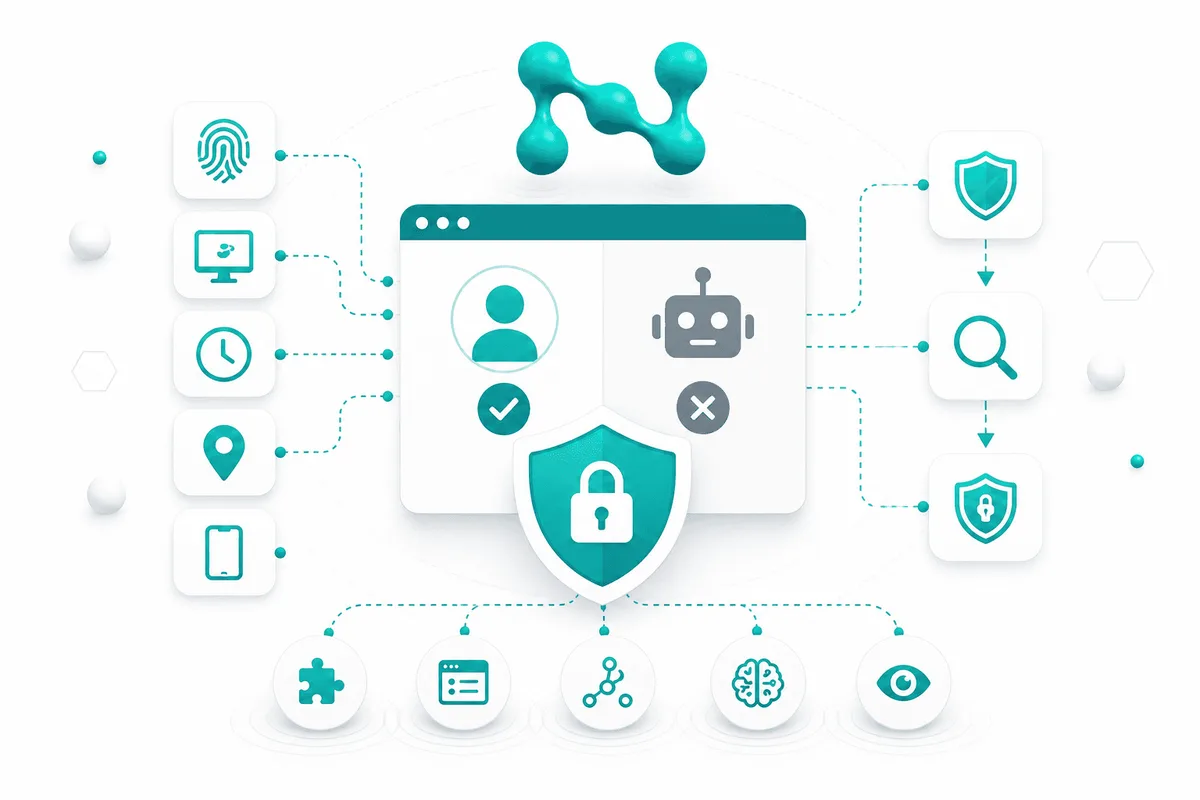
Learn how websites distinguish humans from bots using browser fingerprinting, behavioral analysis, IP reputation, and proxy detection in modern anti-bot protection systems.

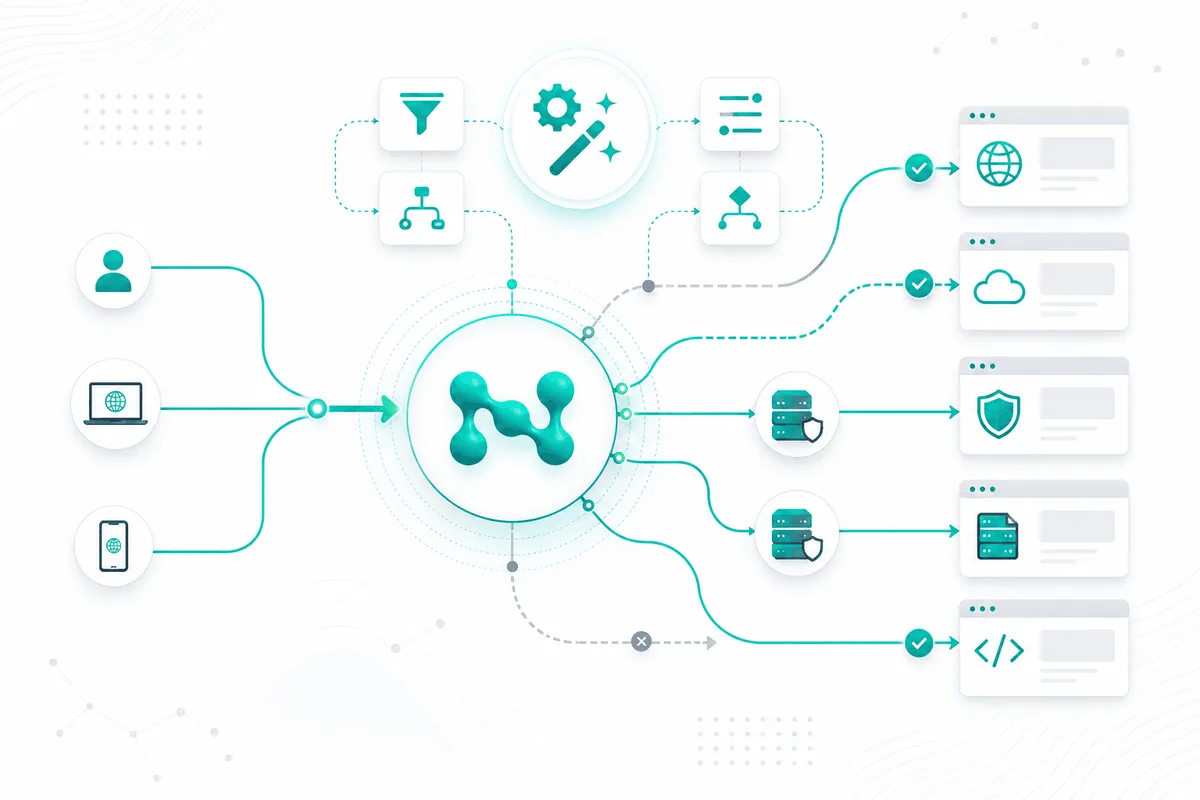
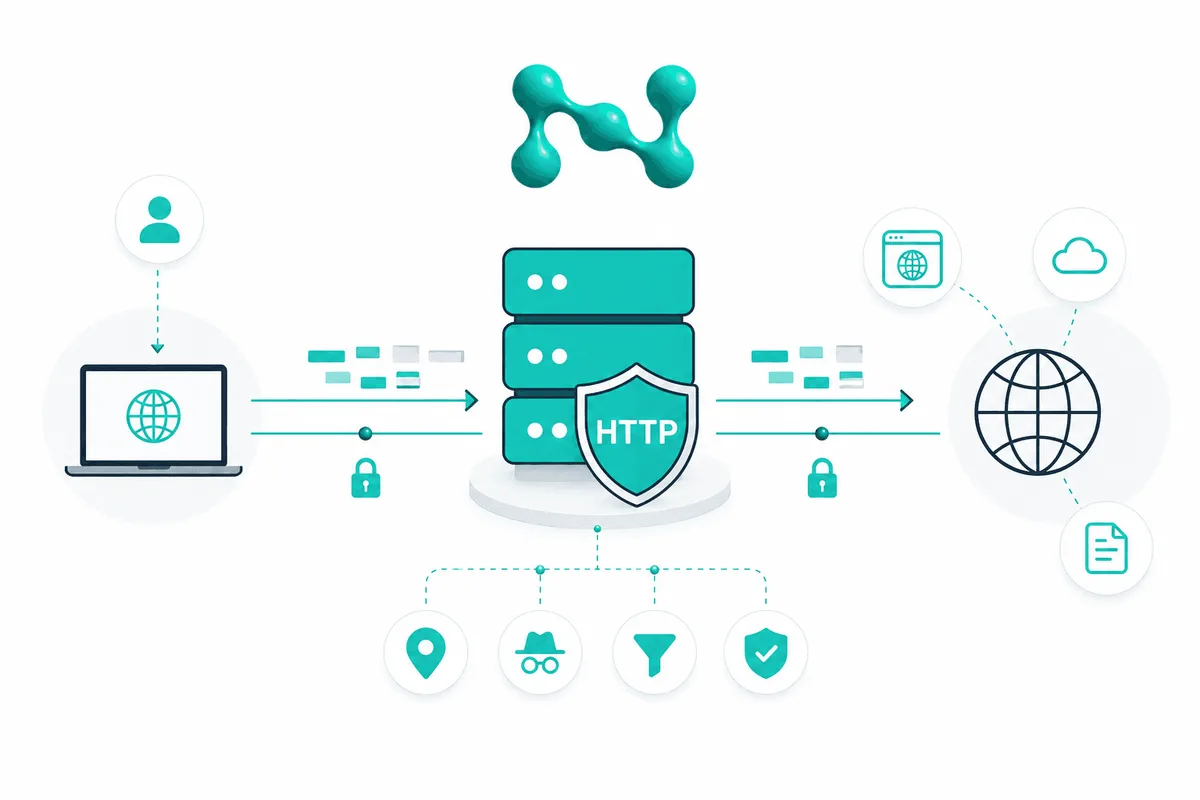
Learn what an HTTP proxy is, how it works, and where it's used. Discover the benefits, proxy types, key differences, and the best use cases for HTTP proxy servers.

Learn how to manage multiple social media accounts safely with proxies. Discover the best proxy types, common mistakes, anti-detect browsers, and proven multi-account management practices.

Learn how to set up a proxy in MASQ with this step-by-step guide. Create browser profiles, configure HTTP or SOCKS5 proxies, verify your connection, and manage separate network settings with ease.

Learn how to set up a proxy in Migrant Bird Browser. Add HTTP or SOCKS5 proxies, test your connection, import multiple proxy servers, and assign them to browser profiles with ease.

US proxy servers are ideal for website testing, SEO, market research, and accessing US-based services. Learn how American proxies work, their benefits, and the best use cases for them.

Discover how businesses use proxies for SEO, competitor analysis, ad verification, web scraping, and brand monitoring. Learn which proxy types fit different business tasks and why they matter.

GoLogin allows each browser profile to use its own proxy. Simply create a profile, open the Proxy tab, choose the proxy type (HTTP, SOCKS4, or SOCKS5), enter the IP address, port, and authentication details, then verify the connection with Check Proxy. For larger proxy pools, GoLogin supports importing multiple proxies into the built-in Proxies manager, making it easy to assign them to different profiles. This simplifies multi-account management, keeps browsing sessions isolated, and improves workflow efficiency.

Setting up a proxy in Hidemyacc can be done for individual browser profiles or through the built-in Proxy Manager, which allows you to import and manage multiple proxies at once. To configure a proxy, simply create or edit a profile, select the proxy type (HTTP, HTTPS, or SOCKS5), enter the IP address, port, and authentication details, verify the connection using Check Proxy, and save the profile. For larger proxy pools, Proxy Manager makes it easy to import multiple proxies and assign them to different browser profiles. This simplifies proxy management, provides separate IP addresses for each profile, and improves multi-account workflows.

Setting up a proxy in Kameleo is done during browser profile creation. Simply choose a base profile, select the device type, open the Proxy section, choose the proxy protocol (HTTP/S or SOCKS5), enter the IP address, port, and authentication details, then verify the connection using Test Proxy before saving the profile. When the profile is launched, Kameleo automatically aligns settings such as the time zone, language, and geolocation with the assigned IP address. This improves fingerprint consistency and provides a more reliable environment for multi-account management, automation, web scraping, and other advanced browsing tasks.

In AdsPower, proxy settings are configured individually for each browser profile. Users simply select the proxy type (HTTP, HTTPS, or SOCKS5), enter the IP address, port, and authentication details, verify the connection with Check Proxy, and save the profile. Assigning a separate proxy to each profile helps isolate browsing sessions, distribute tasks across different regions, and maintain more stable account activity. For the best results, use the correct proxy type, enter the connection details carefully, and avoid sharing the same proxy between multiple active profiles.

ClonBrowser allows each browser profile to use its own proxy. Users can either add proxies to a shared list in advance or configure them while creating a new profile. Simply enter the proxy type, server address, port, and authentication details, verify the connection with Connect Test, and save the settings. Proxies can also be assigned to existing profiles at any time through the profile manager.

BitBrowser allows users to create isolated browser profiles, each with its own proxy configuration. This makes it easier to separate browsing sessions, assign different regional IP addresses, and manage multiple accounts efficiently. The setup process starts by creating a browser profile. In the Proxy section, users can add a proxy manually, via API, or from the built-in proxy manager. After selecting the correct protocol (such as HTTP or SOCKS5), they enter the proxy IP address, port, and authentication details, then verify the connection using the Check Proxy feature. Once the proxy passes the test, the profile can be saved and launched. For users working with large proxy pools, BitBrowser supports bulk imports through Proxy Management, allowing proxies to be imported from text lists or Excel files. A batch connection test can then be performed to identify invalid or non-working proxies before they are assigned to profiles. With its flexible profile management and proxy support, BitBrowser is well suited for multi-account management, website testing, SEO tasks, and region-specific market analysis.

In Dolphin{anty}, proxy settings are configured when creating or editing a browser profile. Users first create a new profile, configure its browser fingerprint manually or generate one automatically, and then add proxy details in the New Proxy section by selecting the protocol and entering the IP address, port, and authentication credentials if required. Once the profile is saved, it is ready to launch with the assigned proxy. The proxy configuration can be updated later through the profile's edit menu. For users managing multiple proxies, Dolphin{anty} provides a built-in proxy manager where proxy lists can be imported in bulk. Imported proxies can then be assigned to different profiles without re-entering connection details. The browser also includes tools for testing proxy connections, editing settings, and configuring IP rotation, making it easier to manage multiple profiles efficiently.

MoreLogin is a browser designed for working with multiple browser profiles on a single device. Each profile is created with separate environment parameters, so for stable operation it is important to configure the correct network settings from the start. One of the basic steps is connecting a proxy.

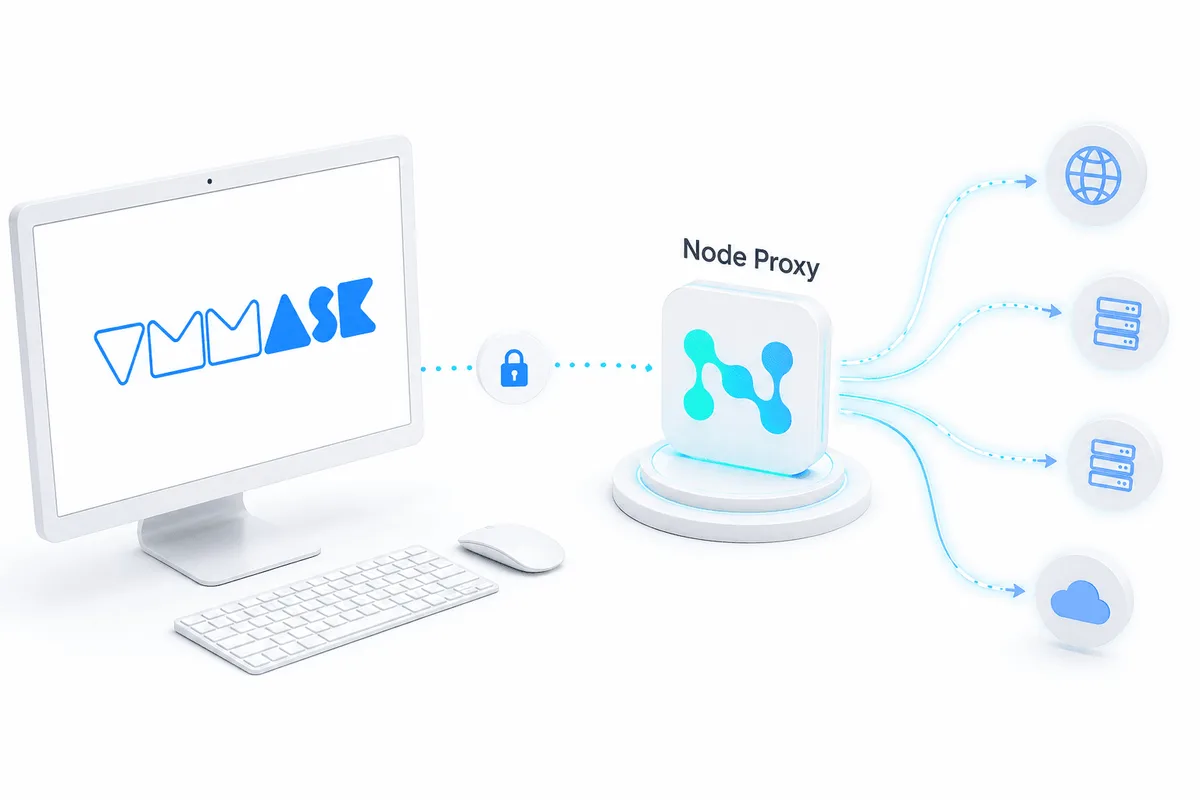
VMMask is used to work with multiple profiles in a single browser when each of them requires separate environment settings. One of the key stages of this setup is connecting a proxy. This is what allows you to assign a separate IP address to a profile and use it together with the selected system configuration settings. In VMMask, proxy setup is performed at the profile creation stage.

NST Browser is used to work with isolated browser profiles, manage digital fingerprints, and connect different network configurations for separate tasks. In this setup, proxies allow each profile to be assigned its own IP address, separate work scenarios, and reduce the risk of conflicts between sessions.

Che Browser is used for working with multiple profiles, social media tasks, SEO, automation, and data collection. To ensure profiles work stably and do not overlap with each other in terms of network parameters, proxies are usually configured in the browser. This makes it possible to assign a separate connection to each profile and manage the network configuration more precisely within work tasks.

Lauth Browser is an anti-detect browser designed for managing multiple isolated profiles. Each profile has its own unique browser fingerprint and can be assigned a separate proxy server, helping users keep accounts and network activity isolated from one another. To get started, users need to create an account, install the browser, and set up a new profile with the desired system and platform settings. Proxy configuration is performed in the Connection and Proxy section, where users select a protocol (HTTP, HTTPS, or SOCKS5), enter the proxy IP address and port, and add authentication details if required. The built-in Test Proxy feature can be used to verify the connection before launching the profile. Lauth supports assigning different proxies to different profiles and provides tools for checking IP addresses, WebRTC settings, and browser fingerprint information. Its key strengths include profile isolation, flexible proxy management, tracker and cookie controls, support for multiple protocols, and efficient use of system resources.