WinSCP Proxy Setup: SOCKS5 and HTTP for SFTP, SCP and FTP

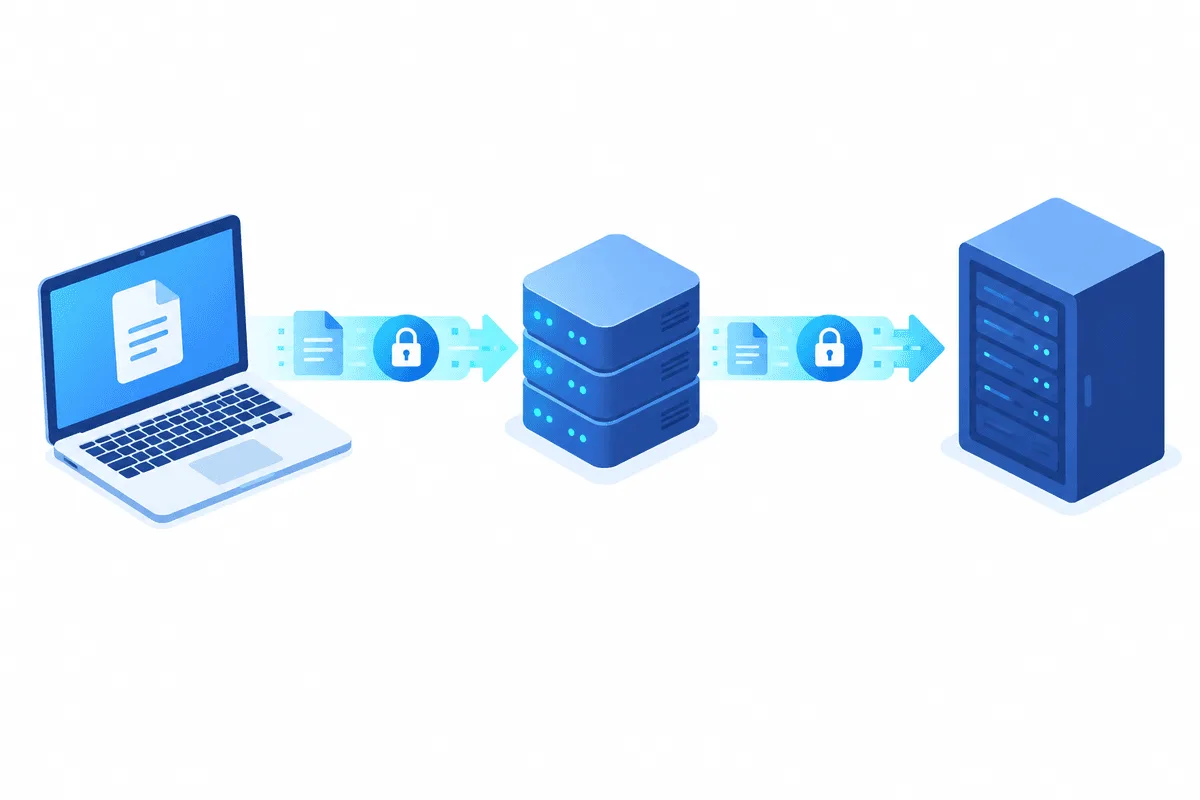
To route WinSCP through a proxy, open your saved site in the Login dialog, click Edit → Advanced, go to Connection → Proxy, pick the proxy type (SOCKS5 or HTTP in most cases), enter the proxy host, port, username and password, then save the site and connect. The setting lives inside each site profile, so one server can use a proxy while another connects directly.
Many short guides send readers to the gear icon in the main window. That path opens Preferences, and the proxy field there only covers the program's own update checks, not your file transfers. Below you will find the correct location, the differences between SFTP and FTP behind a proxy, a ready snippet for scripted transfers and a list of errors with their usual causes.
SOCKS5 proxies
SOCKS5 proxies with a login and password for SFTP and FTP sessions in WinSCP
What You Need Before You Start
- WinSCP on Windows. The proxy page described here has looked the same across recent releases; labels may shift slightly in older builds.
- The target server details: protocol (SFTP, SCP, FTP, FTPS, WebDAV or S3), host name, port and your account on that server.
- Proxy details from your provider: type, host, port, login and password. For SSH-based transfers a SOCKS5 endpoint is the most predictable choice; our SOCKS5 proxies come with these four values in the dashboard.
- Permission to reach the server this way. Some hosting companies allow SSH only from listed addresses. If so, the proxy exit IP must be added to that list, not your home IP.
Where the Proxy Settings Really Are
WinSCP has two unrelated proxy fields, and mixing them up is the most common reason a proxy appears to have no effect.
| Location | What it affects |
|---|---|
| Login dialog → Edit → Advanced → Connection → Proxy | Connections of that particular site profile: SFTP, SCP, FTP, WebDAV, S3 |
| Preferences → Updates → Connection | Only the requests WinSCP makes to check for new versions |
There is no single global switch for every session. If you need the same proxy on ten servers, configure one site, then use Duplicate in the site list and change only the host name in the copies.
Setting Up a Proxy for an SFTP or SCP Session
Step 1. Open the Advanced Site Settings
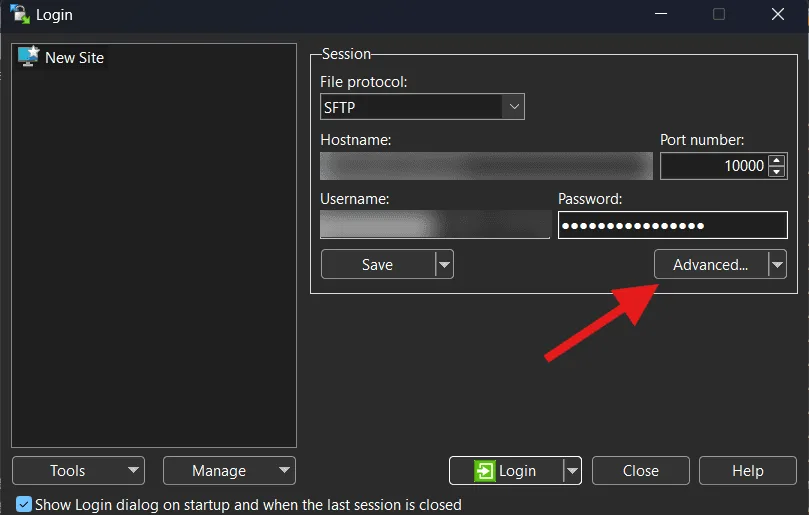
Launch WinSCP. In the Login dialog, select the existing site on the left (or New Site), fill in the protocol, host name, port and user name, and click Edit if the site is already saved. Then press Advanced… to open the Advanced Site Settings window.
Step 2. Choose the Proxy Type
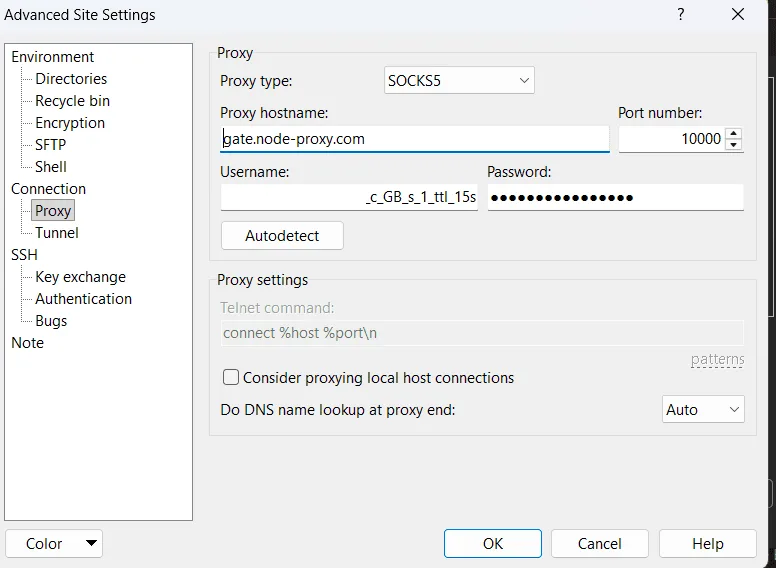
In the tree on the left, expand Connection and click Proxy. The Proxy type list offers None, SOCKS4, SOCKS5, HTTP, Telnet and Local.
- SOCKS5 relays any TCP stream and supports a login and password; our explainer on what a SOCKS5 proxy is covers the protocol itself. This is the default recommendation for SFTP and SCP.
- HTTP works when the proxy supports the
CONNECTmethod, which almost every paid HTTP proxy does. Authentication is supported. - SOCKS4 accepts a user name but no password, so it fits only proxies that authorize by IP.
- Telnet and Local are for corporate gateways and custom tunnel commands; they do not apply to FTP, WebDAV or S3.
Step 3. Enter Host, Port and Credentials
Type the proxy host name and port into the fields next to the type. Below them, fill in Username and Password. If you leave these blank and the proxy demands authentication, WinSCP asks for them during the connection.
With SOCKS5 the password may travel to the proxy in plain form if the server does not offer a stronger method, and HTTP falls back to Basic authentication in the same way. Your files and the SSH login are still encrypted end to end by SFTP itself; only the proxy credentials are exposed on the path to the proxy.
Step 4. Decide Where DNS Is Resolved
The option Do DNS name lookup at proxy end has three states: No, Auto (the default) and Yes. With Auto, host names go straight to SOCKS5 and HTTP proxies, so the proxy resolves the server address. Switch to Yes when the target name only resolves inside the proxy's network, and to No if the proxy cannot resolve names at all.
Step 5. Save and Connect
Click OK, then Save in the Login dialog so the proxy stays with the site, and press Login. On the first connection WinSCP shows the usual SSH host key prompt; a proxy does not change the server key, so compare the fingerprint as you normally would.
FTP and FTPS Behind a Proxy
FTP opens a separate connection for every file listing and transfer, which makes proxying it less straightforward than SFTP.
- Keep passive mode on. On the Connection page of the same Advanced window, leave Passive mode ticked. In passive mode WinSCP opens every data channel outward through the proxy; active mode expects the server to call back, which a proxy cannot relay.
- SOCKS5 or HTTP work for plain FTP and explicit or implicit FTPS. Each data channel becomes another tunnelled connection.
- Classic FTP gateways need a logon method. For FTP, the proxy type list also contains gateway methods that differ in the command sequence sent to the firewall, such as
SITE %hostorUSER %user@%host. Choose these only when your network administrator gives you an FTP-gateway address; regular proxy providers use SOCKS5 or HTTP.
The DNS option and the Telnet or Local command fields are not available for FTP sessions.
Which Proxy Type Fits Which Protocol
| Protocol in WinSCP | SOCKS5 | HTTP (CONNECT) | Notes |
|---|---|---|---|
| SFTP, SCP | Yes | Yes | SOCKS5 is the simplest choice |
| FTP, FTPS | Yes | Yes | Use passive mode |
| WebDAV, S3 | Yes | Yes | HTTPS traffic, proxy sees only the host name |
| Telnet/Local proxy | — | — | SFTP and SCP only |
The difference between the two main proxy protocols is explained in more depth in our comparison of SOCKS5 and HTTP proxies.

Proxy Settings in Scripts and the .NET Assembly
Automated jobs do not read the GUI site unless you reference it by name. You can either point a script at a saved site, or pass proxy values with raw session settings. ProxyMethod takes numbers: 1 is SOCKS4, 2 is SOCKS5, 3 is HTTP.
open sftp://deploy-bot@files.example.net/ -hostkey="ssh-ed25519 255 AbCdEf..." -rawsettings ProxyMethod=2 ProxyHost=gw.example-proxy.net ProxyPort=1080 ProxyUsername=px-user-41 ProxyPassword=px-secret-41In PowerShell with the WinSCP .NET assembly the same values are added to the session options before opening the session:
$opts = New-Object WinSCP.SessionOptions -Property @{
    Protocol = [WinSCP.Protocol]::Sftp
    HostName = "files.example.net"
    UserName = "deploy-bot"
    SshHostKeyFingerprint = "ssh-ed25519 255 AbCdEf..."
}
$opts.AddRawSettings("ProxyMethod", "2")
$opts.AddRawSettings("ProxyHost", "gw.example-proxy.net")
$opts.AddRawSettings("ProxyPort", "1080")
$opts.AddRawSettings("ProxyUsername", "px-user-41")
$opts.AddRawSettings("ProxyPassword", "px-secret-41")
For FTP gateway methods there is a separate raw setting, FtpProxyLogonType. Keep real passwords out of script files: read them from a protected store or environment variable at run time.
How to Confirm the Proxy Is Used
- Ask the server. In an SFTP session open Commands → Open Terminal (or a separate SSH shell) and run
echo $SSH_CLIENT. The first value is the address the server sees; it should be the proxy exit IP. - Read the session log. Enable logging in Preferences → Logging, connect once and look for lines that mention the proxy before the SSH handshake.
- Check the proxy itself. Our free proxy checker confirms that the endpoint answers and shows its exit address, which helps separate proxy problems from server problems.
Common Errors and Fixes
Proxy works in the browser but WinSCP still connects directly. The proxy was set in Preferences → Updates, or the site was not saved after editing. Re-open the site, check Connection → Proxy, click Save.
Connection refused or timeout right after Login. The host or port belongs to a different protocol, for instance an HTTP port entered with SOCKS5 selected. Some proxy services also restrict non-web destination ports such as 22, so ask your provider whether SSH ports are open.
Proxy authentication failed. Retype the login and password without trailing spaces. SOCKS4 never sends a password; switch to SOCKS5 if your proxy uses credentials.
Host not found. Set Do DNS name lookup at proxy end to Yes for names that exist only behind the proxy, or to No if the proxy cannot resolve at all.
FTP listing hangs after login. Passive mode is off, or the FTP server answers with a private address in the passive reply. Turn passive mode on and, if needed, ask the server owner to fix the passive address setting.
Server rejects the login although the password is right. The server allows SSH only from approved IPs. Ask the administrator to add the proxy exit address, which is a reason to use a static proxy rather than a rotating one for this job.
WinSCP proxy FAQ
Where is the proxy setting in WinSCP?
It sits in the Login dialog: select a site, click Edit, then Advanced, and open Connection → Proxy. The proxy under Preferences only applies to update checks.
Can WinSCP use a SOCKS5 proxy with a username and password?
Yes. Choose SOCKS5 as the proxy type and fill in Username and Password. SOCKS4 can carry only a user name, so it is suitable only for IP-authorized proxies.
Does a proxy make SFTP less secure?
The file transfer stays encrypted by SSH from your computer to the server, so the proxy cannot read file contents or your server password. The proxy credentials themselves may be sent unencrypted to the proxy, which is why a trusted provider matters.
Should I use a rotating or a static proxy for WinSCP?
A static address is the better fit. SSH and FTP sessions run for a long time, and many servers whitelist client IPs, so an address that changes mid-session or between runs causes disconnects and rejected logins.
How do I set a proxy for WinSCP command-line scripts?
Either open a saved site that already has the proxy configured, or add raw settings such as ProxyMethod, ProxyHost and ProxyPort to the open command. The same names work with the AddRawSettings method in the .NET assembly.