Yandex Disk Proxy Setup: Desktop App Settings and Sync Fixes

To route the Yandex Disk desktop client through a proxy, open its settings, switch to the Proxy section and pick manual setup: choose the protocol, enter the server address and port, tick the password option if your provider requires a login, then save. The client keeps that route for every upload, download and sync check until you change it again.
Most guides on this topic stop right there. Below you will also find where the tab hides on Windows and on macOS, which proxy type is the sensible pick, what the app needs from the network to sync at all, and how to tell a proxy fault from an account or subscription problem. A short section covers WebDAV clients for cases when the official program is not an option.
Static proxies
Fixed-IP proxies for long cloud sync sessions without address changes
When a Proxy for Yandex Disk Makes Sense
The cloud client normally talks to Yandex servers directly. A separate route is useful in a few honest situations:
- Office networks where every outbound connection must pass through a corporate gateway, and the client fails without being pointed at it.
- Unstable routes between your provider and the storage servers, when a different exit point gives steadier uploads of large archives.
- Network policies that only allow traffic to leave through one fixed address, so admins can whitelist it on the firewall.
- Separating work traffic on a shared machine, when you want cloud sync to exit from a dedicated address rather than the home line.
An intermediate proxy server only changes the path your packets take. It does not change your storage quota, your plan or the rules of the service. Everything you upload still belongs to the same account, and Yandex sees the same login regardless of where the connection comes from.
What to Prepare
Get the following from your proxy dashboard or your network administrator before opening the app:
- Protocol. HTTP(S) or SOCKS5. If you are unsure how they differ, our comparison of SOCKS5 and HTTP proxies explains which traffic each one carries.
- Server address as an IP or hostname, and the port, written together as
host:portin most dashboards. - Login and password, unless access is granted by whitelisting your IP.
A fixed address works best for a sync client that stays connected for hours. Static proxies keep one IP for the whole session, so the cloud service does not see your connection jump between cities every few minutes. Rotating residential traffic is billed by volume, which adds up fast when a folder holds tens of gigabytes of video.
Configuring the Proxy in the Yandex Disk App
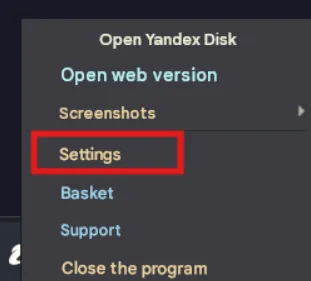
Step 1. Open the Settings Window
The path differs by platform, according to the official Yandex help pages:
| Platform | Where the settings are |
|---|---|
| Windows | File → Settings in the top left corner of the program window |
| macOS | Yandex Disk → Settings in the menu bar |
On Windows you can also reach the same window by right-clicking the tray icon. Menu labels can shift slightly between releases, and in the Russian interface the item reads Настройки.
Step 2. Switch to the Proxy Tab
The Windows client groups its options into tabs such as General, Advanced and Proxy; on macOS the set is General, More and Proxy. Open Proxy. Three modes are offered:
- No proxy – direct connection, the default.
- Automatic proxy detection – the client takes whatever is configured in the operating system.
- Manual proxy server settings – you type the details yourself.
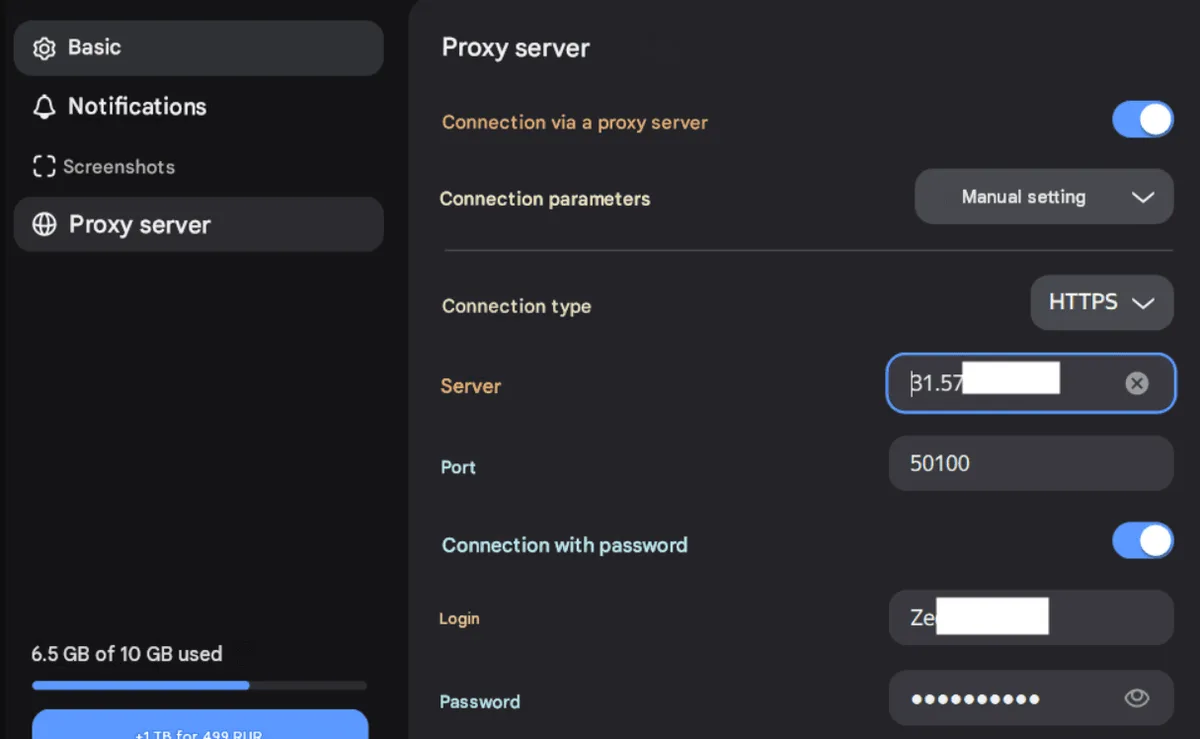
Step 3. Enter the Server Details
Select manual settings and fill in the fields:
- In Type, pick the protocol your provider issued. The drop-down lists HTTP(S) and SOCKS variants; the exact set depends on the app version, so choose the one matching your port.
- In Server, paste the IP address or hostname.
- In Port, enter the number from your dashboard.
Step 4. Add a Login and Password
If your access needs credentials, turn on the password switch (in the Russian build it is labelled Подключение с паролем) and enter both values. Copy them from the dashboard instead of typing: an invisible trailing space is the most common reason a correct password is refused.
Step 5. Apply and Watch the First Sync
Press Apply, then OK. Close and relaunch the client so it drops the old connections. The tray icon should go through its usual sync animation and settle on the idle state within a minute or two.
Using the System Proxy Instead
If your whole computer already goes through a proxy, there is no need to duplicate the details. Choose Automatic proxy detection and the app follows the system configuration. On Windows 10 and 11 that lives under Settings → Network & Internet → Proxy; on macOS it is in the network service's Details → Proxies panel. This mode is convenient in companies that push a PAC file to every workstation.
Keep in mind that system settings on Windows mostly cover HTTP proxies. A SOCKS5 server is better entered manually in the app itself.
Checking That Traffic Goes Through the Proxy
The client has no built-in IP display, so verify the route indirectly:
- Before touching the app, run your proxy details through the free proxy checker to confirm the server answers and reports the expected country.
- Upload a test file of a few hundred megabytes and watch the traffic counter in your proxy dashboard; it should grow by roughly the same amount.
- If your provider shows per-connection logs, look for connections opened by the sync client.
Sync Troubleshooting
Connection Error Right After Saving
Recheck the protocol first. An HTTP port chosen as SOCKS5, or the reverse, fails instantly. Then confirm host, port and credentials. The official troubleshooting page also asks you to make sure ports 443 and 5222 are reachable. Some corporate gateways only permit tunnels to port 443, so the second channel may be blocked even when uploads work; ask your administrator to allow it.
Sync Stuck on One Large File
Long uploads are sensitive to connection drops. A rotating exit that changes its IP mid-transfer forces the client to restart the piece it was sending. Switch to a sticky session or a static address, and avoid free public proxies, which often cut connections after a few minutes. Our overview of the risks of free proxies lists other reasons to skip them.
Everything Was Fine, Now Nothing Syncs
Before blaming the proxy, rule out account-side changes. In June 2026 Yandex announced that cloud features of the desktop client on Windows and macOS, including synchronisation, require a Yandex 360 subscription; without one the app keeps local files, while the cloud stays reachable through the web version. If the browser version opens fine through the same proxy, the network is probably not at fault. Check the current terms on the official Yandex pages, as plan conditions change.
Firewall or Antivirus Interference
Security suites sometimes inspect or block traffic to unknown proxy ports. Temporarily allow the Yandex Disk executable in your firewall, or add the proxy address to the exclusion list, then test again.
Alternative: WebDAV Clients With Their Own Proxy Settings
Yandex Disk also accepts WebDAV connections, which file managers and sync utilities such as rclone or Cyberduck can use. Many of these tools honour the HTTPS_PROXY environment variable or have a proxy field of their own. Yandex asks you to create a separate app password for each third-party client and warns that unofficial programs may behave unpredictably, so treat this route as a fallback rather than the main option.
Yandex Disk Proxy FAQ
Does Yandex Disk support SOCKS5 proxies?
The manual mode offers a protocol selector with HTTP(S) and SOCKS options, so a SOCKS5 server can be entered directly. Pick the type that matches the port in your dashboard, otherwise the connection is refused.
Where is the proxy setting in Yandex Disk on Mac?
Open the Yandex Disk menu in the menu bar, choose Settings and open the Proxy server section. Select manual setup to enter your own details.
Why does Yandex Disk stop syncing after I set a proxy?
Most often the protocol does not match the port, the password contains an extra character, or the gateway blocks one of the ports the app needs. Test the proxy separately, then compare the client settings with your dashboard.
Can I use a different proxy only for Yandex Disk?
Yes. Manual settings inside the client affect only this program, while the rest of the system keeps its own connection. That makes it easy to route cloud sync through one fixed address.
Will Yandex block my account because of a proxy?
Using a proxy is not forbidden in itself, but sudden changes of country can trigger extra security checks on login. A stable address in your usual region keeps sign-ins predictable.