How to Set Up a Proxy on a Router: Keenetic, MikroTik and OpenWrt

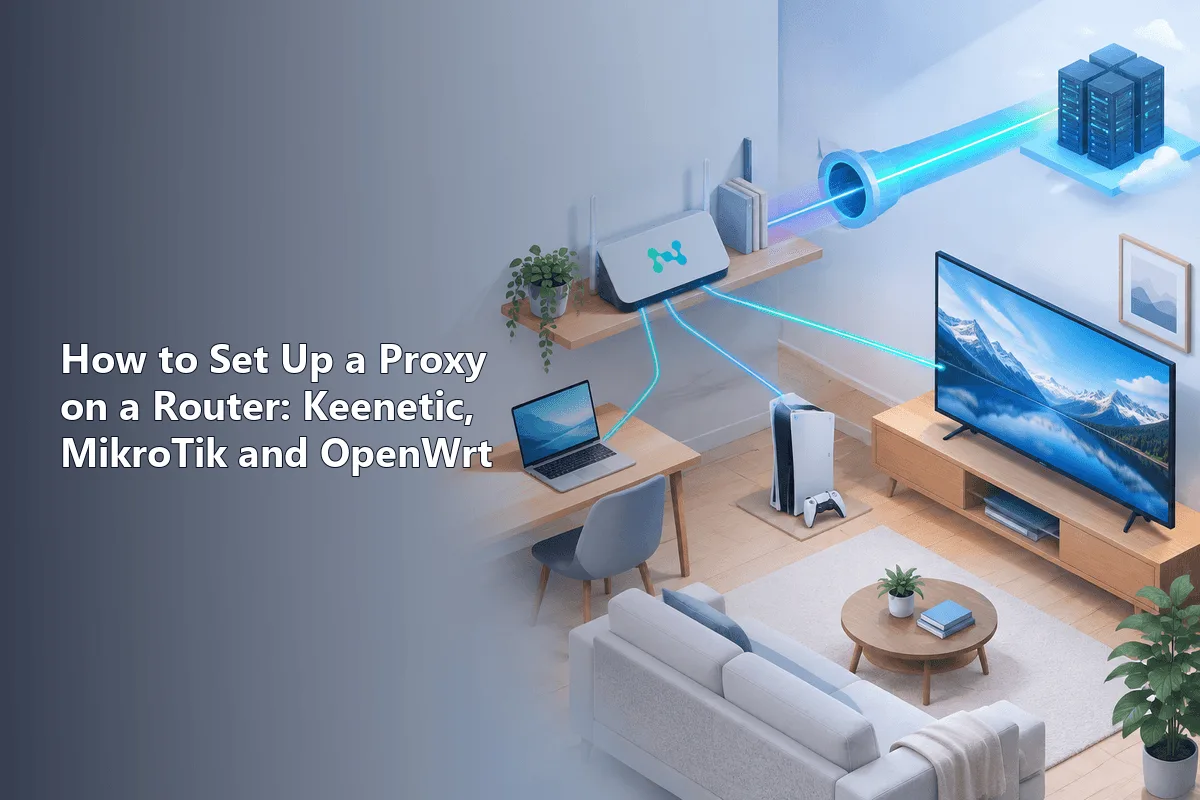
A proxy on a router means the router itself forwards traffic from chosen devices to an upstream SOCKS5 or HTTP server, so a smart TV, console or laptop exits through the proxy without any settings of its own. Keenetic does this with a built-in proxy connection and access policies, OpenWrt with packages such as sing-box, and MikroTik with policy-based routing towards a container or a separate gateway.
This guide compares the three platforms side by side, explains how transparent proxying works under the hood, and gives step-by-step setups with policy-based routing, so only the devices you pick use the proxy while everything else stays direct. It ends with DNS pitfalls, a checking routine and a troubleshooting table.
SOCKS5 proxies
Static SOCKS5 proxies with login and password for routers and devices without proxy settings
Why Put the Proxy on the Router
Per-app proxy settings are fine on a laptop, but they run out quickly:
- Devices without proxy fields. Smart TVs, set-top boxes, many IoT gadgets and some game consoles cannot be pointed at a SOCKS5 server at all. Our guide to proxies on PS4 and PS5 shows how limited console options are.
- One place to manage. Change the server once on the router instead of on ten devices.
- Selective routing. Policy-based routing sends only certain devices, subnets or domains through the proxy and keeps the rest of the household on the normal line.
- A separate guest or test segment. A dedicated Wi-Fi network that always exits in another country is handy for QA teams checking regional versions of a site.
If you only need a proxy for Wi-Fi on one phone, the per-network setting described in our article on Wi-Fi proxies is quicker.
How Router-Level Proxying Works
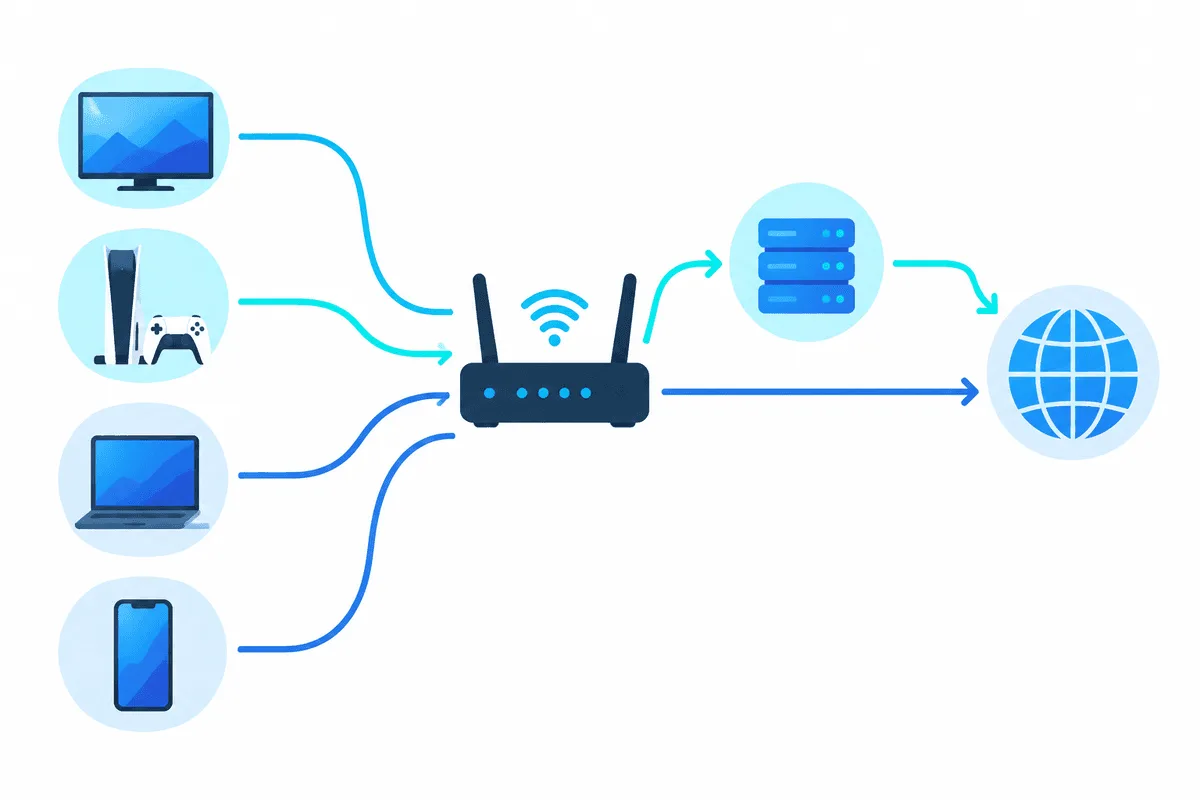
A device behind the router knows nothing about the proxy. It sends ordinary packets to the default gateway. The router then has to:
- Decide whether this connection should be proxied (by source device, destination or domain). That is policy-based routing.
- Intercept the TCP connection, either via a virtual TUN interface or a firewall redirect.
- Wrap it into a SOCKS5 or HTTP CONNECT session to the upstream server, adding the login and password.
This is called a transparent proxy: the client cannot see it. The background is covered in our article on transparent proxies.
Two practical consequences follow. First, a standard SOCKS5 or HTTP upstream is a TCP tool, so plan for UDP traffic (voice chat, some games, the QUIC protocol in browsers) to go direct or be blocked. Second, DNS needs separate care, otherwise lookups reveal the real location even when pages load through the proxy.
The Three Platforms Compared
| Keenetic | MikroTik (RouterOS 7) | OpenWrt | |
|---|---|---|---|
| Built-in proxy client | Yes, SOCKS5 and HTTP proxy connection in recent KeeneticOS | No transparent SOCKS5 client | No, added with packages |
| How traffic is selected | Access policies per device or segment | Mangle rules and routing tables | Rules in sing-box or the pbr package |
| Extra software | Not required | Container or external gateway | sing-box, redsocks or similar |
| Difficulty | Low, web interface | High, command line | Medium |
| Best for | Home and small office | Existing MikroTik networks | Flexible custom setups |
What to Prepare
- Proxy details: host, port, protocol, login and password. SOCKS5 is the safer pick for a router because it carries any TCP protocol, not only web traffic. The difference is explained in our article on SOCKS5 and HTTP proxies.
- A static address. Rotating IPs break long sessions on TVs and consoles. Static SOCKS5 proxies with login and password suit a router well.
- A list of devices to proxy. Give them fixed DHCP leases so their addresses do not change.
- A configuration backup and physical access to the router in case something cuts off the network.
Keenetic: Proxy Connection and Access Policy
Recent KeeneticOS releases (the 4.x and 5.x lines) can connect to a SOCKS5 or HTTP proxy natively. Menu labels shift a little between versions, so look for the same ideas if your screen differs.
Step 1. Create the Proxy Connection
- Open the web interface, usually at
192.168.1.1ormy.keenetic.net. - Go to Internet → Other connections and find the proxy connections block.
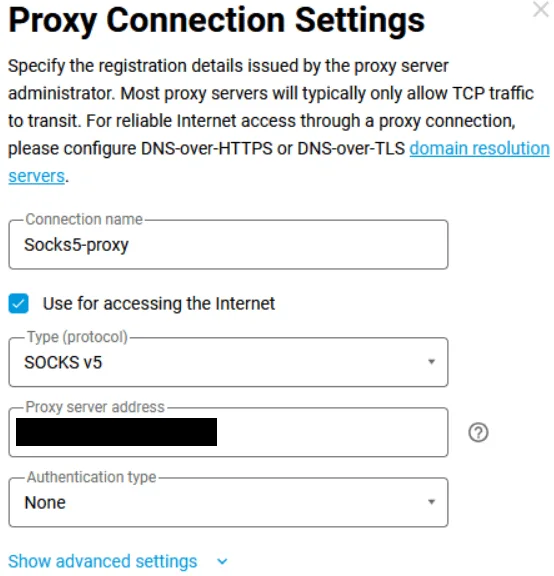
- Add a connection, choose SOCKS5 or HTTP, then enter the server address, port, login and password.
- Save and switch the connection on. Its status should turn to connected.
Step 2. Create an Access Policy
- Open Internet → Connection priorities (policies tab).
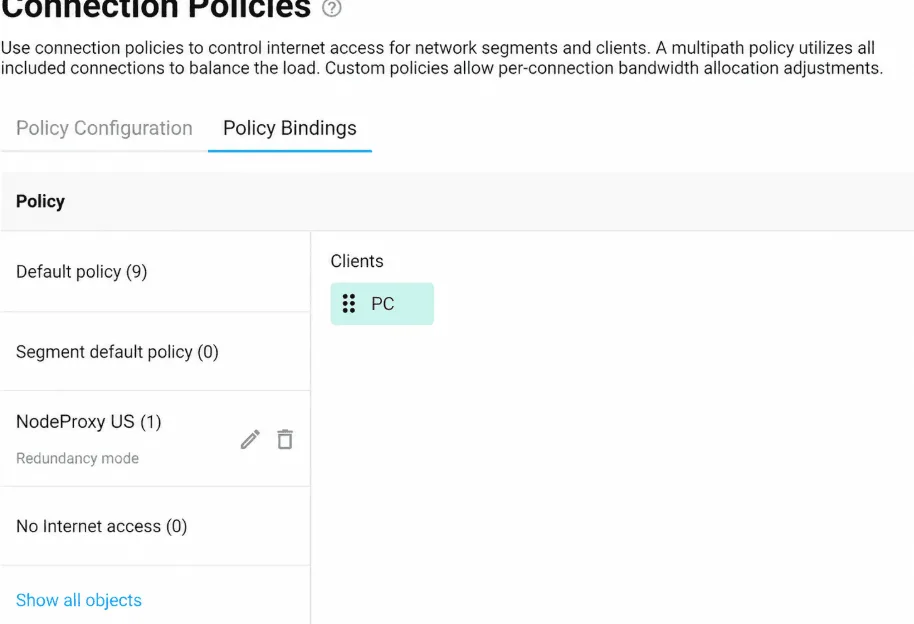
- Add a policy, for example Via proxy.
- In the policy, tick only the proxy connection. If the main WAN stays ticked below it, traffic will fall back to the direct line when the proxy drops; untick it if you prefer a hard stop.
Step 3. Assign Devices
On the policy page or in the list of registered devices, move the chosen devices into Via proxy. A whole Wi-Fi segment can be bound to the policy too, which makes a guest network that always exits through the proxy.
Newer firmware also offers domain-based routes, which send only selected sites through a chosen connection. Owners of some 5.0.x builds reported trouble with authenticated SOCKS5, so update the firmware before you start debugging.
MikroTik: Policy-Based Routing to a Proxy Gateway
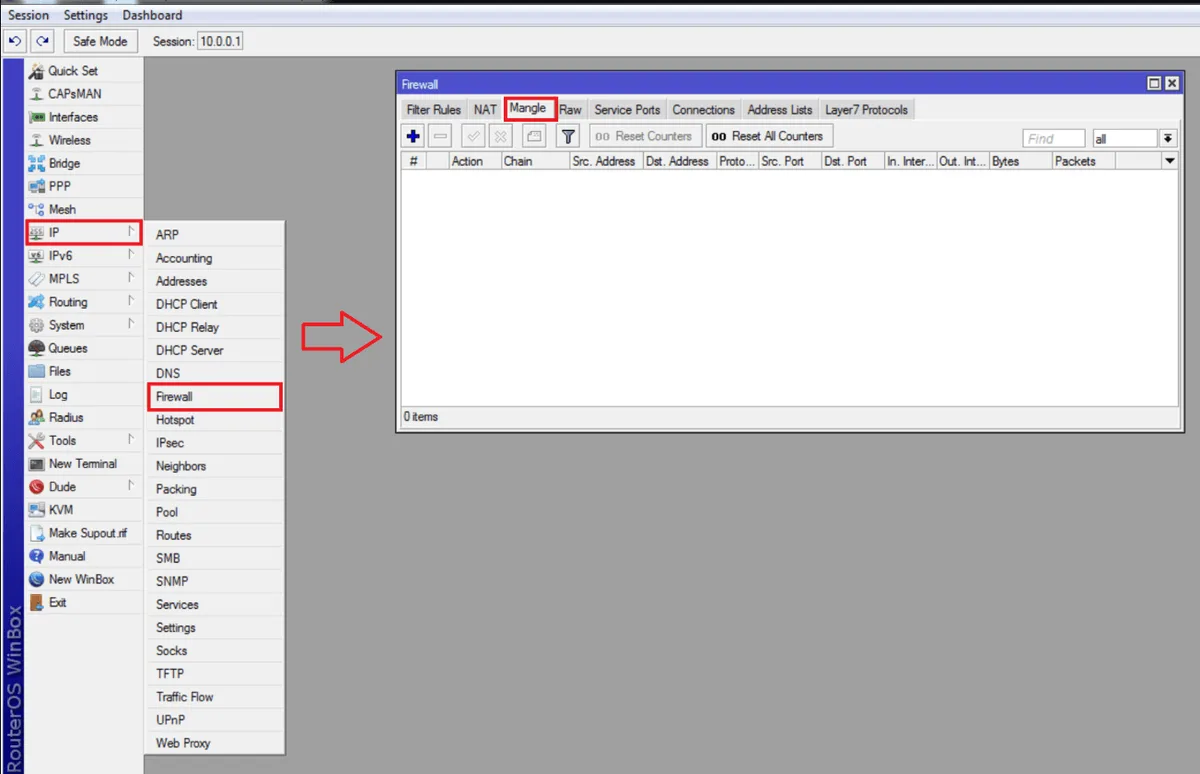
RouterOS has a SOCKS server and an HTTP web proxy, but no client that transparently wraps LAN traffic into an upstream SOCKS5 session. The working approach is to run a small converter (tun2socks or sing-box) and steer the right traffic to it with routing marks. The converter can live in a RouterOS container or on a separate box such as a Raspberry Pi or a virtual machine.
Step 1. Prepare the Gateway
Container option. RouterOS 7 on ARM, ARM64 and x86 supports containers. Install the container package, then enable the mode with /system/device-mode/update container=yes and confirm it by pressing the reset button or power-cycling, as the router asks. Containers need external storage on most models. Create a virtual interface for the converter:
/interface/veth/add name=veth-tun address=172.18.5.2/24 gateway=172.18.5.1
/interface/bridge/add name=br-tun
/ip/address/add address=172.18.5.1/24 interface=br-tun
/interface/bridge/port/add bridge=br-tun interface=veth-tun
/ip/firewall/nat/add chain=srcnat src-address=172.18.5.0/24 action=masquerade
Then add a tun2socks or sing-box image and pass the upstream proxy through its environment variables, following the image's own README. External box option: put a small Linux machine on the LAN, run the same converter there and use its address as the gateway below.
Step 2. Mark the Traffic to Proxy
/routing/table/add name=to-proxy fib
/ip/route/add dst-address=0.0.0.0/0 gateway=172.18.5.2 routing-table=to-proxy
/ip/firewall/address-list/add list=via-proxy address=192.168.88.40 comment=smart-tv
/ip/firewall/address-list/add list=via-proxy address=192.168.88.41 comment=test-laptop
/ip/firewall/mangle/add chain=prerouting src-address-list=via-proxy dst-address-type=!local action=mark-routing new-routing-mark=to-proxy passthrough=no
Only connections from addresses in via-proxy get the routing mark and go to the converter. The converter's own outgoing traffic to the proxy server is not in that list, so it leaves through the main table and no loop appears.
Step 3. Handle UDP and DNS
Add a filter rule that drops UDP port 443 from the via-proxy list, so browsers abandon QUIC and use TCP through the proxy. Point those devices to a DNS server that the converter resolves through the tunnel, or let the converter handle DNS itself.
The legacy /ip proxy with a parent proxy forwards only unencrypted HTTP, so it is of little use on today's HTTPS-only web.
OpenWrt: sing-box With Selective Routing
OpenWrt gives the most freedom. The common choices are sing-box (in the official package feeds of recent releases), redsocks with firewall redirects, or third-party bundles such as OpenClash and Passwall. If you already know Clash rules, our article on Clash helps with OpenClash. Below is a plain sing-box setup.
Step 1. Install the Package
On releases with opkg run opkg update and opkg install sing-box; on releases that switched to the apk package manager use apk add sing-box. Check free flash space first, as the binary is fairly large for small routers.
Step 2. Write the Configuration
Save a file such as /etc/sing-box/config.json. The example proxies two devices and leaves the rest direct:
{
  "log": { "level": "warn" },
  "inbounds": [
    {
      "type": "tun",
      "tag": "lan-tun",
      "interface_name": "sbtun0",
      "address": ["172.19.0.1/30"],
      "auto_route": true,
      "auto_redirect": true
    }
  ],
  "outbounds": [
    {
      "type": "socks",
      "tag": "remote-socks",
      "server": "203.0.113.24",
      "server_port": 1080,
      "version": "5",
      "username": "user-7f3k",
      "password": "change-me"
    },
    { "type": "direct", "tag": "go-direct" }
  ],
  "route": {
    "rules": [
      { "source_ip_cidr": ["192.168.1.40/32", "192.168.1.41/32"], "outbound": "remote-socks" }
    ],
    "final": "go-direct",
    "auto_detect_interface": true
  }
}
Field names follow current sing-box releases; older builds used inet4_address instead of address. Run sing-box check -c /etc/sing-box/config.json to catch typos.
Step 3. Start the Service
Enable and start it with /etc/init.d/sing-box enable and /etc/init.d/sing-box start. Some builds ship the service disabled in /etc/config/sing-box, so switch it on there if the start command does nothing. For routing by domain lists or by interface without touching JSON, the pbr package with its LuCI page is an alternative.

DNS, Leaks and Checking
- On a proxied device open any what-is-my-IP page. It should show the proxy address and country, while a device outside the policy still shows your provider.
- Run a DNS leak test. If it shows your provider's resolvers, send DNS through the tunnel or use DNS over HTTPS on the device.
- Open a site that normally runs over HTTP/3 and confirm it still loads: with UDP 443 blocked, the browser falls back to TCP through the proxy.
- Pull the plug on the proxy (disable the connection) and confirm whether traffic stops or falls back, according to what you configured.
Troubleshooting
| Symptom | Likely cause | What to do |
|---|---|---|
| Proxy connection never comes up | Wrong port or protocol type | Check that the port is SOCKS5 and not HTTP, or vice versa |
| Connected, but no pages load | Authentication rejected or DNS failing | Re-enter login and password; test DNS separately |
| Some apps work, others time out | Apps use UDP or QUIC | Block UDP 443, accept that UDP apps go direct |
| IP check shows the home address | Device not in the policy or address list | Fix the DHCP lease and the list entry |
| Speed drops sharply | Weak router CPU running the converter | Use a gateway box or a faster router model |
| Loop or total outage on MikroTik | Converter traffic also marked | Exclude the gateway address from mangle rules |
Router proxy FAQ
Can any home router work with a proxy?
Not out of the box. Most stock firmware has no proxy client; Keenetic is an exception, while MikroTik and OpenWrt need extra components such as a container or a package like sing-box.
Is it better to use a VPN or a proxy on a router?
A VPN tunnels all traffic, including UDP, and is easier to set up on many routers. A proxy is lighter and gives an exact exit address for selected devices, which suits testing and region checks.
Will a router proxy work for a smart TV or console?
Yes for TCP-based apps and stores, since the device just uses the router as its gateway. Voice chat and some multiplayer traffic run over UDP and will usually go direct.
Which proxy type should I use on a router?
SOCKS5 with login and password, because it carries any TCP protocol. HTTP proxies work too, but are tied to web traffic through the CONNECT method.
Can I proxy only certain websites, not whole devices?
Yes. Keenetic's domain-based routes, sing-box domain rules and the OpenWrt pbr package can select traffic by domain, though the exact feature set depends on the firmware version.