Changedetection.io Proxy Setup: Global, Per-Watch and Browser Fetcher Proxies

Changedetection.io can send its checks through proxies at three levels: environment variables for the whole instance, a list of named proxies under Settings → CAPTCHA & Proxies → Extra Proxies, and a choice of proxy for every single watch on its Request tab. Add a name and a proxy URL such as http://user:pass@host:port to the list, select it in the watch, and that page will be fetched from the proxy's address from then on.
This article covers each level with working examples, explains the one rule that trips up most setups (SOCKS5 with a password only works with the plain HTTP fetcher), shows how to give the Chrome-based fetcher its proxy and how to confirm that a watch really looks at a page from the intended country.
Residential proxies
Residential proxies with country targeting for monitoring regional pages
Where Proxies Can Be Set
| Level | Where | Applies to | Good for |
|---|---|---|---|
| Instance | HTTP_PROXY, HTTPS_PROXY, NO_PROXY environment variables | Every request, including notifications | A single exit for everything |
| Named list | Settings, CAPTCHA & Proxies tab, Extra Proxies; or proxies.json in the data folder | Becomes selectable everywhere | Several countries or providers |
| Default | Settings, General tab, Default proxy | Watches without their own choice | One preferred proxy from the list |
| Watch | Edit, Request tab, Proxy | That watch only | Regional pages, hard sites |
The last three work together: you describe proxies once, pick a default, and override it where a particular page needs another exit. Version 0.60.9, released in October 2026, keeps this layout; older builds before 0.39.20 used a text file named proxies.txt instead of JSON.
Step by Step in the Web Interface
Step 1. Open the Proxy Settings
Click SETTINGS in the top menu and switch to the CAPTCHA & Proxies tab. Under the provider tips you will find the Extra Proxies table with five empty rows.
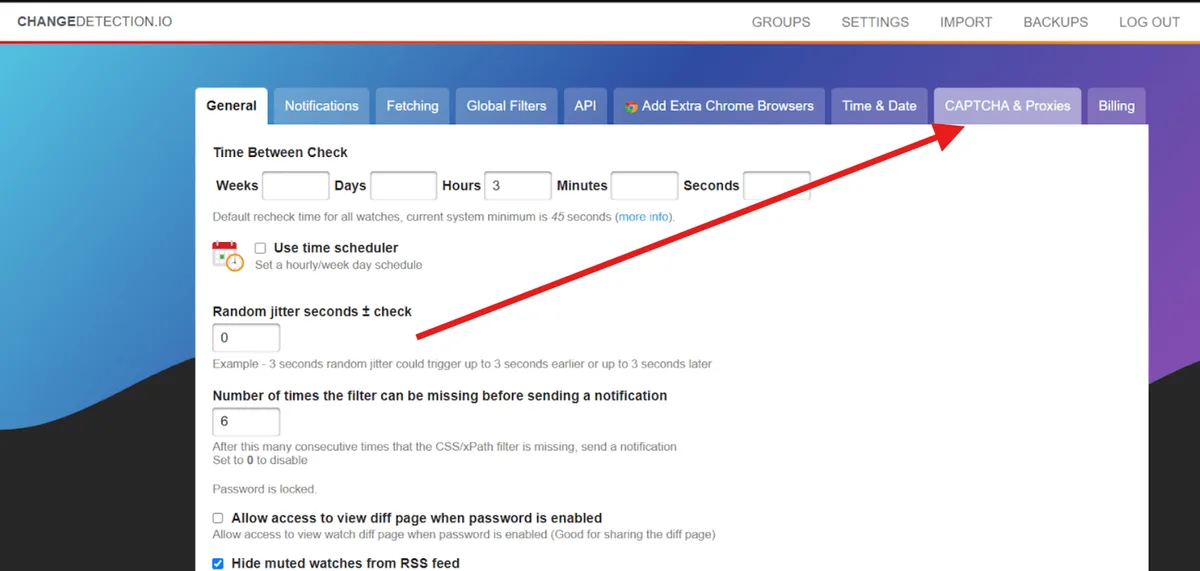
Step 2. Add Named Proxies
Fill a row for each proxy:
- Name: what you will see in watch settings, for instance
de-residentialorus-static. - Proxy URL: scheme, optional login pair, host and port.
The form accepts URLs that begin with http://, https:// or socks5://. A row with only one of the two fields filled is rejected with the message that both a name and a proxy URL are required. Click Save.
Step 3. Pick a Default
On the General tab, the Default proxy option lists the names you just saved. Select one if most of your watches should use it, or leave the direct connection.
Step 4. Assign a Proxy to a Watch
Open a watch with Edit, go to the Request tab and choose a name under Proxy. Save the watch.
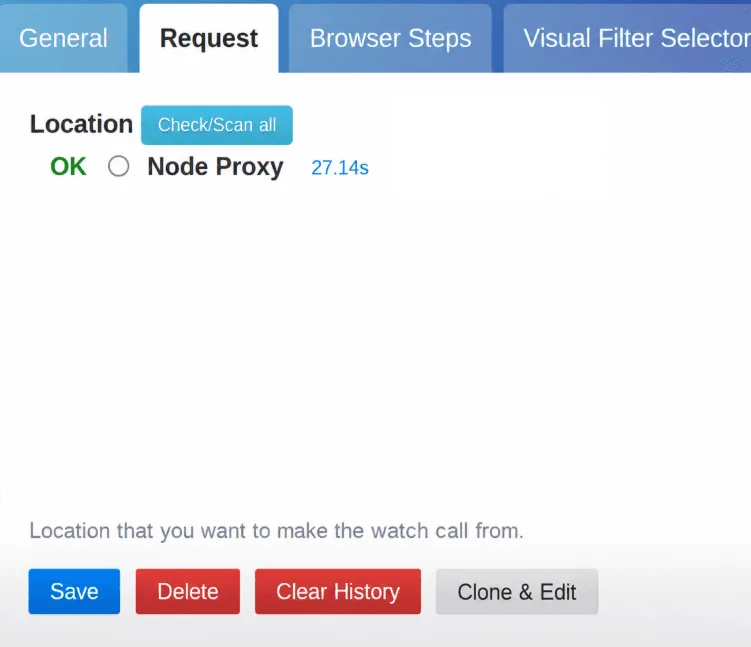
Step 5. Run the Built-in Check
Next to the proxy choice there is a Check/Scan all button. It fetches the watch URL through every configured proxy and shows the result for each one: OK, a 403 or 401 access denied, an empty reply that hints the page needs a browser, or a connection error, together with the time taken. This is the fastest way to see which exit a given site accepts.
Configuration Files and Environment Variables
If you run the Docker image, an instance-wide proxy goes into the compose file. The example below points everything at a SOCKS5 proxy and uses the socks5h scheme so that hostnames are resolved on the proxy side:
services:
  watcher:
    image: ghcr.io/dgtlmoon/changedetection.io
    environment:
      - HTTPS_PROXY=socks5h://203.0.113.40:1080
      - HTTP_PROXY=socks5h://203.0.113.40:1080
      - NO_PROXY=localhost,192.168.10.0/24
    volumes:
      - watcher-data:/datastore
On Windows hosts, the project notes that lowercase http_proxy and https_proxy are expected.
For named proxies kept in a file, put proxies.json into the data directory. Each entry has a key, a label shown in the interface and the URL; the optional reuse_time_minimum sets a minimum pause in seconds before the same proxy is used again, which helps keep paid traffic and request rate under control:
{
  "de-res": {
    "label": "Germany residential",
    "url": "http://watcher-7k:Rp4mZe2q@198.51.100.12:9000",
    "reuse_time_minimum": 30
  },
  "direct": {
    "label": "No proxy, direct"
  }
}
Proxies for the Chrome Fetcher
Pages that build their content with JavaScript need a real browser. In the compose setup this is usually the sockpuppetbrowser container connected through PLAYWRIGHT_DRIVER_URL, after which the watch's Fetch Method can be switched from plain requests to Chrome.
Two rules apply to that fetcher:
- No SOCKS5 with a password. The settings page warns that SOCKS5 proxies with authentication work only with the plain requests fetcher. For Chrome, use an HTTP proxy with a login or a SOCKS5 proxy authorised by your server's IP.
- Separate variables for the browser. A global proxy for the browser is set with
playwright_proxy_server,playwright_proxy_bypass,playwright_proxy_usernameandplaywright_proxy_password, while the Selenium-based fetcher has its ownwebdriver_set.
The same tab also offers Extra Browsers, rows for connection addresses of remote scraping browsers starting with wss://. That is a separate mechanism from proxies and not needed for an ordinary setup. The difference between the protocols involved is explained in our article on SOCKS5 and HTTP proxies.
Checking Location With a Geo Watch
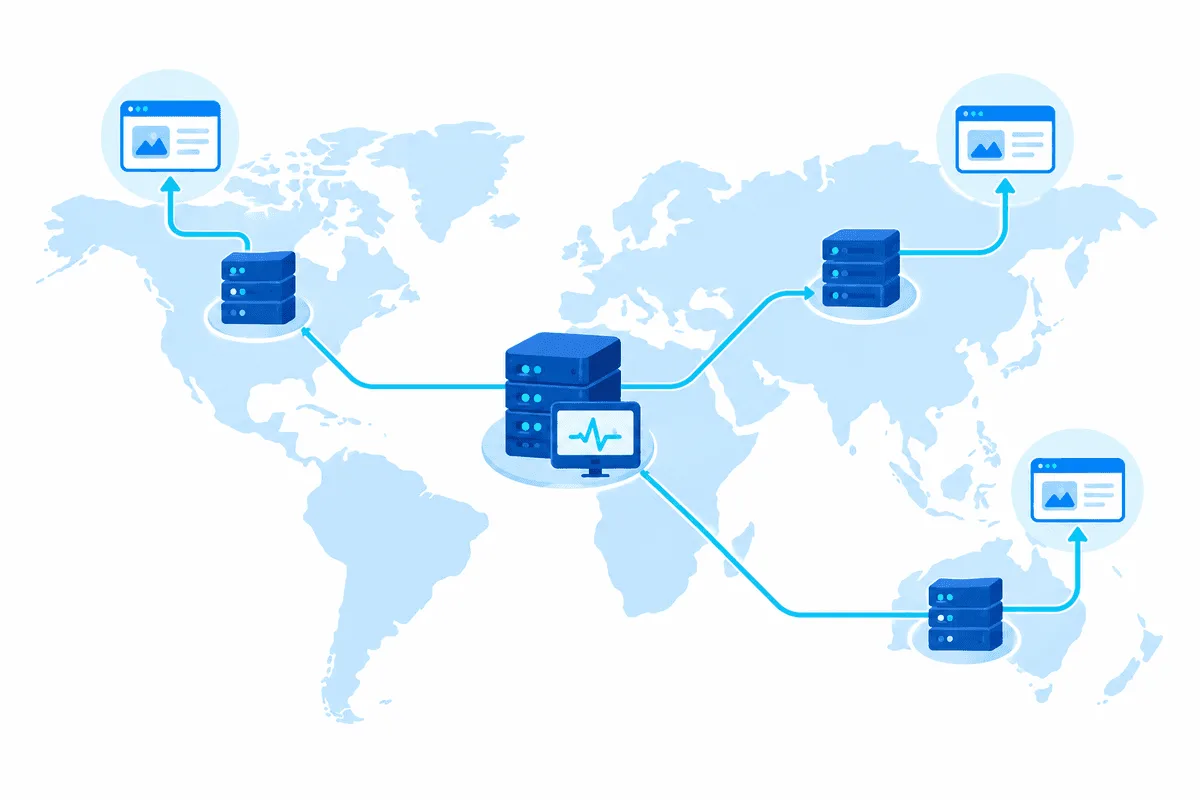
The point of per-watch proxies is often geography: a price, a stock badge or a delivery notice that differs by country. Before trusting a regional watch, prove that the exit is where you think it is.
- Create a watch for any IP lookup service that returns plain text or JSON with the country.
- Assign the proxy you want to verify on the Request tab.
- Run it once and read the snapshot: it should show the proxy's address and country.
- Repeat for each named proxy. Our guide to checking proxy geolocation explains why databases sometimes disagree.
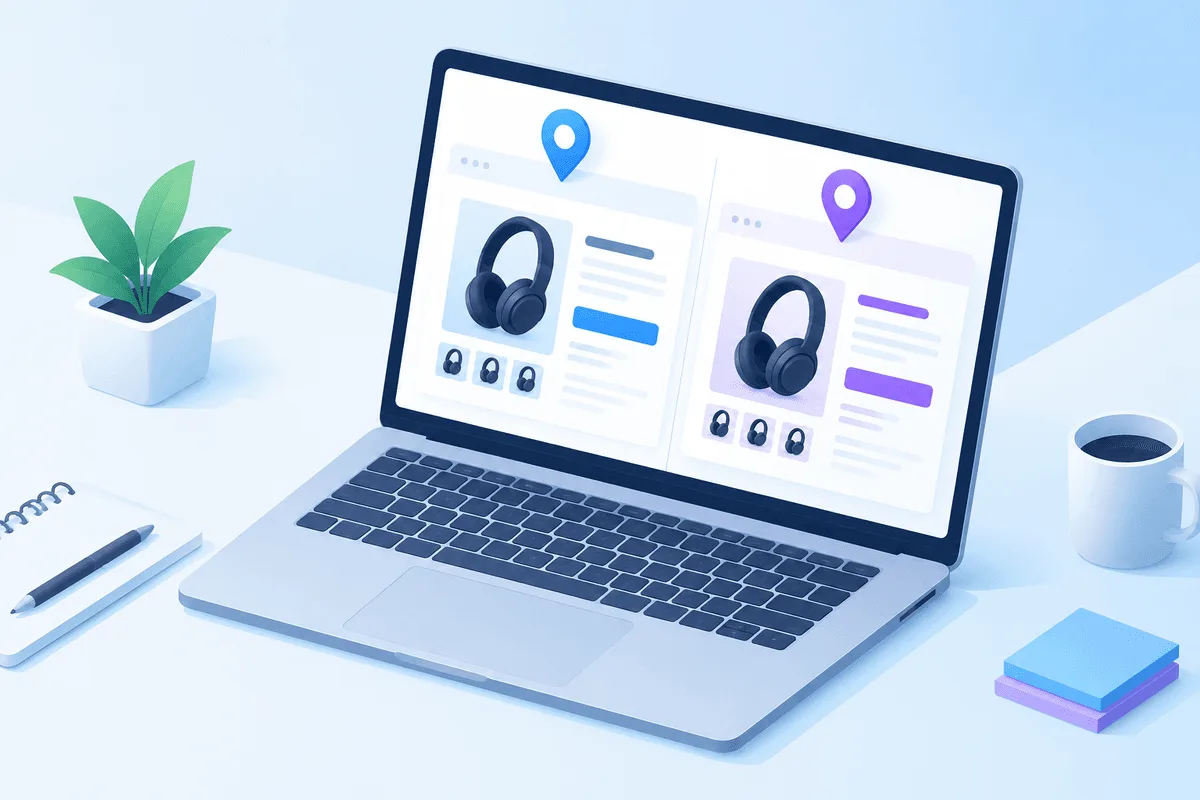
Once the exits are confirmed, a common pattern for price monitoring is to create the same product URL twice, each with a proxy in another country, and compare the snapshots. Keep the check interval reasonable, respect the site's terms and robots rules and stop if a site starts returning challenges; monitoring publicly visible pages is very different from hammering them.
Which Proxy Type to Choose
The settings page itself notes that residential and mobile addresses succeed more often than datacenter ones on sites that block hosting ranges. For most monitoring a residential proxy plan with country targeting and HTTP access is the simplest fit, because it works with both fetchers. Datacenter or static addresses are fine for friendly sites and internal pages. If the vocabulary is new, start with our overview of what a proxy server is.
Common Errors
| Message or symptom | Cause | Fix |
|---|---|---|
Proxy URLs must start with http://, https:// or socks5:// | Scheme missing or misspelled | Add the scheme in front of the address |
| Both a name, and a Proxy URL is required | One field of a row left empty | Fill both or clear the row |
| 407 or access denied in Check/Scan all | Wrong login pair, or the site refuses that exit | Recheck credentials, try another exit |
| Empty reply, needs Chrome | Content is built by JavaScript | Switch the fetch method to Chrome |
| Chrome fetcher fails with a SOCKS5 proxy | SOCKS5 login not supported there | Use an HTTP proxy with credentials |
Changedetection.io proxy FAQ
Where are proxy settings in changedetection.io?
In Settings on the CAPTCHA & Proxies tab, under Extra Proxies. Each watch then picks one of those proxies on its Request tab.
Can every watch use a different proxy?
Yes. Define several named proxies and choose one per watch; watches without a choice use the default proxy or the direct connection.
Does changedetection.io support SOCKS5?
Yes, with URLs that start with socks5. Proxies that need a login only work with the plain requests fetcher; for the Chrome fetcher, use HTTP with credentials or an IP-authorised SOCKS5 proxy.
How do I test a proxy in changedetection.io?
Open a watch, go to the Request tab and press Check/Scan all. It fetches the page through each configured proxy and shows the status and response time.
What is proxies.json used for?
It stores named proxies in the data directory instead of the web form, with an optional minimum pause between uses of the same proxy.