Setting Up a Residential Proxy in Avant Browser
 ·August 18, 2026·4 min read
Avant Browser is a Windows browser designed for working with multiple tabs and flexible control over network behavior. It is chosen for its low resource requirements, multi-process architecture, and built-in tools that simplify everyday use, from blocking unnecessary content to managing downloads and bookmarks. It also includes proxy configuration, which makes it possible to route traffic through a specific server and use different connection parameters for different tasks.
Residential Proxies for Every Browser
Connect Avant, Chrome, Firefox, Edge, and other browsers to the Node Proxy network.
What Avant Browser Is
Avant Browser is a free browser for Windows with an emphasis on performance, flexibility, and stability. It is intended for scenarios where it is important to keep many tabs open at once, switch quickly between pages, and avoid overloading the system.
One of its key features is its multi-process operating model. Tabs run separately from one another, so a crash or freeze on one page does not necessarily affect the others. This approach makes browsing more stable and simplifies working with a large number of open websites.
The browser is also known for moderate memory usage. Because of this, it is suitable not only for modern PCs but also for less powerful devices where fast startup and economical use of system resources are important.
Main Features of Avant Browser
The functionality of Avant Browser goes beyond basic page viewing. The browser includes a set of tools that make work more convenient and allow the interface to be adapted to specific tasks.
Among the most notable features are:
• multi-process tab operation;
• support for different rendering engines;
• built-in ad and pop-up blocking;
• faster file downloads through a multithreaded mechanism;
• tools for managing heavy content on pages;
• form autofill;
• cloud bookmark synchronization;
• full-screen and extended display modes;
• separate interface controls, including split view and additional appearance settings.
This set of features makes the browser versatile: it is suitable both for regular everyday use and for scenarios that require more precise customization of the working environment.
Why Proxy Configuration in Avant Browser Is Useful
Connecting a proxy in Avant Browser makes it possible to define a separate connection route for the browser and manage site access parameters through a selected server. This is useful when predictable network settings, manual IP address selection, or work with multiple connection configurations are required.
The browser supports adding either a single proxy or several at once. If multiple servers are used, you can switch between them through the settings menu. For configurations with authentication, username and password entry is supported.
You can also set exceptions—websites for which a direct connection will be used without a proxy.
How to Set Up a Proxy in Avant Browser
Configuration is done through the browser’s built-in menu and usually takes only a few minutes.
1. Open the browser settings
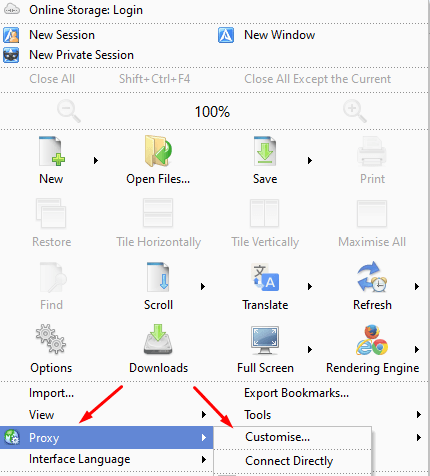
After installing and launching Avant Browser, click the settings icon in the upper-right corner of the window.

2. Go to the Proxy section
In the menu, find the Proxy item. Then choose the configuration setting — Customise.
3. Enter the proxy parameters
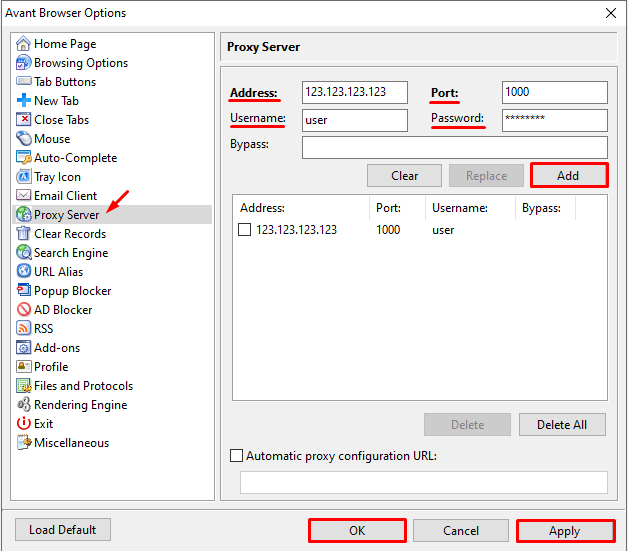
In the window that opens, fill in the main fields (this information can be found on our website node-proxy.com):
• proxy server IP address;
• port;
• username and password, if a proxy with authentication is being used.
If you need to exclude specific websites from using the proxy, enter them in the Bypass field.
If you plan to use several proxies, add them as a list. Typically, each entry is entered on a new line in the following format:
IP:port:username:password
After entering the data, click Add, then OK and Apply.
4. Select the required proxy for work
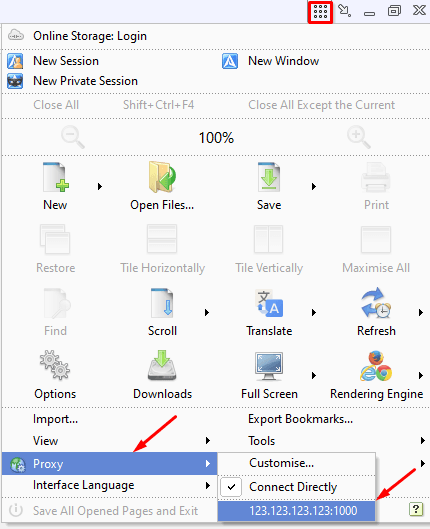
After saving the configuration, return to the Proxy section and select the required server from the list. If several proxies have been added to the browser, the active option can be changed manually before starting work.
5. Complete authentication if required
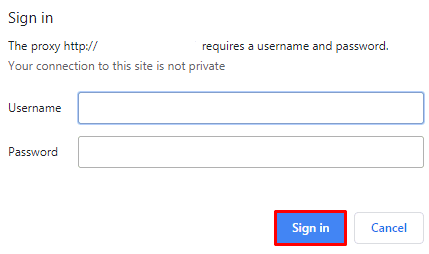
When using private proxies, the browser may request access confirmation when opening websites. In this case, enter the username and password in the authorization window and confirm sign-in.
After that, the connection is considered complete.
What Is Important to Consider When Working with Multiple Proxies
If several servers have been added in Avant Browser, it makes sense to determine in advance which tasks each of them will be used for. This simplifies switching between configurations and reduces the likelihood of errors when choosing the active connection.
It is also worth checking:
• whether the IP address and port are correct;
• whether the username and password are correct;
• whether there are any exceptions in the Bypass field;
• which proxy is currently selected as active.
If a website does not open after configuration, the cause is most often either an error in the connection parameters or outdated authentication data.
Conclusion
Avant Browser is a functional browser focused on stability, low system load, and flexible network settings. Its strengths include multi-process architecture, built-in content management tools, convenient tab handling, and the ability to fine-tune the connection.
Connecting a proxy in Avant Browser is done through the standard menu and does not require complicated actions: just open the Proxy section, enter the server parameters, save the configuration, and choose the required connection option. If several proxies are used, the browser allows them to be stored in one list and switched between as needed.