Proxy Setup in Linked Helper: Per-Account Addresses and LinkedIn's Rules

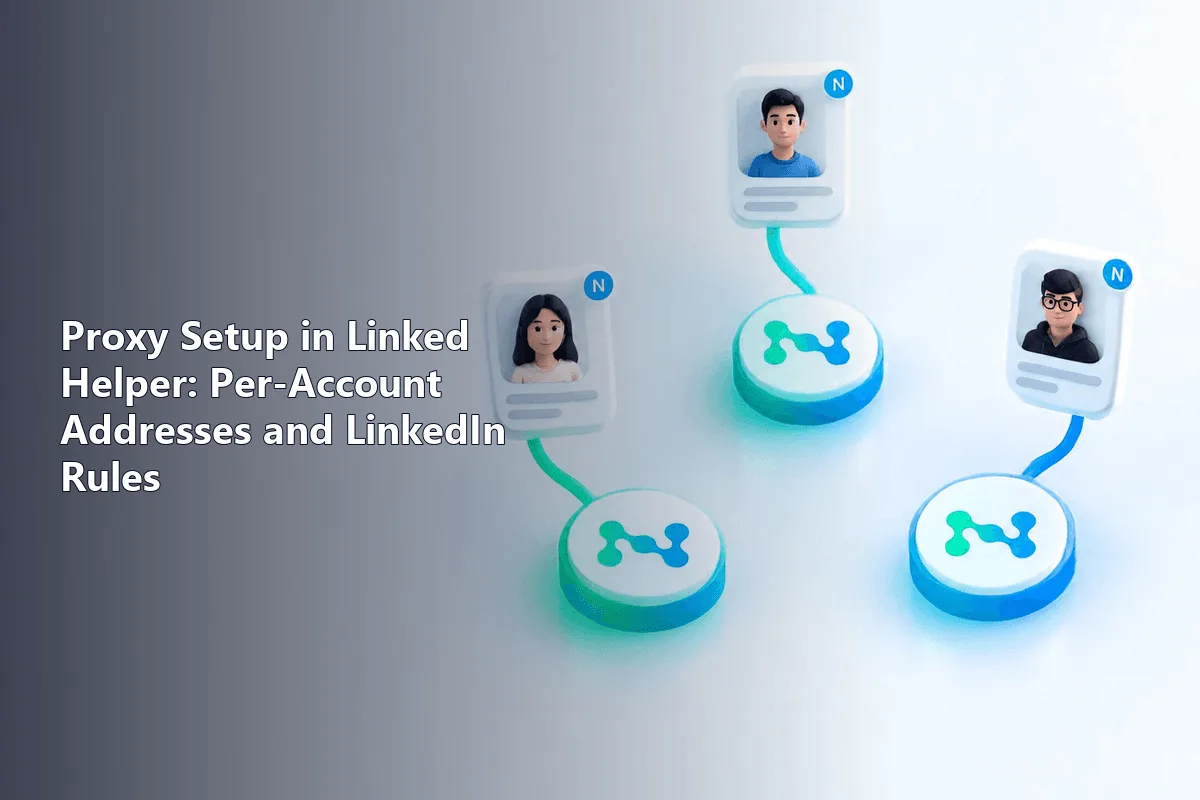
Linked Helper adds proxies in its own Proxies menu inside the Launcher: you create a proxy with its protocol, host, port and optional login, test it, then assign it to a specific account instance. The tool supports HTTP, HTTPS and SOCKS proxies on IPv4 addresses, and it is designed so each account can keep its own fixed exit point.
Before the steps, one thing has to be clear, because it decides whether any of this is a good idea. Linked Helper automates actions on LinkedIn, and LinkedIn's User Agreement restricts automated access and permits one account per real person. A proxy changes where your connection comes from; it does not make automation or extra accounts compliant. This guide covers the proxy configuration and states plainly where the platform's own rules draw the line.
Static proxies
One dedicated IPv4 per account that stays the same every Linked Helper session
What a proxy does and does not change on LinkedIn
A proxy gives an account a consistent IP from one location. That is genuinely useful in legitimate situations: an agency running a client's own account from a different country, a consultant who travels, or a team that wants a member's sign-ins to look stable rather than hopping between office, home and mobile networks.
What a proxy cannot do is make something allowed that LinkedIn forbids. Its User Agreement permits one account per person under a real name, bans sharing logins and prohibits unapproved bots, automation and scraping. The honest reading is this: a clean, dedicated IP lowers the chance that a legitimate account looks suspicious, but it offers no protection for fake profiles, mass automation or accounts that have already been restricted. Our broader LinkedIn proxy guide covers these limits in detail; this article is about the Linked Helper settings themselves.
Which proxy type suits Linked Helper
Linked Helper's documentation lists support for HTTP, HTTPS and SOCKS proxies, IPv4 only, with an auto option when you are unsure of the protocol.
For a tool tied to one professional account, the priority is a stable, residential-looking address rather than a shared datacenter IP that many users touch:
- ISP (static residential) proxies combine a provider's hosting stability with an address registered to look like a home connection, and they keep the same IP for the whole rental. That fixed, unshared address is what you want for a long-lived account.
- Rotating residential pools are the wrong fit here: an account that changes IP on every action looks less trustworthy, not more.
A single fixed address per account is the pattern Linked Helper itself assumes. Our static proxies give one dedicated IPv4 per account that you can reuse every session.

Adding a proxy in Linked Helper step by step
The proxy settings are in the Launcher, the window that lists your account instances.
Step 1. Open the Proxies menu
In the Launcher, open the Proxies section and click the + button to add a new proxy.
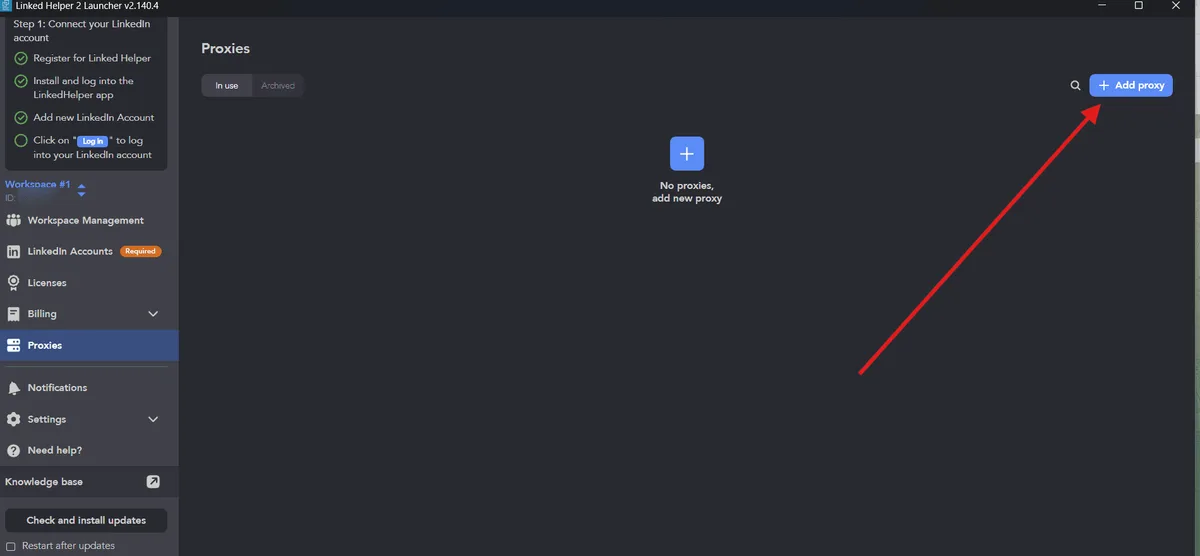
Step 2. Enter the proxy details
In the setup window:
- Choose the protocol — HTTP, HTTPS or SOCKS; pick auto only if you do not know it.
- Enter the IP or hostname and the port.
- For a private proxy, add the login and password.
- Give the proxy a recognisable name, for example the account or country it belongs to.
Step 3. Test and save
Use the Test and save control. Linked Helper tries to open the LinkedIn login page through the proxy to confirm it works; a newer validation step also scores the address. If the proxy fails the check, the tool does not save the change, so fix the details or replace the proxy before continuing.
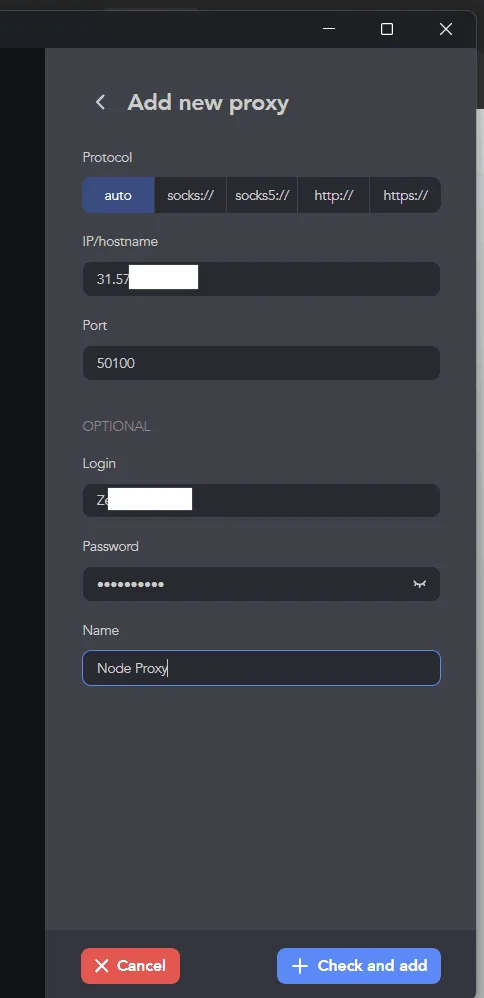
Step 4. Assign the proxy to an account
Back in the Proxies list, assign the saved proxy to an instance: hover over it, use the assign control, pick the account and confirm. One proxy can technically be attached to several accounts, but the vendor does not recommend it, and for separation it defeats the purpose. Give each account its own.
Running several accounts the right way
Agencies legitimately operate more than one LinkedIn account: each belongs to a different real person or client, and the agency has permission to manage it. In that setting, one dedicated proxy per account keeps each member's connection consistent and separate.
What this does not license is one person spinning up multiple profiles, or driving several accounts far past normal human activity. LinkedIn limits how many invitations and messages an account sends, and no proxy raises those limits. Treat Linked Helper's pace controls as the real safeguard and keep volumes modest. For the wider picture of handling several business accounts within platform rules, see our guide to managing multiple business accounts, and for account-management proxies generally, our SMM proxies article.
Checking the proxy works
- With the proxy assigned, open that account's instance in Linked Helper.
- The built-in test already loaded LinkedIn's login page; if the account signs in normally, the route works.
- Watch the first session: if LinkedIn asks for extra verification right after an IP change, give it time and keep activity low rather than switching proxies repeatedly.
Common problems
| Symptom | Likely cause | What to do |
|---|---|---|
| Test fails, proxy not saved | Wrong protocol, port or credentials | Recheck the four values, try the correct protocol instead of auto |
| Proxy marked bad in validation | Address flagged or previously abused | Replace it with a clean dedicated IP |
| Account asks for verification after setup | New IP on an existing account | Expected once; verify, keep activity low |
| LinkedIn page will not load through the proxy | Proxy down, blocked port, or IPv6-only address | Confirm the proxy is live and IPv4, test it elsewhere |
| Account restricted despite a clean proxy | Automation or volume beyond the rules | The IP is not the cause; reduce automation, review LinkedIn's terms |
Linked Helper proxy FAQ
What proxy type does Linked Helper support?
Its documentation lists HTTP, HTTPS and SOCKS proxies on IPv4 addresses, with an auto option. A stable ISP or static residential IP suits a long-lived account better than a rotating or shared one.
Can I use one proxy for several Linked Helper accounts?
Technically yes, but the vendor advises against it and it removes the separation you set a proxy up for. Assign a dedicated proxy to each account.
Does a proxy stop LinkedIn from restricting my account?
No. A clean, consistent IP helps a legitimate account look normal, but LinkedIn restricts accounts for breaking its rules, such as unapproved automation, fake profiles or excessive activity. A proxy does not change any of that.
Where are proxy settings in Linked Helper?
In the Launcher, under the Proxies menu. You add a proxy with the plus button, enter its details, test and save it, then assign it to an account instance.
How many accounts can I run with Linked Helper?
As many separate, legitimate accounts as you are authorised to manage, one real person or client each. Keep one dedicated proxy per account and keep each account's activity within LinkedIn's limits.