ScrapeBox Proxy Setup: Adding, Testing and Tuning Proxies for SEO Research

To use proxies in ScrapeBox, paste them into the proxy list on the main window (one per line, IP:port or IP:port:user:pass), open Manage to test them, mark SOCKS entries if you have any, and tick Use Proxies before running the harvester or any addon. After that, tune threads and timeouts under Settings → Connections, Timeout and Other Settings so the number of parallel requests matches the size of your proxy pool.
Most ScrapeBox tutorials end with the pasting step. This one goes further: why the built-in public proxy harvester is a poor source for serious work, how many threads a given pool can handle, what the Anonymous and Google tests actually tell you, and when to choose SOCKS5 over HTTP. The focus is on research features (keyword ideas, SERP collection, index and link checks). Mass commenting or posting modules are out of scope: they break the rules of the sites they target and harm your own domain's reputation.
Residential proxies
Rotating residential proxies for keyword and SERP research in ScrapeBox
What ScrapeBox Is Used For in SEO Research
ScrapeBox is a Windows desktop tool sold as a one-time licence. For research it offers:
- Keyword Scraper — collects autocomplete suggestions from several search engines and marketplaces for a seed list.
- URL Harvester — pulls result URLs for queries with operators such as
site:orinurl:, useful for competitor content audits and finding pages on a topic. - Index checks — shows which of your URLs a search engine has indexed.
- Addons — among them Alive Check, Broken Links Checker, Outbound Link Checker, Sitemap Scraper and a rank-tracking addon. The exact set depends on your version.
Almost every one of these sends many requests to search engines in a short time, and search engines throttle or challenge an IP that does this. That is the whole reason proxies matter here; our article on SEO proxies explains the mechanics in more detail.
Harvested vs Paid Proxies
ScrapeBox includes a Proxy Harvester that collects open proxies from public lists. It is tempting, but think twice:
| Public (harvested) proxies | Paid private proxies | |
|---|---|---|
| Lifetime | Minutes to hours | Fixed term or pay-per-traffic |
| Speed and stability | Unpredictable | Consistent |
| Search engine acceptance | Most are already flagged | Depends on type; residential pass most often |
| Security | Unknown operators can log or alter traffic | Contract with a known provider |
| Origin | Often misconfigured servers or devices whose owners never agreed to share them | Sourced and managed by the provider |
| Authentication | None | Username and password or IP whitelist |
For one-off tests public lists may do, but for regular research the time spent re-harvesting and re-testing outweighs the savings. Our piece on free proxies covers the risks in depth.
Step-by-Step Proxy Setup
Step 1. Prepare the List
Get the proxies from your provider in the format ScrapeBox reads:
203.0.113.51:8000
203.0.113.52:8000
gw.example-provider.net:9000:user-7f3k:s3cret
The first two lines work with IP authorization (whitelist your PC's public address in the provider panel). The third shows the four-part format with a username and password. For a rotating gateway, one line with the gateway host is enough; rotation happens on the provider's side.
Step 2. Paste the Proxies
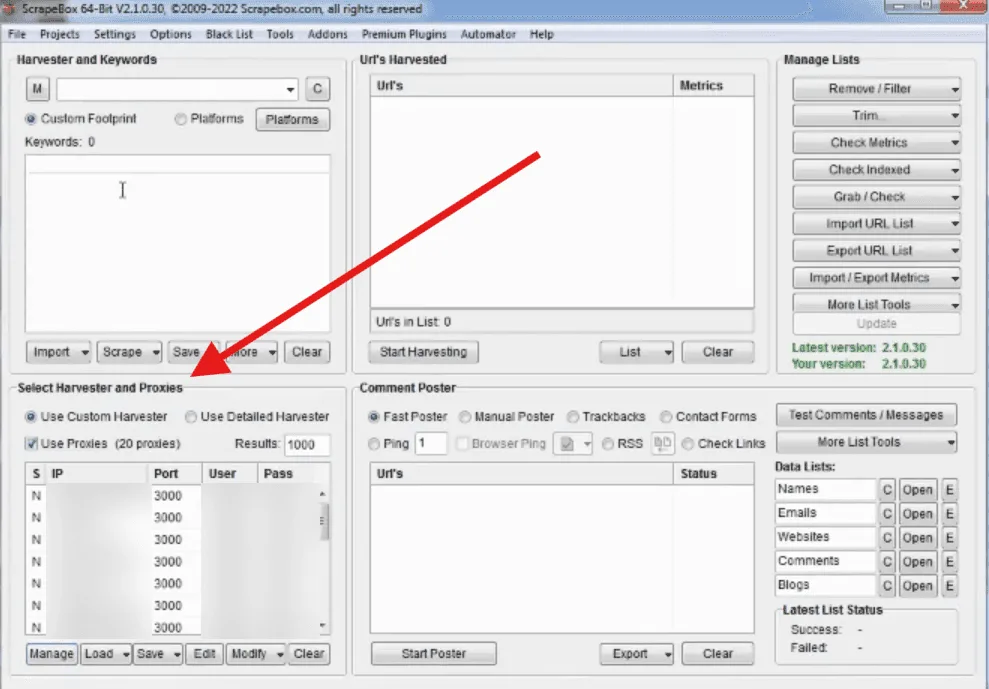
On the main window, find the Select Harvester and Proxies area. Click Edit at its lower left (or paste directly into the proxy box), insert your list and save it with the disk icon.
Step 3. Mark SOCKS Proxies
ScrapeBox shows a column labelled S that indicates whether an entry is treated as SOCKS. If your list is SOCKS5, select the entries in the proxy manager and use the Modify options to mark them as SOCKS; for a pure HTTP list, mark them as non-SOCKS. A mixed list without the right flags is a common reason for half of the proxies failing.
Step 4. Test the Proxies
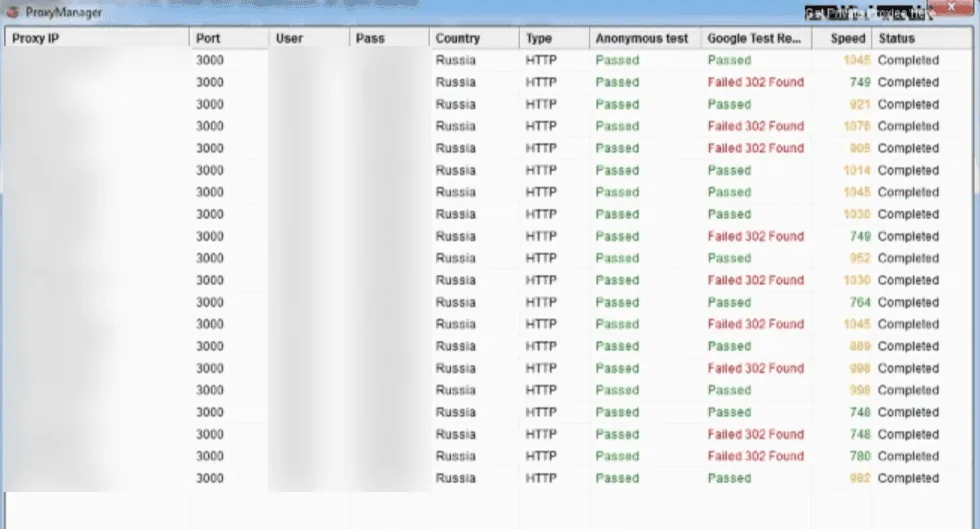
Click Manage below the proxy area to open the proxy manager, then run Test Proxies → Test all Proxies. Two results matter:
- Anonymous test — the proxy answers and does not reveal your real IP.
- Google test — the proxy can currently run a search query without being challenged.
Remove failed entries, then save the passed ones back to the main window. If you use a rotating gateway, disable automatic removal of failed proxies in the manager settings: a single unlucky test would otherwise delete your only line. The Google test can also time out on gateways that retry internally; in that case you may turn it off in the manager's configuration.
Step 5. Enable Proxies
Back on the main window, tick Use Proxies. Several tools, such as the Keyword Scraper, have their own Use Proxies checkbox in their window, so enable it there as well.
To double-check a single endpoint outside ScrapeBox, run it through our proxy checker.
Threads, Timeouts and Pacing
Open Settings → Connections, Timeout and Other Settings. The Connections tab holds sliders for the number of simultaneous connections per module, the Timeouts tab sets how long each module waits, and the Other tab contains a global connection timeout.
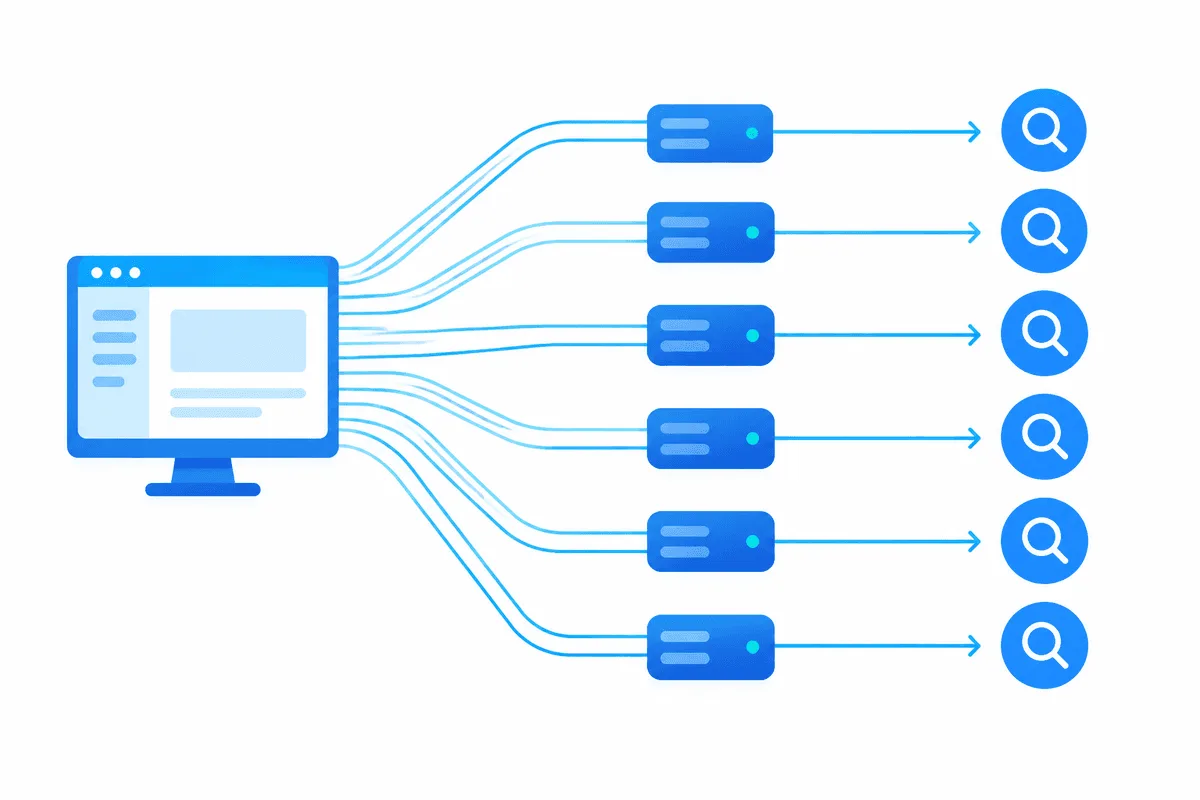
Practical starting points:
| Task | Proxies in the pool | Threads to start with | Note |
|---|---|---|---|
| Search engine harvesting | 10 static IPs | 3–5 | Search engines react to bursts from one IP |
| Search engine harvesting | Rotating residential gateway | Within your plan's concurrency limit | A new IP per request spreads the load |
| Alive Check, link checks on ordinary sites | Any | 20–50 | Targets are many different sites |
| Keyword Scraper | 5–10 | 5–10 | Autocomplete endpoints tolerate moderate rates |
Raise the threads gradually and watch the error rate. If errors jump, step back: more threads on the same IPs only produce more blocks. For proxies with noticeable latency, set timeouts to 20–30 seconds rather than the low default values.
SOCKS5 or HTTP in ScrapeBox?
For ScrapeBox both work. HTTP is the default format and is handled by every module; most provider lists come as HTTP. Choose SOCKS5 if your provider issues only SOCKS endpoints, or if you want one protocol for ScrapeBox and other tools that need non-HTTP traffic. A broader comparison is in our guide to SOCKS5 vs HTTP. Whichever you pick, keep the list homogeneous and flag it correctly in the S column.
Which Proxy Type to Pick
- Rotating residential — the best fit for harvesting search results at volume, because each request leaves from a different household address. See our residential proxies.
- Static datacenter or ISP — fine for Alive Check, sitemap and link checks on ordinary sites, and for rank tracking at a slow pace.
- Public lists — only for experiments.
For a deeper look at collecting search data, see our page on SERP data collection.

Troubleshooting
All proxies fail the Google test, but work in a browser. Search engines are challenging those IPs. Lower threads, add delays or switch to residential exits.
Proxies with a password fail. Check the four-part format and make sure there are no spaces. For IP-authorized lists, confirm your current public IP is whitelisted.
Half of a mixed list fails. SOCKS entries are flagged as HTTP or vice versa. Fix the S column.
Harvesting stalls after a few minutes. The pool is too small for the thread count, or timeouts are too short. Reduce threads first.
The rotating gateway disappears from the list. Automatic removal of failed proxies is on. Disable it in the proxy manager.
ScrapeBox proxy FAQ
What proxy format does ScrapeBox accept?
One proxy per line as IP:port, or IP:port:username:password for proxies with authentication. Hostnames work in place of an IP address.
Does ScrapeBox support SOCKS5 proxies?
Yes. Load them like any other proxy and mark them as SOCKS in the proxy manager, so the S column shows the right type.
How many threads should I use in ScrapeBox?
For search engines start with roughly one thread per two or three static IPs, or stay within the concurrency limit of a rotating gateway. For checks on ordinary sites you can go much higher.
Why do my proxies fail the Google test?
The IPs are being challenged by the search engine, usually because they are public, overused or sending requests too quickly. Fewer threads, delays and residential exits help.
Should I use the built-in proxy harvester?
Only for quick experiments. Public proxies die fast, are often flagged already and can be operated by unknown parties, so paid private proxies are the reliable choice for regular research.