Technical Residential Proxy Configuration in Mozilla Firefox
 ·August 23, 2026·4 min read
Mozilla Firefox allows proxy settings to be configured separately from the system network configuration. This is convenient in cases where the browser must operate through a dedicated proxy server regardless of the global operating system settings. Configuration is performed through the built-in connection management section, where you can choose how network parameters are obtained and manually specify the server address, port, and proxy type.
Proxies for Your Browser
Node Proxy residential IPs are available across a wide range of locations.
Where the connection settings are located in Firefox
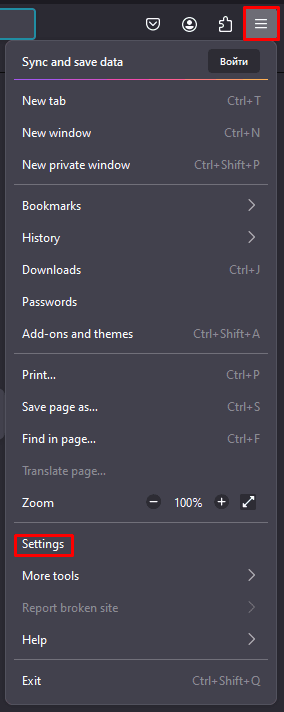
All proxy settings in Firefox are located in the browser’s network configuration section. To open it, go to Settings.
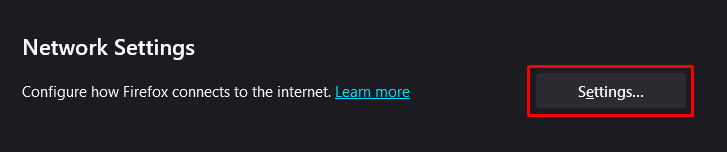
Scroll down to the Network Settings section and click Settings.
This opens the Connection Settings window, where the method Firefox uses to connect to the network is defined.
Several operating modes are available in this window:
• no proxy;
• use system settings;
• auto-detect;
• manual configuration.
For precise configuration, manual mode is usually used, since it allows specific connection parameters to be set directly in the browser.
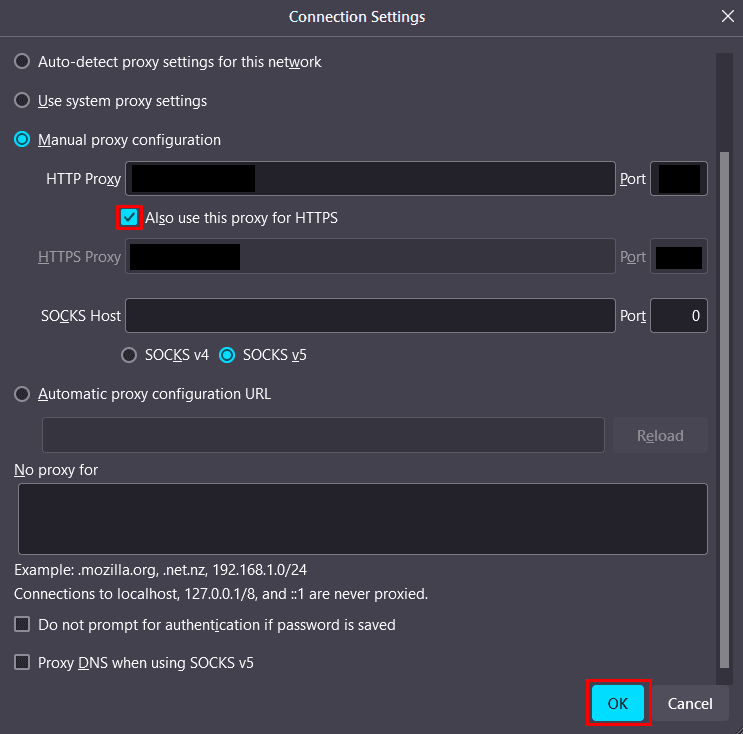
Proxy operating modes in Firefox
When Use system proxy settings is selected, Firefox uses the network parameters configured in the operating system. This option is suitable if the proxy has already been configured at the Windows level and the browser should not have a separate configuration.
When Manual proxy configuration is selected, the parameters are entered manually. In this mode, you can specify the following (you can obtain these details from us on the website):
• HTTP Proxy — the address of the proxy server for HTTP connections;
• Port — the port through which the connection is established;
• separate values for other protocols, if required;
• a single proxy for all protocols;
• a SOCKS proxy with version selection.
Manual mode is used in most scenarios where the browser needs to be connected to a specific proxy server with parameters provided in advance.
Manual configuration procedure
After selecting Manual proxy configuration, the server details are entered into the configuration fields. Depending on the format, this may be an IP address or a domain name, as well as a port number.
If the same server must handle all browser traffic, the option to use one proxy for all protocols is enabled. If the connection is made through SOCKS, the corresponding type is selected in the settings, for example SOCKS v5, after which the address and port are specified.
From a technical standpoint, Firefox simply redirects browser traffic through the specified intermediate node, so it is critically important to specify correctly:
• the proxy host;
• the port;
• the protocol;
• additional parameters, if required by the specific connection scheme.
Proxy server authentication
If the proxy server requires authorization, Firefox requests credentials the first time it attempts to establish a connection through the specified server. This is usually a standard login window where the username and password are entered.
In a typical configuration, the username and password are not entered in advance in the Firefox network settings window itself. Authorization is performed separately, at the moment a resource is accessed through the already configured proxy. Therefore, after saving the settings, it is important to make sure that the credentials have been entered correctly and that the server accepts them without errors.
Checking whether the configuration is correct
After applying the settings, it is recommended to immediately check whether traffic routing through the specified proxy is working. To do this, open an external website and see whether the connection is established. Additionally, you can use an IP address checking service to verify that the browser is accessing the network through the required connection point.
If websites do not open after configuration or the connection works unstably, the problem is most often related to one of the following reasons:
• the proxy server address is specified incorrectly;
• the port was entered incorrectly;
• the wrong proxy type was selected;
• the server requires authentication, but the credentials were entered incorrectly;
• system settings are being used instead of manual configuration, or vice versa.
Using the system proxy
In some configurations, Firefox is not configured separately, but is switched to Use system proxy settings mode. In that case, the browser takes the network parameters from the operating system. This option is appropriate when the proxy has already been set in Windows through network properties and must be used by several applications at the same time.