V2Box Config Guide: Add a Proxy on Android

V2Box is a free proxy client for Android and iOS. This guide shows how to add a SOCKS5 proxy to V2Box on Android manually: create a config, enter the host, port, username and password, connect, and check that your IP has changed. It takes about 5 minutes.
What V2Box Is Used For
V2Box is an application for iOS and Android that functions as a proxy client. It supports a range of network protocols and encryption methods, allowing you to establish a secure connection between your device and remote servers.
Its primary purpose is to transmit data using encrypted protocols, which can be useful when working on networks with an insufficient level of security, such as public Wi-Fi hotspots. The application does not require creating an account or signing in.
Supported protocols include Shadowsocks, V2Ray (VMess, VLESS), Trojan, SSH, Hysteria, Hysteria2, WireGuard, DNSTT, SOCKS, and others.
The application allows you to import server configurations via V2Ray/Xray subscriptions or add them manually.
Looking for Residential Proxies?
Trusted residential IPs, a vast GEO coverage network, pay-as-you-go traffic pricing, and a high connection success rate.
How to Add a Proxy Config in V2Box
1. Install the Application
Download V2Box from Google Play
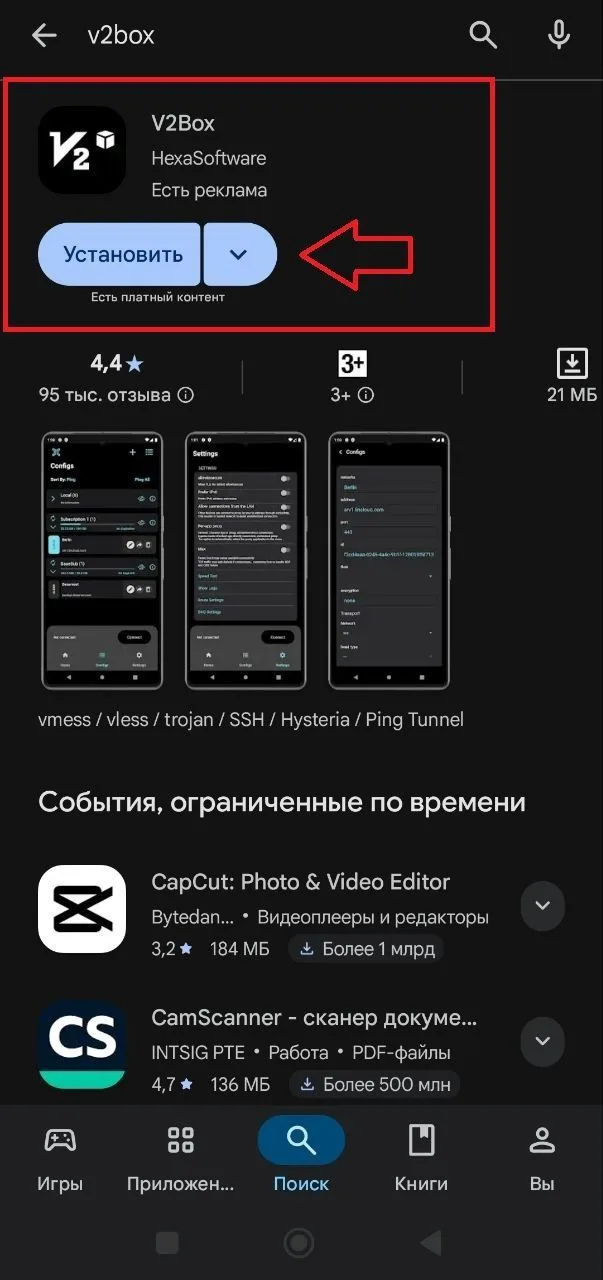
After installation, launch the application.
2. Add a Manual Configuration
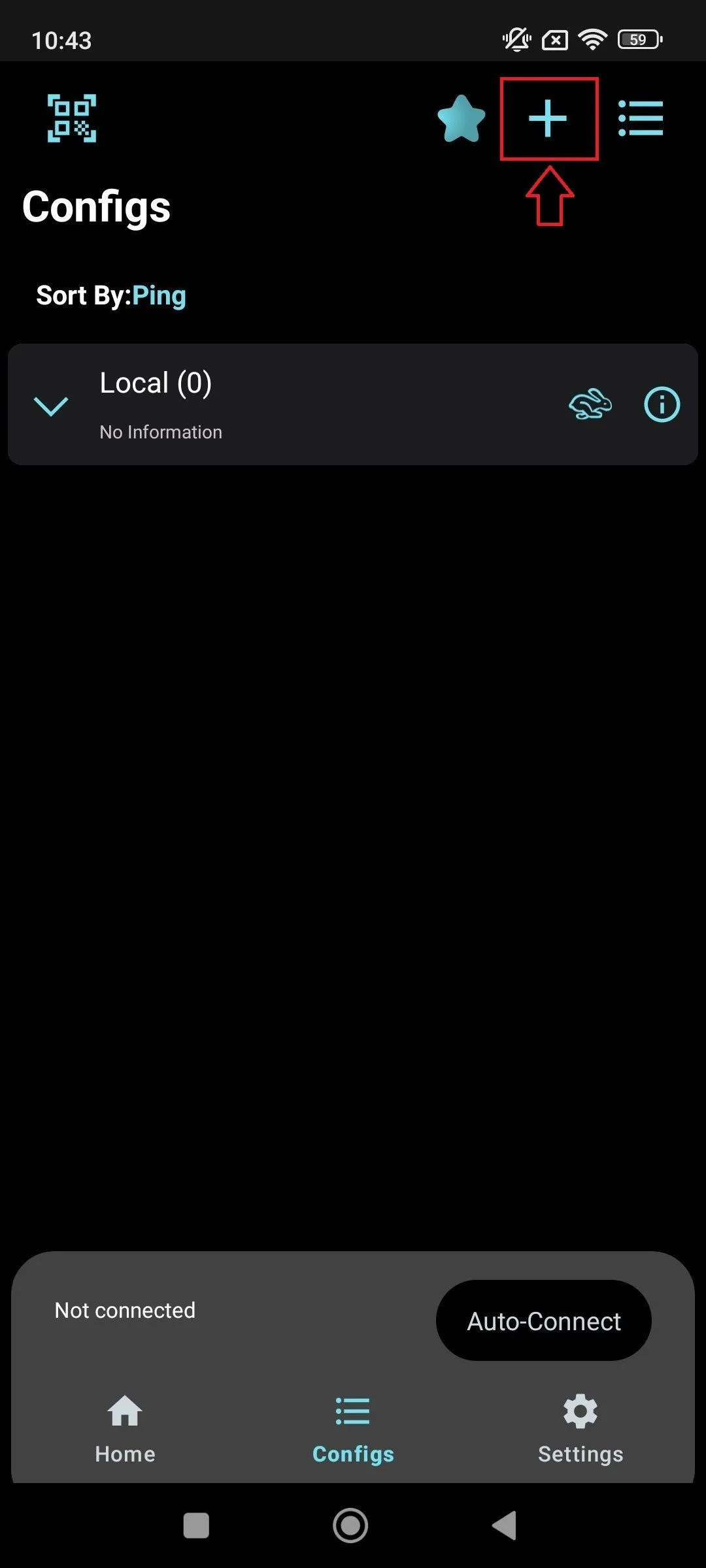
Go to the Configs tab.
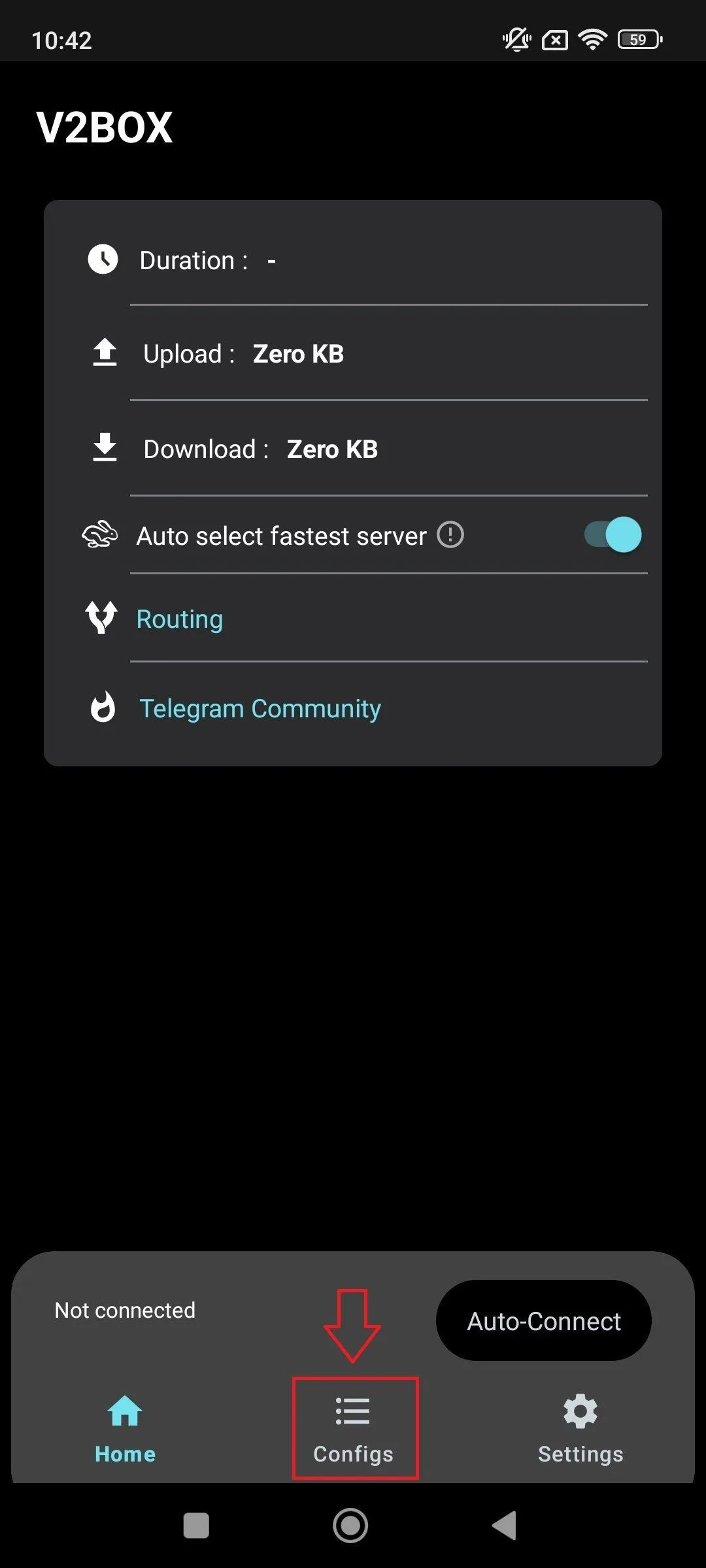
On the Configs tab, tap the turquoise + icon.
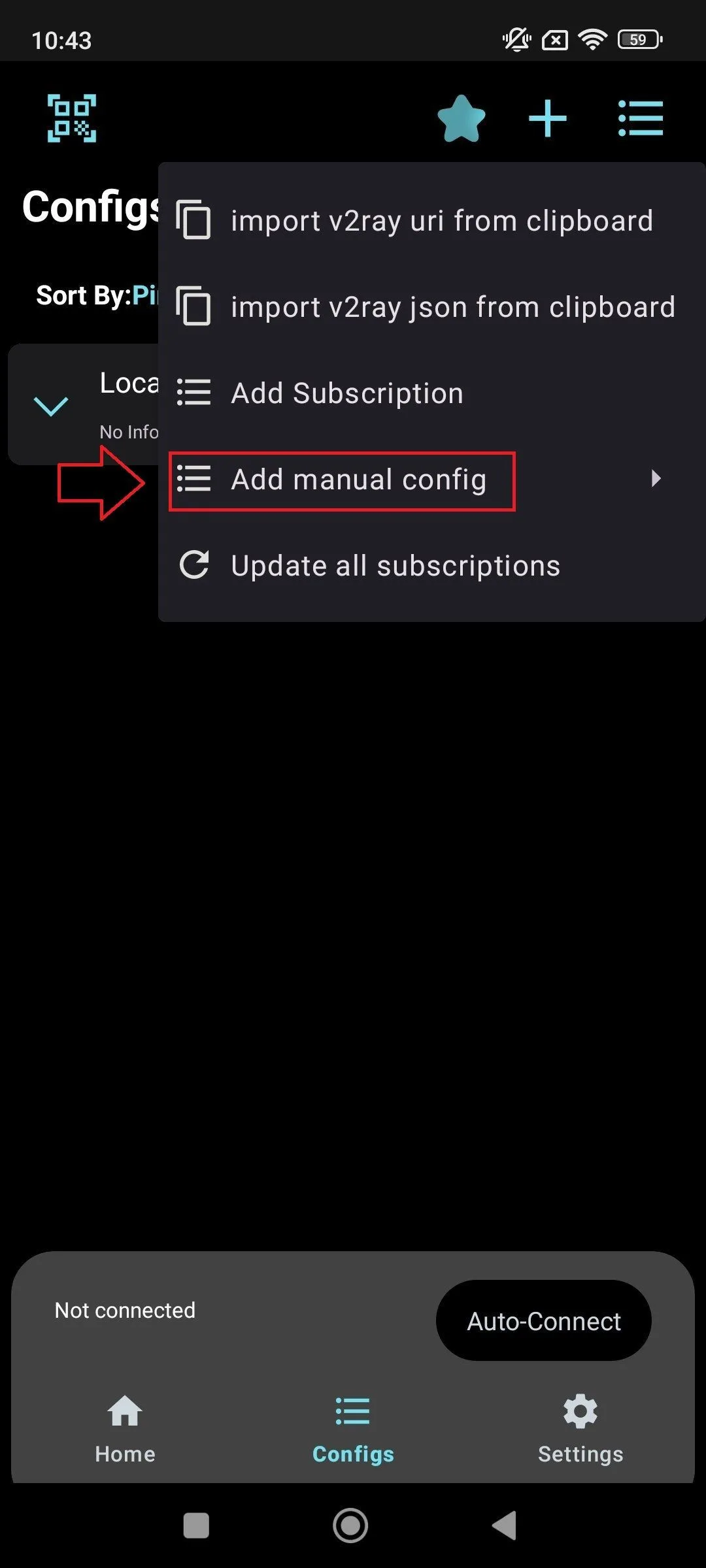
Tap Add Manual Config.
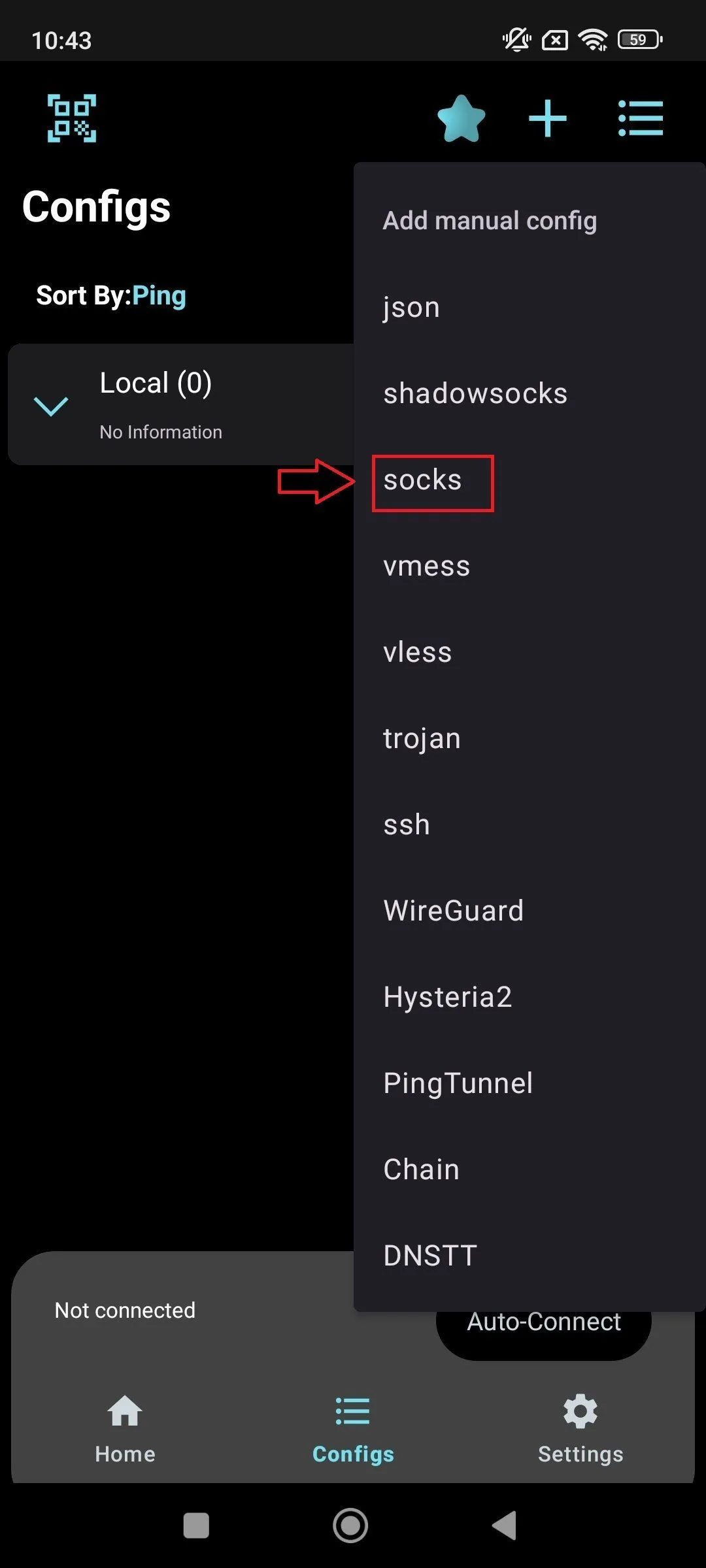
Select the SOCKS format.
3. Create a Proxy List
Go to the Node Proxy website, sign in, or create a new account.
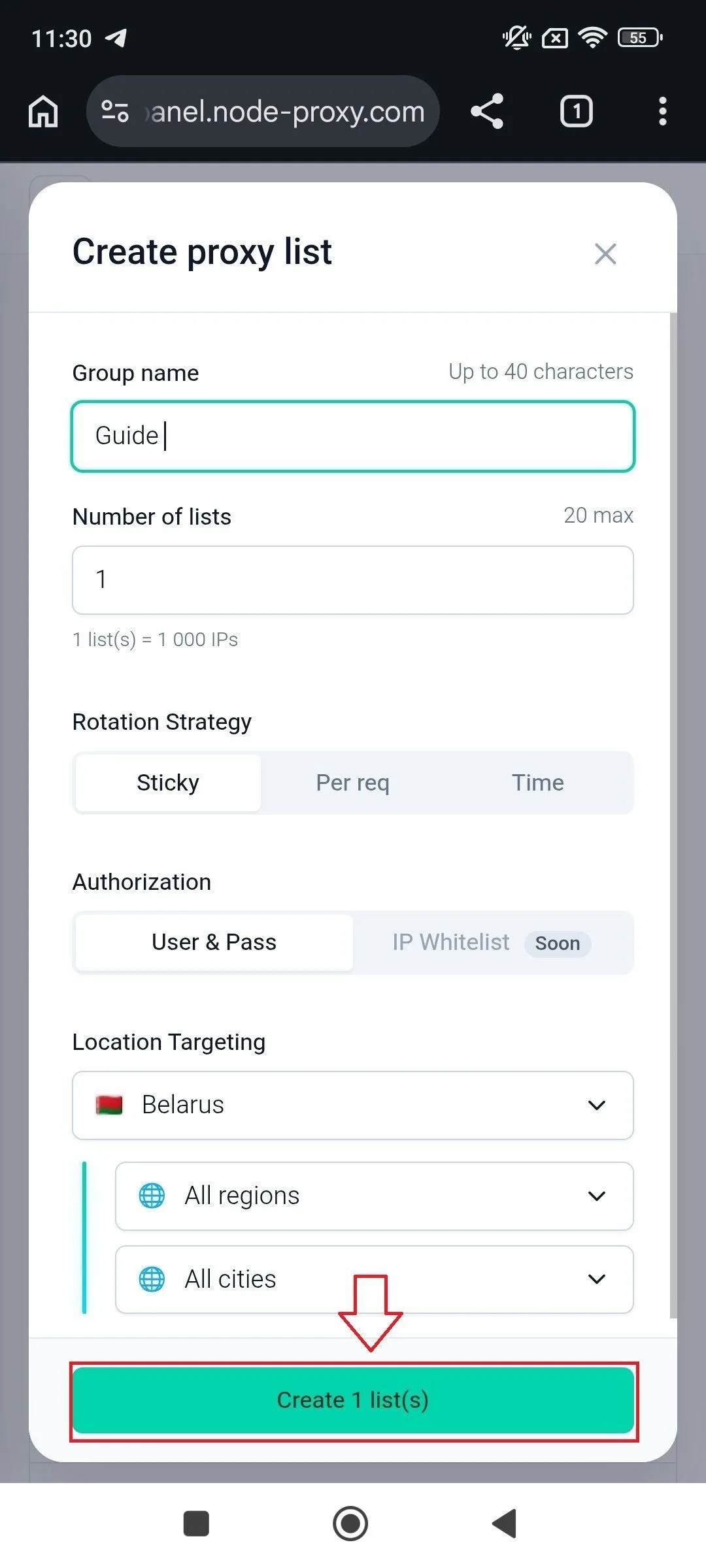
In your account, click +Create.
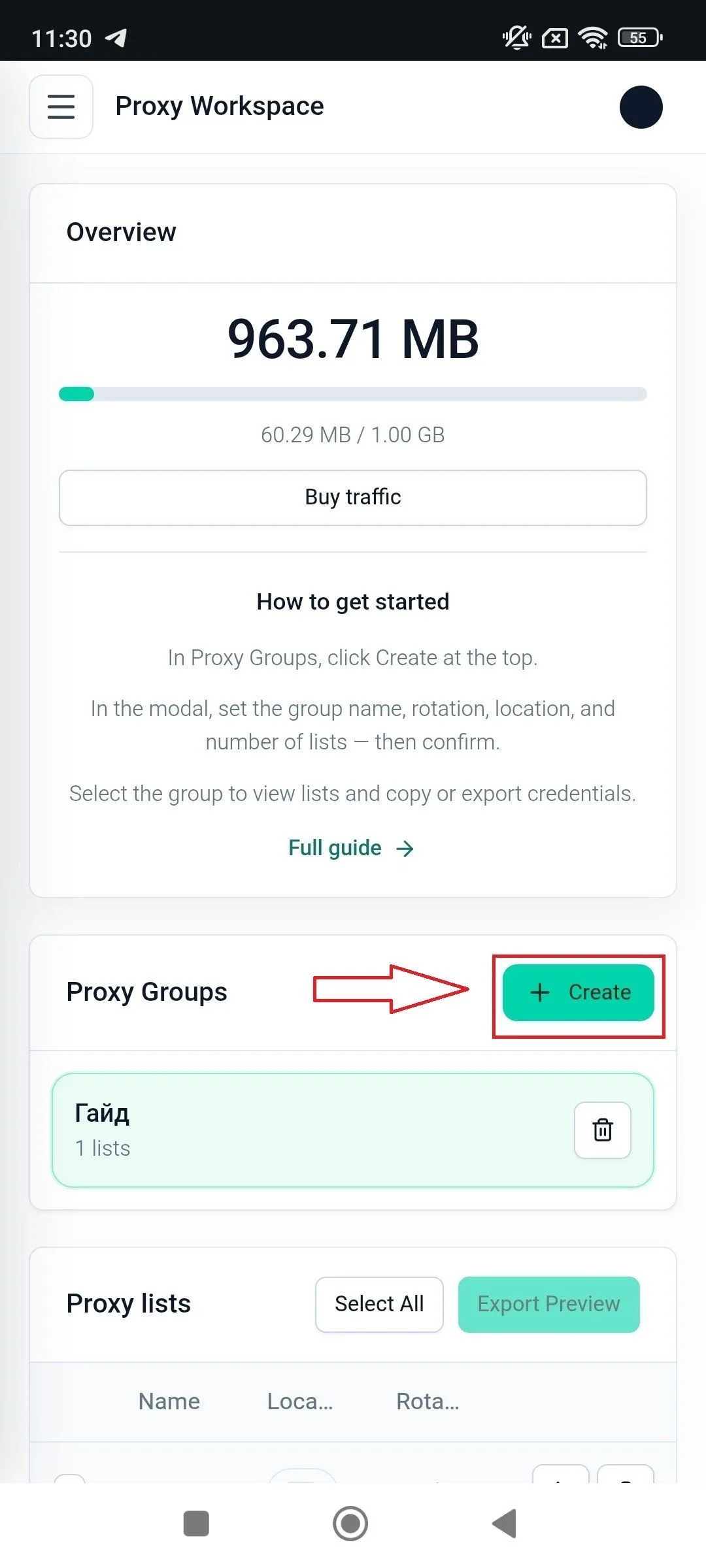
Specify all the required settings and save them by clicking Create 1 List(s).
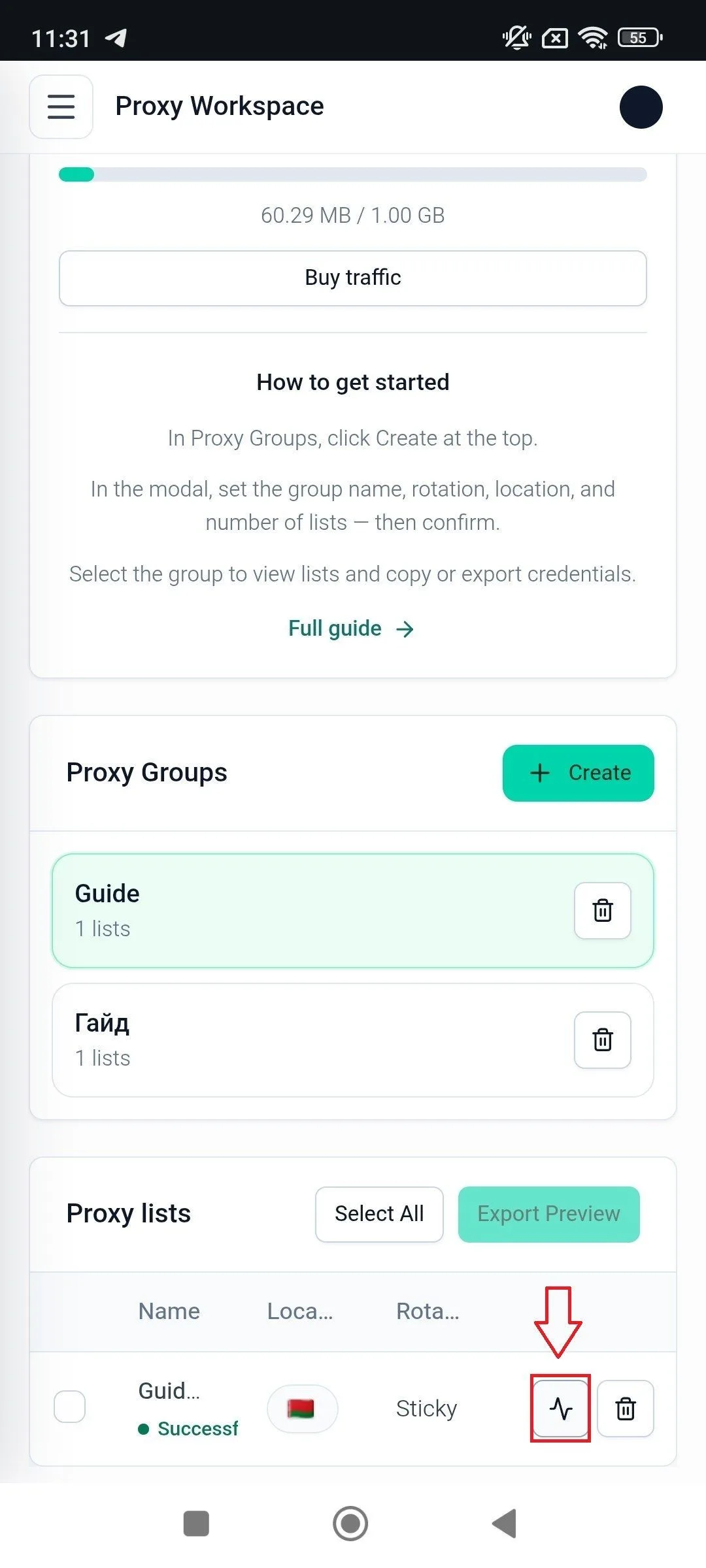
In the Proxy Groups section, select the proxy group and click Check a Random Proxy from the List. A randomly selected proxy from the list will be tested. If the result is Successful, the proxy list is ready to use.
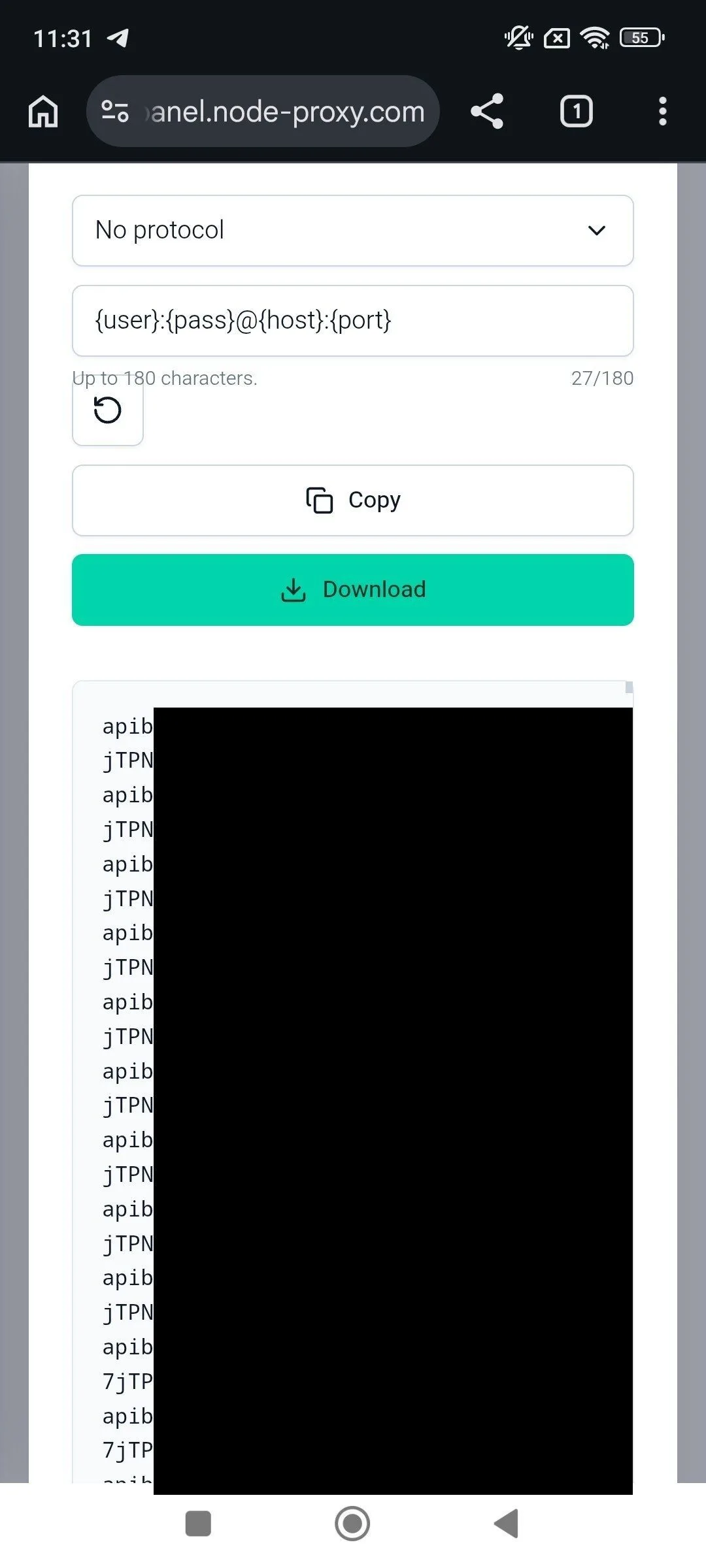
Click the proxy list to copy or save its details. (In the window that opens, you can also edit the proxy protocol and format.)
4. Enter the Proxy Connection Parameters
In the configuration creation window, specify the following:
- Remarks – configuration name;
- Address (Host) – proxy server address;
- Port – port number;
- User and Password – authentication credentials, if required.
After filling in all the fields correctly, click Save to save the configuration.
5. Start the Connection
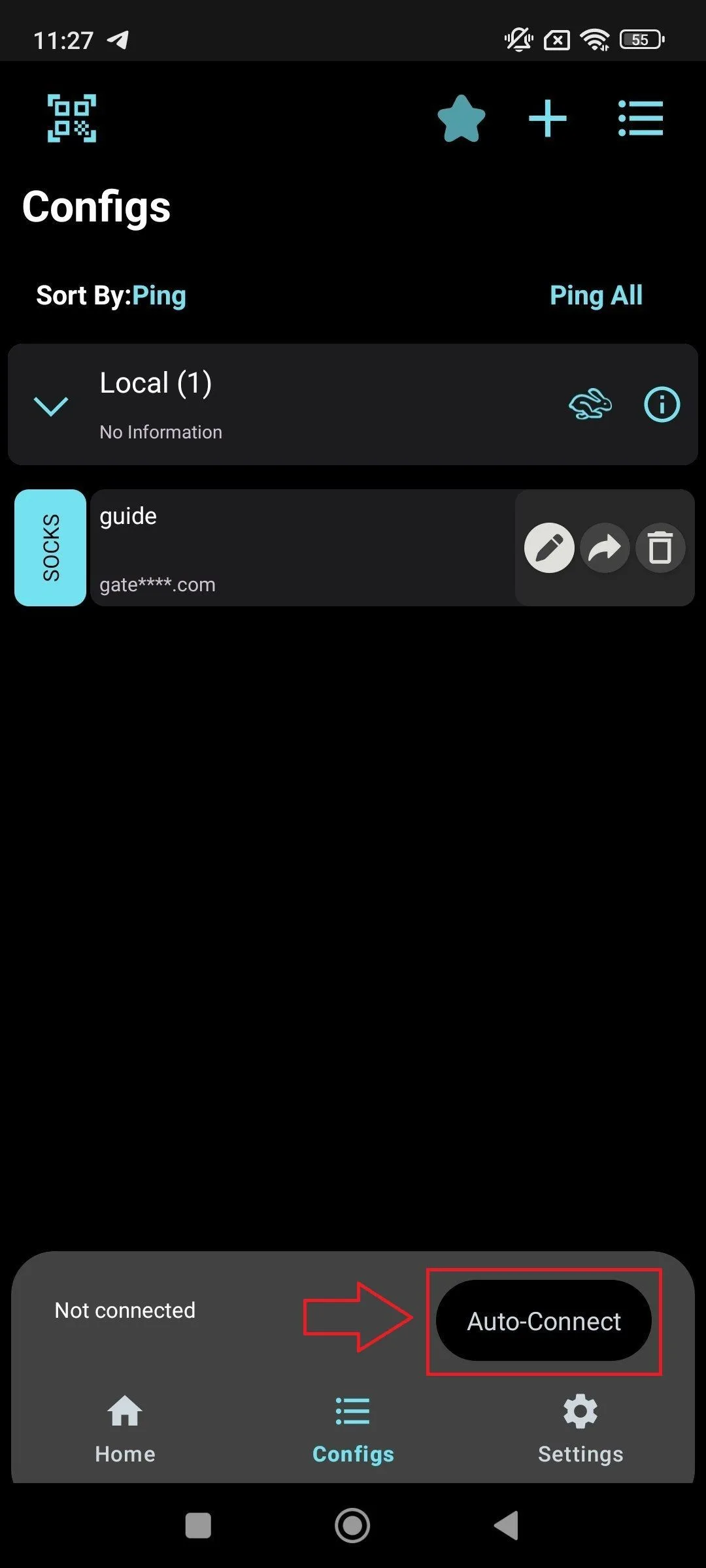
After saving the configuration, select it and tap Auto-connect.
Once the connection is successfully established, a VPN icon will appear in the status bar. This indicates that the application has created a local network connection to route traffic through the selected proxy. Another app for routing Android traffic through a proxy is Super Proxy; see how to set up a proxy on Android using Super Proxy.
Where to Get a Working Proxy for V2Box
V2Box is only a client: it needs a working proxy server to connect to. For social networks, marketplaces and other sites that block data center IPs, use residential proxies. For mobile apps and accounts that expect a phone connection, use mobile proxies.
Verifying the Connection
To make sure the connection has been configured correctly, open your browser and visit any IP address checking service (for example, 2ip.io). If the displayed IP address matches the IP address of the proxy server you are using, the configuration has been completed correctly.
V2Box Not Connecting? Common Fixes
- Wrong format. In V2Box choose the SOCKS config type and use SOCKS5 proxy details. HTTP proxy details will not work in a SOCKS config.
- Typo in host or port. Copy the address and port from your Node Proxy account instead of typing them by hand.
- Authentication error. Check the username and password. If your proxy list uses IP whitelisting, add your phone's current IP in the account.
- The proxy list stopped working. Open Proxy Groups in your account and click Check a Random Proxy. If the check fails, create a new list.
- IP did not change. Make sure the VPN icon is shown in the status bar and that the right config is selected, then reopen the IP checker.
V2Box FAQ
Is V2Box free?
Yes, the V2Box app itself is free. You only pay for the proxy server you connect it to — for example, residential proxies or mobile proxies from Node Proxy.
Is V2Box a VPN?
V2Box is a proxy client, not a VPN service. On Android it creates a local VPN connection so that it can route the device's traffic through the proxy you add — that is why a VPN icon appears in the status bar.
What is a V2Box config?
A config is a saved set of connection details: the protocol (for example, SOCKS), the server address, the port and, if required, a username and password. You can add a config manually, as shown in this guide, or import it through a V2Ray/Xray subscription.
Can I use free V2Box configs?
Free configs from public lists are shared by many users, are often slow and stop working quickly, and the owner of the server can see your traffic. For work accounts, social networks and data collection, use your own proxy with a personal login and password.