Psiphon and Proxies: Upstream Proxy and Local Ports on PC, Android and iOS

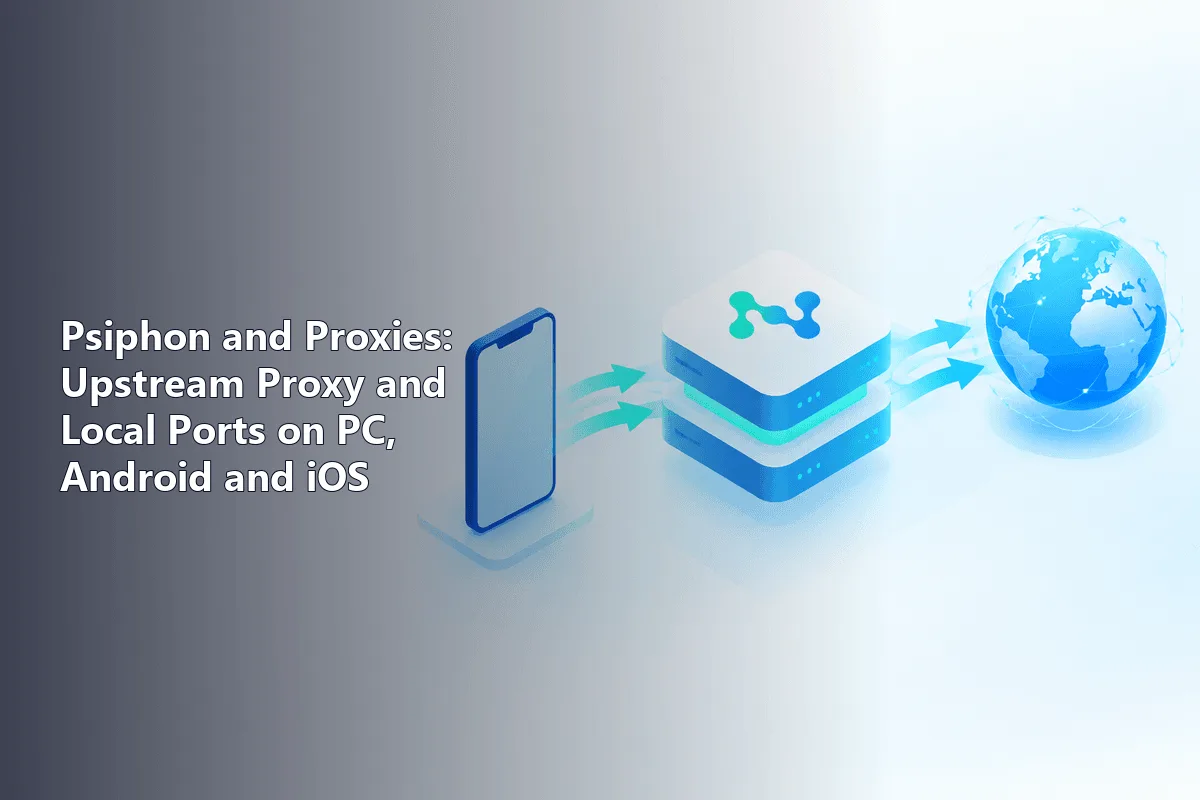
Psiphon connects to the internet in two proxy-related ways you can control: it can send its own traffic out through an upstream proxy you provide, and on the desktop it exposes local HTTP and SOCKS proxy ports that other programs can use. This guide shows where both settings live on Windows, Android and iOS, and how to point another app at Psiphon's local proxy.
Psiphon is a free tool made to reach the open internet from networks that restrict it. Like any such tool, it is only as lawful as the use: respect the terms of the services you visit and the laws of the country you are in. We describe the proxy settings here, not ways to defeat any particular website's controls.
Static proxies
A stable proxy host and port you can set as Psiphon's upstream gateway
Two different «proxies» in Psiphon
People mix up two settings, so it helps to separate them first:
- Upstream proxy — a proxy that sits before Psiphon. Psiphon sends its connection out through it. You use this when your network only reaches the internet through a company or campus proxy, so Psiphon must go through that gateway to get out.
- Local proxy — the HTTP and SOCKS proxies Psiphon itself opens on your computer once connected. Programs on the same machine can be told to use them, so their traffic rides the Psiphon connection without a system-wide VPN.
The upstream proxy is something you add; the local proxy is something Psiphon provides. The rest of this guide treats them one at a time.
Setting an upstream proxy on PC
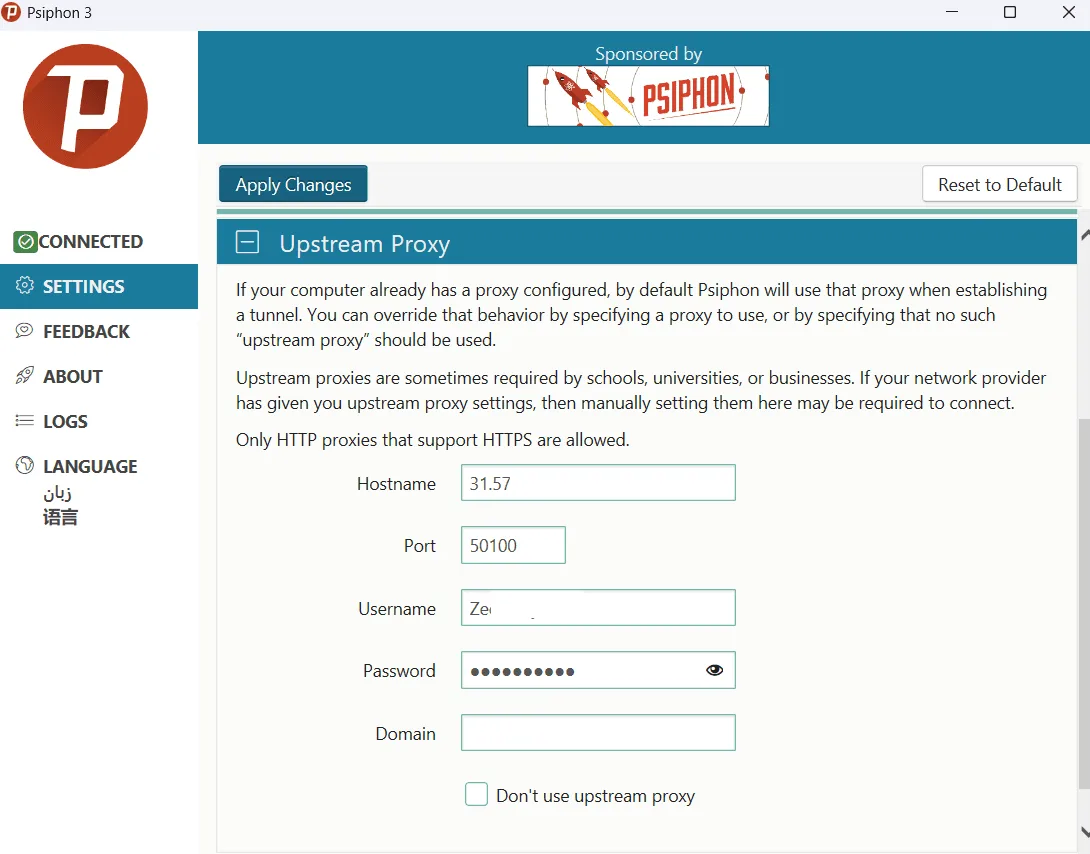
On the Windows client the upstream proxy lives in the settings panel.
- Open Psiphon. If it is not connected, let it connect first.
- Open Settings in the left panel and choose the Upstream Proxy tab.
- Enter the proxy address in the hostname field and the port in the port field.
- For a proxy that needs a login, add the username and password.
- Apply the changes.
After this, Psiphon routes its own outbound connection through your proxy and then onward. This is the setup for machines behind a corporate gateway; the address and port come from your network administrator or your static proxies panel if you run your own gateway.
Using Psiphon's local proxy ports on PC
When the Windows client connects, it opens a local HTTP proxy and a local SOCKS proxy on 127.0.0.1. By default the port numbers are assigned automatically, but you can fix them in the settings so other programs always find them. Psiphon's own documentation notes that in its SSH modes only applications pointed at these local proxies are tunnelled.
To send one program through Psiphon without changing the whole system:
- In Psiphon's settings, set explicit local proxy ports and note them.
- In the other program's network settings, choose a manual proxy.
- Enter
127.0.0.1as the host and the local SOCKS or HTTP port Psiphon shows. - Save and test; the program's traffic now rides the Psiphon tunnel while everything else stays direct.
This is handy for a single browser profile or a download tool. Note that Psiphon also changes the Windows system proxy on connect and restores it on disconnect; if the client exits uncleanly and the system proxy is left set, reconnect and disconnect cleanly, or clear it under the LAN settings of the system's internet options.
Psiphon on Android
The Android app runs as a device VPN, so by default it tunnels the whole phone and you do not touch proxy ports. Two proxy settings still matter:
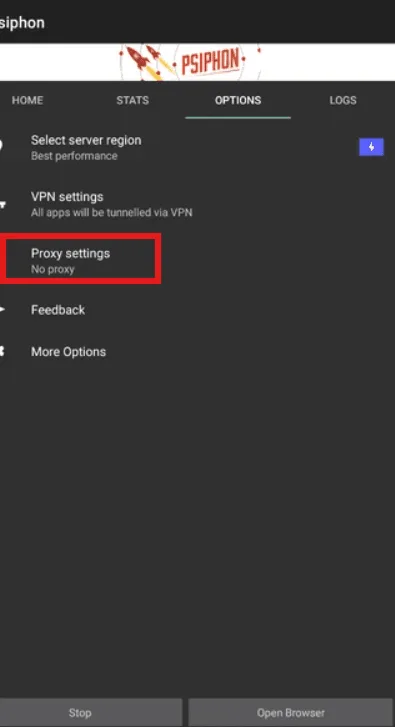
- Upstream proxy. In the app's options there is a proxy settings screen with a «Connect through an HTTP proxy» switch; turn it on, choose to use your own settings and enter the host and port, plus a username and password for a private proxy.
- Which apps are tunnelled. Under the split-tunnelling feature you can tunnel all apps or only some. Choose «tunnel all apps» for the widest coverage, or select individual apps if you want the rest to stay on the direct connection.
Remember that while the VPN is active Android blocks IPv6 traffic, and connections shared from the phone by hotspot bypass Psiphon. General Android proxy options beyond Psiphon are in our proxy on Android guide.
Psiphon on iOS
On iPhone and iPad Psiphon also works as a system VPN. The upstream proxy is set from the gear icon in the main window: enable the upstream proxy option, provide the proxy host and port, and if the proxy is private turn on proxy authentication and enter the credentials. Settings apply to all device traffic once saved.
A few iOS specifics:
- Psiphon uses iOS VPN On Demand, so the system reconnects it after interruptions. To stop it, turn Psiphon off inside the app rather than from Control Center.
- Psiphon Browser, the separate iOS browser, only tunnels pages loaded inside it; other apps keep the direct connection.
- As on Android, tethered connections from the device bypass Psiphon.
For adding ordinary SOCKS5 or HTTP proxies directly to iOS apps without Psiphon, see our guides to a proxy on iPhone and to Shadowrocket, which has dedicated proxy fields.
When to use what
| Goal | Setting |
|---|---|
| Your network only exits through a company proxy | Upstream proxy in Psiphon |
| Send one desktop program through Psiphon | Local proxy port of the PC client |
| Tunnel the whole phone | Default VPN mode on Android or iOS |
| Tunnel only some Android apps | Split tunnelling, select apps |
| Add a plain proxy to an app, no Psiphon | A dedicated client such as v2rayN or Shadowrocket |
If your actual need is simply a proxy in a specific application rather than censorship circumvention, a client such as v2rayN on the desktop is usually simpler than routing through Psiphon.
Psiphon proxy FAQ
Does Psiphon let me use my own proxy?
Yes. Each platform has an upstream proxy setting: the Upstream Proxy tab on Windows, the HTTP proxy switch on Android, and the upstream proxy option behind the gear icon on iOS. You enter the host, port and, for private proxies, a login and password.
What are Psiphon's local proxy ports?
On the desktop Psiphon opens a local HTTP proxy and a local SOCKS proxy on 127.0.0.1 after it connects. Point another program at that address and port to send only that program through the Psiphon tunnel.
Can I run only one app through Psiphon?
On the desktop, set the app's proxy to Psiphon's local port. On Android, use split tunnelling to select that app. On iOS the VPN covers the whole device, except Psiphon Browser, which tunnels only its own pages.
Why did my internet break after Psiphon closed on Windows?
Psiphon changes the system proxy while connected and restores it on a clean disconnect. If it closed unexpectedly, reconnect and disconnect properly, or clear the proxy in the system's LAN settings.
Is using Psiphon legal?
Psiphon is a legitimate tool, but legality depends on local law and on the terms of the services you use through it. Check both, and do not use it to break a service's rules.