Shadowrocket on iPhone: How to Add a Proxy and Route Traffic

Shadowrocket is an iOS and iPadOS client that decides, rule by rule, where each connection of your phone should go. Under the hood it installs a local VPN profile, catches the traffic of every app and forwards it to a server of your choice, be it an ordinary HTTP or SOCKS5 proxy or a modern tunnel protocol. That fixes an old annoyance of iOS. The proxy box in Wi-Fi settings belongs to a single network, stays silent on cellular data and knows nothing about SOCKS5, while Shadowrocket puts one proxy in charge of the whole iPhone wherever it is connected.
This walkthrough goes from installation to a working setup: adding a password-protected proxy, picking a routing mode, writing a few rules of your own, confirming the new IP and sorting out the usual failures.
Mobile and residential proxies
Proxies with a login and password that work in Shadowrocket over HTTP and SOCKS5
Four Things to Have Ready
- Connection data. The host (an IP or a domain name), the port, the login and the password. With mobile proxies you will find all four in your dashboard as soon as a proxy list is created.
- The protocol of each port. Providers commonly hand out one server in two flavours, SOCKS5 and HTTP, each on its own port. Note which number belongs to which.
- Login-based authorization. A username and password follow you from network to network. IP whitelisting is a poor match for a phone, since the carrier hands you a different public address almost every time you reconnect.
- The app. Shadowrocket costs money once and is absent from some national App Stores. When search finds nothing, blame the country of your Apple ID rather than the iPhone.
Setting Up the Proxy Step by Step
Step 1. Install Shadowrocket and Accept the VPN Profile
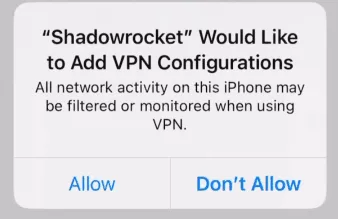
Get the app from the App Store and launch it. The first time you try to connect, iOS pops up a request to add a VPN configuration. Approve it and confirm with Face ID or your passcode. Without that profile Shadowrocket has no way to intercept anything, which is why the main switch flips back to off by itself.
Step 2. Create a Server Entry
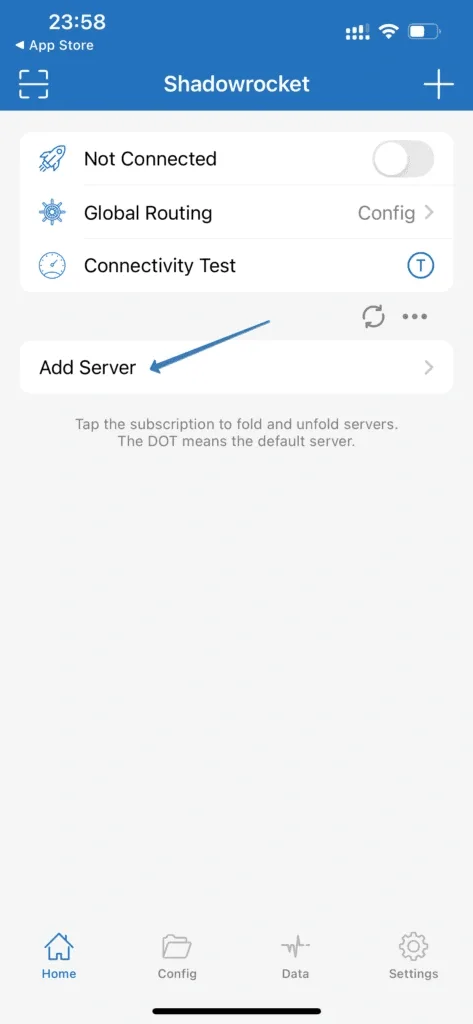
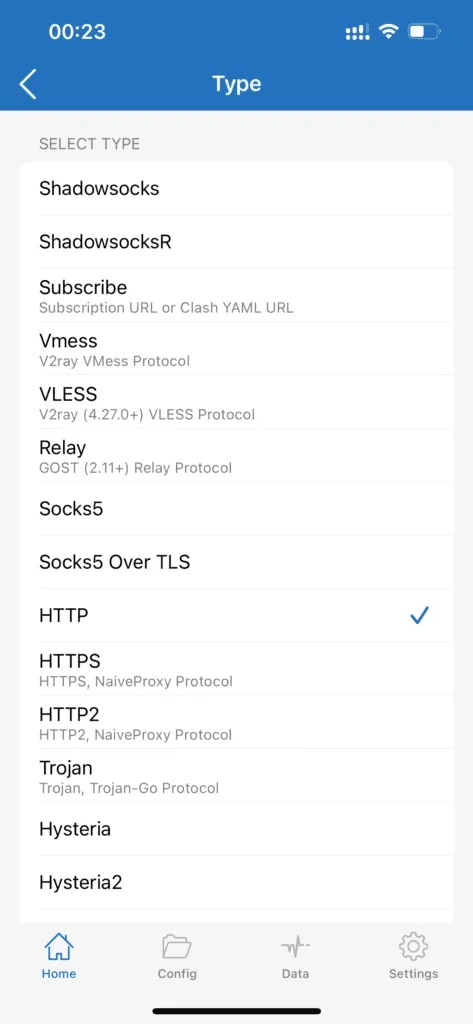
On the Home tab tap Add Server (or + in the upper right corner). The form opens with Shadowsocks preselected, so first tap Type and switch it to the protocol your provider issued:
- Socks5 handles any TCP traffic, not just web pages, so messengers, games and social apps are happier with it.
- HTTP covers browsing and the many apps that speak HTTPS. Pick it when the provider only gave you an HTTP port.
- HTTPS in this list means the NaiveProxy protocol, not an ordinary proxy port. Leave it alone unless your provider issued a NaiveProxy server.
Step 3. Type In Host, Port and Credentials
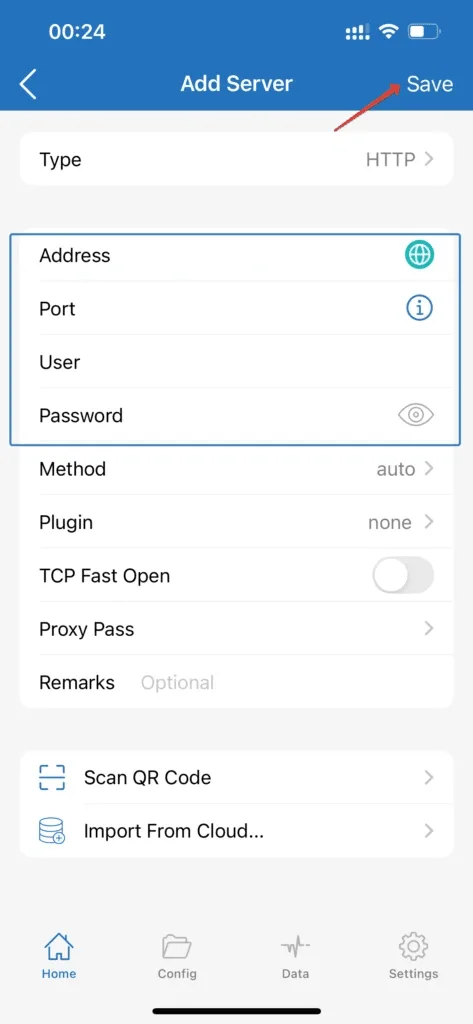
Complete the form:
- Address: the host alone, with no http:// in front.
- Port: the number that matches the type you chose.
- User and Password: copied from your dashboard.
- Remark: a label of your choice, such as "Mobile DE" or "Residential US", so several entries stay easy to tell apart.
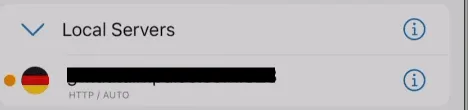
Tap Save in the upper right corner, and the new line shows up on the home screen.
Got a ready-made proxy link instead? Copy it and switch to Shadowrocket: the app spots it on the clipboard and proposes to import it. QR codes work the same way through the scanner icon on the home screen.
Step 4. Choose the Entry and Connect
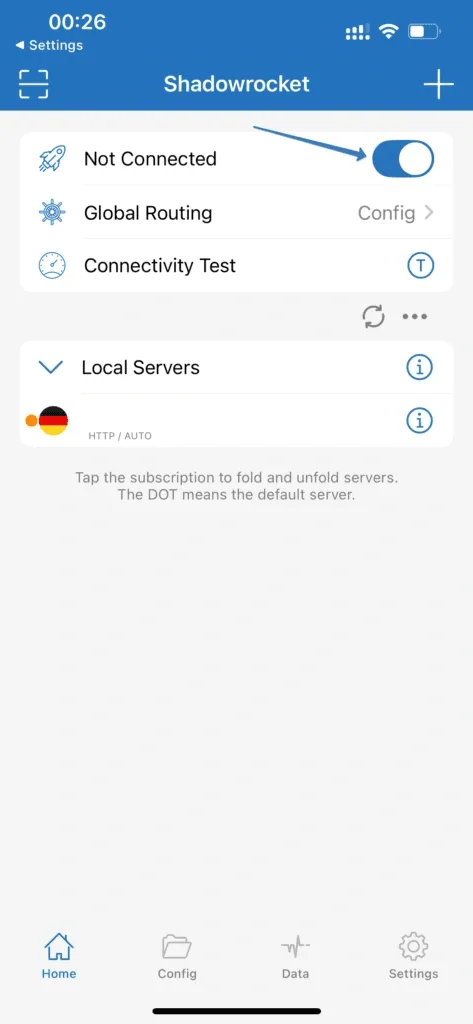
Tap the new line so a check mark appears beside it, then slide the switch at the top of Home. Once it says Connected, iOS shows the VPN badge in the status bar.
Config, Proxy, Direct and Scene Explained
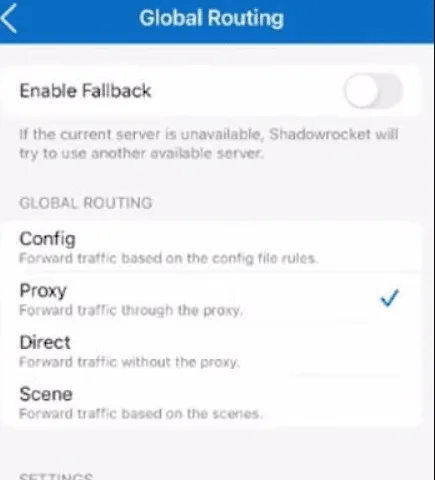
Under Global Routing on the home screen you decide how much traffic the proxy receives:
- Proxy forwards everything the iPhone sends. Use it first, because it makes testing unambiguous.
- Config follows the rules in the active configuration file, letting some domains bypass the server while others use it.
- Direct ignores the server altogether, handy for speed comparisons or ruling the proxy out while troubleshooting.
- Scene picks a mode per network, for example Direct at home on Wi-Fi and Proxy whenever you are on cellular.
Start with Proxy and move to Config once you trust the connection.
Writing Rules for Selected Sites and Apps
Rules sit in the configuration file on the Config tab. The bundled default already contains a starter set; open it, choose Edit Plain Text and add lines in the Rule section. Every line has three parts: a rule kind, a value and an outcome, which is PROXY, DIRECT or REJECT.
Rule kinds you will reach for most:
- DOMAIN-SUFFIX with a site as the value sends that site and every subdomain wherever the outcome says;
- DOMAIN-KEYWORD matches any hostname containing a given word;
- IP-CIDR covers a whole block of addresses;
- FINAL, placed last, decides the fate of everything nothing else matched.
Shadowrocket reads the list from the top and stops at the first match. A frequent slip is a wide DIRECT line sitting above narrow PROXY lines, so the domain you care about never reaches the server.
![Shadowrocket config [Rule] section with DOMAIN-KEYWORD and DOMAIN-SUFFIX rules set to PROXY and FINAL,DIRECT at the end](/blog-media/shadowrocket-image-7-b730f3679f5631f66379-324.webp)
Is the Proxy Actually Working?
Three checks, from quickest to most telling:
- Connectivity Test. The button below the server list measures latency to each entry. Milliseconds mean the server answers; a timeout or an error means the host, port or type is off.
- Your IP in Safari. With the switch on, visit any what-is-my-IP page and compare the address and country with your order. For a mobile proxy the network name should be a carrier rather than a hosting company.
- What the target service sees. Some platforms rely on their own geolocation data. If a site insists you are elsewhere, DNS or stored browser data is usually to blame, not the proxy.
Fixing the Usual Problems
The switch turns itself off a second after you enable it. The VPN profile is missing or was deleted. Remove the Shadowrocket entry from the iOS VPN settings, then connect again and accept the fresh profile.
Authorization error or HTTP 407. Either the login or the password is wrong, or the password was changed in the dashboard. Type both by hand; a trailing space picked up during pasting is the classic culprit.
Timeout in the Connectivity Test. Look at the type and port together. An HTTP port behind the SOCKS5 type, or the reverse, will never connect. Also confirm that your balance and traffic package are still active.
The IP stays the same. You are connected, yet traffic leaves directly. Make sure the mode is Proxy, that no rule sends this site to DIRECT, and that the intended entry is the one checked.
Pages crawl or downloads break off. Pick a location nearer to you or to the target site. With rotating mobile IPs, long tasks run better on a sticky session, so the address stays put until the job is finished.
Alternatives to Shadowrocket
Unwilling to pay for the app? iOS can use a proxy natively, but only an HTTP one and only on the Wi-Fi network you configure it for. Telegram has a separate built-in option, covered in our guide on setting up a proxy in Telegram. Android owners solve the same task with other clients: read how to add a proxy in V2Box or connect through Super Proxy.
Which Proxies Pair Well with Shadowrocket
Let the task decide, not the app. Mobile proxies carry the IPs of real carriers and suit social networks and services that distrust unfamiliar devices. Residential proxies offer a broad choice of countries and cities, which helps with browsing, local search results and regional prices. Shadowrocket accepts both types over HTTP or SOCKS5 with a login and password. Traffic packages and current rates are on the pricing page.
Shadowrocket FAQ
Do I have to pay for Shadowrocket?
Yes, it is sold in the App Store for a one-off price. No official free edition exists, and builds from unofficial sources are dangerous because they see all of your traffic.
Can Shadowrocket use a SOCKS5 proxy with a login and password?
It can. Pick SOCKS5 as the type and fill in User and Password. HTTP proxies with authorization go into the very same form.
Why can't I find Shadowrocket in the App Store?
It is not released in every country. Search results follow the country of your Apple ID, so in some regions the app simply does not show up. Switching the account's country is the usual workaround.
Can I send only certain apps through the proxy?
Indirectly. Shadowrocket routes by domain and IP address rather than by app name. Switch to Config and write rules for the domains a given app talks to; everything else can stay direct.
Will the proxy keep working on cellular data?
Yes. Unlike the Wi-Fi proxy setting built into iOS, Shadowrocket works on Wi-Fi, LTE and 5G alike. Stick with login and password authorization, because your real IP on cellular changes all the time.