V2RayN: How to Download and Set Up a Proxy on Windows and Android

V2RayN is a free open-source client that sends the traffic of your computer through a proxy server or a tunnel. It is best known as a client for VLESS, VMess, Trojan and Shadowsocks servers, but it also accepts ordinary SOCKS5 and HTTP proxies with a login and password. That makes it a convenient way to put one proxy on all of Windows instead of entering the address in every program separately. On Android the same developer publishes a sister app, v2rayNG, with almost the same logic.
This guide covers both platforms: where to get the official builds, how to add a proxy by hand or from a link, which system proxy and routing modes to choose, how to check the new IP and what to do when the connection fails.
Datacenter and residential proxies
Static IPv4 and rotating residential proxies for V2RayN and v2rayNG
What You Need Before You Start
- Proxy details. Host, port, login and password, plus the protocol the port belongs to. In most dashboards one proxy is issued in two formats, SOCKS5 and HTTP, on different ports.
- A proxy type that fits the task. For a fixed address that does not change for weeks, datacenter proxies are the simplest choice. For a large pool of home IPs in different countries, use rotating residential proxies.
- Windows 10 or 11, 64-bit, or an Android phone. V2RayN also has builds for Linux and macOS, and the setup there follows the same steps.
- Administrator rights if you plan to use TUN mode, which captures traffic of programs that ignore the system proxy.
Where to Download V2RayN Safely
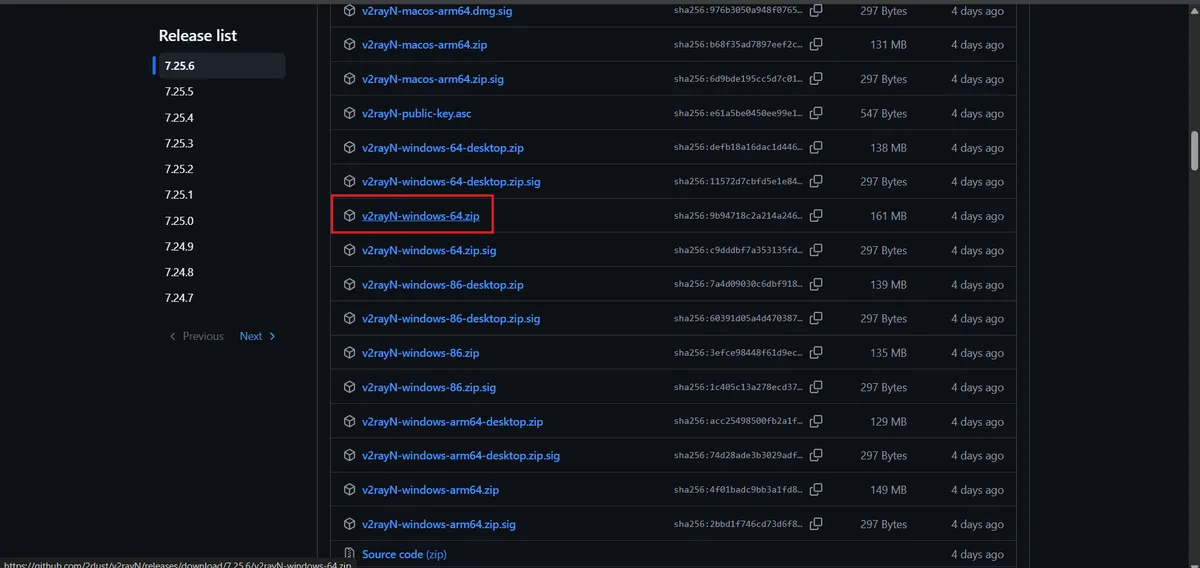
Download the program only from the developer's GitHub repository, 2dust/v2rayN, on the Releases page. Third-party sites often repack the archive, and a modified network client gets access to all your traffic. Take the latest release marked as stable rather than an old archive found on a forum: fixes for the cores and the updater arrive regularly.
For Windows, pick the archive for your processor: the x64 build fits almost every PC, the arm64 build is for Windows on ARM laptops. Some releases are offered in two interface variants; either works, and the menu items described below are the same.
How to Install V2RayN on Windows
V2RayN does not need a classic installer:
- Unpack the archive into a separate folder, for example in Documents. Avoid Program Files: the client writes its settings next to the executable and may not have permission there.
- Run v2rayN.exe. If Windows SmartScreen warns about an unknown publisher, choose More info → Run anyway.
- If Windows reports that a .NET Desktop Runtime is missing, install it from the Microsoft website and start the client again.
- To switch the language, open Settings → Option Setting and select it in the interface options. Menu names in this guide are given in English.
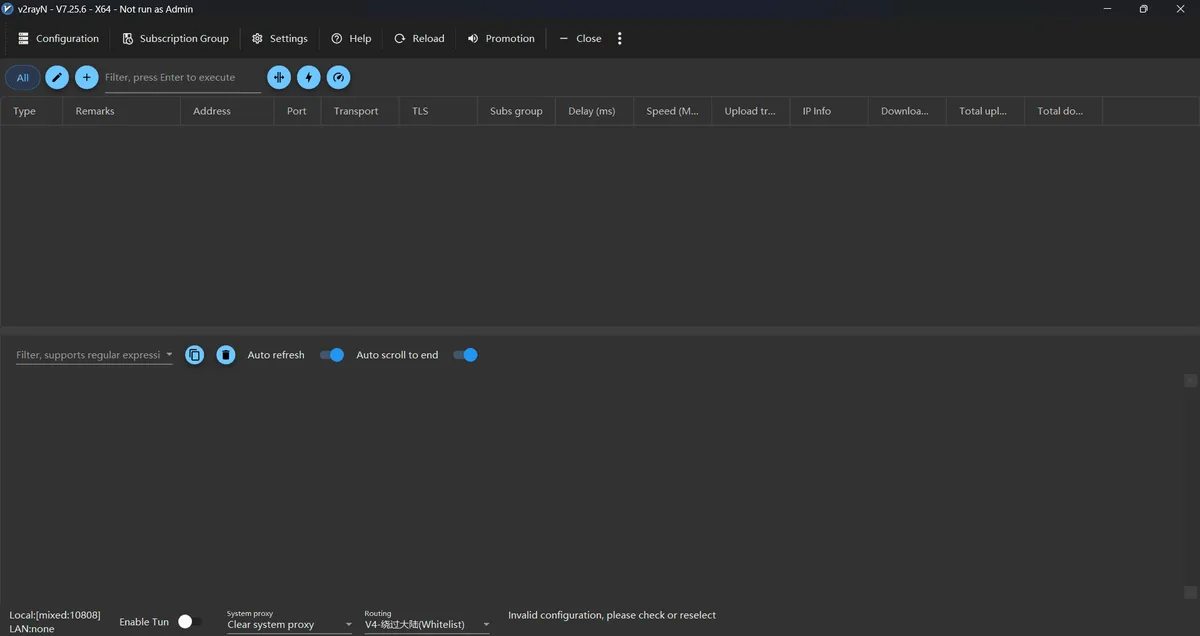
The main window shows an empty server list. The bottom part holds the status bar with the system proxy and routing switches.
How to Add a SOCKS5 or HTTP Proxy in V2RayN
Step 1. Open the Server Form
Open the Configuration menu and choose Add [SOCKS] or Add [HTTP], depending on the port you have. If you are not sure which one to take, read our comparison of SOCKS5 and HTTP proxies: in short, SOCKS5 is more universal, while HTTP is enough for browsers and most web apps.
![Configuration menu in v2rayN with the Add [SOCKS] and Add [HTTP] items highlighted](/blog-media/v2rayn-image-3-2aaf307ebfee4528a490-1200.webp)
Step 2. Fill In the Connection Details
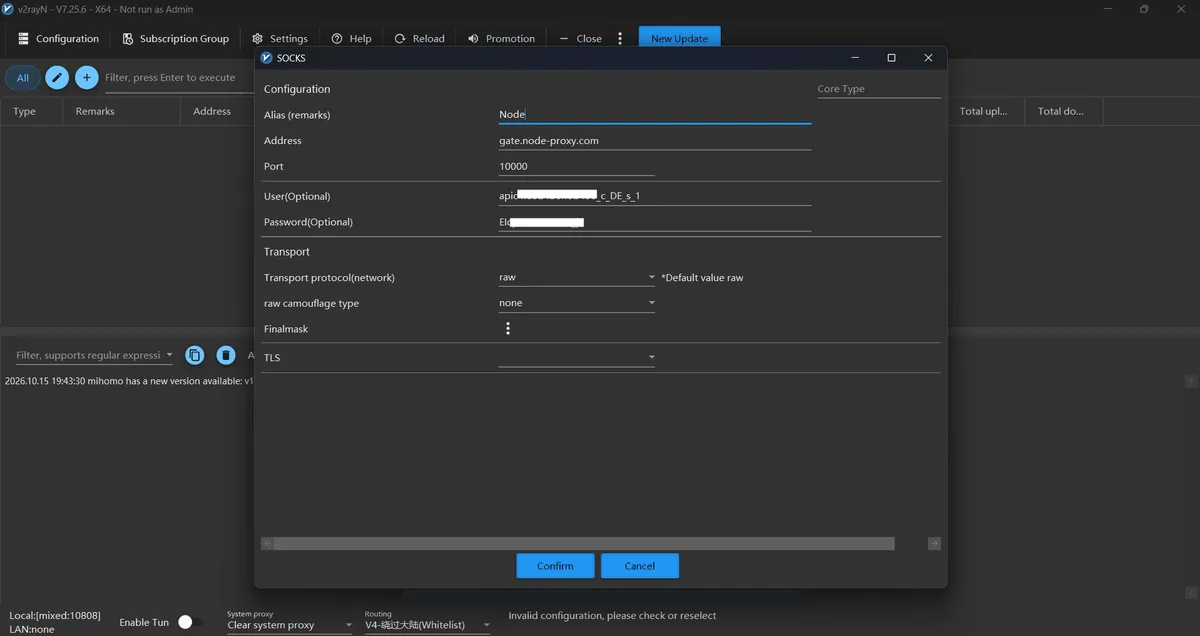
In the form, enter:
- Alias (Remarks) — a readable name, for example "DE static" or "US residential";
- Address — the proxy host without http:// or other prefixes;
- Port — the port for the selected protocol;
- User and Password — the credentials from your dashboard.
An example of a filled form looks like this (the values are invented):
Address:  203.0.113.25
Port:     50101
Username: user-7f3k
Password: Qw8xLm2p
Press Confirm. The server appears in the list.
Step 3. Import a Link Instead of Typing
If you received a share link (it starts with socks://, vless://, vmess:// and so on), copy it and press Ctrl+V in the main window, or choose Configuration → Import Share Links from clipboard. Several links copied at once are imported in one action. A subscription address from a VPN or tunnel provider is added in Subscription group → Subscription group setting, after which the list is refreshed with Update subscription.
Step 4. Make the Server Active
Select the line and press Enter, or right-click it and choose Set as active server. The active server is marked in the list, and its name appears in the tray icon tooltip.
System Proxy Modes: Which One to Choose
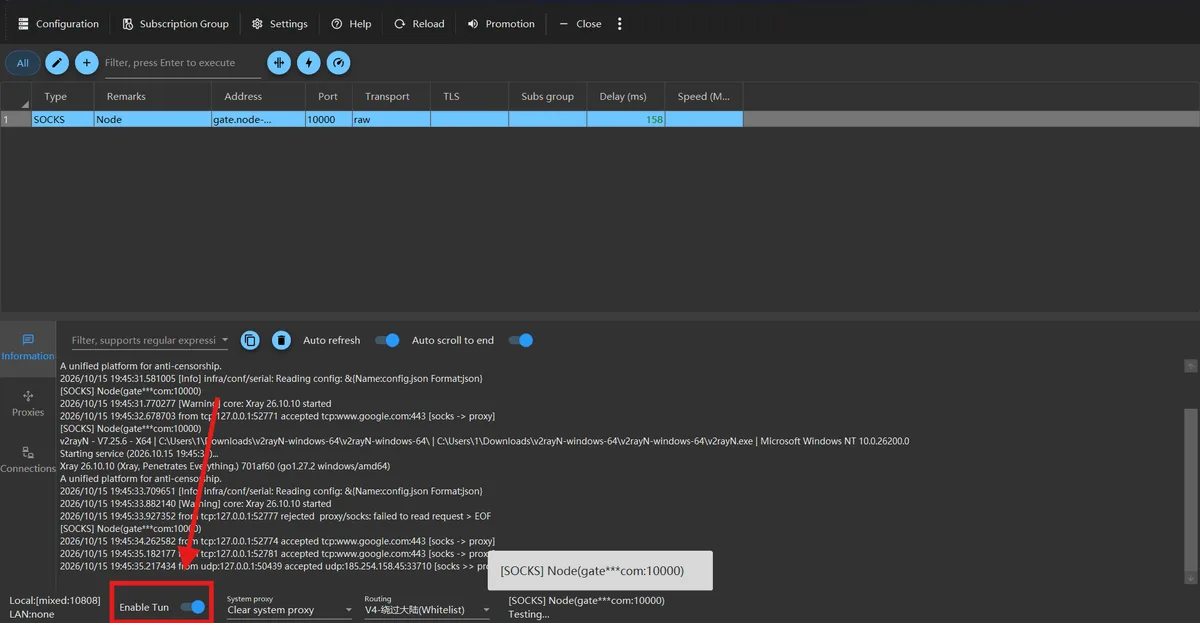
Adding a server is not enough: Windows must also be told to send traffic to V2RayN. The client opens a local port on your computer (by default 10808 for SOCKS, with the HTTP port next to it) and points the Windows proxy setting to it. The System proxy switch at the bottom of the window has four positions:
- Set system proxy — browsers and programs that respect Windows settings go through the active server. The right choice for daily use.
- Clear system proxy — removes the setting; traffic goes directly while the client keeps running.
- Do not change system proxy — V2RayN leaves Windows settings alone. Use it when you point a single program to 127.0.0.1 and the local port manually.
- PAC mode — the browser receives an automatic configuration file. Rarely needed today.
Some programs ignore the Windows proxy, for example many games and command-line tools. For them, turn on Enable Tun at the bottom of the window. TUN creates a virtual network adapter and requires running V2RayN as administrator. Telegram is a separate case: it has its own proxy settings, described in our guide on setting up a proxy in Telegram.
Routing: Global or Rule-Based
The routing list next to the system proxy decides which addresses go through the proxy. The built-in presets were written with users in mainland China in mind: the whitelist and blacklist modes send domestic Chinese sites directly. For everyone else the predictable option is Global, where all traffic goes through the active server.
If you need only some sites through the proxy, open Settings → Routing setting, create your own rule set and add domains or IP ranges with the action proxy or direct. Rules are checked from top to bottom, so place specific domains above broad ones.
How to Check That the Proxy Works
- Real delay test. Select the server and press Ctrl+R (Test real delay). A value in milliseconds means V2RayN reached the internet through the proxy; -1 or a timeout means the data or the protocol is wrong.
- IP check. Open the browser and look at your external IP and country. It must match the proxy, not your provider.
- Proxy without the client. If you want to separate client problems from proxy problems, check the address in the free proxy checker: it shows whether the proxy responds, its exit IP and location.

V2RayN on Android: Setup in v2rayNG
On Android the client is called v2rayNG. It is available in Google Play and as an APK on the developer's GitHub page; avoid copies from file-sharing sites.
- Open the app and tap + in the top right corner.
- For a link, choose Import config from Clipboard or Import config from QRcode. For manual entry, choose Type manually [SOCKS] or Type manually [HTTP].
- Fill in the name, address, port, username and password, then tap the check mark to save.
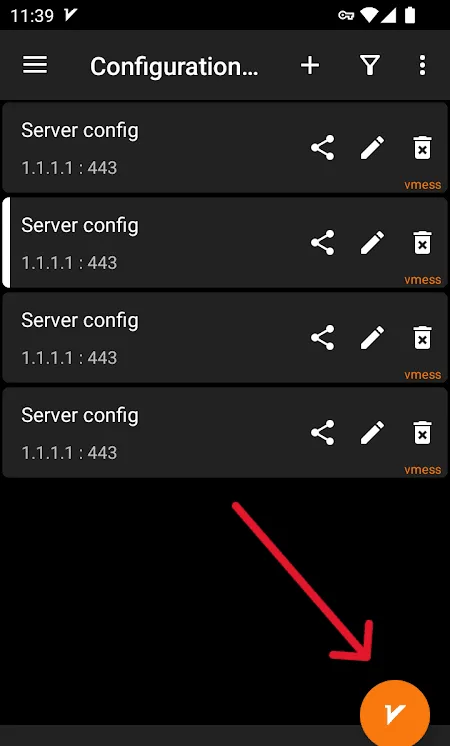
- Tap the server so a colored bar appears next to it, then tap the round V button at the bottom. Allow the VPN connection request from Android.
- Tap the status line at the bottom to test the connection. The app shows the response time or an error.
If you prefer a simpler interface with a single proxy field, the V2Box app is a lighter alternative for the same task.
Common Errors and Fixes
Real delay shows -1. The most frequent reason is a protocol and port mismatch: the HTTP port entered in a SOCKS form, or the reverse. Also check that the proxy is active and its rental period has not ended.
Authentication error or HTTP 407. The login or password is wrong. Copy them again without spaces at the end; if the provider allows authorization by IP instead of login, add the external IP of your computer to the whitelist.
Sites do not open after closing V2RayN. The client was killed while the system proxy was set, and Windows still points to 127.0.0.1. Start V2RayN and choose Clear system proxy, or turn off Use a proxy server in Windows network settings.
TUN mode does not start. Run v2rayN.exe as administrator and allow it in the Windows firewall. Antivirus programs sometimes block the core files; restore them from the original archive.
Games and voice calls do not work through an HTTP proxy. HTTP proxies do not carry UDP traffic. Use SOCKS5 with UDP support for such programs.
V2RayN Alternatives on Windows
If you only need to route Windows through a regular SOCKS5 or HTTP proxy and do not use tunnel protocols, a client with a simpler profile window may be easier. See our guide to the Throne proxy client: it works on the sing-box core and offers the same system proxy and TUN modes. If you need rule files with server groups and automatic failover, look at Clash and its successors.
V2RayN FAQ
Is V2RayN free and safe?
Yes, the client is free and its source code is open. It is safe when downloaded from the official GitHub repository; repacked builds from other sites can contain modified files.
Does V2RayN support SOCKS5 proxies with a password?
Yes. Use Configuration → Add [SOCKS] and fill in the User and Password fields. HTTP proxies with authorization are added the same way through Add [HTTP].
What is the difference between V2RayN and v2rayNG?
They are clients from the same developer. V2RayN is the desktop program for Windows, Linux and macOS, while v2rayNG is the Android app with a similar set of protocols.
Why does a program ignore V2RayN?
The system proxy only works for programs that read Windows proxy settings. Turn on TUN mode or enter 127.0.0.1 and the local V2RayN port in the program's own network settings.
Which local port does V2RayN use?
By default the local SOCKS port is 10808, and the HTTP port is the next one. You can change both in Settings → Option Setting.