Residential Proxy Setup in Safari on Mac
 ·August 23, 2026·4 min read
In Safari, proxy settings are not configured separately inside the browser. The browser uses the system network settings of macOS, so all configuration is done through the network management section on the Mac itself. This approach is convenient because you work with a single source of settings and can quickly change or disable the proxy without installing third-party utilities.
Where proxy settings are changed in Safari
Safari takes its network settings from macOS. This means that for configuration, you need to go not to any special internal browser menus, but to the system network settings. That is where the server, port, and authorization data are specified.
Usually, the following are required for connection (this information can be found on our website):
• proxy server address;
• port;
• login;
• password.
If the server works without authorization, only the address and port are sufficient. However, in most working configurations, login credentials are still required.
A Residential Network in Your Browser
Access IPs from different countries without changing your usual browser.
What to prepare before setup
Before you begin, it is better to collect all connection parameters in advance. This will help avoid input errors and allow you to complete the entire process without returning to previous steps.
Make sure you have:
• the IP address or domain name of the server;
• the port number;
• the username, if applicable;
• the password;
• an understanding of which network the Mac is currently using to connect to the internet — Wi-Fi or Ethernet.
The last point is important because the proxy is configured for a specific active interface.
How to enable a proxy in Safari on macOS
Go to the system network settings
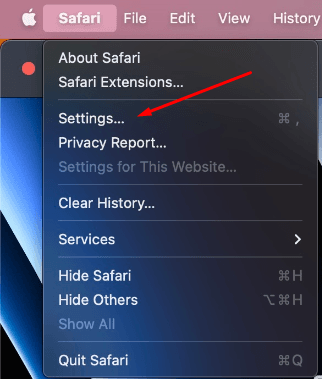
Open Safari, then go to the browser settings, Settings.
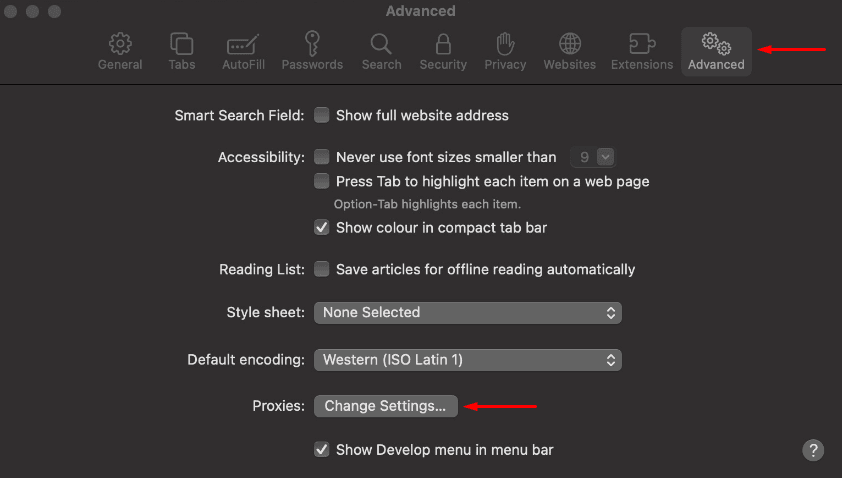
Find the Advanced section. From there, you can go to the system window where the proxy settings are changed, Change Settings. After that, the macOS network configuration area will open.
Select the network in use
In the network settings window, find the connection through which the Mac accesses the internet. In most cases, this is Wi-Fi or Ethernet. After selecting it, open the advanced settings and go to the Proxies section.
This is the main block where all traffic routing parameters through an external server are configured.
Specify the required proxy type
In the list of protocols, several options are usually available. For browser traffic, the following are most commonly used:
• Web Proxy (HTTP);
• Secure Web Proxy (HTTPS).
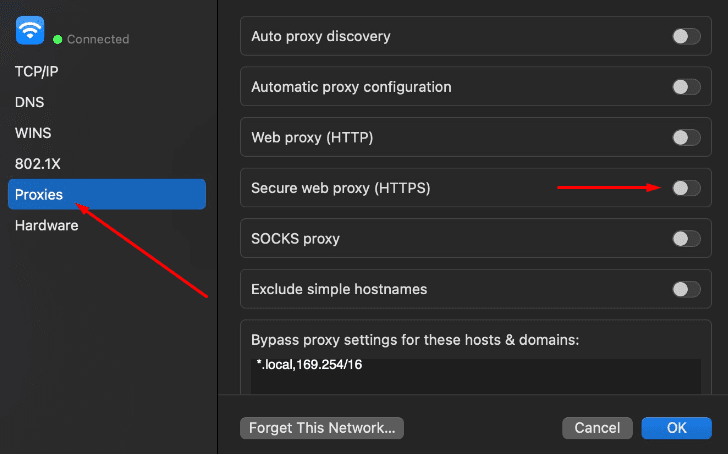
If the server is supposed to handle both regular and secure connections, both options are enabled. If only secure traffic is used, enabling HTTPS is sufficient.
Enter the connection parameters
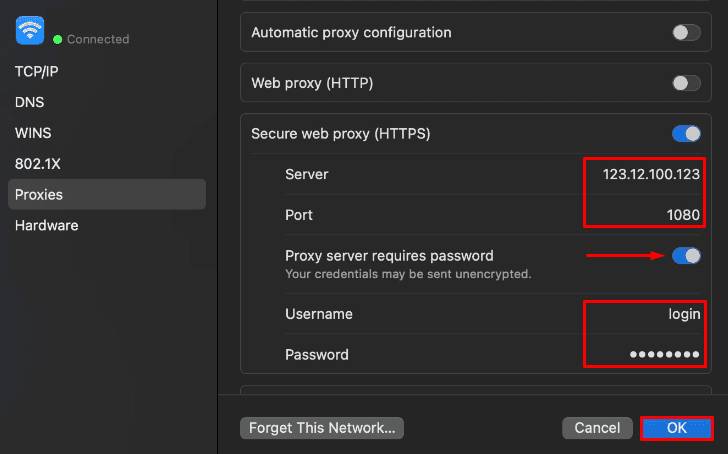
After selecting the required option, enter:
• the server address;
• the port;
• the username;
• the password.
All values must be entered exactly as provided. An incorrect digit in the port, an extra character, or an error in the login may cause Safari to be unable to open pages through the specified server.
Save the configuration
Once all fields are filled in, confirm the changes with the OK button, and then apply them in the system window. After that, Safari will begin using the new connection route for the selected network.
How to make sure everything works
After entering the settings, it is worth checking whether the browser is actually using the specified server. The most convenient way is to open a site that shows the current IP address and compare it with your proxy parameters.
The following signs also indicate that everything is working correctly:
• a new IP is displayed;
• sites open without errors;
• the browser does not request authorization again with every action;
• the connection remains stable.
If the server is selected for a specific country or region, you can also additionally check whether the displayed geolocation matches it.
What to do if Safari is not working correctly
Pages do not load
Most often, the problem is related to an incorrectly entered server address or port. Check each value and make sure that the exact proxy type required by your configuration is enabled.
Constant login and password prompts appear
This usually means that the authorization data is entered incorrectly or saved improperly. Enter it again, carefully checking letter case and special characters. If the error remains, you can remove the old entry from the macOS system password storage and enter the data again.
The settings are saved, but the browser behaves the same as before
Sometimes Safari continues to use the old network session. In that case, restarting the browser usually helps. If that is not enough, you can disable and re-enable the network or restart the Mac.
Conclusion
Safari on Mac uses the system network settings, so proxy setup is performed through the network management section in macOS. To make it work, it is enough to select the active connection, open the Proxies tab, specify the server, port, and, if necessary, the login credentials.