Swft AIO Proxy Setup on iPhone and iPad: Adding, Importing and Testing Proxies

Swft AIO is an auto-checkout app for iPhone and iPad, and it does not supply network addresses of its own: you open its proxy section, tap the plus icon, enter each proxy as ip:port or ip:port:username:password and save. Before you rely on a list, check every line outside the app, because public guides describe no built-in tester in Swft.
Below you will find what the app is today, how the proxy screen is organised, how to prepare a longer list without typos, a practical way to verify proxies on iOS and the store rules that no proxy changes. Advice on queues, purchase limits or retailer detection is deliberately left out.
Residential proxies
Residential proxies with sticky sessions and login authorization
What Swft AIO Is in 2026
Swft started as a sneaker checkout tool whose selling point was native Apple support: early reviews described versions for iOS and macOS. The developer's storefront now presents it as an iOS autocheckout companion and mentions only iPhone and iPad. At the time of writing, the single plan on that storefront, a short beta licence of Swft 3, is marked sold out, and we could not confirm whether new subscriptions open regularly or the project is winding down. Check the official channels before paying a reseller.
The list of supported shops changes often, and the developer keeps it in a separate guide rather than on the store page. Treat any list in an older review, including ours, as a snapshot.
For background on what checkout bots do and why retailers push back against them, see our overview of shopping bots.
What to Prepare
- Store terms. Big retailers usually ban automated buying and may cancel such orders. Read the terms of each shop first.
- Credentials from your provider. Host, port, login and password, copied from the provider panel rather than retyped.
- A plain text note. Keep the list in the Notes app or any editor on the same device, one proxy per line, so you can copy entries into Swft without switching computers.
- A decision on the type. The app treats every address the same way; what differs is how the store sees it. The comparison further down helps choose.
Proxy Format Swft Accepts
Proxy-provider guides give two variants:
| Authorization | Line format | Example |
|---|---|---|
| By IP allowlist | ip:port | 198.51.100.24:8080 |
| By login and password | ip:port:username:password | 198.51.100.24:8080:shopper-a1:Zt5vRq8n |
Many providers export lines as username:password@host:port or as a URL with a scheme prefix. Swft expects the colon-separated order shown above, so rebuild such lines before entering them. A small shortcut on a computer: paste the export into a spreadsheet, split it on the @ and : characters and join the pieces back in the right order.
# provider export
shopper-a1:Zt5vRq8n@198.51.100.24:8080
# what Swft expects
198.51.100.24:8080:shopper-a1:Zt5vRq8n
Adding Proxies Step by Step
Menu names below come from third-party setup guides written for earlier releases. If your build labels things differently, look for the closest equivalent.
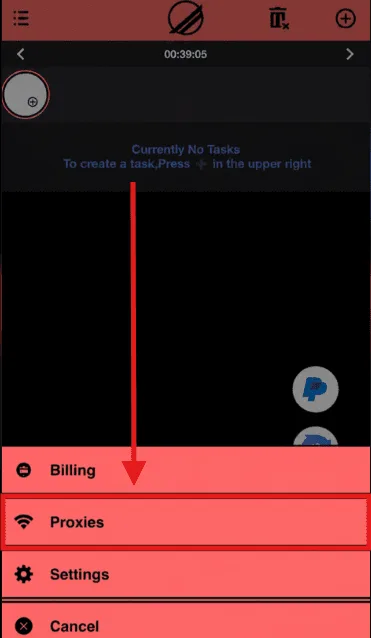
Step 1. Open the Proxy Section
Launch Swft and choose the proxy section in the main menu.
Step 2. Create an Entry
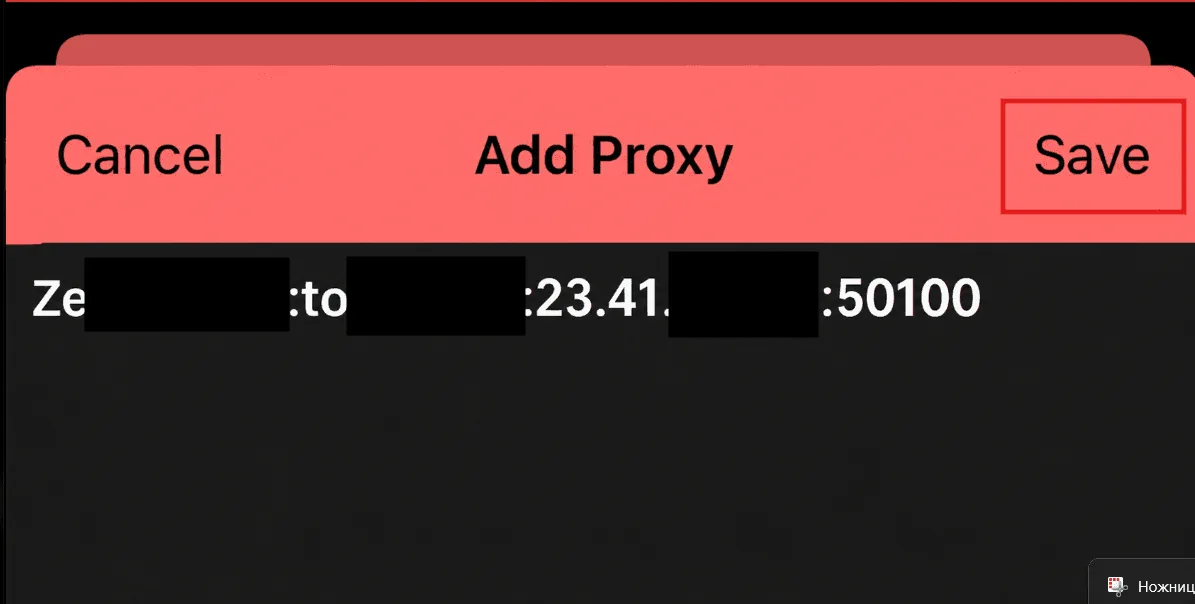
Tap the + icon in the upper right corner. A form for a new proxy opens.
Step 3. Fill In and Save
Paste a line from your note and tap Save. The proxy appears in the list and becomes available for tasks.
Step 4. Repeat or Import a Batch
Guides only describe entering proxies one at a time. Whether your version also accepts a multi-line paste is not confirmed publicly, so try pasting two lines on a test entry: if the app saves both, you can import the whole list at once; if it rejects the input, add entries one by one from the note.
Testing Proxies Before Use
Since Swft documentation shows no test button, verify proxies outside the app. Two ways work on an iPhone:
- Through a computer. Paste a line into our online proxy checker. It shows whether the server responds, its country and the response time. A failure here means the problem is the proxy or the credentials, not Swft.
- Through the iPhone itself. Open Settings → Wi-Fi, tap the info icon next to your network, scroll to Configure Proxy, choose Manual and enter the server, port and, if needed, authentication. Open any IP lookup page in Safari: it should show the proxy address and location. Switch Configure Proxy back to Off when you finish, otherwise every app on the phone keeps using that server. Our iPhone proxy guide shows these screens in detail.
The Wi-Fi panel only handles HTTP proxies, so it suits providers that offer HTTP on the same port. For a SOCKS-only list, use the web checker.
| What you see | Likely reason | What to do |
|---|---|---|
| No response at all | Wrong port or dead server | Copy the port again from the provider panel |
| Authentication error | Login or password mixed up | Re-split the line and check the order |
| Works, but the wrong country | Location parameter missing in the login | Check the provider's geo targeting syntax |
| Works, but slowly | Server far from the store | Pick addresses in the shop's region |
Which Proxy Type Fits
Datacenter addresses are fast and cheap, but websites easily recognise them as server ranges. Residential addresses belong to home connections, so they look like ordinary visitors; read more in our explainer on residential proxies. For a checkout app the important detail is session length: many stores bind the cart cookie to the address, and if the address changes halfway the cart is lost. A residential proxy plan with sticky sessions keeps one IP for a set time, while a rotating endpoint changes it on every request. Sticky mode suits multi-step sessions, rotation suits one-off page requests.
Rules That Proxies Do Not Change
A proxy only replaces the network address of a request. It does not make automated purchasing allowed where a store prohibits it, and shops may cancel orders, cap quantities per address or person and close accounts that use bots. Some countries regulate automated purchasing directly, such as the BOTS Act for ticket sales in the United States. Read the terms of every store and your local law, and never use payment details or accounts that are not yours.
If you sell limited goods yourself, the sneaker proxies page describes lawful tasks such as tracking regional prices and stock.
Swft AIO FAQ
Does Swft AIO work on Windows or Android?
The current storefront mentions only iPhone and iPad. Early reviews also described a macOS version, but we could not confirm that it is still distributed.
What proxy format does Swft AIO use?
Address and port separated by a colon, plus login and password after two more colons when the proxy requires authorization. Lines exported in another order must be rearranged first.
Can I import a whole proxy list into Swft?
Public guides describe adding proxies one at a time through the plus icon. Test a two-line paste on your build to see whether it accepts batches.
How do I test a proxy if Swft has no test button?
Paste the line into an online proxy checker or set it temporarily in the Wi-Fi settings of the iPhone and open an IP lookup page in Safari.
Is Swft AIO still available?
At the time of writing the only plan on the official storefront is sold out. Check the developer channels for current availability before buying from anyone else.