WebHarvy Proxy Setup: Proxy List, File Import and Rotation

Routing WebHarvy through a proxy takes under a minute. Click Settings in the ribbon of the Home menu, switch to Proxy Settings, fill the Add proxy area with the server, its port and, for private proxies, the credentials, click + and confirm. Put several servers in the list and tick Rotate proxies to have the scraper alternate between them; with that box empty, WebHarvy keeps using whichever entry sits on top.
Getting a long mining job to finish is a different matter. It depends on loading a hundred addresses without typos, on choosing between WebHarvy's own rotation and a gateway that rotates on the provider side, and on a handful of miner and browser options that need to change together with the proxy. Each of these gets its own section below.
Residential proxies
Rotating residential proxies for steady data collection in WebHarvy
Protocols the Scraper Understands
WebHarvy is a visual, click-to-select extraction tool for Windows, built around an embedded browser. Five kinds of proxy can be entered:
| Type | Typical reason to pick it |
|---|---|
| HTTP | Most paid offers; the least fuss |
| HTTPS | Servers that want the hop to the proxy itself encrypted |
| SOCKS4 | Legacy endpoints authorized by IP, no password field |
| SOCKS4a | SOCKS4 plus name resolution on the proxy side |
| SOCKS5 | Credentials and any traffic; a sound default whenever available |
If the last row raises questions, our article on what a SOCKS5 proxy is walks through the protocol.
Your provider supplies the endpoint (host plus port) along with a username and secret, or lets you allowlist the IP of the PC where WebHarvy runs.
Entering a Single Server by Hand
Step 1. Find the Proxy Tab
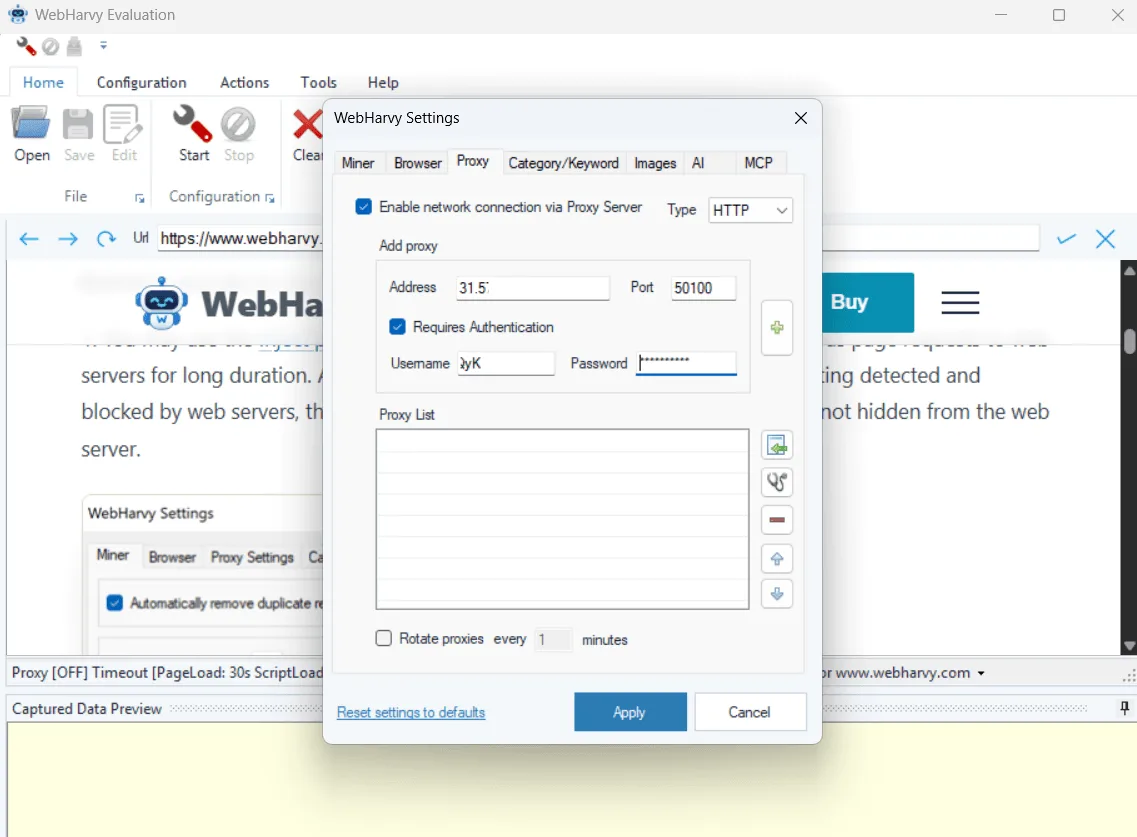
Launch the program and press the Settings button. The dialog groups its options into Miner, Browser, Proxy, Category/Keyword, Image and AI tabs; pick the proxy one.
Step 2. Describe the Server
Inside the Add proxy area, work from top to bottom:
- Switch on proxy usage with the checkbox that sends WebHarvy traffic via a proxy server.
- Choose the protocol in the drop-down.
- Type the server name or IP together with its port.
- For a private proxy, activate authentication and supply the login and secret.
Step 3. Save the Entry
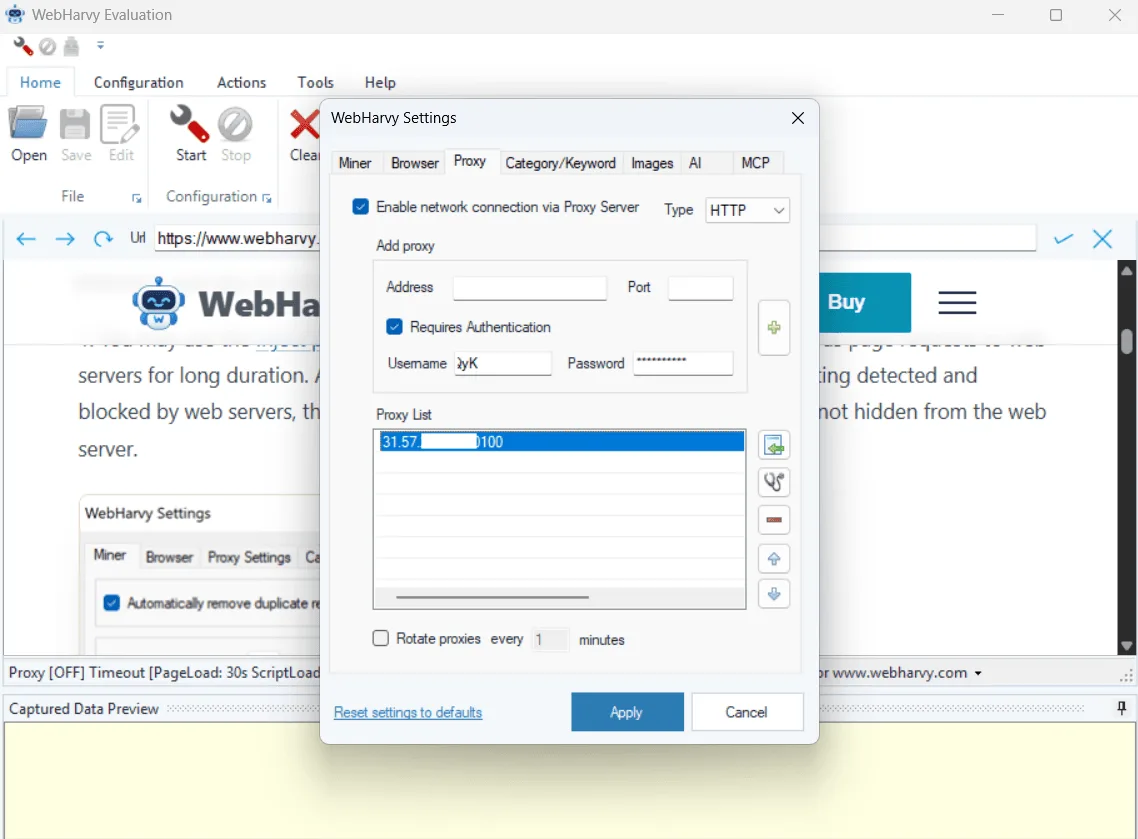
A click on + moves the server into the list below. Confirm the dialog to store everything.
Need a correction later? Double-click the saved name; its values reappear in the upper area, where you change them and confirm with the tick icon.
Loading Many Servers From a Text File
Keying in dozens of addresses wastes an afternoon. Next to the list sits an Import control that accepts .csv and .txt files. One record describes one server: the IP or host name, then the port, then optionally the login and secret, all glued together with colons:
198.51.100.24:8000:harvy-a1:Qw7pass
198.51.100.25:8000:harvy-a2:Qw8pass
203.0.113.70:3128
Line breaks work as separators, and so do commas and semicolons. A few habits that save time:
- Stick to one protocol per file. A mixed SOCKS and HTTP import turns every failure into a guessing game.
- Strip empty lines and trailing spaces that tend to appear when you copy from a provider's panel.
- Validate before a big run. Our free proxy checker reveals which endpoints respond and what exit address each one presents.
Two Ways to Change IPs While Mining
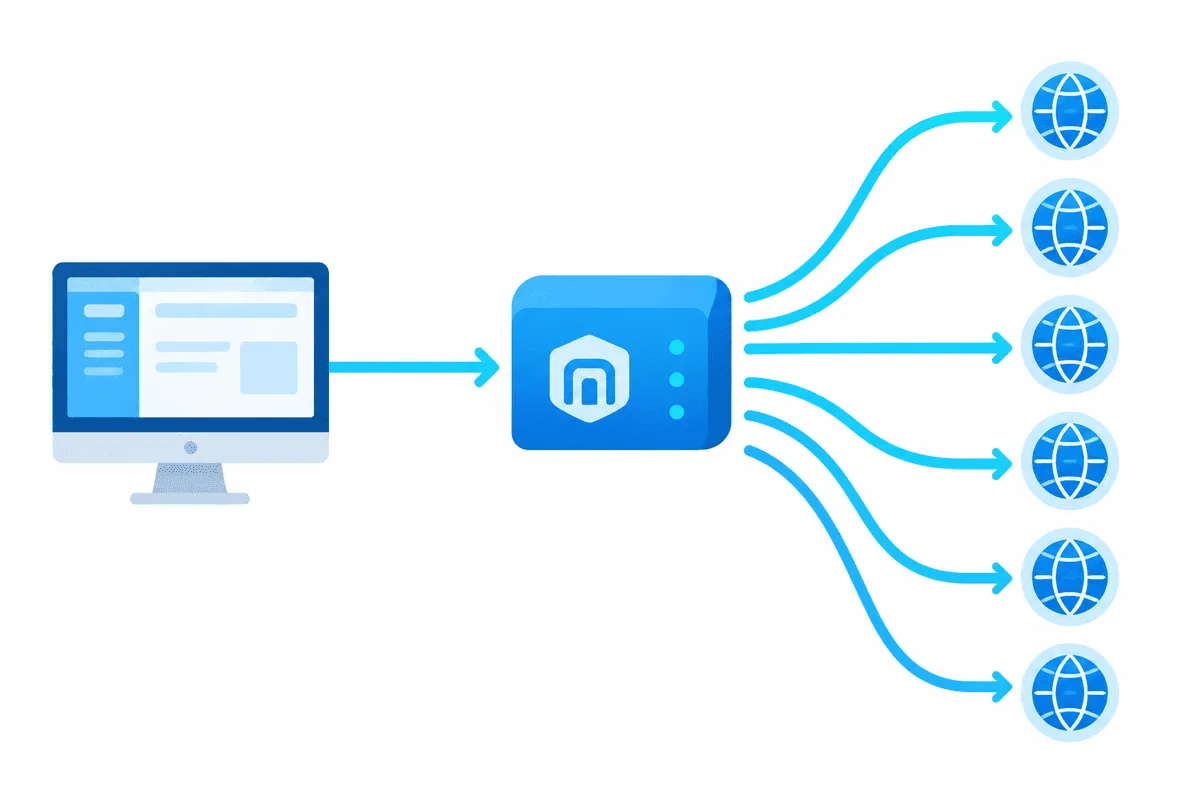
WebHarvy can switch addresses by itself, or you can hand that job to the provider. They fit different workloads.
| Built-in Rotate proxies | Provider's rotating gateway | |
|---|---|---|
| What goes into WebHarvy | Many separate servers | A single host and port |
| Who swaps the address | The scraper, from time to time | The provider, for each request or each session |
| Can you set the pace? | The official guide names no interval setting | Yes, in the provider's panel (new IP every call or a sticky window) |
| How many IPs | Exactly as many as you imported | A large shared pool hidden behind one endpoint |
| Fits best | A small, fixed set of static addresses | Catalogs, search pages, long crawls of one site |
With a gateway like our rotating residential proxies, one entry is enough and the rotation checkbox can stay clear: the swapping happens upstream. When the target requires you to be signed in, request a sticky session so the IP holds steady while the miner follows pages tied to that login.
Companion Options in the Same Dialog
A proxy on its own rarely makes a crawl reliable. These neighbouring options deserve the same attention:
- Disable cookies while mining (Browser tab). Stored cookies are wiped at intervals, so the site cannot stitch every visit into one history. Keep it off for sites that need a signed-in session, or you will be logged out mid-run.
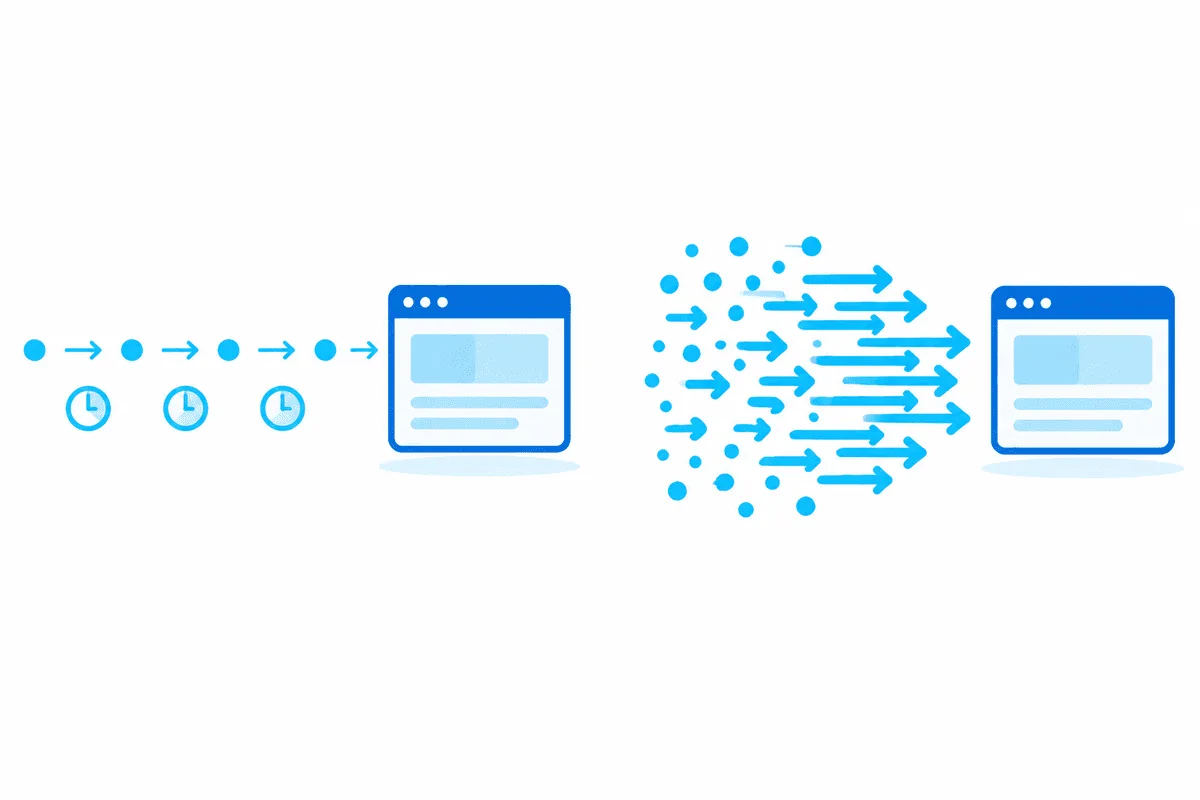
- Inject pauses during mining and Add random pauses (Miner tab). Brief waits after page loads keep your pace courteous, lighten the load on the server and make rate limits less likely.
- Page Load Timeout (Miner tab, default 30 seconds). Pages fetched through an extra hop arrive a bit later; empty rows in the output are a hint to raise this value, never to cut it.
- Maximum number of parallel mining threads (Advanced Miner Options). Every extra thread is another simultaneous request going out through your proxies. Begin with a small number and grow it only while the site keeps answering normally.
- Disable loading images (Browser tab). Skipping pictures speeds pages up and trims traffic, a real saving when proxies are billed by the gigabyte.
Making Sure Traffic Leaves Through the Proxy
- Once the settings are confirmed, browse to any IP lookup page inside WebHarvy's own browser. It should report the proxy's address rather than yours. Third-party integration guides note that since version 6.1 the configuration browser also goes through the proxy, while older builds applied it only during mining; so on a dated release, run a one-page test job instead, scraping the lookup page itself.
- Mine two or three pages as a trial and compare the output with what an ordinary browser displays.
- With rotation enabled, repeat the IP lookup a little later and confirm the address has moved on.
Troubleshooting
Blank pages, or mining halts early. Most often a dead or sluggish server is hiding in the list. Test the list again and delete whatever no longer answers; open proxies found for free are notoriously flaky, and the vendor itself warns that they slow mining down and end it prematurely.
A credentials window or a 407 response. Wrong login or secret, or authentication was never ticked for that server. Double-click it and fix the values.
The same IP every time. Rotate proxies is off, so the top entry handles everything. Tick the box, or move to a rotating gateway.
Signed-in content vanishes halfway. Either cookies are being wiped or the address changed during the session. Turn off cookie clearing for that site and ask for a sticky session.
A block page keeps showing up. Slow the crawl: longer pauses, fewer threads, and the advice in our guide on reducing the risk of blocks during scraping. Honour the site's terms and robots rules, and leave personal data alone unless you have a lawful basis to process it.
When WebHarvy Is Not Enough
Teams that need scheduling in the cloud or finer proxy controls often move to other no-code scrapers; our Octoparse proxy setup guide shows how one popular alternative deals with proxies.
WebHarvy proxy FAQ
Which proxy types does WebHarvy support?
HTTP, HTTPS, SOCKS4, SOCKS4a and SOCKS5 can all be entered, and every server in the list may carry its own credentials.
How do I import many proxies into WebHarvy at once?
Click Import in Proxy Settings and pick a CSV or text file. Each record holds host, port and an optional login and secret joined by colons; commas or semicolons can replace line breaks.
How often does WebHarvy rotate proxies?
With the rotation box ticked, the scraper moves to the next server now and then, yet the official guide gives no exact timing. For precise control, use a rotating gateway and set the rotation rule in your provider's panel.
Do I need Rotate proxies with a rotating residential gateway?
No. The gateway already swaps exit addresses upstream, so a single entry does the job and the checkbox can stay empty.
Why does WebHarvy ignore some proxies in my list?
With rotation switched off, WebHarvy never moves past the top entry. If rotation is on and certain servers still fail, they are probably offline or carry wrong credentials; test them and delete the broken ones.