How to Set Up a Proxy in Octoparse: Step-by-Step Guide

Octoparse takes custom proxies per task. Inside the task you open Task Settings → Anti-blocking, tick Access websites via proxies, select Use my own proxies, hit Configure, drop the servers in line by line and decide how often the scraper should hop from one to the next. Two minutes of clicking, yet three limits trip many users: your own servers apply to local runs only, the help center documents HTTP relays only, and login-plus-password authentication is not officially supported.
This walkthrough follows every screen, explains what to do when a relay needs credentials, helps you pick the rotation interval, runs a short multi-page test and lists fixes for the errors people meet most.
Rotating proxies for scraping
Rotating proxies that spread Octoparse requests across many IPs
What Octoparse Is and Why It Needs Proxies
Octoparse is a no-code scraper for Windows and macOS. A page opens in its embedded browser, you point at the fields worth keeping, and the app converts those clicks into a workflow: extract values, press the next-page button, export to Excel, CSV or JSON. Workflows run either on your own machine or on Octoparse's cloud servers, and a template gallery covers well-known sites.
Relays matter once a task visits hundreds or thousands of URLs. Hammer a site from one home or office IP and soon it answers with CAPTCHAs, blank pages or HTTP 403 and 429. Spreading requests across several addresses, keeping a moderate pace and respecting the site's rules keeps collection steady. The non-proxy half of that story lives in our guide on lowering the risk of blocks while scraping.
Octoparse Proxies vs Your Own
Anti-blocking presents two routes:
| Built-in pool | Your own list | |
|---|---|---|
| Runs it supports | Local and cloud | Local only |
| Who bills you | Octoparse, from account credit | Your proxy vendor |
| Picking a country | Dropdown inside Octoparse | Depends on your vendor |
| Rotation control | Rotate every (preset values) | Switch every (any value) |
| Protocol | Handled by Octoparse | HTTP |
Cloud runs accept nothing except the built-in pool. Need your own exits, such as a particular country or a dedicated IP? Then run the task on your device.
What to Prepare
- Octoparse installed, with you signed in.
- HTTP relays written as
host:port. For scraping, rotating proxies are handy: a single gateway address hands out a new exit per request or per session. - The public IP of your computer placed on the vendor's allowlist, if those relays normally demand a login (more below).
Setting Up a Proxy in Octoparse
Step 1. Create a Custom Task
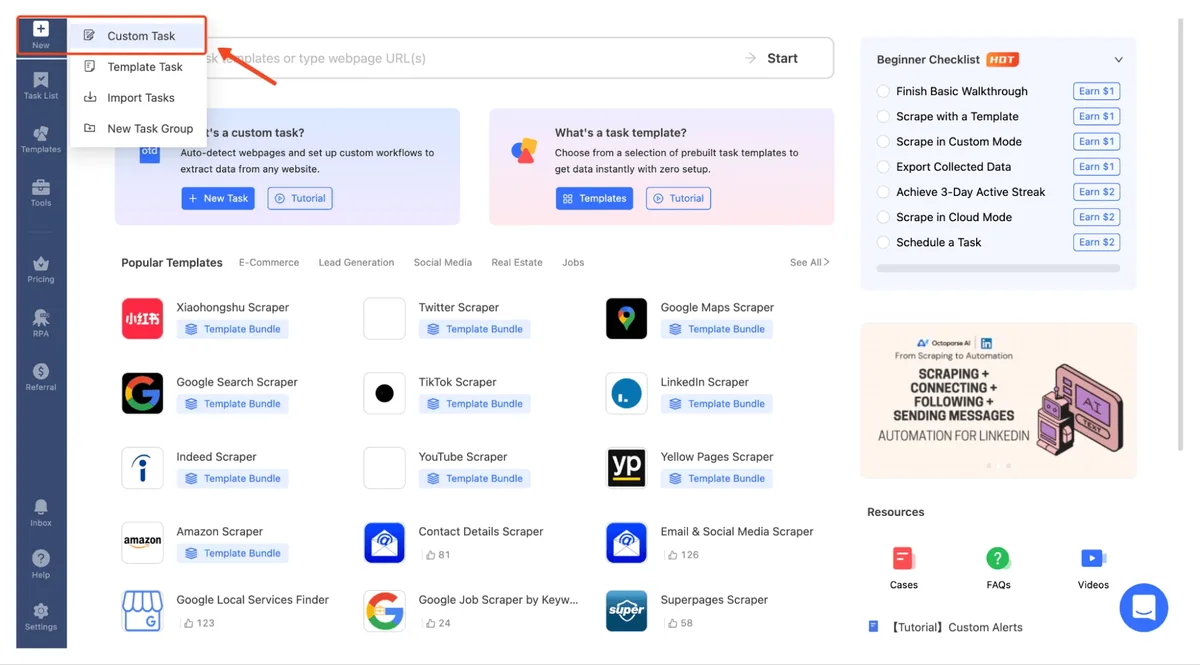
From the start page, open the + New menu at the top of the sidebar and go with Custom Task. Templates keep their own configuration, so build from a custom task instead.
Step 2. Enter the Start URL
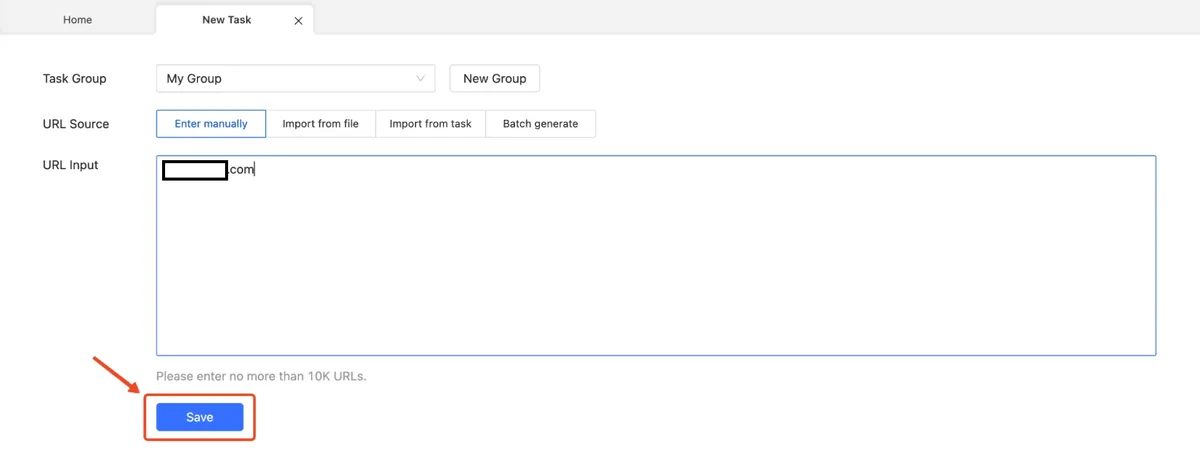
Keep URL Source at Enter manually, drop the first page address into URL Input, then press Save. That box takes as many as 10,000 URLs, one on each line, and the page appears in the embedded browser afterwards.
Step 3. Open Task Settings
Above the loaded page sits a toolbar; Task Settings is the button you want. Its neighbour, Proxy, helps while you are still designing the workflow: it makes the embedded browser fetch pages through your relays and offers to keep them for actual runs.

Step 4. Enable Your Own Proxies
In the dialog, go to Anti-blocking in the left column. Put a tick in Access websites via proxies, switch the radio button to Use my own proxies and press the Configure link beside it.
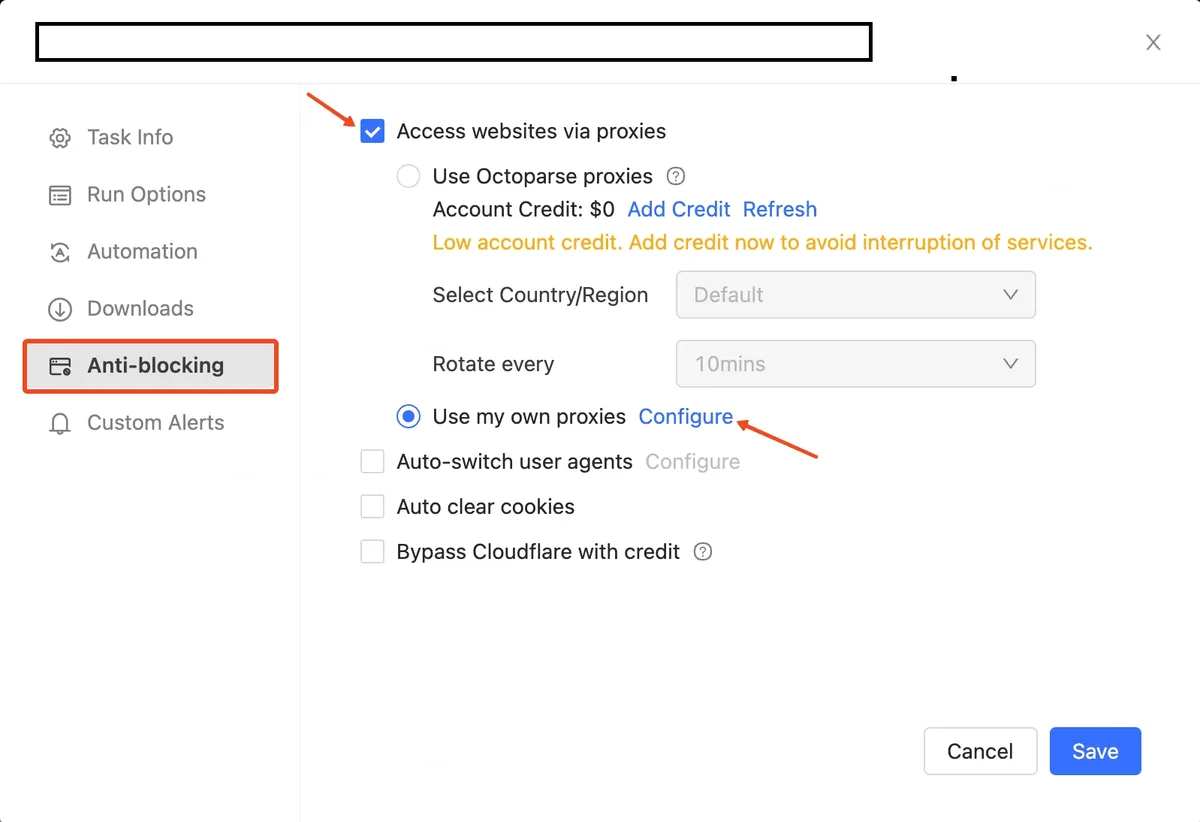
Further down that page are Auto-switch user agents and Auto clear cookies. Pairing them with relays makes every new IP resemble a first-time visitor, not one browser jumping between addresses.
Step 5. Add the Proxy List and Switch Interval
The Proxy Settings pop-up contains two inputs:
- Switch every — how long a single relay serves before Octoparse moves to the next line, e.g. 10s, 60s or 300s.
- IP Proxies — the list itself, one server per line, host and port joined by a colon.
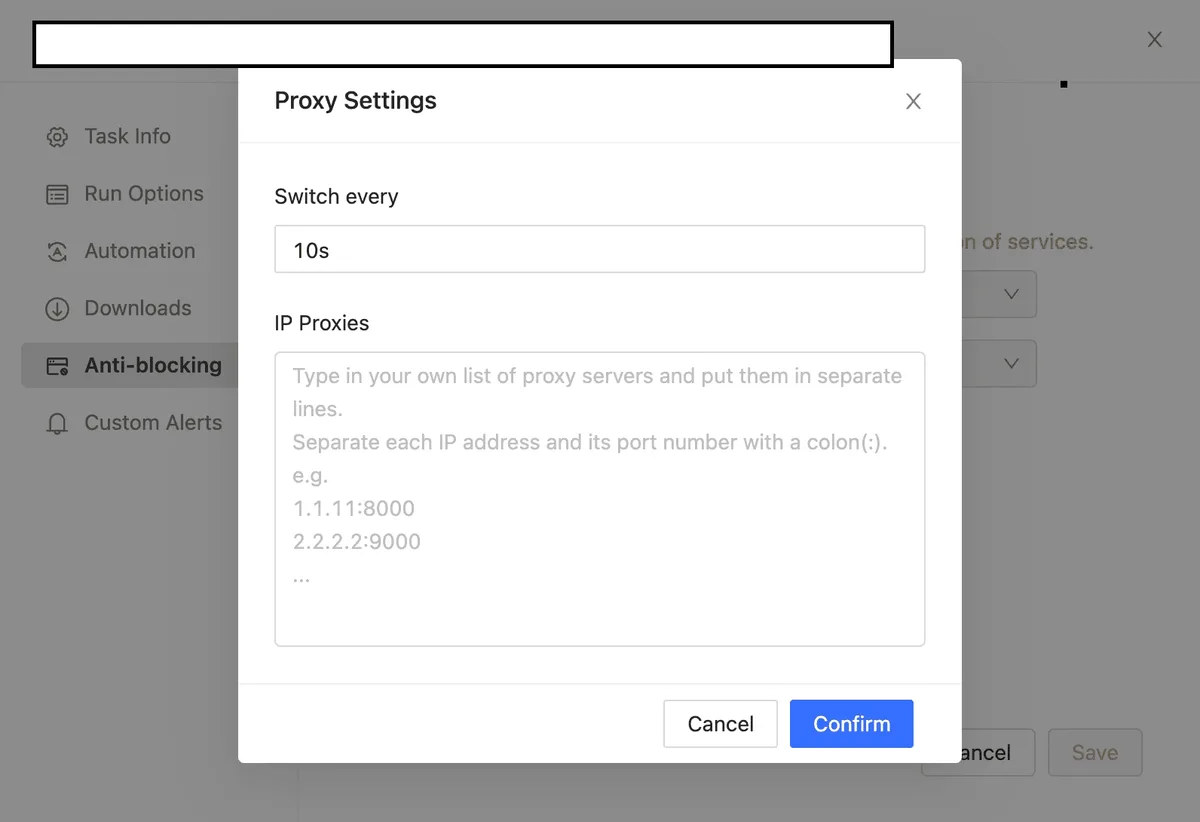
Here is what a list might contain (sample addresses):
198.51.100.14:8000
198.51.100.15:8000
198.51.100.16:8000
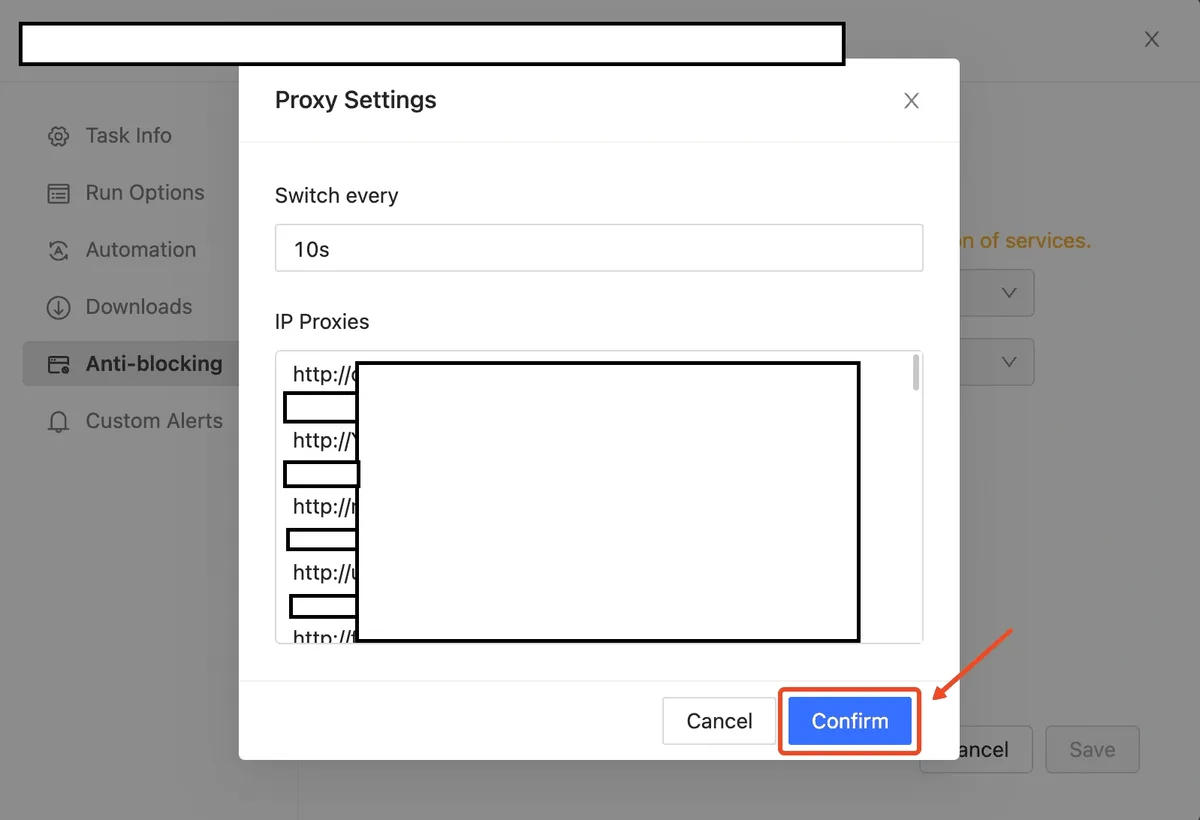
Press Confirm, then Save back in Task Settings.
Choosing the Switch Interval
- Rotating gateway. When one gateway already changes the exit on the vendor's side, a single line suffices and the interval barely matters.
- Several static IPs. Pick a value that lets one address handle a sensible batch of pages, around 30–60 seconds.
- Sites with logins or baskets. Pages that carry state between requests want one IP for the whole visit. Choose a long interval or a sticky session; our explainer on sticky versus rotating proxies shows why.
Proxies With a Login and Password
According to Octoparse's help center, relays requiring a username and password are unsupported. The reliable workaround is authorisation by IP: in the vendor panel, whitelist the public address of the machine running Octoparse, then type each relay as bare host:port.
Some vendor tutorials show lines with credentials baked in, such as http://user:pass@host:port or host:port:user:pass, and certain Octoparse builds may swallow them. That route is unofficial, so run a brief test and confirm the exit IP before trusting it with a big job.
Test Run: Collecting Data Over Several Pages
- On the loaded page, click the first item you want. In the tips panel go for Select all similar elements, followed by Extract text of the selected elements.
- For a catalogue split into numbered pages, click its "next" link and accept the looping option the tips panel proposes for pagination. With auto-detect, the same rule shows up as the Next page button setting.
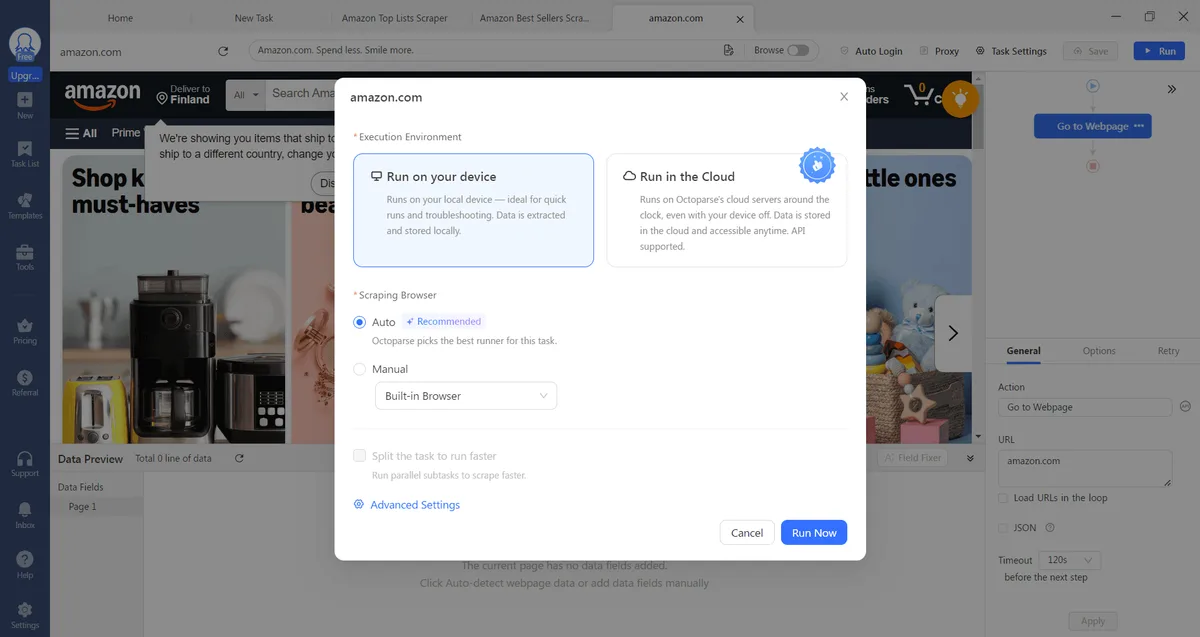
- Press Run, choose Run on your device, and start in Standard Mode to watch pages arrive through the relay.
- Once finished, export to Excel, CSV or JSON. Unsure which format fits your pipeline? Our JSON and CSV comparison helps decide.
How to Check the Proxy Works
Build a tiny task whose only URL is an IP lookup page, extract the IP text and run it locally with your relay settings. The output should list relay addresses changing in step with your interval, never your own IP. Each server can be tested beforehand, outside Octoparse, in our free proxy checker.
Common Errors
Fine in the editor, nothing in the cloud. Cloud runs ignore custom relays by design. Run locally or move to the built-in pool.
Pages never load. Wrong host or port, a SOCKS5 port typed where HTTP is expected, or your IP missing from the vendor's allowlist.
HTTP 407 Proxy Authentication Required. The relay expects a login. Whitelist your IP with the vendor or request an IP-authorised endpoint.
Extraction halts after a few pages. The site is throttling you. Add longer waits between steps, shorten the switch interval or bring in more addresses. Further causes appear in our rundown of scraping errors and their fixes.
Login keeps resetting. The exit changes in the middle of a session. Raise Switch every or use a sticky session.
Octoparse proxy FAQ
Can I use SOCKS5 proxies in Octoparse?
For the custom list, Octoparse documents HTTP only. Ask your vendor for an HTTP port on the same server.
Do my own proxies work in Octoparse Cloud?
No. Cloud runs rely solely on the built-in pool; your list applies to tasks launched on your device.
How do I add a proxy with a username and password?
Officially you cannot. Whitelist your computer's IP in the vendor panel and enter the relay as host:port.
What switch interval should I set?
For a rotating gateway any value works. For a set of static IPs start with 30–60 seconds; for sites behind a login keep one IP for the entire session.
Why do I still get CAPTCHAs with proxies?
Tempo or IP type gives the scraper away. Add waits, enable user agent switching and cookie clearing, and use residential exits on strict sites.