How to Set Up a Proxy in Yandex Browser: System Settings, Extensions and IP Check

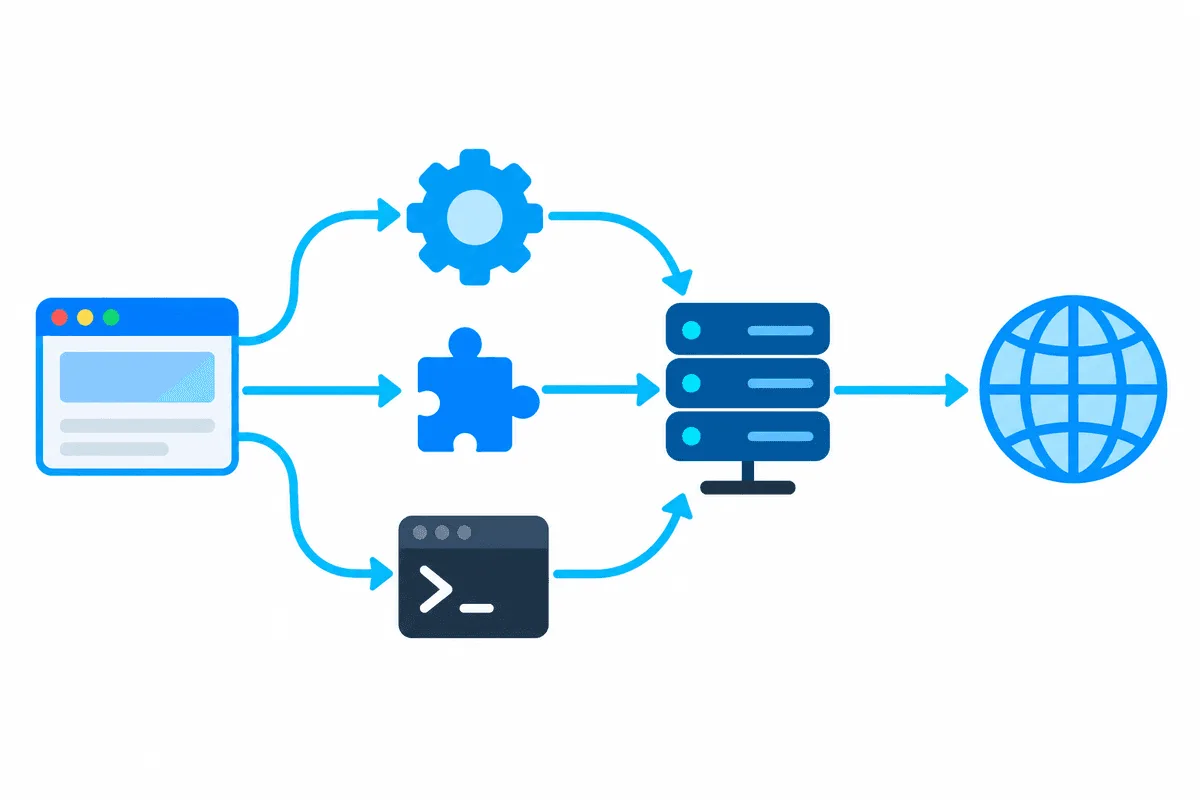
Yandex's desktop browser keeps no proxy form inside itself. Its settings merely forward you to the network panel of Windows or macOS, so an address typed there is picked up by the browser and by every other program that trusts the operating system. Whoever wants the proxy confined to browsing alone has two further tools: a manager add-on or a dedicated shortcut carrying a launch switch.
We cover each of those three routes and what it costs you, the credential window that appears once traffic starts flowing, a SOCKS5 quirk inherited from Chromium that surprises plenty of users, and a quick routine for confirming the exit IP together with the region Yandex assigns you. The closing part sorts out VPN add-ons, forgotten values and the retired Turbo switch.
Static proxies
Static HTTP proxies with a login and password for a stable IP in Yandex Browser
Before Touching Anything
Copy four things from your provider's panel:
- Server and port, written like
203.0.113.24:8000. - Protocol. HTTP is the dependable pick for the OS-level route; SOCKS5 has its own section further down.
- Authorization type: a username plus password, or a whitelisted IP of your own.
People who log into the same accounts day after day benefit from an exit that stays put, which is what our static proxies deliver. If every new connection should surface somewhere else, choose a rotating pool instead.
Route 1. The Operating System Panel
Nothing needs installing here, yet the effect reaches far beyond Yandex: updaters, chat clients and any Chromium sibling such as Chrome or Edge will begin sending traffic the same way.
Step 1. Find the Network Block
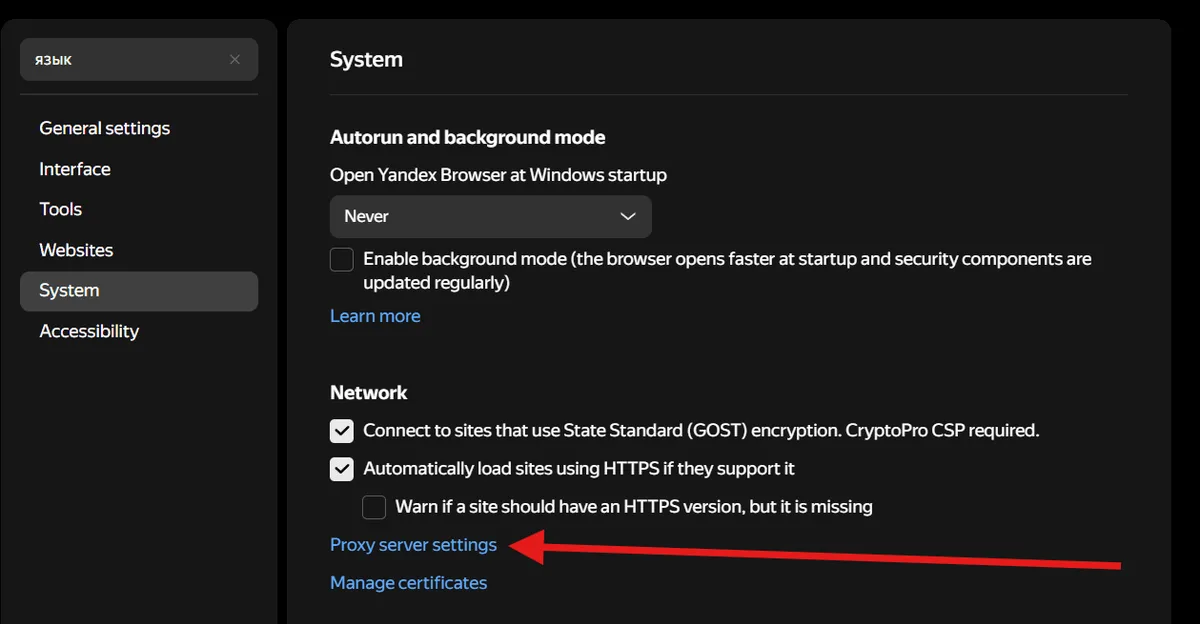
Press the three-stripe menu icon near the window's upper edge, go to Settings and pick System from the column at the left. Halfway down sits a Network group with a Proxy server settings link; clicking it leaves the browser and launches the OS panel. Typing browser://settings into the address line is a shortcut to the same settings area.
Step 2. Windows Values
Which window greets you depends on the Windows release. Recent builds jump to the Proxy page of the modern Settings app, older ones show the legacy Internet Properties box, and either of them stores the result in one shared place.
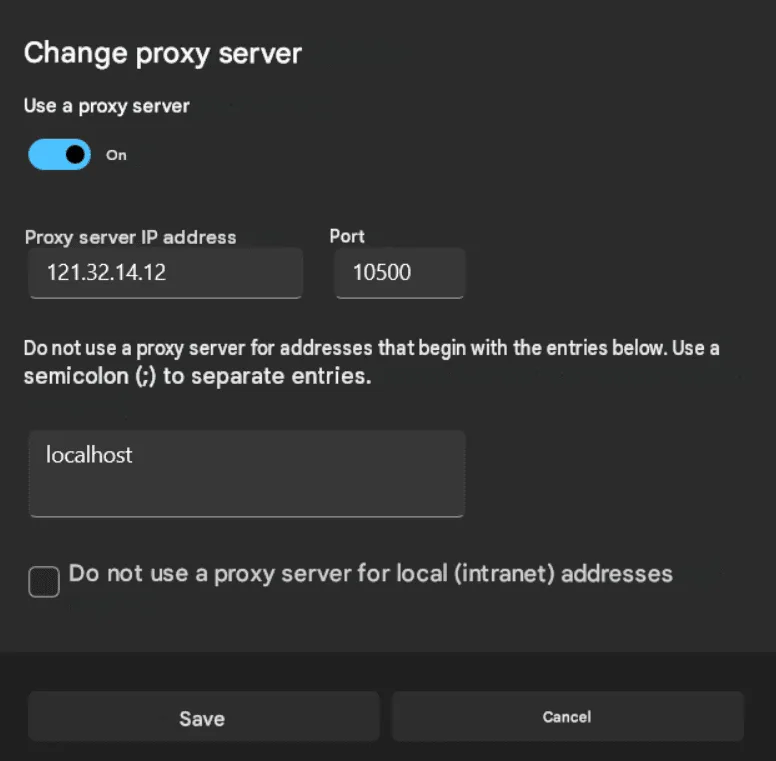
- Modern panel: next to the manual option hit Set up, flip Use a proxy server on, put the server into the address box and the number into Port, and press Save.
- Legacy box: on its Connections tab click LAN settings, tick the checkbox that enables a proxy for the local network, type server plus port and close with OK.
Hosts listed in the exceptions line, separated by semicolons, keep going around the proxy, for example *.local;192.168.*. Leaving local traffic outside the tunnel means your router page and the office printer stay reachable.
Step 3. macOS Values
Apple machines land in System Settings instead. Inside Network highlight whichever connection is live, hit Details and switch to Proxies. Two toggles matter, the plain HTTP web proxy and its secure HTTPS twin; give both of them identical server and port values, fill the credential boxes if they show up, then confirm.
Step 4. Credentials on First Load
Relaunch Yandex and visit something harmless, a weather page for instance. Password-protected servers trigger a small sign-in prompt at this moment. Paste the username and password from the dashboard; they live in memory only for the current run, so expect the prompt again after each relaunch. Servers that recognise your IP from a whitelist never ask.
Route 2. Keep the Proxy Inside the Browser
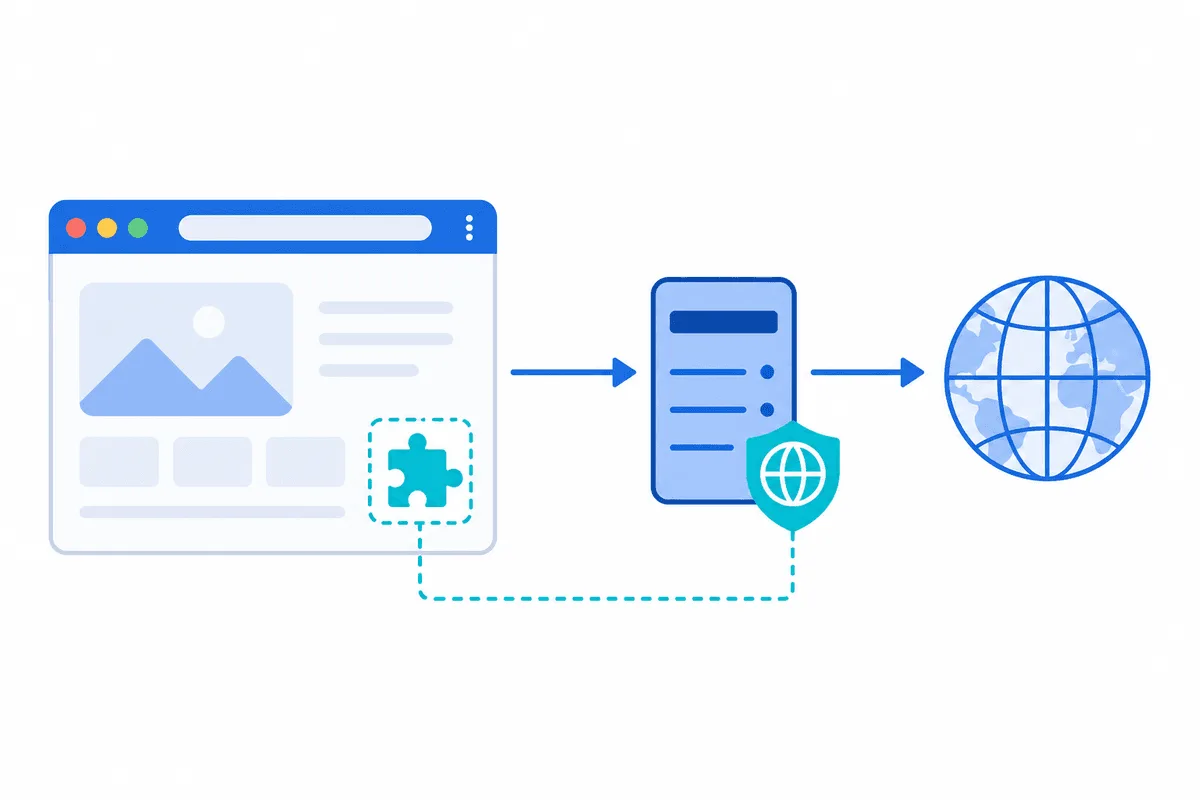
A manager add-on takes precedence over the OS values while Yandex is running and leaves the rest of the computer alone. Since the browser happily installs items from Google's Chrome Web Store, familiar tools work without workarounds.
- In the Chrome Web Store choose a manager like ZeroOmega or FoxyProxy and install it from its store page.
- Build a profile: protocol, server, port.
- Activate that profile with the toolbar icon.
With switching rules, only the domains you list travel through the tunnel while everything else goes out directly; our walkthrough of Proxy SwitchyOmega shows how those lists are assembled. Once an add-on has taken charge, the Network group in settings names that add-on as the controller.
A Second Shortcut With a Launch Switch
Chromium-based browsers obey the --proxy-server option, and Yandex is no exception. Duplicate the desktop icon, open its Properties and extend the Target line like this:
"%LOCALAPPDATA%\Yandex\YandexBrowser\Application\browser.exe" --proxy-server="http://203.0.113.24:8000" --user-data-dir="%LOCALAPPDATA%\YandexProxyProfile"The extra folder argument creates an isolated profile, so this proxied copy runs beside your everyday window and keeps its cookies apart. Shut every Yandex window before trying it, because an instance already in memory silently ignores fresh switches.
The SOCKS5 Catch
Underneath Yandex lies Chromium, and Chromium has never supported sending a username and password to a SOCKS5 server. Add-ons cannot patch that gap because they ask the very same engine to make the connection. Practical escapes are threefold: whitelist your own IP in the provider panel and drop the password, connect to the HTTP port of that same server, or run a small local client that handles the authorization and offers a password-free port on 127.0.0.1. A deeper comparison of the two protocols lives in SOCKS5 vs HTTP proxies.
Is the New Address Really Used?
Visit an IP lookup service and match what it reports, both number and country, against your proxy details. Two further checks are worth a minute:
- WebRTC leaks. Real-time calling features may expose your genuine address over a direct peer link. Leak-test pages reveal this, and an add-on restricting WebRTC closes the hole.
- Region stored by Yandex. Search and other Yandex services read your location from the IP, except when a city was saved manually in your Yandex preferences, which wins. Set location detection back to automatic if results remain stubbornly local. Getting this right matters for jobs like Yandex SERP monitoring.
When pages hang, rule out the server first with our proxy checker, which tells you whether it replies and what exit IP it presents.
When Something Goes Wrong
Proxy server error or Connection failure. Yandex is pointed at a server that stays silent. Verify server and port; if you are finished with the proxy, switch the Windows toggle off or untick the local network checkbox in the legacy box.
The address stays the same. Some add-on is overriding the OS values. Yandex's own help pages admit that VPN extensions and ad blockers can rewrite network settings, so disable them one at a time and relaunch between attempts.
Sign-in prompt loops. Either the credentials are wrong or a trailing space slipped in while pasting. Type them manually.
Turbo mode. Many older tutorials insist on disabling Turbo before configuring a proxy. Yandex has since withdrawn that feature and deleted its switch, so up-to-date versions have nothing to turn off; seeing the option means your build is outdated.
Phones and tablets. The Android and iOS apps offer no proxy menu at all. They rely on the Wi-Fi proxy defined in the phone's own settings, which covers only that particular wireless network and only HTTP servers.
Readers who also use Google Chrome will recognise most of these screens, because the two browsers share an engine and the same reliance on the OS.
Yandex Browser Proxy FAQ
Does Yandex Browser have its own proxy settings?
It does not. Its Proxy server settings link simply launches the OS network panel, and whatever you save there affects every program that follows the system. An add-on or a launch switch is the way to limit a proxy to the browser.
How do I use a proxy with a password in Yandex Browser?
Supply server and port through the OS panel or a manager add-on, and type the credentials into the prompt that pops up on the first request. SOCKS5 servers cannot receive a password from Chromium-based browsers, so pair them with IP whitelisting or use the HTTP port.
How do I turn off the proxy in Yandex Browser?
Follow Settings, System, Proxy server settings and switch the Windows toggle off, or untick the local network checkbox in the older Internet Properties box. If an add-on controls the connection, disable it on the Extensions page.
Can I set a different proxy for each Yandex Browser profile?
Yes. Every profile carries its own add-ons with independent configurations, so each can point elsewhere. Several desktop shortcuts with distinct launch switches and separate data folders achieve the same result.
Why does Yandex still show results for my real city?
A manually chosen region in your Yandex preferences or an old cookie overrides the IP. Re-enable automatic location, wipe the cookies of Yandex domains and reload through the proxy.