Proxy SwitchyOmega for Chrome and Firefox: Setup and Profiles in 2026

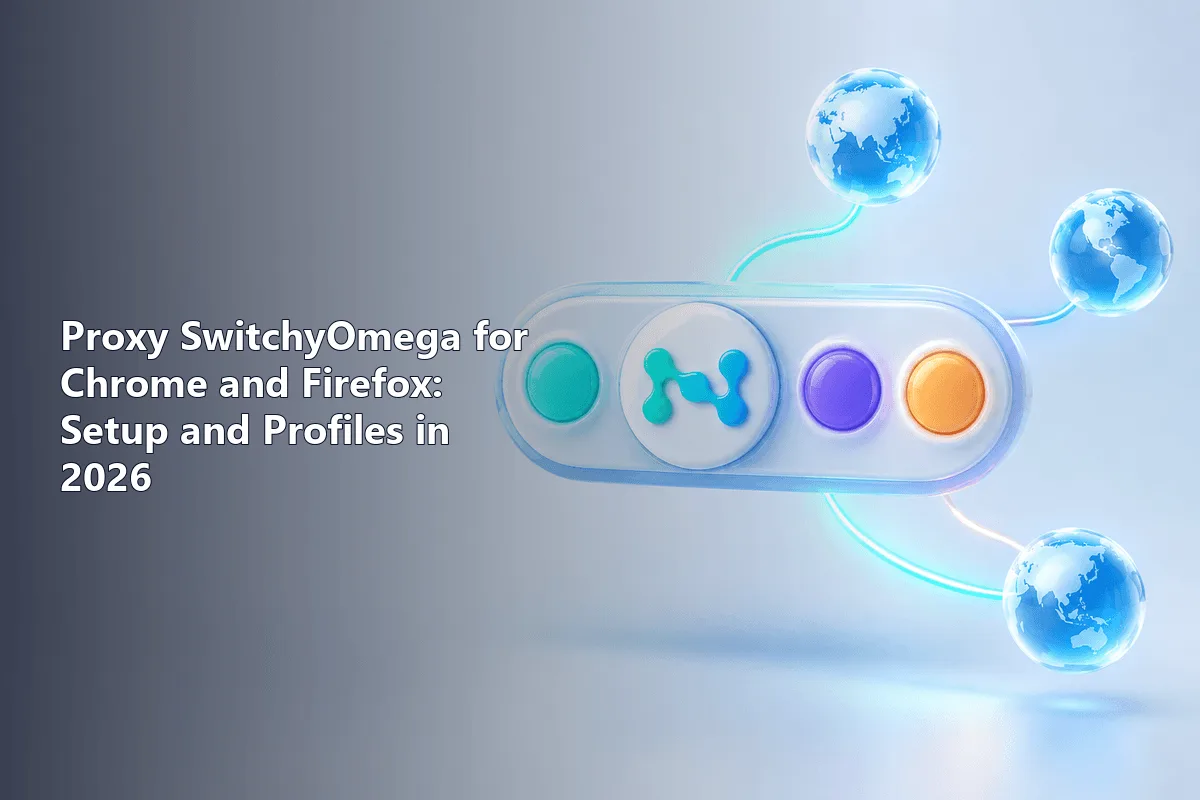
Proxy SwitchyOmega is a free, open-source browser add-on that stores several proxy servers as named profiles and swaps between them from a single toolbar circle, or lets a rule table decide which server each website gets. Nothing in the system network panel is touched: only the browser changes its exit point, and every other program on the machine carries on as before.
The 2026 catch is that the original add-on is frozen and current Chrome refuses to run it. This guide sorts out which build belongs in which browser, then covers a profile with login and password, rules that proxy only chosen domains, a quick way to verify the outgoing IP and cures for the failures readers report most.
Proxies for browser extensions
HTTP and SOCKS5 proxies with a login and password for SwitchyOmega profiles
The Right Build for Your Browser Today
Development of the classic SwitchyOmega ended at release 2.5.21, and its GitHub repository now carries a "no longer maintained" notice. The code targets Manifest V2, the extension format Google phased out of Chrome over 2025, so the add-on was switched off along with everything else that never moved to Manifest V3. Edge and the other Chromium-based browsers did the same.
The living successor goes by Proxy SwitchyOmega 3 (ZeroOmega). It is a GPL fork maintained by a developer under the handle zero-peak, and it preserves the familiar look, profile kinds and rule engine, so each instruction below fits it too.
| Browser | Build to install | Comment |
|---|---|---|
| Chrome, Edge, Brave, Opera | ZeroOmega (Proxy SwitchyOmega 3) | Legacy 2.x no longer starts |
| Firefox | ZeroOmega or legacy 2.x | Mozilla still loads Manifest V2 add-ons |
Watch the store carefully. A number of listings reuse the SwitchyOmega name and blue ring logo with no tie to the real project, and at the end of 2024 one counterfeit fork shipped malicious code. Follow the store link printed on the ZeroOmega GitHub page and glance at the publisher name before you click.
Before You Start
- The proxy host, either an IP or a domain, plus its port.
- The protocol the provider assigns to that port: HTTP, HTTPS or SOCKS5.
- A username and password, unless your provider recognises you by IP.
Customers of our residential proxies see all of these in the dashboard, with separate HTTP and SOCKS5 ports listed per plan.
Adding the Extension
Step 1. Chromium Browsers
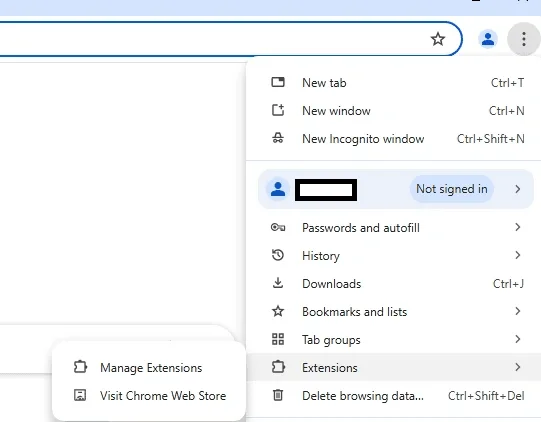
- Click the three vertical dots, hover the Extensions entry and pick Visit Chrome Web Store.
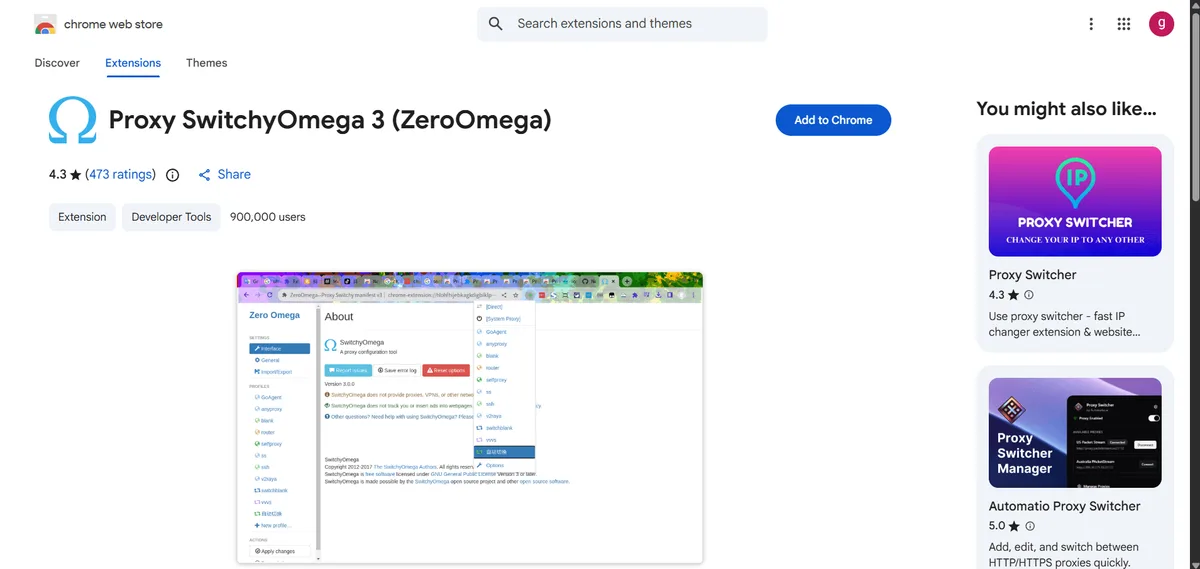
- Query the store for ZeroOmega; the correct card names zero-peak as its developer.
- Hit Add to Chrome, and in the confirmation dialog Add extension. The warning about reading and changing data on every site is expected, because rerouting requests is precisely what a proxy switcher does.
- Through the jigsaw icon beside the address bar, pin the add-on so its ring stays on the toolbar.
Step 2. Firefox
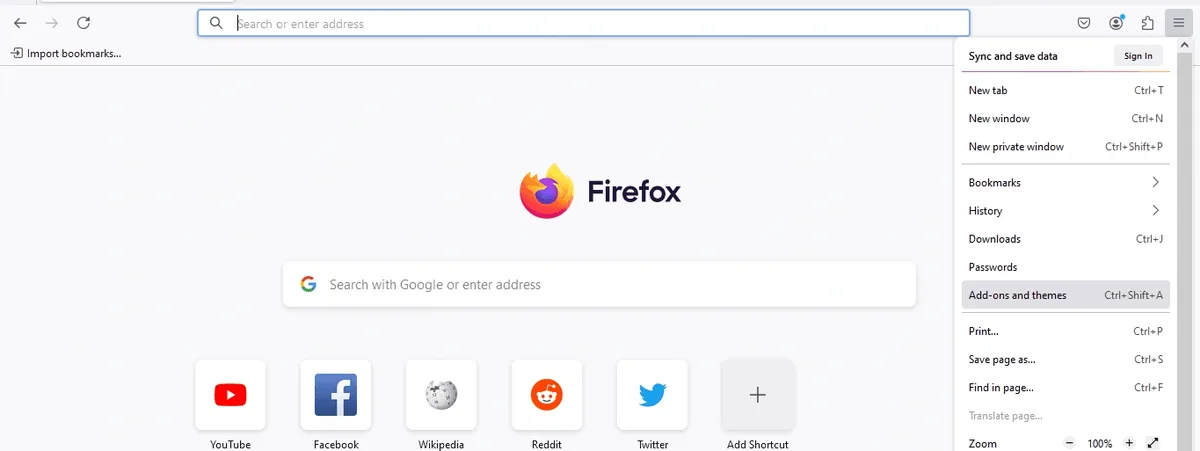
- Through the hamburger menu, choose Add-ons and themes; the keyboard route is
Ctrl+Shift+A. - Enter the add-on's name in the search bar of the catalogue.
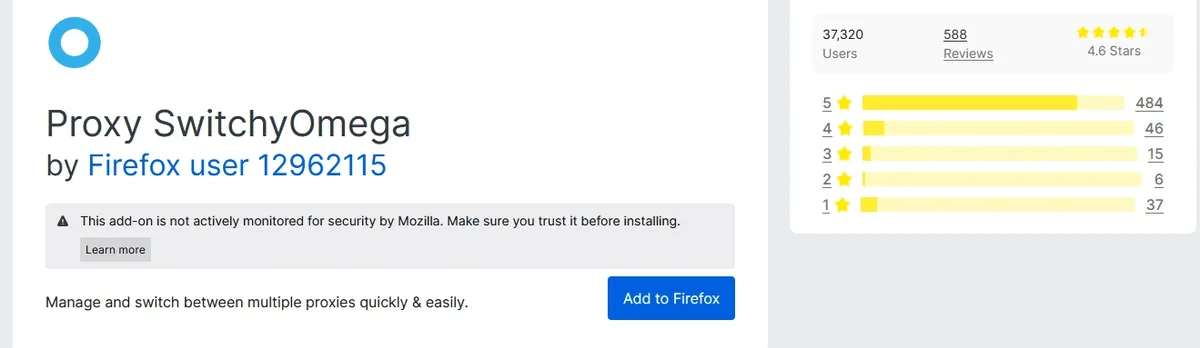
- On its page, press Add to Firefox and accept the permissions it lists.
- Private browsing users should open the add-on's card in the manager and enable Run in Private Windows, otherwise those windows bypass it.
Building Your First Profile
Step 1. Get to Options
A click on the ring reveals a short menu: [Direct], [System Proxy], a pair of demo profiles named proxy and auto switch, and Options at the very end. That last line is the one you need.

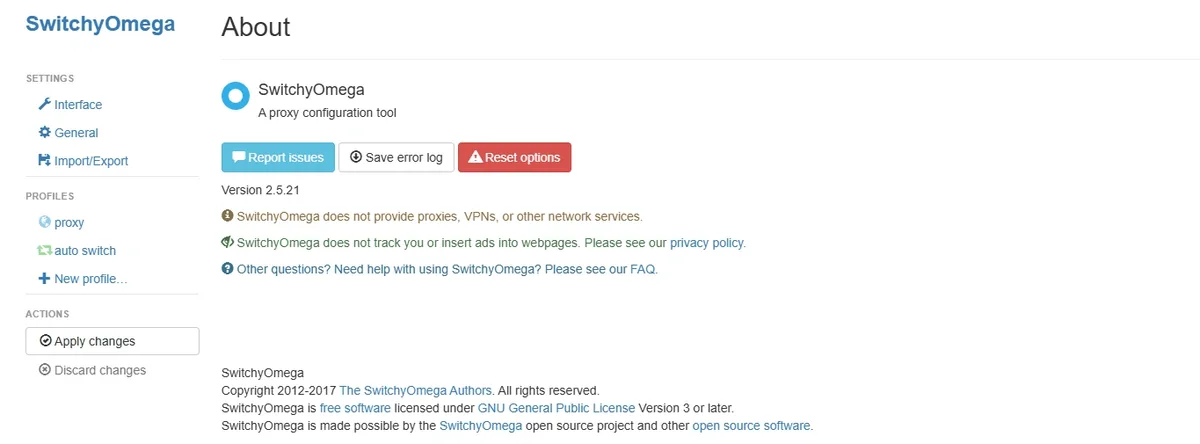
The page that opens is split into a sidebar and a work area. The sidebar starts with Interface, General and Import/Export, continues with your profiles and ends with two buttons, Apply changes and Discard changes.
Step 2. Name the Profile
Press New profile…. A label like US residential or Client B will save you guessing later. Keep Proxy Profile as the kind and confirm with Create.

The remaining kinds have their own purposes. Switch Profile routes by rules, PAC Profile pulls in an auto-config script, and Virtual Profile merely points at another profile, which is handy for swapping servers behind a fixed name.
Step 3. Describe the Server
Inside the Proxy servers grid, the (default) line governs all traffic:
- From the Protocol dropdown, take HTTP, HTTPS, SOCKS4 or SOCKS5, whichever matches your port.
- Server gets the host; Port gets the number.
- The Bypass List below already exempts
127.0.0.1,[::1]andlocalhost; append intranet names only if your office needs it.
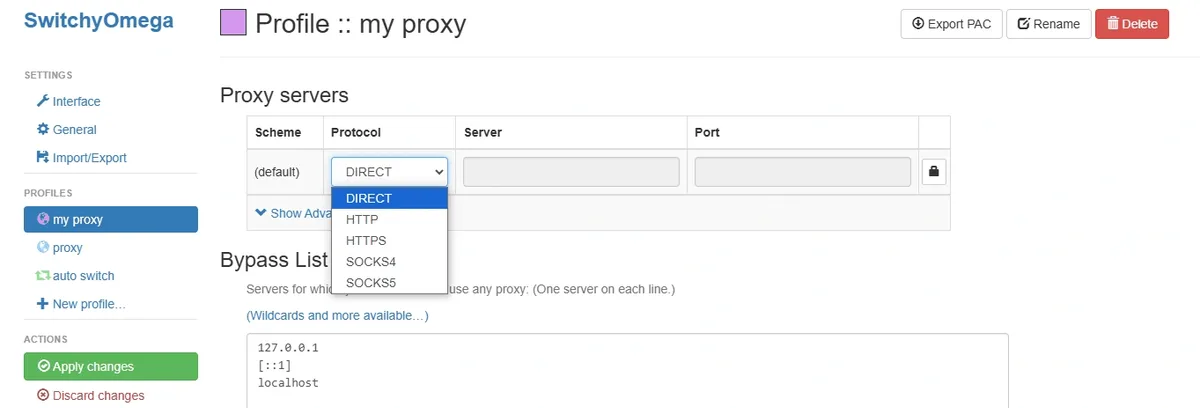
Picking SOCKS5 for an HTTP port, or vice versa, is the classic reason a brand-new profile shows blank pages, so compare both values with the dashboard once more. Unsure which protocol suits your job? Our SOCKS5 versus HTTP comparison lays out the differences.
Step 4. Attach Credentials
At the far right of the server line sits a small padlock. Clicking it brings up Username and Password fields; fill both and store them.
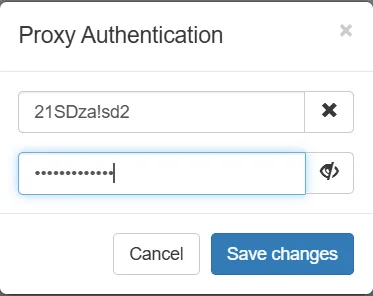
Chrome adds a restriction here that no extension can work around: add-ons may answer proxy password challenges for HTTP and HTTPS only. A SOCKS5 server demanding credentials will therefore fail in Chrome regardless of what you type. Switch to the HTTP port of the same proxy, authorise by IP instead, or use ZeroOmega in Firefox, where SOCKS5 logins are passed through.
Step 5. Commit and Switch On
Press Apply changes. While that button glows green, your edits exist only on screen. Afterwards, open the toolbar menu and select the new profile; the ring takes on that profile's colour so you always know which one is active.
Proxying Selected Domains Only
Rule-based routing lives in the demo auto switch profile or in any Switch Profile you add. Its page shows a grid called Switch rules with three columns:
- Condition type. Host wildcard covers most needs; URL wildcard, URL regex and a few rarer kinds exist for tricky cases.
- Condition details. The pattern itself, such as
*.example.com, which catches the bare domain together with any subdomain. - Profile. The destination for matches, either one of your proxy profiles or [Direct].
Evaluation runs top-down and stops at the first hit, which is why precise patterns belong above general ones. Whatever matches nothing falls to the Default line at the bottom, and [Direct] there is a sane choice for most people. Save via Apply changes, then pick auto switch in the toolbar menu.
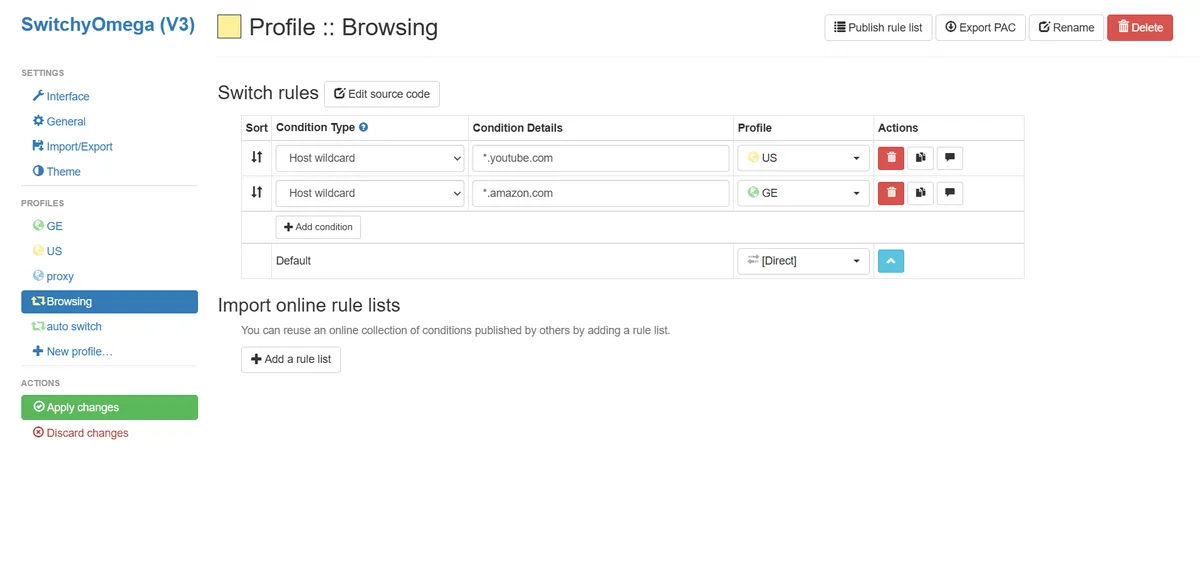
A time saver: with auto switch active, the toolbar menu proposes a condition for whatever site is open in the current tab, so assigning it a profile takes two clicks. Larger teams can also feed a Switch Profile from an online rule list, and any profile can be exported as a PAC file; we unpack how browsers read those in our article about proxy auto-config scripts.
Verifying the Outgoing IP
Activate the profile and load an IP lookup site of your choice. Both the address and its country ought to belong to the proxy rather than to your ISP. Then flip the menu to [Direct] and refresh; your own address coming back proves the add-on, and nothing else, is steering the traffic.
For a browser-free verdict on the server, feed its host and port into our proxy checker. A green result there combined with errors in the browser points straight at the profile.
When Something Goes Wrong
Blank pages right after activation. Recheck protocol, host and port against the dashboard; an HTTP port labelled SOCKS5 behaves exactly like this.
A login window that keeps returning. Either the credentials are off by a character, often a pasted trailing space, or Chrome is facing a SOCKS5 server with a password. Retype the pair behind the padlock or move to the HTTP port.
The selection flips back by itself, or has no effect. Chromium hands proxy control to a single add-on at a time. Turn off rival VPN, proxy or privacy add-ons that request the same permission; Chrome's built-in proxy page tells you which add-on is currently in charge.
Silence after a browser update. In Chrome this nearly always means the legacy 2.x build has been disabled. If it still opens, export a backup under Import/Export, install ZeroOmega and restore that file. If it no longer opens, rebuilding a few profiles by hand takes only minutes.
One site ignores its rule. A wider pattern sitting higher in the list, or a pattern missing the subdomain, is usually to blame. Picking a plain proxy profile for a moment tells you whether the server itself is healthy.
Private windows connect directly. Grant the add-on incognito access (Chrome: Details, then Allow in Incognito) or private window access in Firefox.
Other Tools Worth Considering
A single permanent server needs no add-on at all; built-in settings suffice, as our guides for Google Chrome and Mozilla Firefox show. When each account needs its own fingerprint, cookie jar and IP, a switcher is the wrong instrument: antidetect browsers pin a proxy to every profile, and our antidetect browser setup guides cover the popular ones.
Proxy SwitchyOmega FAQ
Is Proxy SwitchyOmega still available for Chrome?
The legacy 2.x build is disabled in today's Chrome because it relies on Manifest V2. ZeroOmega, also listed as Proxy SwitchyOmega 3, offers the same functions on Manifest V3.
Does SwitchyOmega support SOCKS5 with a username and password?
The profile form accepts SOCKS5 credentials, yet Chrome forbids add-ons from authenticating SOCKS5 connections. In Chrome rely on an HTTP port or IP authorisation; in Firefox ZeroOmega handles SOCKS5 logins.
Does the extension change the IP for the whole computer?
No. Its reach ends at the browser it lives in. Other software keeps using the regular connection or its own proxy options.
Is SwitchyOmega a VPN?
No. It ships no servers and adds no encryption of its own; it only instructs the browser which proxy to send requests to. The proxy itself comes from a provider.
How do I move my profiles to another computer?
In Options, open Import/Export, generate a backup file and restore it in the add-on on the second machine. That file contains your proxy passwords, so keep it somewhere private.