How to Set Up a Residential Proxy in Epic Privacy Browser
 ·July 31, 2026·4 min read
How to Set Up a Proxy in Epic Privacy Browser
Epic Privacy Browser is a Chromium-based browser, and both visually and in terms of interface logic, it is close to familiar Chromium browsers.
One of the key features of Epic Privacy Browser is its handling of proxies. The browser includes built-in tools related to traffic and DNS query protection, but connecting a custom proxy with authentication is usually done through the operating system’s system settings. This is an important point: Epic does not offer a full standalone manager for user-defined proxies within its own interface, so configuration changes are made through Windows or macOS settings. As a result, the specified proxy begins to be used not only by the browser, but also by the entire system or by applications that rely on the system network route.
How proxy configuration works in Epic Privacy Browser
Epic Privacy Browser does not have a separate full-featured window where you can simply enter the IP address, port, username, and password for a custom proxy and save the connection profile within the browser itself. Instead, Epic redirects the user to the system proxy management section. That is where the main server parameters are configured.
Reliable Residential Proxies
High-trust IPs • Extensive GEO coverage • Pay per traffic used • Exceptional connection success rates
The sequence of actions looks like this:
1. Install and open Epic Privacy Browser.
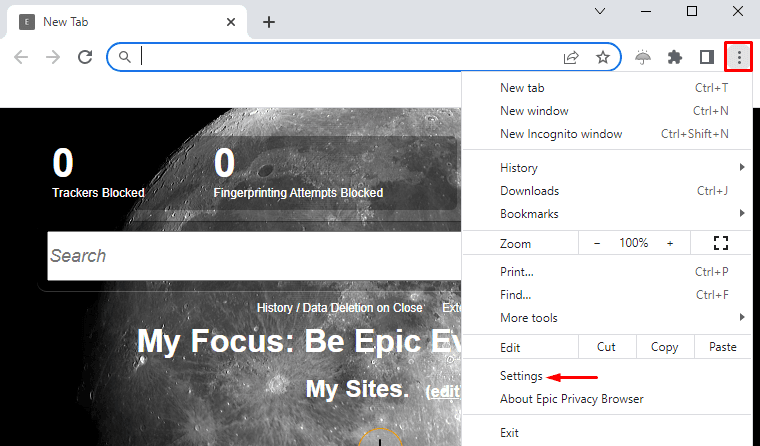
2. Click the three-dot menu button in the upper-right corner.
3. Go to the Settings section.
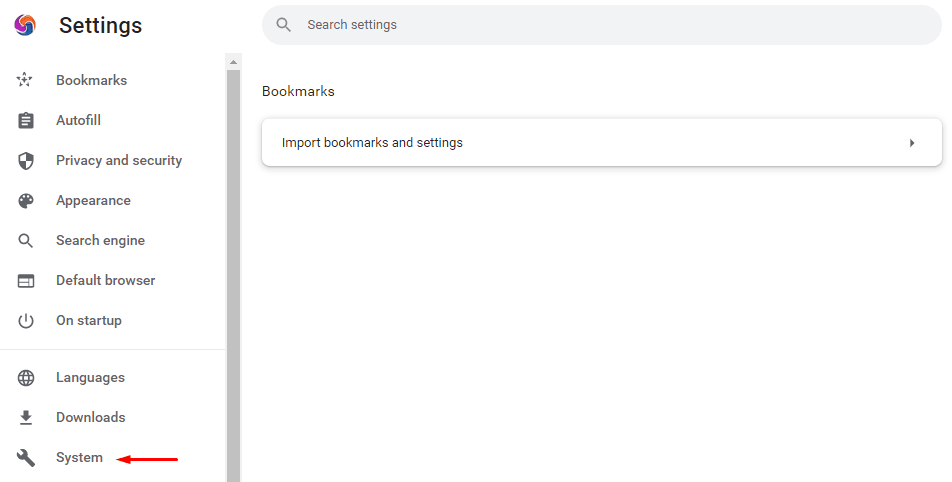
4. Open the System subsection.
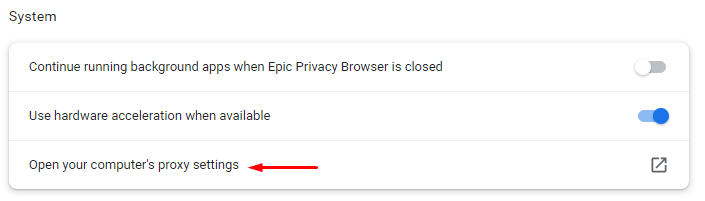
5. Select the option related to opening the computer’s system proxy settings.
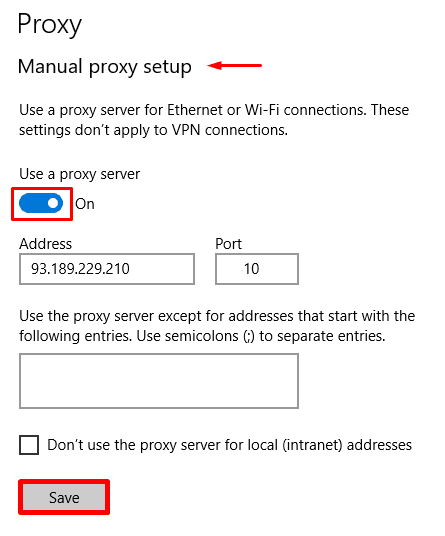
6. In the operating system settings that open, enable the use of a proxy server.
7. Enter the proxy IP address and port (this information can be found on our website).
8. Save the changes.
9. On the first connection through the browser, enter the username and password if the server requires authentication.
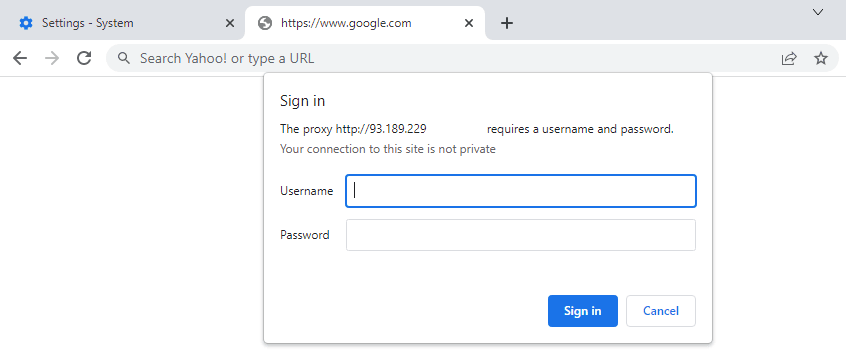
At this point, the basic setup is complete. After saving the parameters, requests from Epic Privacy Browser will go through the specified proxy, and if authentication is enabled, the system will display a login window.
Built-in features of Epic Privacy Browser
In addition to proxy support, Epic Privacy Browser has several characteristic features.
The browser restricts the operation of advertising elements, analytics tools, and social modules that collect information about user activity on web pages. This reduces the volume of third-party requests and decreases the number of elements involved in behavior tracking.
Advantages of Epic Privacy Browser
Blocking of advertising and analytics mechanisms
The browser restricts a significant portion of external modules that are commonly used to track activity on websites.
Familiar interface
Since Epic is based on Chromium, switching from other browsers usually does not cause difficulties.
Ability to use a system proxy
Although the configuration is not done within the browser itself, it is still possible to connect a custom proxy through the OS settings.
Limitations and disadvantages
For all its strengths, Epic Privacy Browser also has noticeable limitations that are worth considering before switching to it as your main browser.
No full built-in configuration for custom proxies
To connect your own server, you need to switch to the system settings. This is less convenient than having a separate proxy connection manager inside the browser.
The configuration applies to the system
If the proxy is configured through Windows or macOS, it may be used not only by Epic but also by other applications. For some users this is an advantage; for others, it is inconvenient.
Limited extension compatibility
Materials about the browser also note weak plugin support. This affects, in particular, password managers and other tools that many users are accustomed to in standard Chromium browsers.
Conclusion
Connecting a custom proxy in Epic is possible, but it is implemented through system settings rather than through a separate internal browser interface. From a technical point of view, this is not difficult: it is enough to open the System section in Epic’s settings, go to the computer’s proxy settings, enable server use, specify the IP address and port, save the configuration, and complete authentication if necessary.
This approach cannot be called the most flexible, but it is functional and understandable. If you need a browser that combines a familiar Chromium interface with the ability to route traffic through a system proxy, Epic Privacy Browser remains one of the options worth considering.