Nova Proxy Switcher: Setup, Limitations and Modern Alternatives


Nova Proxy Switcher is a tiny, free ProxyNova program for Windows that flips the OS-wide proxy on or off in one click. To set it up, download the archive from the developer's site, unpack it, run the executable, enter the proxy as host:port, and enable the proxy; browsers that follow Windows proxy settings, such as Chrome and Edge, switch immediately and prompt for proxy credentials on first use. Disabling the proxy in the same window returns Windows to a direct connection.
The program is old, though. The last widely listed build is version 3.2 from 2016, and the developer's page still describes it as working on Windows XP SP3 or newer. It does its one job, but it has no profiles with credentials, no per-site rules and no updates. Below is a careful setup guide, a look at what the tool really changes in Windows, and modern alternatives for the cases where it falls short.
Datacenter proxies
Fast datacenter proxies for the Windows system proxy or any browser
What Nova Proxy Switcher Is
| Property | Details |
|---|---|
| Developer | ProxyNova, a site known for public proxy lists |
| Name on the developer's site | Internet Proxy Switcher |
| Platform | Windows only |
| Installation | None; one executable inside a ZIP archive |
| What it changes | The Windows system proxy setting |
| Affected browsers | Chromium-family browsers such as Chrome and Edge; Firefox only while set to follow Windows |
| Extras | A shortcut to ProxyNova's own free public proxy |
| Last widely listed version | 3.2 (2016) |
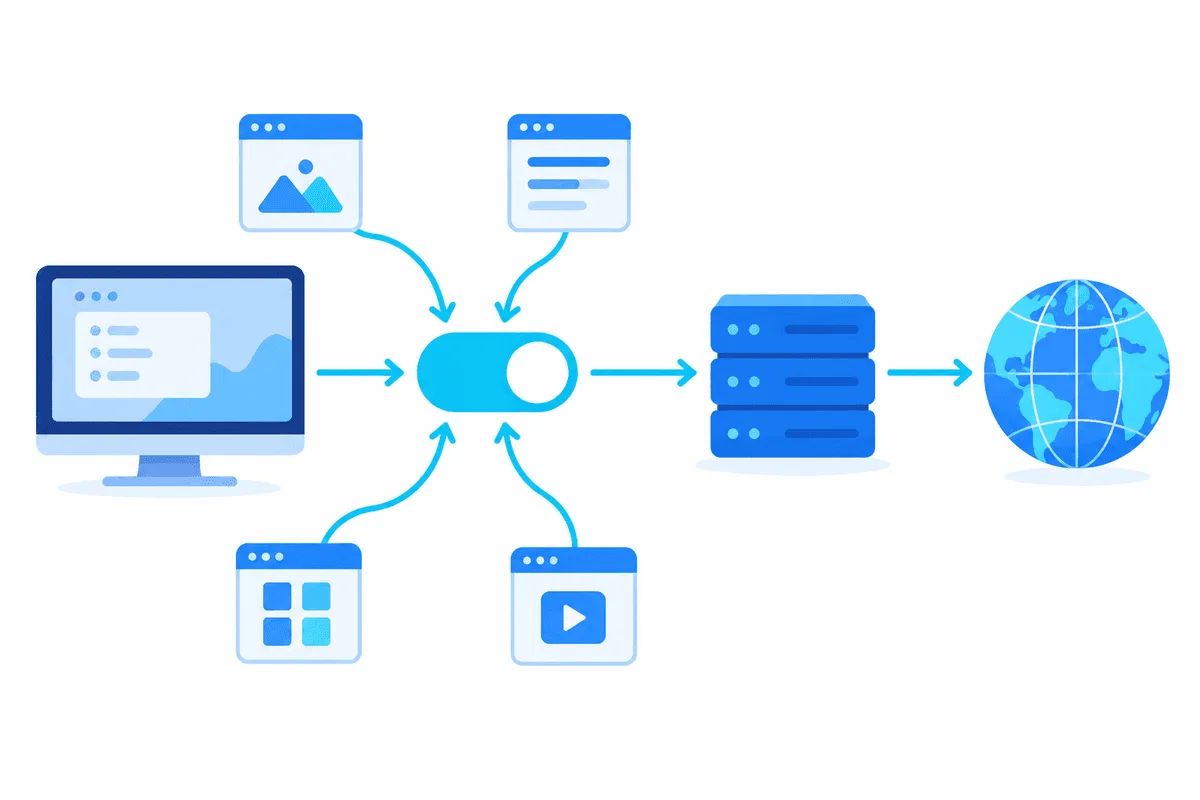
Because the utility edits the system setting rather than a single browser, its effect is wider than a browser extension: any Windows program that respects the system proxy starts using it too.
Before You Download
- Take the file only from the developer. The ProxyNova proxy software page links the archive directly. Mirror sites sometimes bundle extras or offer unrelated tools with similar names.
- Scan the archive with your antivirus before running it. Windows SmartScreen may warn about an unsigned, rarely downloaded program; read the publisher details before allowing it.
- Prepare the proxy data: host, port and, for a private proxy, login and password. An HTTP proxy is the most predictable choice here, because the Windows system setting is designed around HTTP proxies. Our datacenter proxies provide these values in the dashboard.
Setting Up a Proxy Step by Step
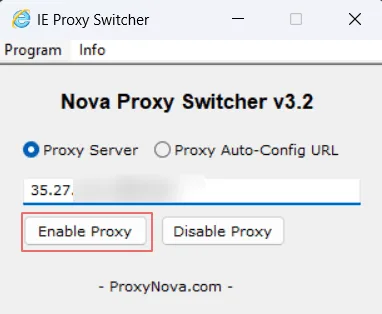
Step 1. Unpack and Run
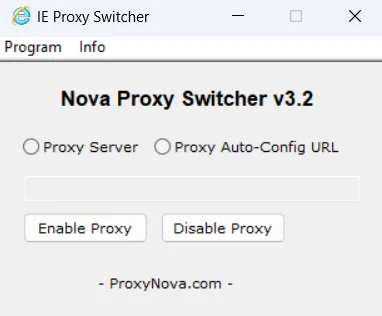
Extract the ZIP archive into a folder you control, for example a Tools folder in your user profile, and start the executable. No installer runs; the main window opens straight away.
Step 2. Enter the Proxy
Tick the proxy server option and type the address in the host:port form, for example 203.0.113.15:8080. The program has no fields for a login and password; authentication happens in the browser later.
Step 3. Enable the Proxy
Press the button that enables the proxy. The new setting takes effect at once: browsers that follow the system proxy route their next requests through it without a restart.
Step 4. Sign In When the Browser Asks
On the first page load through a private proxy, Chrome or Edge shows a sign-in dialog for the proxy. Enter the username and password and confirm. The browser remembers them for the session; after a restart the dialog may appear again.
If your provider supports IP allowlisting, adding your home or office IP removes the dialog entirely, which is convenient for a system-wide proxy.
Step 5. Turn It Off
When you no longer need the proxy, click the disable button first and only then close the switcher.
What It Really Changes in Windows
Nova Proxy Switcher writes to the same proxy settings you see in Windows under Settings → Network & Internet → Proxy (on older systems, Internet Options → Connections → LAN settings). That has practical consequences:
- Programs that ignore system settings are not affected. Firefox in its own proxy mode, many games, Telegram with its built-in proxy and command-line tools that read their own variables all keep connecting directly.
- The setting outlives the program. If you close the switcher without disabling the proxy, Windows keeps using it. When browsers stop loading pages after you stopped the proxy, open the Windows proxy page and turn Use a proxy server off manually.
- One proxy for everything. There are no rules to send only some sites through the proxy.
Our article on what a proxy server is explains the difference between system-wide and application-level proxies in more detail.
Authentication and Protocol Limits
The switcher stores only an address and port. For HTTP servers this is enough: the browser pops up its own credential prompt, or the provider recognises your IP. SOCKS proxies are another story: Windows system settings have limited SOCKS support, browsers treat a SOCKS entry from system settings inconsistently, and none of this path can send a SOCKS5 login and password. If you work with SOCKS5 proxies that need credentials, use a browser extension or a dedicated proxy client instead.
About the Built-In Free Proxy Shortcut
The program offers a quick switch to a public proxy operated by ProxyNova. Public proxies are shared by many unknown users, run at unpredictable speed and can see any traffic that is not encrypted. Do not use one for logins, payments or work accounts. The trade-offs are covered in our article on free proxies.
How to Check the New IP
Open any what-is-my-IP page in Chrome or Edge. The address and country should match your proxy. For contrast, load that page in an application with its own network configuration, e.g. Firefox set to manual mode. Seeing your genuine address there is expected and proves the switcher acts on the OS level alone.
Modern Alternatives
| Tool | Scope | Credentials | Per-site rules | Platforms |
|---|---|---|---|---|
| Nova Proxy Switcher | Whole Windows system | Browser dialog only | No | Windows |
| Windows built-in proxy settings | Whole Windows system | Browser dialog only | Exception list | Windows |
| SwitchyOmega-type extensions | One browser | Stored per profile for HTTP | Yes | Chromium-based browsers, Firefox |
| Simple Proxy extension | One browser | Supported, HTTP proxies only | No | Chromium-based browsers |
For quick switching between several proxies inside a browser, our guide to Proxy SwitchyOmega shows profiles and auto-switch rules, and the Simple Proxy setup suits a single HTTP proxy with a login. Windows' own proxy page does everything Nova Proxy Switcher does, without extra software, if you only need to turn one proxy on and off now and then.

Common Problems
Pages stop loading after closing the program. The proxy is still set in Windows. Disable it on the Windows proxy page or relaunch the switcher and press disable.
The sign-in dialog keeps appearing. The login or password is wrong, or the browser does not save proxy credentials between sessions. Check the data or switch to IP authorization.
Firefox ignores the proxy. Set Firefox's network settings to use the system proxy, or configure the proxy in Firefox directly.
A SOCKS proxy does not work. The Windows-wide proxy path handles SOCKS poorly and cannot carry a SOCKS password at all. Ask your provider for an HTTP endpoint, or move to a SOCKS-capable browser add-on.
Windows warns before launch. The program is unsigned and rarely downloaded. Make sure it came from the developer's site and was scanned before allowing it.
Nova Proxy Switcher FAQ
Is Nova Proxy Switcher a browser extension?
No. It is a small Windows program that changes the system proxy setting, which browsers like Chrome and Edge then follow. Hence its reach covers all software relying on the OS-wide proxy.
Where do I enter the proxy login and password?
Nova Proxy Switcher has no credential fields. The browser shows a sign-in dialog when a private proxy asks for authorization, or you can authorize your IP with the provider instead.
Does Nova Proxy Switcher work on Windows 11?
The developer lists Windows XP SP3 or newer, and since all it touches are the ordinary OS proxy values, it usually launches fine on today's releases. It has not been updated for years, so expect SmartScreen warnings and no support.
Can it use SOCKS5 proxies with a password?
Not reliably. The system proxy path cannot pass a SOCKS5 login, and browsers handle SOCKS from system settings inconsistently. Switch to an HTTP endpoint, or use a browser add-on that understands SOCKS5.
What is the best alternative to Nova Proxy Switcher?
For one proxy across the whole system, the built-in Windows proxy page is enough. For several proxies and per-site rules inside a browser, an extension such as SwitchyOmega is more flexible.