How to Set Up a Proxy in the Simple Proxy Browser Extension


Simple Proxy is a browser extension for working with proxies without changing the device’s system settings. To set up a proxy in it, open the Import Proxy section, enter the proxy IP address, port, and credentials, save the entry, and activate it. The extension is suitable in cases where you need to route traffic only through a specific browser, switch quickly between connections, and manage settings from the extensions panel.
The main advantage of this approach is that all configuration is performed locally inside the browser. There is no need to change the operating system’s network settings, launch separate applications, or keep background software running. This simplifies setup and reduces the risk of errors related to system configuration.
What You Need to Know Before Setup
Before adding a connection in Simple Proxy, you need to prepare the proxy details. If you use Node Proxy residential proxies, you can find them in the Node Proxy panel:
- IP address;
- port;
- username and password, if authorization is required.
It is also worth considering the extension’s limitation: it only works with HTTP proxies. If you have details for another protocol, such a connection may not work in Simple Proxy. We explain how the protocols differ in SOCKS5 vs HTTP proxies.
Another feature of the extension is that it only affects the browser in which it is installed. This is convenient when you need to separate different usage scenarios: for example, to use separate network settings only in one browser without affecting other applications and programs on the computer.
Your Browser, with a Residential Connection
Set up your proxy and keep using the browser you prefer.
Why Simple Proxy Is Convenient to Use
The extension is designed for a basic scenario: add a server, save it to the list, and quickly enable it when needed. Because of this, it is suitable for users who do not need a complex proxy manager with a large number of rules and profiles.
Simple Proxy has several practical advantages:
Management from the browser panel
All main actions are performed through the extension icon. There is no need to go into system settings or open a separate interface. The list of connections, the add form, and the basic parameters are all located in one place.
Setup only for the browser
The extension does not change the proxy at the system level. This means that the rest of the device’s traffic continues to work as usual, while the specified parameters are applied only inside the selected browser.
Quick switching between servers
If you use several connections, they can be stored in the list and switched as needed. This is more convenient than entering the parameters manually each time.
Low system load
Since the extension works inside the browser and does not require separate software, it usually consumes fewer resources than full-featured proxy clients with an extended set of functions.
Step-by-Step Proxy Setup in Simple Proxy
Step 1. Install the extension
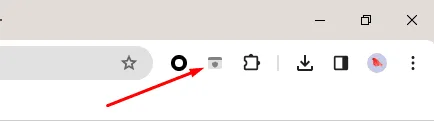
Open the browser’s extension store and find Simple Proxy. Install it; after installation, the extension icon will appear on the toolbar.
Click it to open the interface and proceed to setup.
Step 2. Open the proxy add section
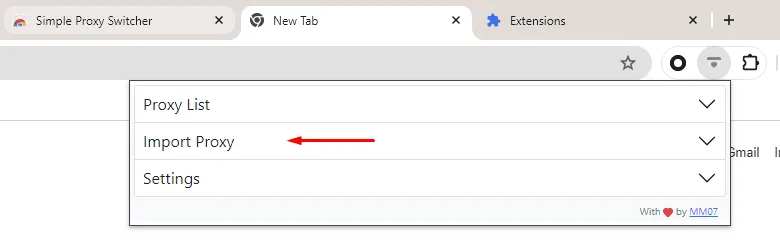
Inside the extension, three main sections are usually available:
- Proxy List — a list of saved connections;
- Import Proxy — a form for adding a new proxy;
- Settings — auxiliary parameters related to the extension’s operation.
For the initial setup, you need the Import Proxy section. This is where the parameters of the new connection are entered.
Step 3. Enter the proxy details
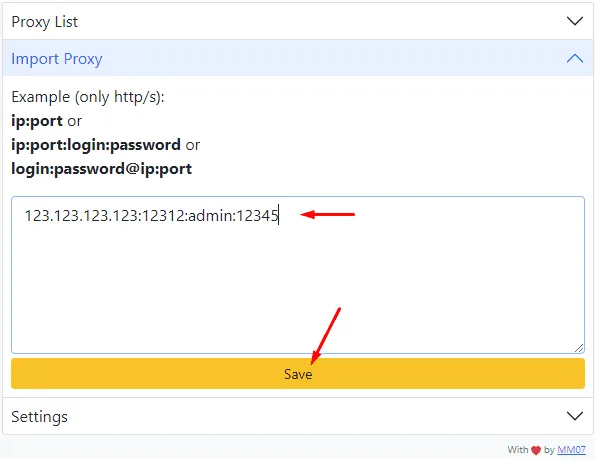
Specify the IP address and port in the format required by the extension. If the server works with authorization, also add the username and password.
At this stage, it is especially important to avoid mistakes in the characters. Even one extra dot, space, or incorrect digit in the IP address, port, or credentials will cause the connection not to work.
Step 4. Save the configuration
After entering all parameters, click Save. The new connection will appear in the list of saved proxies.
If you plan to use several servers, they can be added one by one in the same way, so that later you can quickly select the desired option from the list.
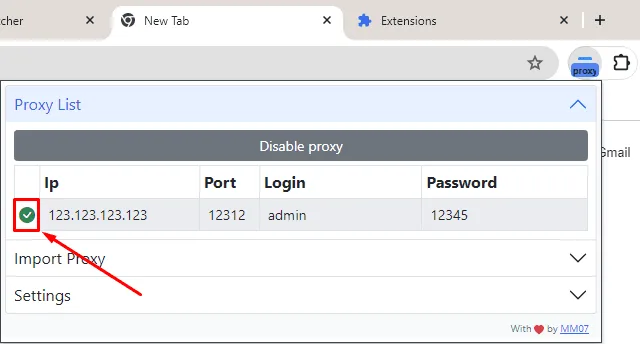
Step 5. Activate the connection
Once the proxy is saved, it needs to be enabled.
After activation, the browser will begin using the specified parameters for connections inside the current profile.
How to Check That the Setup Has Been Applied
After enabling the proxy, it is worth making sure that the extension is actually using the new connection. To do this, simply open any IP address checking service and see which address is displayed in the browser. You can also test the proxy itself with the free proxy checker, which shows whether it is alive, its exit IP, and its location.
If the new data is displayed, the configuration has been applied correctly. If the previous IP remains or the pages do not open at all, you need to check the entered parameters and the status of the server itself.
Common Setup Errors
Despite the simple interface, setup problems occur regularly. They are usually related not to the extension itself, but to the source data or conflicts in the browser.
Incorrect IP, port, or credentials
This is the most common reason. The error may be in any field: an incorrect IP, the wrong port, a typo in the username or password, or extra spaces when copying.
Solution: check all parameters against the original data again and save the entry once more.
Conflict with other extensions
Extensions that also affect network connections or traffic redirection may interfere with Simple Proxy. As a result, the settings are applied incorrectly, and pages load with errors or do not open at all.
If failures occur after setup, it makes sense to temporarily disable other similar extensions and restart the browser.
Old browser cookies and cache
Sometimes after switching the connection, websites continue to behave as if the environment has not changed. The reason often lies in stored cookies and cache.
If pages are displayed incorrectly after switching the proxy or old session data remains, it is useful to clear the browser’s cookies and cache, and then reload the tabs.
Practical Recommendations for Stable Operation
For Simple Proxy to work without failures, it is enough to follow a few basic rules.
First, always check the input format before saving. Most problems arise precisely because of inaccuracies in the parameters.
Second, keep only current connections in the list. If a proxy is no longer used or has stopped working, it is better to remove it so as not to get confused when switching.
Third, do not run several tools at the same time that try to manage the browser’s network settings. This reduces predictability and makes error diagnosis more difficult.
Finally, after any significant configuration change, it is useful to restart the tab or the browser itself if the behavior of the pages appears unstable.
Simple Proxy FAQ
How do I add a proxy in Simple Proxy?
Click the extension icon, open the Import Proxy section, and enter the IP address, port, and, if required, the username and password. Then click Save and activate the saved proxy in the list.
Does Simple Proxy support SOCKS5?
No, the extension works only with HTTP proxies. If your proxy details are for another protocol, the connection may not work in Simple Proxy.
Does Simple Proxy change the proxy for the whole computer?
No. The extension applies the proxy only inside the browser where it is installed, while other applications on the device keep using the regular connection.
Why does the old IP still show after enabling the proxy?
Check the IP address, port, and credentials for typos, disable other extensions that manage network connections, and clear cookies and cache before reloading the page.
Conclusion
Simple Proxy is a convenient option for those who need a basic and fast way to set up a proxy directly in the browser. The extension is not overloaded with unnecessary functions, does not require changes to system settings, and allows you to manage connections through a compact interface. If you prefer to work without an extension, see how to set up and disable a proxy in Opera or how to set up a proxy in Maxthon Cloud Browser.