Potatso Lite on iPhone: Proxy Setup, Rule-Based Routing and IP Check

Potatso Lite is an iOS client that installs an on-device VPN profile, catches the iPhone's connections with it and relays them to an HTTP, SOCKS5 or Shadowsocks server whose details you type in. In one line: create an entry via manual input, set its protocol, supply host, port, username and password, press the play control and let iOS install the VPN profile it requests.
What most guides leave out is routing. Potatso is able to pass only listed domains to the relay, leave everything else on your regular link and refuse what you never want loaded. This article covers the basic setup, how the current version of the app is organised, a rule set you can adapt, and how to prove that each rule does what you expect.
Residential proxies
Residential proxies with a login and password for Potatso on iPhone
Potatso Lite in 2026: What Changed
The App Store entry that many guides call Potatso Lite now appears simply as Potatso, published by Potatso Lab. The current 3.x line is built on a Mihomo (Clash-compatible) engine and, according to the listing, supports Shadowsocks, ShadowsocksR, HTTP(S), SOCKS5, VMess, VLESS, Trojan and several newer protocols. Profiles can be imported from links, files or QR codes, including Clash/Mihomo and Surge configurations.
Practical consequences:
- Screens differ between builds. Older guides describe an Add a Proxy button and a Manual Input option; in 3.x the same functions sit in a sidebar. Labels below follow the older wording where it still matches and describe the function where it does not.
- iOS 17 or newer is required by the current release.
- The basic client is free. A paid Pro tier unlocks extras such as multiple profiles, latency tests and an ad-free interface; check the current list in the App Store before buying.
- No servers come bundled with the client; it expects a relay or subscription that you already have.
What You Need
Open your seller's control panel and note five values: protocol, host, port, username and password. For an iPhone that moves between Wi-Fi and mobile data, authorisation by login and password is more reliable than an IP allowlist, because your public address changes with every network. Not sure whether to take HTTP or SOCKS5? Our comparison of SOCKS5 and HTTP explains which suits what.
Adding a Proxy Manually
Step 1. Open the Proxy List
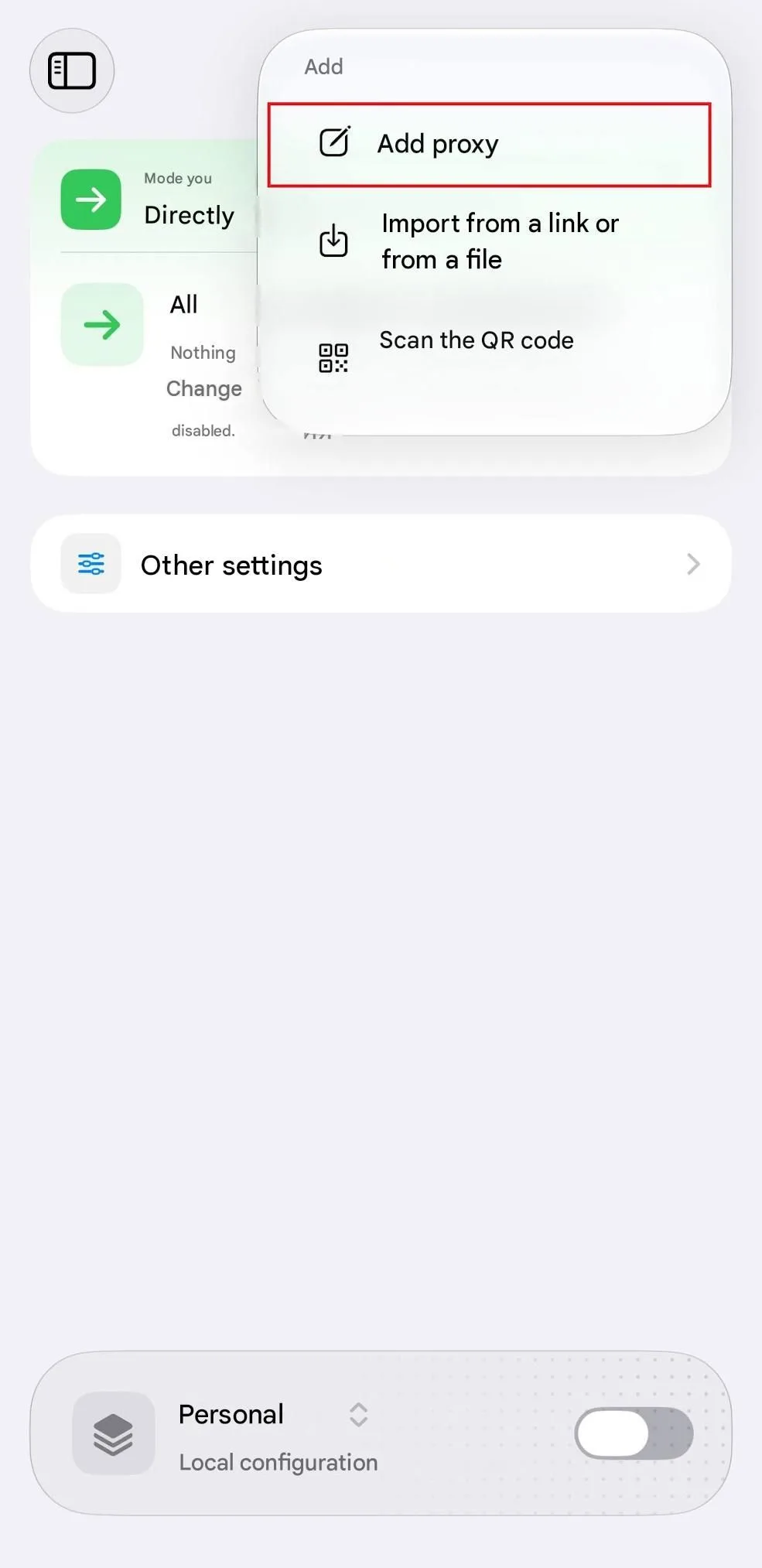
Launch Potatso, open the add menu and choose Add proxy (in older builds: Add a Proxy → Manual Input) to type the details yourself instead of scanning a QR code.
Step 2. Choose the Type
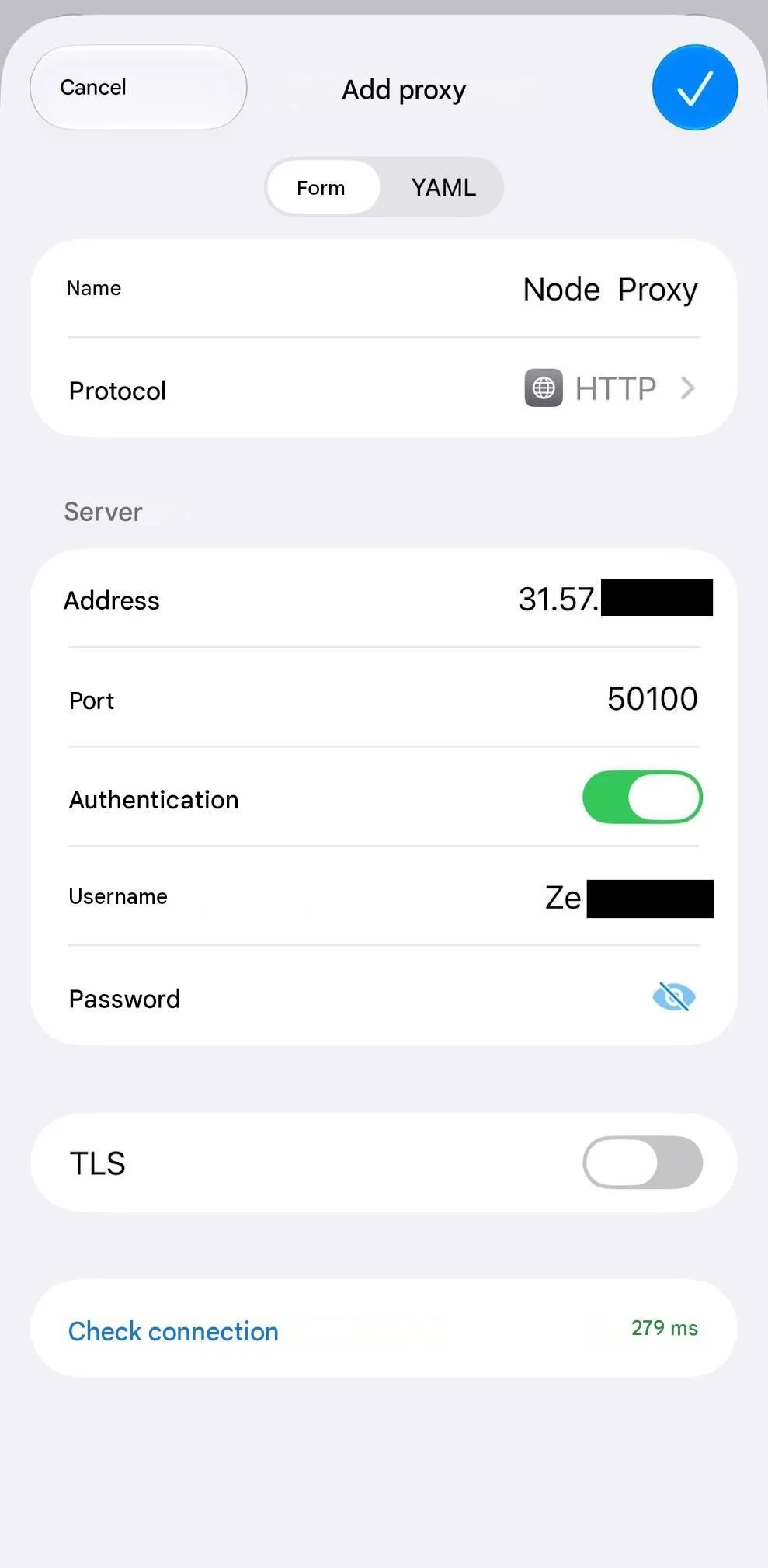
In Type, pick the protocol that matches the port from your provider: HTTP, HTTPS or SOCKS5 for a standard proxy, Shadowsocks only if your server runs it.
Step 3. Enter Server and Port
Type the address into the host field and the numeric port into its own field. When the form has a name field, label the entry by something you will recognise later, such as the exit country.
Step 4. Add Authentication
If the proxy is protected, switch authentication to password mode and enter the login and password. Save the entry; it now shows up in the list.
Step 5. Connect
Go back to the main screen and press the play control. The very first time, iOS wants approval to install a VPN profile, which you grant with Face ID, Touch ID or your passcode. While the tunnel runs, a VPN indicator shows at the top of the screen or, on models with less room there, in Control Center.
Choosing a Routing Mode
Three routing modes are built into the 3.x engine:
| Mode | Behaviour | Typical use |
|---|---|---|
| Global | Every connection goes through the selected proxy | Quick test, or when the whole phone should appear from one location |
| Rule | Each connection is checked against rules and sent to the proxy, direct or blocked | Daily use: only chosen services through the proxy |
| Direct | Nothing is proxied, the client stays on | Troubleshooting, comparing speed with and without the proxy |
Start in Global to confirm the proxy works at all, then switch to Rule.
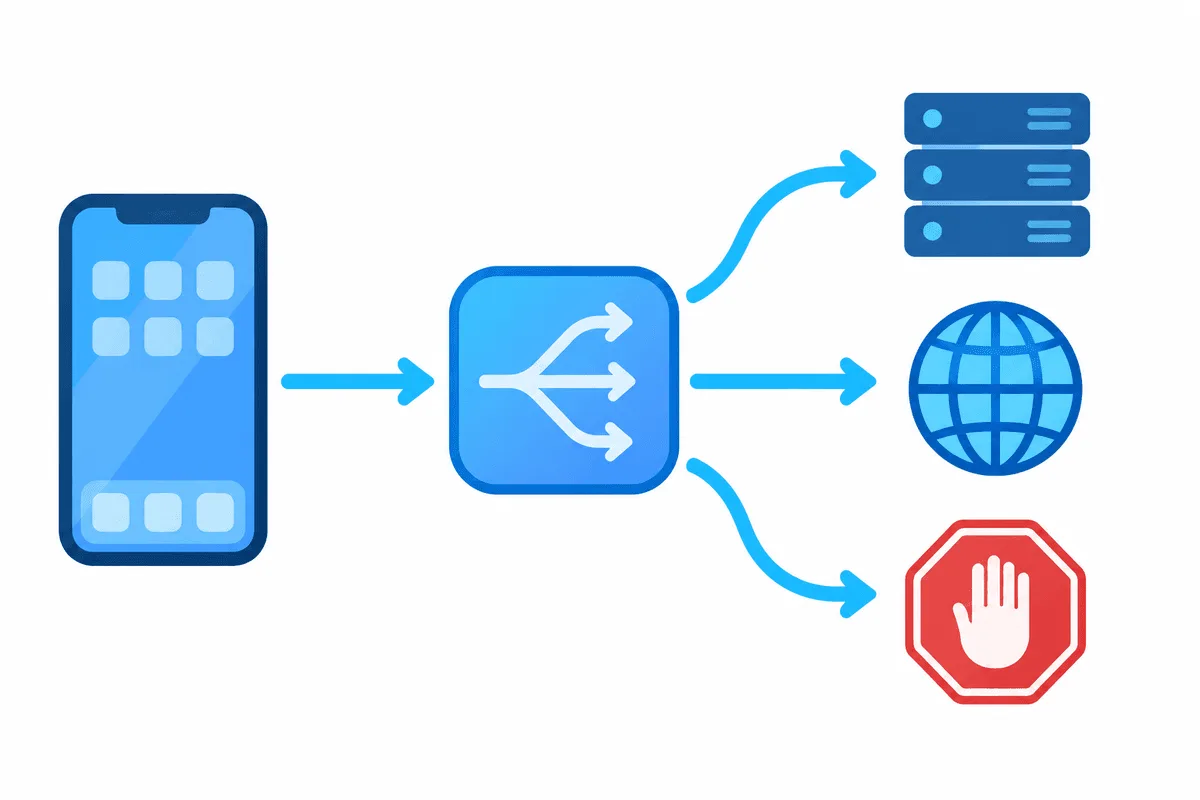
Rule-Based Routing With a Config File
Typing rules one by one on a phone is tedious. Because the app understands Clash/Mihomo configurations, you can prepare a small file on a computer and import it. The example below sends a single shop and its image host through the proxy, blocks one tracking domain and keeps everything else direct. Names, address and credentials are placeholders.
proxies:
  - name: exit-de
    type: socks5
    server: 203.0.113.40
    port: 1080
    username: user-7f3k
    password: Qw9pLm2x

proxy-groups:
  - name: Shop
    type: select
    proxies: [exit-de, DIRECT]

rules:
  - DOMAIN-SUFFIX,shop-example.de,Shop
  - DOMAIN-SUFFIX,img-cdn-example.net,Shop
  - DOMAIN-KEYWORD,tracker-example,REJECT
  - IP-CIDR,192.168.0.0/16,DIRECT
  - MATCH,DIRECT
How to read it:
- DOMAIN-SUFFIX matches the domain and all its subdomains;
- DOMAIN-KEYWORD matches any host containing the word;
- IP-CIDR keeps your local network away from the proxy;
- MATCH is the final catch-all, so it must stay last.
Rules are checked from top to bottom and the first hit wins. Import the file through the app's import option, open the profile to preview it, and select Rule mode. The same syntax works in other Clash-family clients, so our article on Clash is a good companion if you want to go deeper.
Checking That Rules Work
- With Global active, load any IP lookup page in Safari; the relay's IP and location must appear.
- Change to Rule and reload that page. Because its domain matches none of your entries, the page now reports your own carrier or home IP, evidence that the catch-all leaves unmatched traffic direct.
- Open the shop from your rules. Then open the app's connection list: version 3.x shows active connections with the rule each one matched and the route it took.
- If a request goes the wrong way, look for an earlier rule that catches it first.
To check the server itself, away from the phone, use our proxy checker.

Common Problems
Start button does nothing. The VPN configuration was not allowed. Open iOS Settings, find VPN and check that the Potatso profile exists; remove it and start again to get a fresh prompt.
Pages hang in Global mode. Wrong protocol for the port or a typo in the address. Compare with the panel.
407 or authentication errors. The login pair is wrong, or your plan expects an allowlisted IP instead of credentials.
Another VPN app disconnects. iOS keeps one active VPN configuration at a time; Potatso replaces the previous one.
Rules ignored. The profile is still in Global mode, or MATCH sits above other rules.
Alternatives and Which Proxy to Choose
For a paid client with a broader set of features, see our guide to Shadowrocket. When a plain HTTP relay on one Wi-Fi network is all you want, skip third-party apps and use the iPhone proxy settings that iOS already has. For services that should see an ordinary home connection, residential proxies with login authorisation work well on a phone that switches networks.
Potatso Lite FAQ
Is Potatso Lite still available?
The App Store entry is now titled Potatso and is maintained by Potatso Lab. The basic client is free, with an optional Pro subscription for extra features.
Does Potatso Lite support SOCKS5 with a password?
Yes. Choose SOCKS5 as the type and enable password authentication to enter the login and password.
How do I proxy only certain sites?
Pick Rule mode, list those domains with your proxy as the target and finish with MATCH pointing to DIRECT. Importing a short Clash-style file saves typing on the phone.
Why does my IP not change after connecting?
The app may be in Direct mode, or Rule mode sends the IP lookup site direct. Switch to Global to test, then refine the rules.
Can Potatso and another VPN run at the same time?
No. iOS allows only one active VPN configuration, so starting Potatso turns off the other one.