Clash for Windows and ClashX: How to Set Up a Proxy in 2026


Clash routes traffic according to rules, and every setting it uses lives in one YAML file. That file names your servers, bundles them into groups and tells the client which destinations travel through which group. For several years the usual way to run it was through a graphical shell: Clash for Windows on a PC, ClashX on a Mac. Neither shell has a future anymore. Both authors wiped their repositories at the end of 2023, and no fresh builds have appeared since.
What outlived them is the file format. A config written for the old shells still loads in clients that are alive today, which run on Mihomo, the core once called Clash Meta. The best known of them is Clash Verge Rev, available for Windows, macOS and Linux. In this guide you get a working config for a password-protected proxy, the clicks needed in each of the three clients, a backup group that swaps servers by itself, a way to confirm the new IP and a list of the failures we see most often.
Static and residential proxies
SOCKS5 and HTTP proxies with authorization, ready for your Clash config
Before You Begin
- Your proxy credentials. Write down the host, the port, the login, the password and which protocol that port speaks. Clash accepts SOCKS5 and HTTP as well as tunnel protocols.
- A proxy that suits the job. When you log in to the same accounts every day from one address, static proxies keep that address unchanged for the whole rental. When the task needs many cities and frequent IP changes, rotating residential addresses serve it better.
- One of the clients. An old copy of Clash for Windows or ClashX that still launches can keep working with the config below. For a fresh computer, download Clash Verge Rev from the releases page of its GitHub project. Skip any "patched" or "updated" build of the abandoned shells offered by random websites: a network client sees every byte you send.
- An editor that respects spaces, such as Notepad++ or VS Code, or the editor built into the client. A single tab character breaks YAML.
Old Shells and Their Successors
| Client | Runs on | State in 2026 | Engine |
|---|---|---|---|
| Clash for Windows | Windows, macOS, Linux | Abandoned since 2023 | Original Clash |
| ClashX | macOS | Abandoned since 2023 | Original Clash |
| Clash Verge Rev | Windows, macOS, Linux | Actively updated | Mihomo |
| ClashMetaForAndroid | Android | Actively updated | Mihomo |
When all you route is plain SOCKS5 or HTTP, the two engines behave almost identically. The newer one matters once you touch modern tunnel protocols, need security patches or run a recent release of Windows or macOS.
A Config You Can Copy
Save the text below as a file, for instance node.yaml. Then swap in your own host, ports, login and password; every value here is made up.
mode: rule
mixed-port: 7890
allow-lan: false

proxies:
  - type: socks5
    name: de-socks
    server: 203.0.113.40
    port: 50101
    udp: true
    username: "user-7f3k"
    password: "Qw8xLm2p"
  - type: http
    name: de-http
    server: 203.0.113.40
    port: 50100
    username: "user-7f3k"
    password: "Qw8xLm2p"

proxy-groups:
  - type: select
    name: Route
    proxies: [de-socks, de-http, DIRECT]

rules:
  - IP-CIDR,192.168.0.0/16,DIRECT
  - MATCH,Route
How to read it:
- mixed-port opens a single doorway on your own machine, 127.0.0.1, where programs may knock with either HTTP or SOCKS. When you enable the system proxy, Clash aims Windows or macOS at that doorway.
- proxies holds the outside servers. Keep type and port in agreement: socks5 belongs with the SOCKS5 port, http with the HTTP one. Setting
udp: truelets voice chats and games push UDP packets over SOCKS5, something an HTTP proxy is unable to do at all. - proxy-groups gathers servers under one label. A select group gives you a manual switch inside the client window.
- rules run top to bottom until one fits. In this example your home network stays direct, and the last line hands everything left over to the Route group.
Clash for Windows: Three Steps
Step 1. Load the File
Drag node.yaml onto the Profiles tab, or paste the address of a remote config into the box at its top and hit Download. A click on the new entry turns it on, and the entry becomes highlighted.
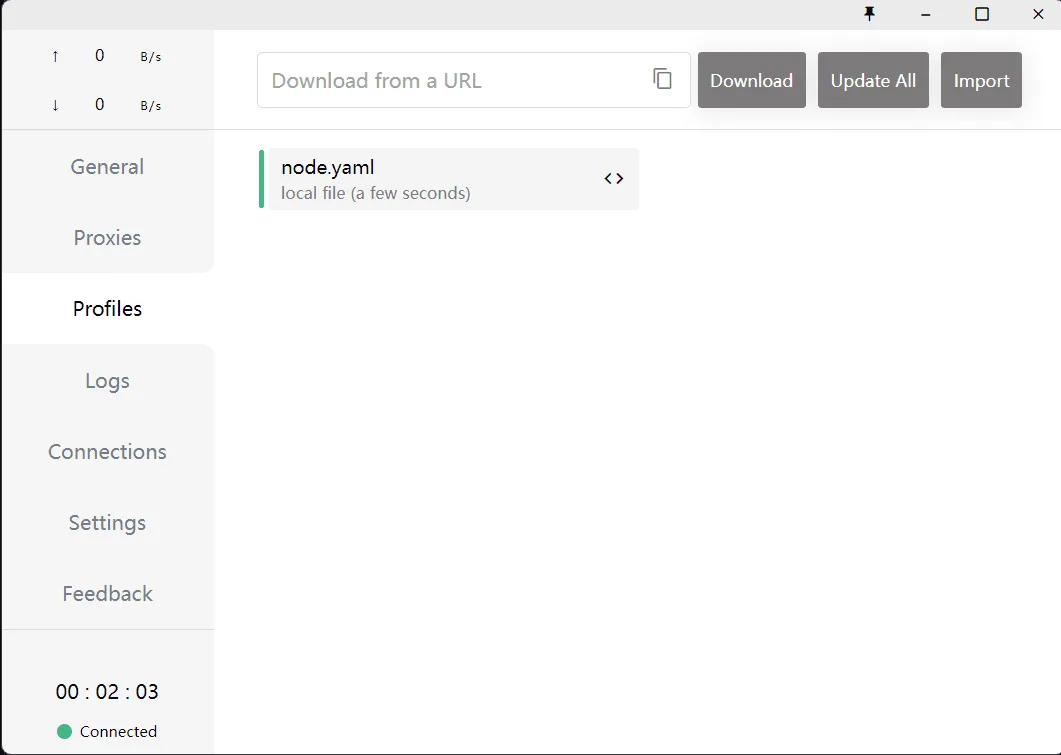
Need to fix something later? Right-click the entry and pick Edit. Clash rereads the file as soon as you save it.
Step 2. Pick a Mode and a Server
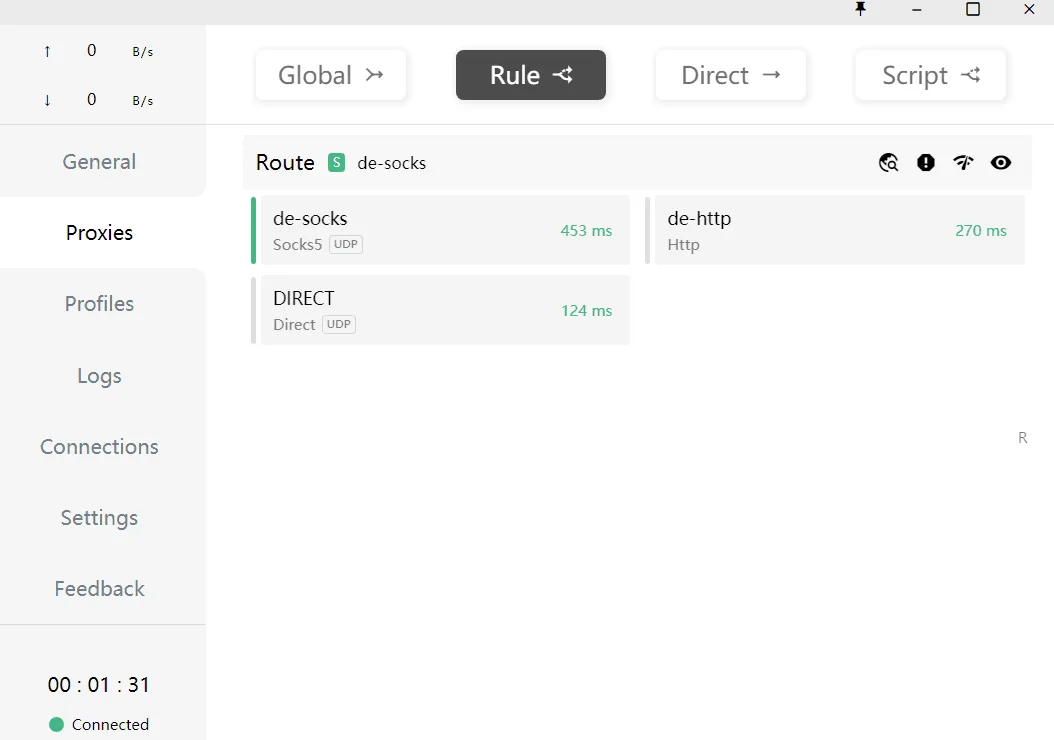
The Proxies tab offers three buttons along the top. Global pushes every connection through whatever server you highlight, Rule obeys the file, Direct bypasses Clash entirely. Press Rule, expand Route and click the server you want.
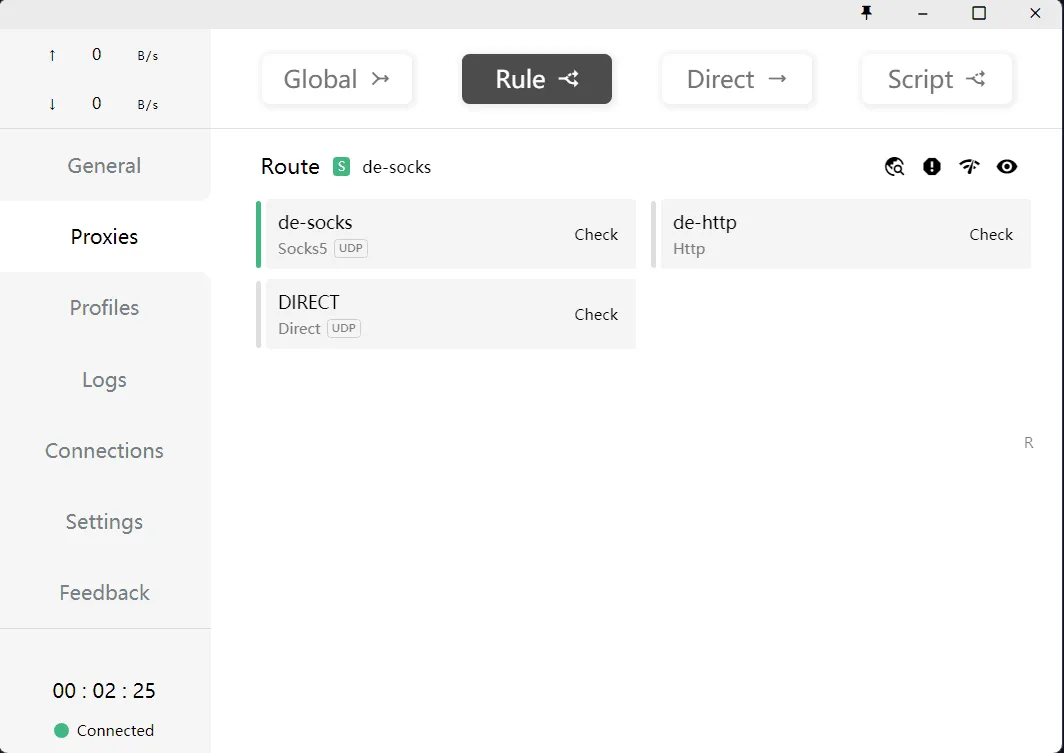
Step 3. Hand Windows Over to Clash
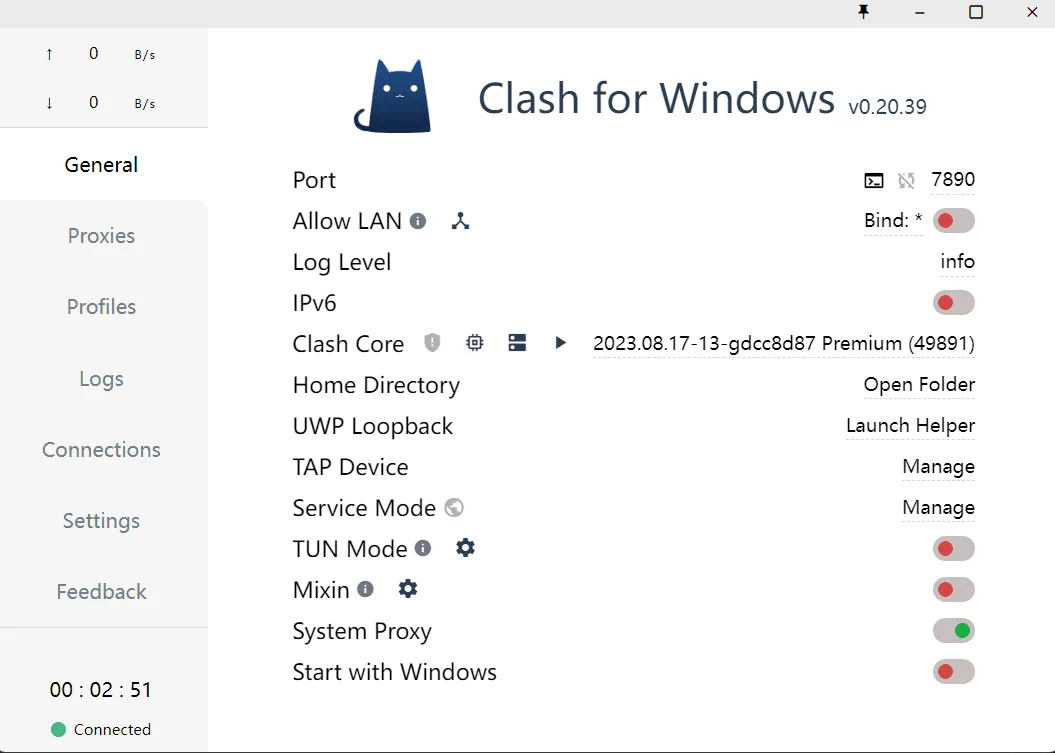
Flip System Proxy on the General tab. The port printed there is the mixed-port from your file, 7890 in our case. Certain programs never look at the Windows proxy setting; for those you need TUN Mode, and in this client it only works after you install Service Mode from the same tab.
ClashX on a Mac
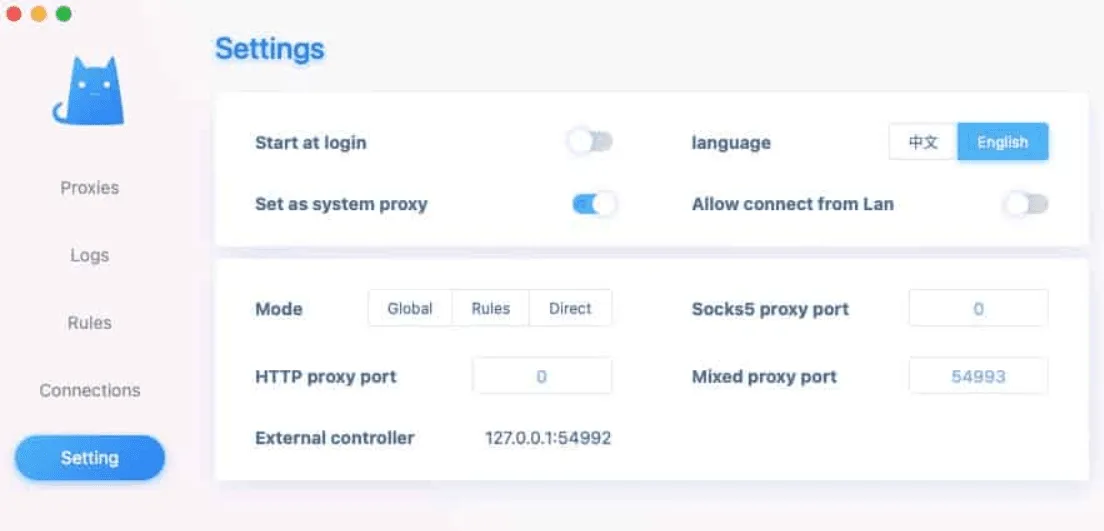
ClashX has no window of its own and lives entirely in the menu bar:
- From its icon choose Config → Open config Folder and drop
node.yamlinto the folder Finder shows. - Return to the Config submenu and click the file name; it loads instantly.
- Under Outbound Mode tick Rule, then choose your server inside Route right there in the menu.
- Enable Set as system proxy. On the first run macOS wants your account password.
- Benchmark in the same menu pings each server and shows the latency.
Clash Verge Rev
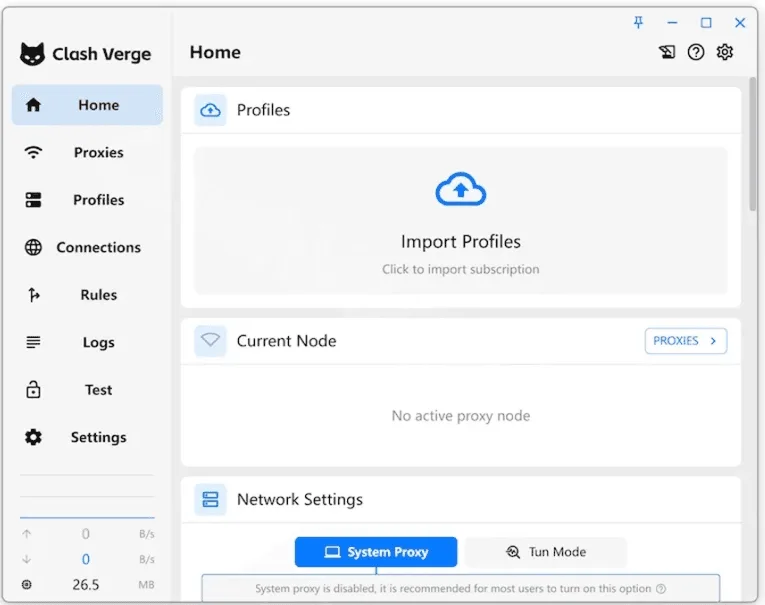
The successor keeps the same ideas behind a cleaner interface:
- On Profiles press New. Pick Local to bring in the YAML file from disk, or Remote if you were given a subscription link.
- Click the profile card to activate it. Its menu has a built-in editor for quick tweaks.
- Open Proxies, select Rule and choose a server inside Route.
- In Settings turn on System Proxy. For TUN, let the client install its helper service when it asks, then enable TUN Mode.
A Backup Group That Switches by Itself
With two or more proxies you can let Clash watch them and move traffic away from a dead one. Append this group under proxy-groups:
  - type: fallback
    name: Backup
    proxies: [de-socks, de-http]
    interval: 300
    url: "http://www.gstatic.com/generate_204"
Then edit the final rule so it reads MATCH,Backup. Every five minutes Clash fetches a tiny empty page through each member and keeps using the earliest one in the list that replied. Swap the type for url-test if you prefer the fastest member rather than the first healthy one.
Sending Only Chosen Sites Through the Proxy
Flip the logic: put MATCH,DIRECT at the end and list the exceptions above it. Four rule kinds cover most needs:
DOMAIN-SUFFIX,example.com,Routecatches the site together with every subdomain;DOMAIN-KEYWORD,shop,Routecatches any hostname containing that word;IP-CIDR,198.51.100.0/24,Routecatches a block of addresses;GEOIP,DE,Routecatches whatever the bundled database assigns to a country.
The first line that fits wins, so narrow rules belong higher than wide ones.
Confirming the Result
- Latency. The Proxies tab, or Benchmark in ClashX, prints a figure in milliseconds beside each server. A timeout points at wrong credentials, a type that does not match the port or an expired proxy.
- Your visible IP. Switch to Global, open any what-is-my-IP site and compare the address and country with your order. The countries you can buy are listed on our proxy locations page.
- The proxy on its own. To find out whether the fault is in Clash or in the server, run the address through the free proxy checker.
When Something Goes Wrong
The profile refuses to load with a parse error. Indentation slipped or a tab crept in. Use spaces only, and keep each list item indented under its parent key the way the sample shows.
Every server times out. Most likely the type and the port disagree, for example socks5 pointed at the HTTP port. Compare both values with your dashboard.
Error 407 or failed authentication. The login or password is off, or contains symbols YAML treats specially. Wrapping both in double quotes, as in the sample, avoids the second problem.
No site opens once Clash is closed. The operating system still sends traffic to 127.0.0.1:7890. Launch Clash and switch System Proxy off, or clear the proxy in the network settings of Windows or macOS.
One program ignores Clash completely. It does not consult the system proxy. Enable TUN, or type 127.0.0.1 and the mixed-port into that program's own connection settings.
Simpler Tools for the Same Job
Not everyone needs rule files. If your only goal is to put Windows behind one proxy, a client with a plain profile form takes a minute to set up: see our walkthroughs for V2RayN and Throne. If, on the contrary, you want dozens of exit locations and regular IP rotation inside a single config, Clash groups pair well with residential proxies.
Clash FAQ
Does anyone still maintain Clash for Windows?
No. Its author deleted the repository in late 2023 and there have been no releases since. Copies already installed keep running, yet for a new machine a living client like Clash Verge Rev is the safer pick.
Will my old config work in Clash Verge Rev?
Yes. Mihomo reads the classic format, so servers, groups and rules carry over untouched. Import the file as a Local profile and you are done.
Can Clash use a SOCKS5 proxy that requires a password?
It can. Set type: socks5 and fill in username and password. An HTTP proxy with a login takes type: http and the same two fields.
Which port does Clash listen on?
Whatever the mixed-port line says, 7890 by default. Do not confuse it with your provider's port: applications talk to Clash on 127.0.0.1, and Clash in turn talks to the remote server.
Why does the browser work through Clash while a game does not?
The game probably skips the system proxy or relies on UDP. Turn on TUN and route it through a SOCKS5 proxy marked udp: true.