PS4 and PS5 Proxy Server: Setup, Limits and Connection Fixes

Both PlayStation generations can hand their web traffic to a proxy. PS4 exposes the option inside its Custom connection wizard, PS5 inside the Advanced Settings of a saved network, and either console asks for nothing beyond an address plus a port. That said, few players genuinely need one. When a console unexpectedly brings up the proxy question during setup, the real trouble usually sits in the router, DNS or outdated firmware.
Here you will learn what a proxy realistically changes on a console, how to switch it on for each model with screenshots, why authorization is the hurdle that seller guides rarely mention, and which checks to run, one after another, if the PlayStation stays offline.
Static proxies
Static proxies with a fixed IP and IP authorization for game consoles
The Real Effect of a Proxy on PlayStation
Think of the proxy as a relay posted between your PlayStation and the wider internet. Requests go to the relay first, it fetches the content and hands the reply back, so remote services register the relay's IP instead of your household connection.
On a games console that effect is narrower than people hope. The system field takes an HTTP proxy, and only HTTP-style traffic uses it: firmware downloads, store pages, the web browser and parts of PlayStation Network. Gameplay itself is a different story: matches exchange UDP packets with remote hosts directly, so an HTTP relay never sees that stream. Knowing how a proxy server works saves a lot of false expectations here.
Cases Where It Is Worth the Effort
- Networks that demand one. Certain dorms, hotels, campuses and workplaces block direct internet access and let traffic out solely through a designated relay. Leave the field blank there and every connection test fails.
- Troubleshooting. Running the same test directly and then through another exit point reveals whether a specific route is to blame.
- Home labs. A relay on a desktop machine can cache or log console downloads for experiments.
- Region-specific websites. Sites will see a different IP. Your PlayStation account region, and with it the store region, stays exactly as it was, because it belongs to the account.
Lower Ping? Unlikely
Every extra hop adds distance, and gameplay packets largely skip the relay anyway. A server located far from you or from the game host only raises latency for whatever does pass through it. Smooth online matches depend on stability, packet loss and NAT type much more than on download speed; for the protocol angle of lag, read about IPv4 and IPv6 in gaming.
Why the Console Brings Up the Proxy Question
On PlayStation, Proxy Server is simply one of the screens in a Custom connection setup. Its appearance proves nothing about needing it. Unless your network enforces a relay, answer Do Not Use. Should the connection test still fail, look for one of these culprits:
- incorrect IP or DNS values;
- a router that stopped assigning the console an address or is filtering it;
- an outage at your internet provider;
- out-of-date system software;
- a temporary hiccup on PlayStation Network.
The Authorization Hurdle
Sony left out any spot for a proxy username on both machines. The console simply fires requests at whatever host and port it was given; if the relay replies with a credentials challenge, the PlayStation is stuck. Two workarounds exist:
- Whitelisting by IP. Find the allowlist page in your provider's panel and enter the external IP your router presents to the internet. It works smoothest with fixed addresses at both ends, and static proxies keep one exit IP so nothing breaks after a few hours.
- A relay on your computer. Install a lightweight proxy server on a PC inside the same home network. The console talks to the PC's local address with no login, and the PC passes everything upstream with your credentials attached.
Confirm as well that your port speaks HTTP. A SOCKS5-only endpoint means nothing to a PlayStation; our explainer on what a SOCKS5 proxy is shows how those protocols differ.
Enabling a Proxy on PS4
Step 1. Start the Network Wizard
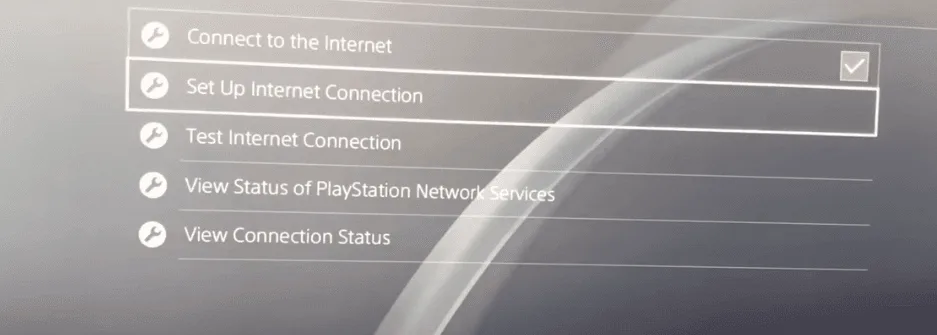
Press up on the home screen to reach the function row. The toolbox icon there is Settings; inside it the Network entry holds the option we need, labelled Set Up Internet Connection.
Step 2. Choose the Link Type and the Custom Path
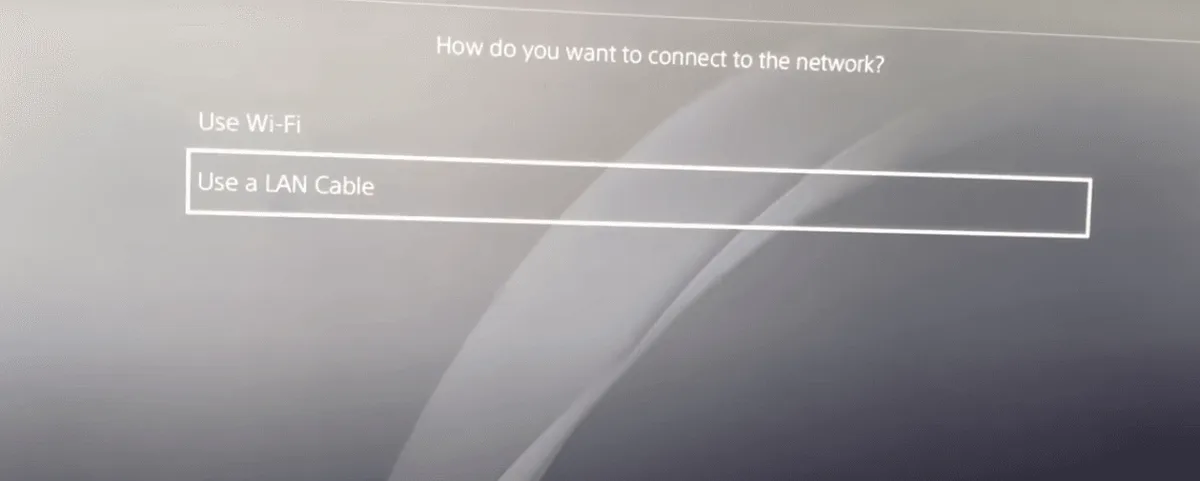
The console first wants to know how it reaches your router. Plugged in with Ethernet? Take Use a LAN Cable. No cord? Take Use Wi-Fi, then pick your SSID and enter its passphrase. Right after that, Sony asks how detailed the setup should be: answer Custom, because the Easy path jumps straight past the proxy question.
Step 3. Keep Addressing on Auto
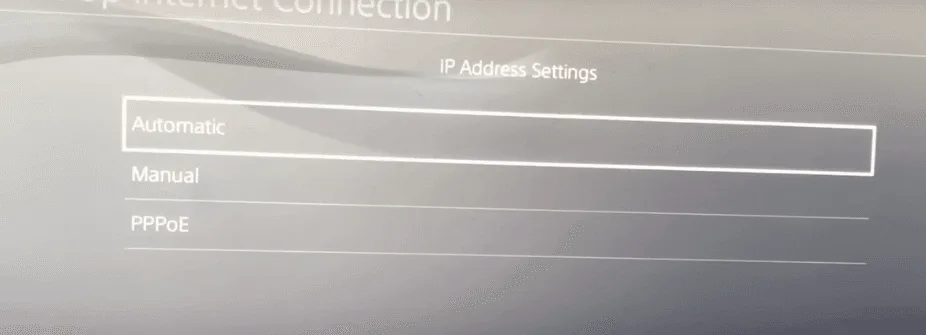
Unless a network admin gave you specific values, answer the following screens like this. For IP Address Settings, pick Automatic. When asked about a DHCP Host Name, decline with Do Not Specify. Leave both DNS and MTU on their automatic choice as well.
Step 4. Turn the Proxy On
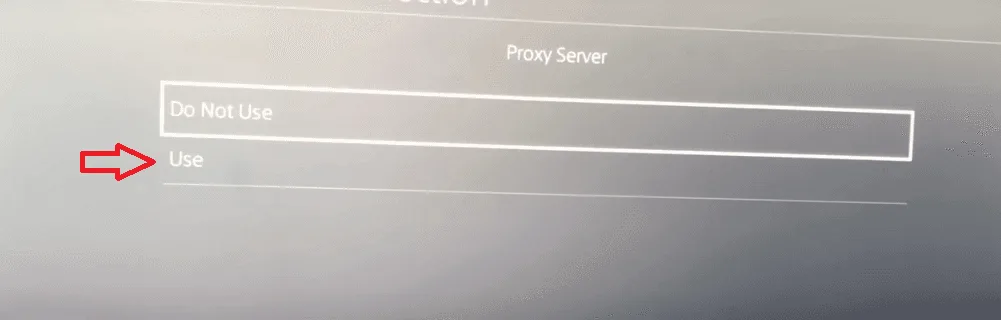
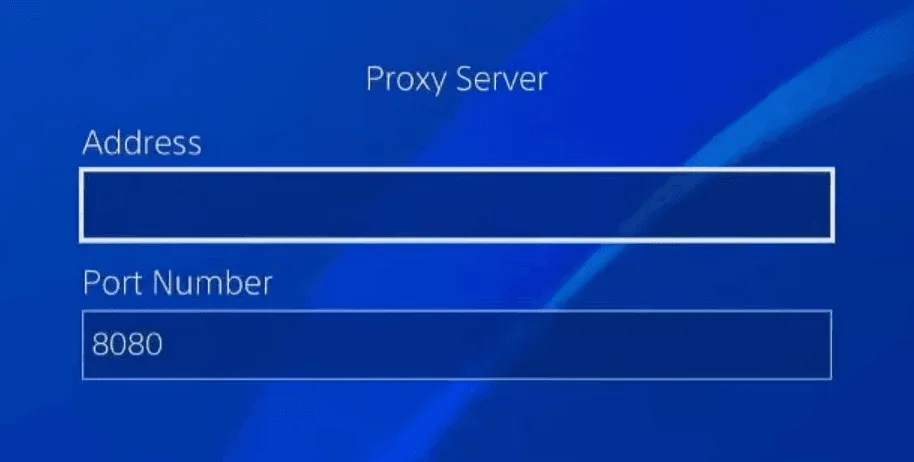
When Proxy Server comes up, choose Use, then key in the relay's address and its port number. Move on with Next and run Test Internet Connection. A passing result means the console obtained an IP and reached the internet.
Enabling a Proxy on PS5
On the newer console the path looks different, yet you end up typing exactly the same two values:
- Open the gear-shaped Settings at the top right of the home screen, choose Network, enter the inner Settings tab and pick Set Up Internet Connection.
- Move the cursor onto the SSID you are using (or onto the wired entry) and hit the small Options key on the gamepad, the one right of the touchpad.
- From the pop-up list pick Advanced Settings.
- Flip Proxy Server from Do Not Use to Use; two fields for host and port appear underneath.
- Confirm, give the PS5 a few seconds to reconnect, and repeat the internet test from the Network page.
Is Traffic Really Going Through It?
A green result in the PlayStation network test merely shows that the box can reach the internet. A PS4 lets you dig further: open the Internet Browser app and load a page that prints your IP, which ought to match the relay. PS5 ships without a standalone browser, so there the realistic check is a traffic counter in your provider's dashboard, if one exists, alongside a successful test. If the console cannot get online whatsoever, first test the server from a computer with our free proxy checker.
Console Still Offline? Check in This Order
Each item eliminates one cause, so go top to bottom.
- Address and port. One misplaced digit is fatal. Hold both up against your dashboard.
- Whitelist. A relay silently drops a console whose home IP is not registered. Household IPs may change whenever the router restarts.
- Another device. Put the same relay into a laptop browser. Failing there too means the relay or the network is at fault, not the PlayStation.
- Proxy off. Set Proxy Server back to Do Not Use and test once more. Success now pins the blame on the relay.
- Power cycle. Unplug the router for roughly half a minute, wait until it fully boots, and only then restart the console.
- DNS. If even a direct connection fails, choose Manual DNS and try a public resolver, for instance
8.8.8.8with8.8.4.4as secondary. - Router rules. Firewalls, content filters and port forwarding entries can block PlayStation Network. Disable a filter only briefly while testing and restore it right after.
- Firmware. Update through Settings. If online updating fails, Sony documents an offline method using a USB drive and Safe Mode; follow its current official instructions.
Proxy and NAT Type
NAT type describes how freely other players can reach your console. A relay cannot fix a strict NAT, because peer-to-peer game traffic never travels through it. Typical NAT trouble comes from double NAT (an ISP modem stacked with your own router), UPnP being disabled, or carrier-grade NAT on the provider side. Inspect those on the router before suspecting the proxy.
When the Proxy Should Go
Higher ping, slower matchmaking or new error codes after enabling a relay are a cue to compare against a direct link. If the console behaves well without it, the proxy brings nothing to your setup. Everyday gaming is best served by the default arrangement: automatic IP, DNS and MTU, and Do Not Use on the proxy screen.
PS4 and PS5 Proxy FAQ
Is a proxy server required for PS4 or PS5?
For most households it is not. Stick with Do Not Use, and revisit the option only when a campus, hotel or office network insists on a relay, or while diagnosing a specific route.
Where do I enter proxy credentials on a PlayStation?
There is no such field: the form takes a host and port and nothing else. Authorize your home IP in the provider panel, or let a PC-based relay supply the username and password upstream.
Can a proxy cut lag in online matches?
Rarely. Gameplay packets mostly bypass an HTTP relay, and the extra hop can only lengthen the path for traffic it does carry.
Does a proxy switch my PlayStation Store to another country?
No. The store follows the country set on your account, regardless of the IP your connection uses.
PS5 asked about a proxy server. What should I pick?
Answer Do Not Use, then look at DNS, the router and system software. That screen is a routine part of advanced setup, not evidence that a relay is required.