BlueStacks Proxy Setup: ADB, In-Emulator Apps, Proxifier and IP Check

BlueStacks has no proxy field in its own settings window, so you attach a proxy one layer below or above the emulator: push a system HTTP proxy into the virtual Android over ADB, run a SOCKS5 client app inside the instance, or let a proxifier on Windows capture the BlueStacks process. Choose the layer by protocol and authentication, then confirm the new address from a browser inside BlueStacks.
Reviews of BlueStacks usually talk about game performance, key mapping and Eco Mode. This guide skips all of that and deals only with networking: which method fits an HTTP server and which fits SOCKS5 with a username, how to give every instance a different exit, how to remove a stuck proxy and what to check when the emulator suddenly loses its connection.
Residential proxies
Residential proxies with a login and password for Android emulators and apps
What to Prepare
- BlueStacks 5 for Windows from the official site. On a standard installation its files live in
C:\Program Files\BlueStacks_nxt, and each running instance appears in Task Manager asHD-Player.exe. The Mac edition (BlueStacks Air) has a different engine, so the Windows-specific steps below may not apply there. - Proxy details: address, port, protocol (HTTP or SOCKS5), username and password. For Android apps and games, home-broadband exits are usually treated more gently than hosting ranges. Our residential proxies hand out exactly these values in the dashboard.
- An answer to the authentication question. The Android system proxy has nowhere to store a password. Either whitelist your PC's public IP with your provider or plan on a client app or proxifier, both of which accept credentials.
One remark on scope: an emulator is a handy bench for testing regional app builds, QA and casual play. The terms of each app still apply when you change your IP, so stay within them.
Picking a Method
| Method | Protocols | Username and password | Scope |
|---|---|---|---|
| ADB command for the global HTTP proxy | HTTP (with CONNECT for HTTPS sites) | Not supported; IP whitelist only | Apps that respect the Android system proxy, one instance at a time |
| Client app inside the instance | SOCKS5, some apps also HTTP | Yes | Nearly all app traffic, through the Android VPN slot, one instance at a time |
| Proxifier on the Windows host | SOCKS5 or HTTPS | Yes | Every connection the BlueStacks process opens; all instances share one rule |
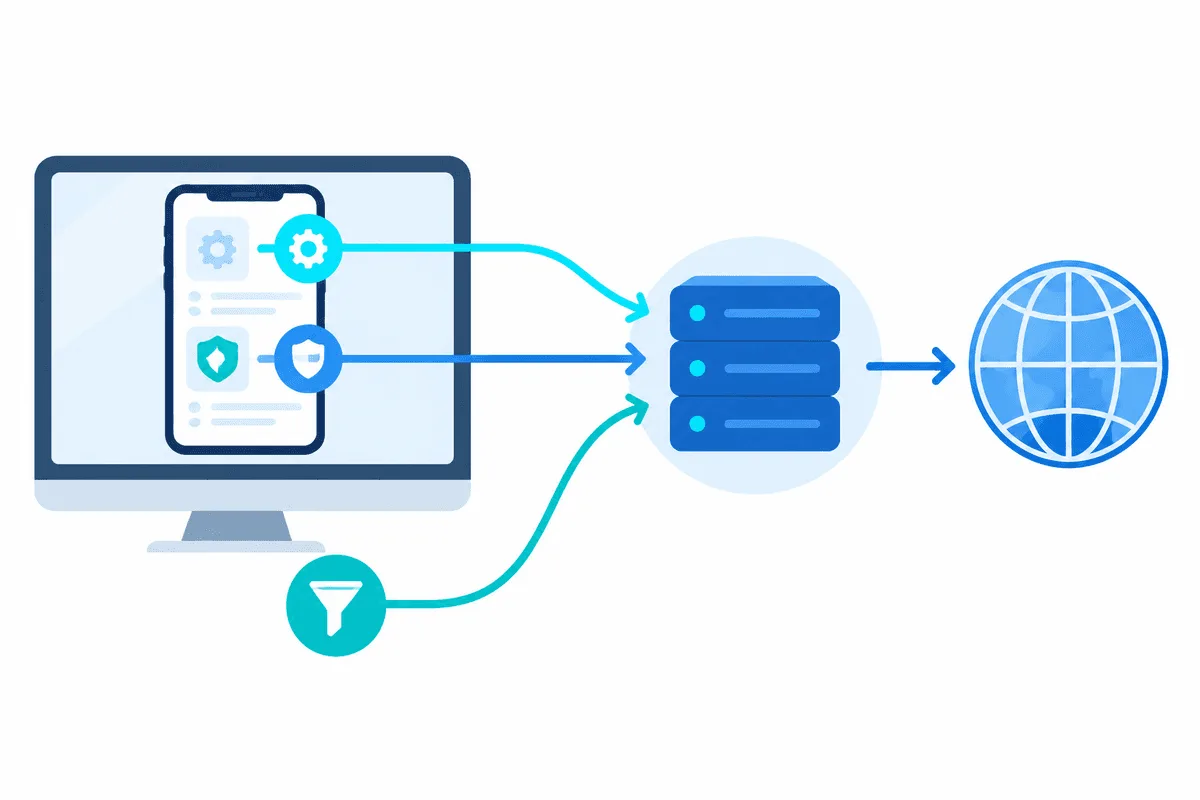
A short rule of thumb: an HTTP server with IP authorization fits the ADB method; SOCKS5 with credentials fits the client app; one exit for the entire emulator with no changes inside Android fits the proxifier.
Method 1. System HTTP Proxy via ADB
Android stores the device-wide proxy in a global setting named http_proxy. Phones expose it in the Wi-Fi dialog, but in most BlueStacks 5 builds that dialog is hidden or read-only, so the dependable way to reach it is the Android Debug Bridge that ships with the emulator. If you know how this setting behaves on a real handset, our guide to proxy settings on Android covers the phone side.
Step 1. Turn On Android Debug Bridge
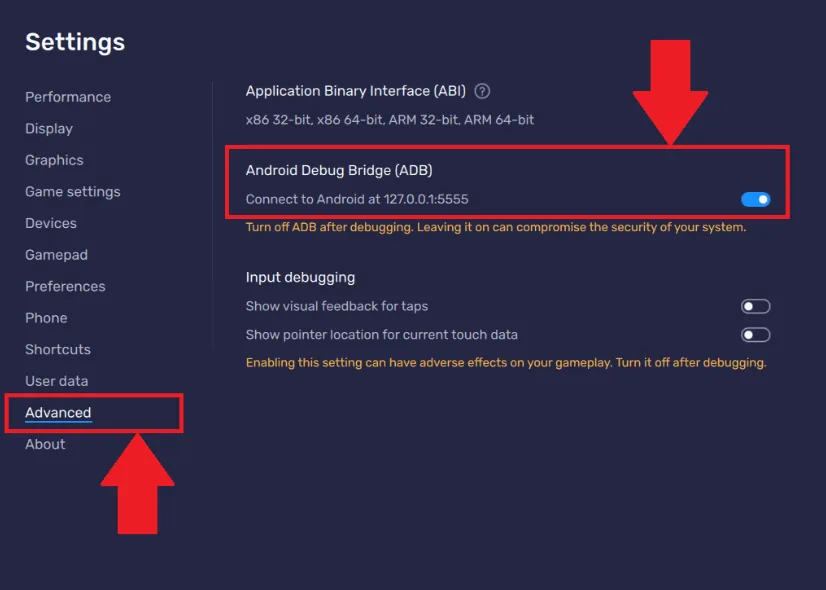
Open BlueStacks Settings (gear icon on the side toolbar or the menu in the top bar), go to Advanced and switch on Android Debug Bridge. Click Save changes. Underneath the toggle BlueStacks prints the local address of this instance, typically 127.0.0.1:5555; other instances receive other ports.
Step 2. Connect With the Bundled ADB
BlueStacks includes its own ADB binary named HD-Adb.exe, so you do not need the Android SDK. Open Command Prompt in the install folder and attach to the instance:
cd "C:\Program Files\BlueStacks_nxt"
HD-Adb.exe connect 127.0.0.1:5555
HD-Adb.exe devices
The last command should list the instance as device. If you see unauthorized or nothing at all, restart the instance after enabling the toggle.
Step 3. Write the Proxy Into Android
Replace the sample address with your server. The value is host:port with no scheme and no credentials:
HD-Adb.exe -s 127.0.0.1:5555 shell settings put global http_proxy 203.0.113.24:8080
HD-Adb.exe -s 127.0.0.1:5555 shell settings get global http_proxy
The second line reads the value back. Browsers and most apps built on the standard Android network stack pick it up immediately; some apps only after a restart of the instance.
Step 4. Remove It When You Are Done
A forgotten proxy is the classic reason a BlueStacks instance shows no internet. Clear it with the special value :0:
HD-Adb.exe -s 127.0.0.1:5555 shell settings put global http_proxy :0Because the global setting cannot carry a password, this method needs a provider that authorizes by your public IP. If yours only issues credentials, go to Method 2 or 3.
Method 2. A Client App Inside BlueStacks
When the server is SOCKS5 with a username and password, run an Android client that routes traffic through the VPN interface. BlueStacks comes with the Google Play Store, so setup takes a couple of minutes.
Step 1. Install a Client
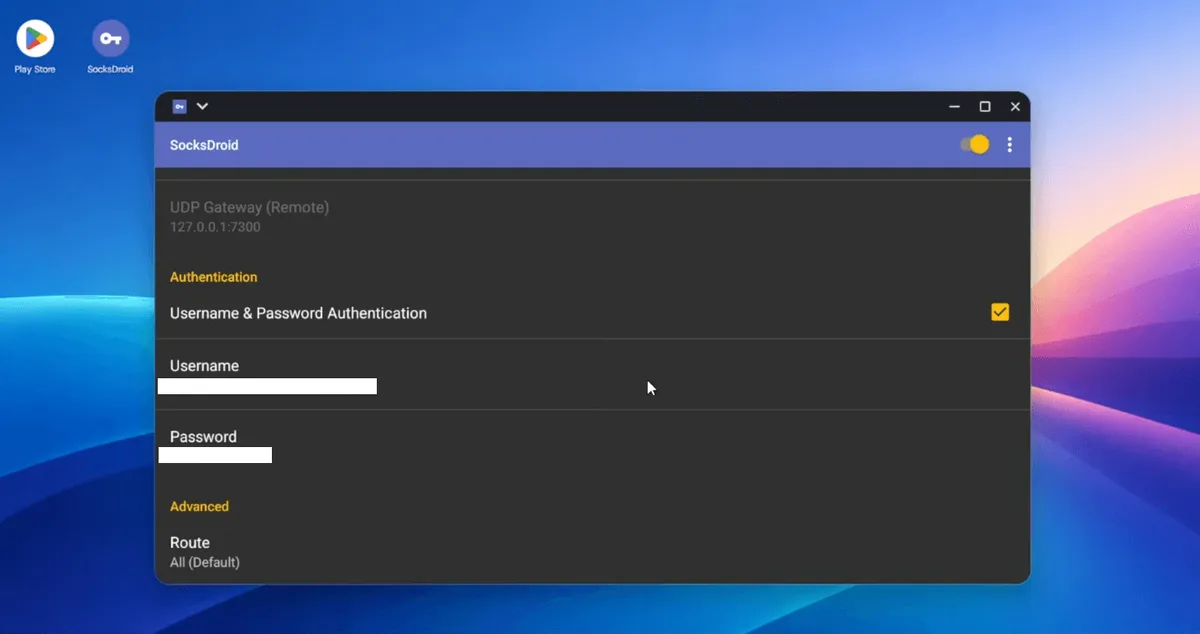
Light options we describe in separate guides: SocksDroid, which tunnels a single SOCKS5 server for the whole device, and Super Proxy, which also handles HTTP servers and stores several profiles. Configuration-heavy clients such as v2rayNG work too, but they are overkill for a plain proxy.
Step 2. Enter the Server
Copy host, port, username and password into the matching fields. Leave UDP forwarding off unless your provider explicitly supports it for that port; most commercial relays carry TCP only, and a UDP option pointed at a TCP-only server often stalls the tunnel.
Step 3. Start the Tunnel
Tap the connect switch and approve the Android VPN request. A key icon in the BlueStacks status bar confirms the tunnel is active. If you previously set a proxy over ADB, clear it first so two layers do not handle the same request.
Method 3. Proxifier on the Windows Host
A proxifier works outside the virtual machine: it intercepts sockets opened by Windows processes and sends them to your server, credentials included. For BlueStacks 5 create a rule for HD-Player.exe from the BlueStacks_nxt folder and assign it your SOCKS5 or HTTPS proxy. Open the proxifier's connection log after launching an app in the emulator; if traffic shows up under another BlueStacks executable, add that file to the same rule.
Two things to keep in mind:
- Every instance runs as
HD-Player.exe, so one rule sends all of them through one exit. For different IPs per instance, use Method 1 or 2 inside each. - Enable remote DNS resolution in the proxifier (the option is usually called something like resolving hostnames through the proxy), otherwise lookups may still go out through your own provider.

A Separate IP for Each Instance
The Multi-Instance Manager (Ctrl+Shift+8 by default) creates independent Android copies, each with its own settings and installed apps. This gives a clean pattern for per-instance exits:
- Create the instances you need, choosing the Android version per instance.
- Enable ADB in each one and note the port BlueStacks prints for it.
- Run the
settings put global http_proxycommand against each port, or install a client app in each instance with a different server. - Label every instance by its exit country or purpose so they do not get mixed up.
- Check the IP in each window separately; a clone made from a configured instance carries its proxy along.
For rotating residential pools, use sticky sessions when an app expects the same address for the whole session. Our overview of sticky and rotating proxies explains when each mode suits a device. If running many instances strains your PC, a cloud Android phone moves the devices and their networking to remote hardware.
Checking the IP
Install a browser from the Play Store inside the instance (or use the one that comes preinstalled) and open any what-is-my-IP page. The country and address must belong to the proxy, not your home line. Testing from the Windows browser shows nothing, because Methods 1 and 2 only change networking inside Android. To rule out the server itself, run its details through our proxy checker.
For apps, look at behaviour as well: after clearing the app's cache, region-dependent content such as a store catalogue or language defaults should follow the proxy's location.
Troubleshooting
No internet right after the ADB command. Usually a typo in the address, or a SOCKS5 port passed to a setting that only speaks HTTP. Reset with :0 and write the value again.
Browser loads pages, apps do not. Plenty of apps ignore the system proxy. Move to a client app that captures traffic via the VPN interface.
Error 407 or endless sign-in prompts. The server expects credentials that the global setting cannot store. Whitelist your PC's IP or use Method 2 or 3.
The VPN switch in the client app keeps turning off. Another VPN-type app in the same instance is holding the slot. Disable it.
HD-Adb.exe cannot find the instance. Confirm the toggle is saved, the instance is running and the port matches the one printed in Settings. Some security suites block local ADB connections.
The proxy stopped working after a BlueStacks update. Large updates can rebuild an instance. Read the value back with settings get global http_proxy or re-check the client app.
BlueStacks proxy FAQ
Does BlueStacks have a built-in proxy setting?
Not in the BlueStacks settings window. You set the proxy inside Android through ADB or a client app, or route the BlueStacks process from Windows with a proxifier.
How do I use a SOCKS5 proxy with a password in BlueStacks?
Install a SOCKS5 client such as SocksDroid inside the instance and enter the username and password there, or add the server to a proxifier on Windows with a rule for HD-Player.exe. The Android system proxy cannot hold credentials.
Can every BlueStacks instance have its own IP?
Yes. Instances created in the Multi-Instance Manager keep separate Android settings, so configure a different server in each and verify the address in each window.
Does the Windows proxy setting apply to BlueStacks?
Not reliably. The proxy in Windows Settings is honoured mainly by browsers and apps that read the system configuration, while the emulator opens its own connections. Use one of the three methods above instead.
How do I remove a proxy from BlueStacks?
If you used ADB, run the settings command with the value :0 for http_proxy. If you used a client app, stop the tunnel; for a proxifier, disable the rule for HD-Player.exe.