SocksDroid on Android: How to Set Up a SOCKS5 Proxy

SocksDroid is a lightweight, open-source utility that pushes the network traffic of an Android phone through a SOCKS5 server. Rather than asking every app for its own proxy fields, it borrows the system VPN slot: you type the server details once, tap a toggle, and the whole device, or just the apps you choose, starts exiting through that server.
This guide walks through every screen of the app with real screenshots. You will learn which credentials to have at hand, where each field lives, how login and password authorization is switched on, which advanced switches deserve attention and what to try when the tunnel refuses to come up.
SOCKS5 proxies
SOCKS5 proxies with a login and password that work in SocksDroid
Before You Begin
- A SOCKS5 server. SocksDroid understands nothing but SOCKS5, so a port meant for HTTP will simply fail. Buyers of SOCKS5 proxies find the host, port, login and password in their dashboard.
- Four values written down: host (numeric IP or domain name), port number, username, password.
- Readiness to grant VPN access. Android pops up this request the very first time the toggle is used.
Configuring SocksDroid in Five Steps
Step 1. Get the App and Look Around
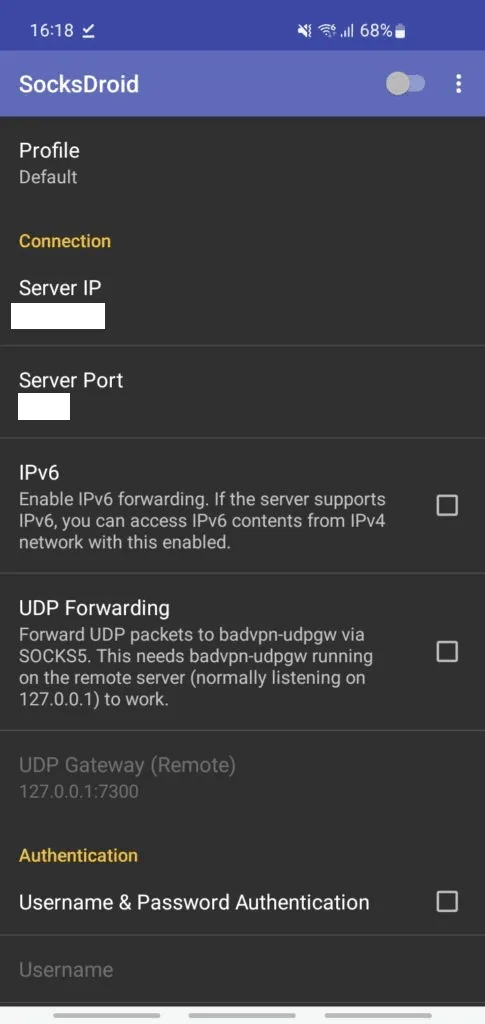
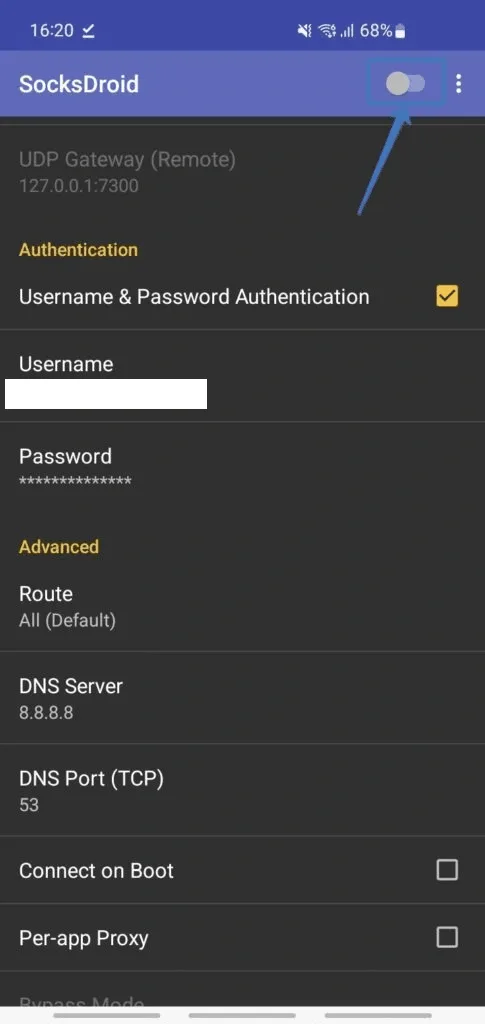
Download SocksDroid from Google Play and open it. There is no wizard: you land directly on one long list of preferences, grouped into Connection, Authentication and Advanced, with the profile name on top. The on/off control lives in the title bar, beside the three-dot menu.
Step 2. Fill In Host and Port
Inside Connection:
- Tap Server IP and paste the proxy host. Domain names are accepted just like digits.
- Tap Server Port and type the SOCKS5 port shown in your dashboard.
Keep IPv6 and UDP Forwarding unticked. Forwarding UDP needs a helper called badvpn-udpgw installed on the remote machine. Commercial proxy services do not run it, so ticking the box usually breaks the tunnel instead of improving it.
Step 3. Switch On Credentials
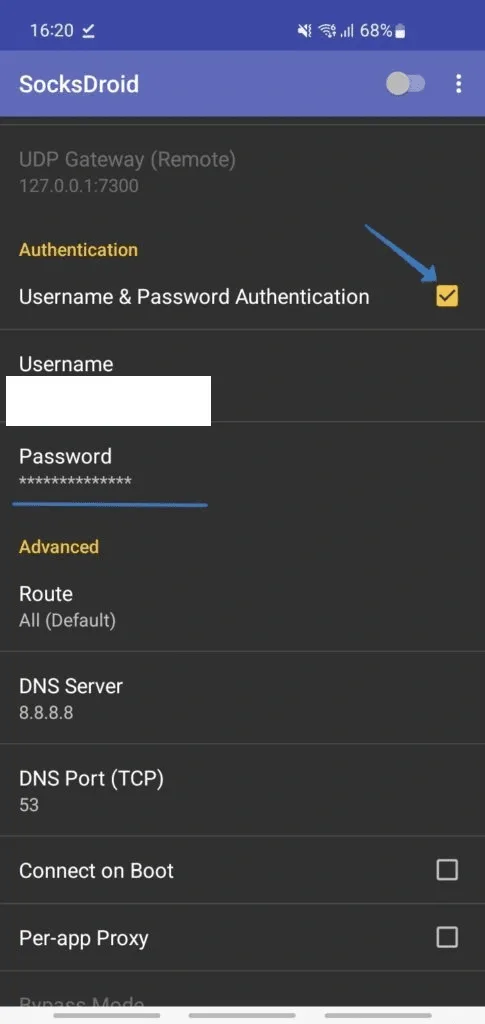
Further down, under Authentication, tick Username & Password Authentication. Two greyed-out fields wake up:
- Username for the proxy login;
- Password for the proxy password.
Watch out for stray spaces picked up while pasting. Even one extra character gets the session refused, and SocksDroid rarely explains the reason on screen.
Step 4. Review the Advanced Group
Four items under Advanced are worth a glance before you go live:
- Route. All tunnels every destination; the alternative presets let local network addresses skip the server.
- DNS Server with DNS Port (TCP), preset to 8.8.8.8 and 53. Name lookups ride inside the SOCKS5 tunnel over TCP, which keeps your carrier's resolver out of the picture.
- Connect on Boot. Brings the tunnel back on its own after a restart.
- Per-app Proxy. Restricts the tunnel to the apps you tick. Enabling Bypass Mode inverts that choice, so ticked apps stay direct while the rest are proxied.
Step 5. Go Live
Hit the toggle in the title bar and accept the VPN prompt that Android shows on first use. A small key symbol in the status bar confirms the tunnel is running.
Confirming the New IP
Load a what-is-my-IP page in Chrome or any other browser. The address and the country it reports must match your proxy rather than the mobile carrier or home Wi-Fi. To rule the phone out completely, paste the same server details into our free proxy checker, which reports whether the server answers and which exit IP it uses.
Troubleshooting
The toggle snaps back to off. Either the VPN prompt was dismissed or a different VPN app already occupies the only slot Android offers. Quit other VPN and proxy tools, then retry.
Connected, yet nothing loads. Re-check host and port, and confirm that the port belongs to SOCKS5 rather than HTTP. UDP Forwarding should stay off.
Credentials rejected. Retype both values and make sure the authentication box is still ticked. Providers that also allow IP whitelisting are a poor fit for phones, whose public address keeps changing, so stick to login and password.
A particular app bypasses the tunnel. Open Per-app Proxy and Bypass Mode; the app is probably excluded there. Restart the tunnel after every change.
Voice calls or online games fail. Both lean on UDP, which SocksDroid can relay only via the server-side gateway mentioned above. A client with native UDP over SOCKS5, for example Super Proxy, handles them better.
When to Pick Something Else
SocksDroid is at its best with one job: a single SOCKS5 server for the entire handset. HTTP proxies, multiple saved profiles or newer tunnel protocols call for a different Android client. Not sure SOCKS5 is the protocol you need? Our explainer on what a SOCKS5 proxy is compares it with the alternatives.
SocksDroid FAQ
Can SocksDroid connect to SOCKS4 or HTTP servers?
It cannot. Only SOCKS5 is supported, so an HTTP proxy needs another client or the proxy field in the Android Wi-Fi settings.
Do I have to pay for SocksDroid?
No. The app costs nothing and its source code is public.
How do I proxy only one or two apps?
Turn on Per-app Proxy and tick those apps. If Bypass Mode is also on, the ticked apps are excluded instead and everything else is proxied.
Why is there a VPN key in the status bar?
SocksDroid captures traffic through the Android VPN interface and hands it to your SOCKS5 server. No VPN provider is involved; packets exit through your own proxy.
Will the tunnel return after I restart the phone?
Only when Connect on Boot is ticked in the Advanced group. Without it, tap the toggle again after every reboot.