Cloud Android Phone: How It Works and What It Is Used For

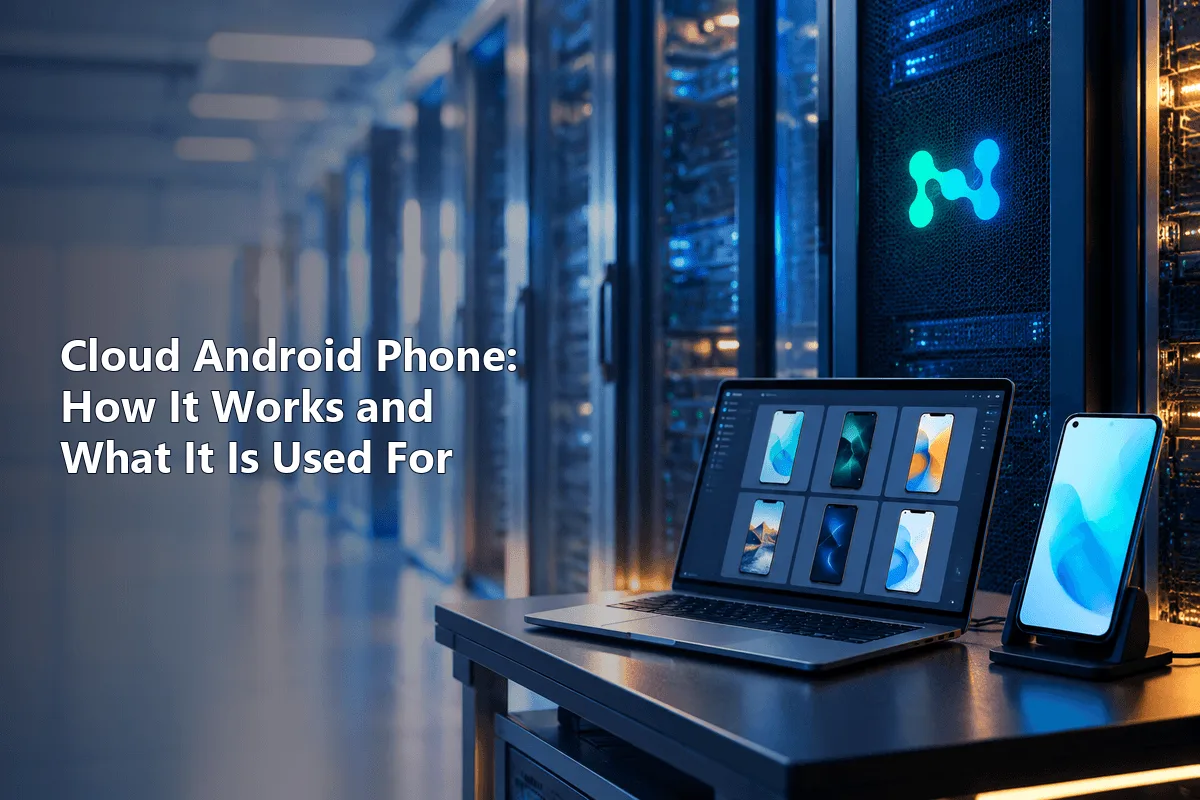
Picture a smartphone that exists only inside a remote data centre: that is a cloud Android phone, a complete Android system hosted by a provider and operated from your desktop via a browser tab or a dedicated client. You see the phone's screen in a window, install apps, tap and type as on a real handset, while the processor, memory and storage all belong to the remote machine.
The idea solves a practical problem: more and more products live mainly in mobile apps, and keeping a drawer full of test phones is expensive and awkward. Below we look at how cloud phones are built, what they can do, where teams use them, how they differ from emulators and physical devices, and what to check before choosing a service, including the network side that decides how apps and websites see each virtual device.
Mobile proxies
Mobile proxies with carrier IPs for cloud Android phones
What a Cloud Android Phone Is
Under the hood you are renting Android that someone else keeps running. Some vendors pack many containers onto ARM servers, others boot full virtual machines, and device-testing clouds even mount genuine handsets in racks and stream their screens to you. Inside you get the usual Android: a home screen, Google Play or APK installation, system settings and notifications.
Two terms are often mixed up with it:
- A local emulator also runs Android, but on your own computer, consuming its CPU and RAM.
- Cloud telephony has nothing to do with Android at all; it is a business service for voice calls over the internet.
How It Works
- You create a profile in the provider's dashboard and choose its parameters: Android version, device model, screen resolution, network settings.
- The provider allocates resources and boots the Android instance on its hardware.
- You open the device in a browser tab or a client app. Your clicks and keystrokes travel to the server; a video stream of the screen comes back.
Each profile keeps its own apps, data and sessions, so ten profiles behave like ten separate phones. Many services add group operations, an API and shared access for a team.
Main Capabilities
Remote Access from Any Computer
The phone opens on a laptop at the office or at home. Nothing needs to be charged, updated by hand or carried around, and several devices fit on one monitor.
Installing Mobile Apps
Messengers, marketplaces, social networks, games, internal test builds: whatever the service supports can be installed. You work with the real mobile version of a product, not with its trimmed web interface.
Isolated Environments
Every virtual phone is a separate sandbox. A QA engineer can keep one profile per Android version; an agency can assign devices to different client projects without data from one leaking into another.
Network Settings and Proxies
Better platforms let you assign a network route to each profile, usually through a proxy. This decides which IP address and location apps and websites see. It matters for checking regional versions of a site, verifying localized ads and testing how an app behaves for users in a specific country.
Team Management and Automation
Shared workspaces, roles, bulk actions, scripted scenarios and API access turn dozens of devices into a manageable fleet. That is where the cloud model clearly wins over physical handsets.
Device Parameters
Some services let you choose the model, Android version and screen size. For developers this means reproducing a customer's configuration in minutes.
Where Cloud Phones Are Used
| Job to be done | Why a remote handset helps |
|---|---|
| Mobile app testing | A spread of OS releases and handset models, plus a clean profile per test run |
| Mobile website QA | A real mobile browser instead of a desktop window resized to phone width |
| Social media and SMM | Brand accounts handled from a computer, one isolated device per project |
| E-commerce | Access to app-only features of marketplaces and checking the customer journey |
| Ad verification | Following an ad from impression to install in a chosen region |
| Customer support | Staff reproduce user issues in the same app without personal phones |
| Mobile games | Checking updates and compatibility across device configurations |
Testing and QA
Developers install test builds, run user scenarios and compare behaviour across Android versions. A clean profile can be created for every regression run, which removes leftovers from previous tests.
Mobile Sites and Ads
Pages often break on phones in ways a desktop browser does not show: menus, forms, pop-ups, checkout. Cloud phones let designers and marketers walk the same path a mobile visitor takes. Combined with proxies in the right country, teams use them to verify ad placements and landing pages as local users see them.
Social Platforms
Many features of social networks exist only in their apps. Agencies and in-house teams run brand pages from a single dashboard, with every client parked on a separate virtual handset. Each network publishes terms about who may own accounts and how much automation is tolerated, and any workflow has to respect them; our article on proxies for SMM covers the network side of such work.
E-commerce, Fintech and Games
Marketplaces, wallet apps and mobile games are tested on cloud devices for interface, updates and compatibility. A separate profile per scenario keeps test data apart.
Cloud Phone vs Emulator vs Physical Phone
| Aspect | Remote handset in the cloud | Emulator on your PC | Device in your pocket |
|---|---|---|---|
| Where it runs | Provider's servers | Your computer | In your hand |
| Load on your PC | Low, only the video stream | High, grows with each instance | None |
| Scaling | Add profiles in the dashboard | Limited by your hardware | Buy more devices |
| Team access | Built in | Hard to share | Physical handover |
| Sensors, camera, SIM | Limited or simulated | Simulated | Real |
| Depends on internet quality | Yes | No | No |
An emulator is fine for one or two quick checks on a strong computer. A physical phone remains necessary when you test a camera, sensors, a SIM card, battery behaviour or anything tied to specific hardware. The cloud fits in between: many independent Android environments managed centrally. For a closer look at how cloud phones compare with browser-based isolation, see cloud phone vs antidetect browser.
How to Choose a Service
Before signing up, match the platform to your task:
- which OS releases and handset models are on offer;
- the ceiling on simultaneously running instances;
- how responsive one instance feels under real workloads;
- whether your must-have apps install and launch;
- network options per device, including HTTP and SOCKS5 proxies;
- bulk actions, scripting and API access;
- roles and permissions for colleagues;
- data location and profile backups;
- what every additional profile costs.
For development, the range of configurations matters most. For large workflows, scaling, automation and central management come first. Some platforms, GeeLark among them, target marketers and bundle scripted actions with their virtual handsets; to see how a proxy gets attached to one of its profiles, follow our GeeLark proxy setup guide.
Getting Started
- Register with the chosen provider and open the section for cloud devices.
- Create a profile: name, Android version, model, resolution.
- Add the network settings: proxy type, host, port and login.
- Start the device and open it in the browser or client.
- Install the apps and check that everything works.
Test one profile thoroughly before creating dozens: compatibility, speed and network issues surface early and are cheaper to fix on a single device.
Which Proxies Suit Cloud Phones
A cloud phone lives in a data centre, so without a proxy every app sees a server IP, which looks odd for a smartphone. Mobile proxies give each device an address from a real cellular operator, consistent with the device type. Residential IPs are an alternative when a home connection profile fits better; the trade-offs are explained in residential vs mobile proxies. Give every profile its own proxy, and make sure the exit country agrees with the language and clock settings inside that virtual handset.
Advantages and Limitations
Advantages:
- no hardware to buy, charge or replace;
- new Android environments in minutes;
- access from any computer and shared team workspaces;
- clean separation between projects;
- automation and APIs for repeated tasks.
Limitations: capabilities vary between providers, the interface feels only as smooth as your internet connection, and hardware features such as the camera, NFC or a SIM card are partly or fully unavailable. Some apps also detect virtual environments and limit their functions.
Cloud Android Phone FAQ
What is a cloud Android phone in plain words?
Think of a smartphone that lives on a remote server. You drive it from your desktop, and each one keeps its own set of apps, logins and files.
Cloud phone or Android emulator: what separates them?
An emulator borrows CPU and memory from your own machine, so its count is capped by that hardware. A remote handset does the heavy lifting elsewhere; your PC just draws the picture, which lets dozens run side by side.
Will any app install on a cloud phone?
The bulk of Google Play titles and sideloaded APKs behave normally. Software demanding particular hardware, or refusing to run in virtualised Android, may lose features.
Should a cloud phone have a proxy?
It is optional, yet without one all your instances go online from the vendor's server IP. Pairing each profile with a dedicated proxy hands it a distinct address and region.
Can a cloud phone stand in for a real handset?
When the job is app QA, checking mobile pages or juggling many separate environments, frequently yes. Camera, sensor, SIM and battery checks still call for hardware you can hold.