CAPTCHA in Web Scraping and Browser Automation: Why Your Proxy Works but the Task Stops


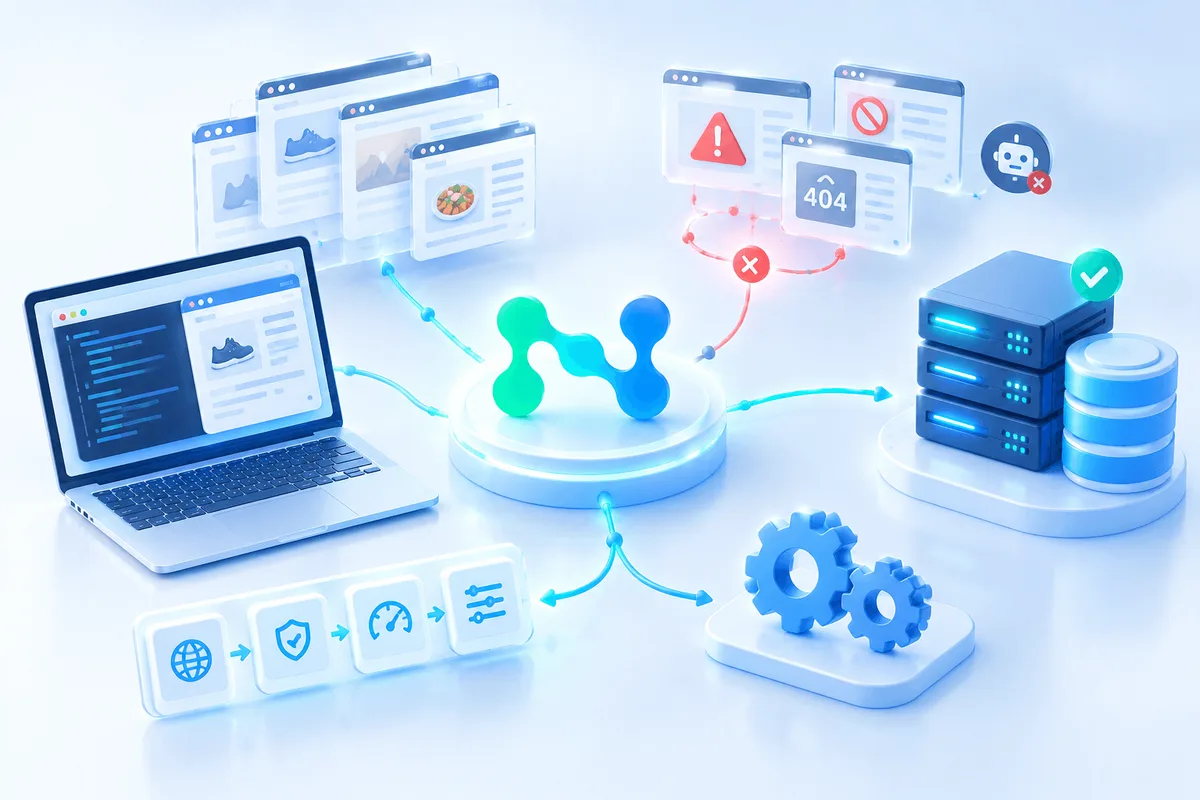
The proxy passes the connection test. The browser opens the website, the page loads, and the task starts without errors. But after a while, the process gets stuck on a CAPTCHA.
You change the IP address and try again — the same verification appears. The task queue keeps growing, and instead of collecting data automatically, you have to figure out why the script cannot continue.
If you work with web scraping and browser automation, this situation probably sounds familiar. It is important to understand that a successful proxy connection does not mean a website will allow every subsequent action. The connection may be working perfectly, but your requests or browser behavior can still trigger an additional verification.
Let's look at why this happens and how to handle CAPTCHA challenges without wasting time on endless retries.
Why CAPTCHA Appears Even When the Proxy Works
A proxy routes network requests through a different IP address. It can help you access websites from different regions, but it does not guarantee that a website will consider your activity normal.
CAPTCHA is one of the tools websites use to protect themselves against automated activity. It helps them distinguish regular visitors from bots, scripts, and other unwanted requests.
A CAPTCHA challenge can appear for several reasons:
- High request frequency. If a script sends requests too frequently, the security system may identify the activity as automated.
- Repetitive actions. Identical sequences of page visits, clicks, and form submissions may differ from the behavior of regular visitors.
- IP address reputation. Some IP addresses may have previously been used for bulk requests or other suspicious activity.
- Geographic inconsistencies. The IP address location may not match the expected session location or the website's access requirements.
- Browser session characteristics. A website may take cookies, JavaScript, session state, and other aspects of browser interaction into account.
This is why simply changing your IP address does not always help. If the challenge is triggered by request frequency, script behavior, or session state, a new IP address may lead to exactly the same result.
What to Do When a Task Gets Stuck on CAPTCHA
The first step is to identify exactly when the problem occurs. There is no need to restart the entire script or switch proxies immediately.
Here are a few things worth checking:
- Make sure the connection is actually working. Check whether the website is accessible and verify your current IP address. You can use the Node Proxy proxy checker for this.
- Find out which pages trigger the challenge. If CAPTCHA appears after a certain number of requests or following a specific action, this can help you identify a pattern.
- Check your request frequency. Your script may be sending too many requests in a short period. Increasing the intervals between requests and limiting the number of parallel tasks can reduce the load.
- Check the session state. Make sure the browser saves the required cookies and handles redirects correctly.
- Review the website's access rules. CAPTCHA may be part of the service's restrictions. Automation should comply with the website's rules and permitted access methods.
It is also worth checking the proxy's geolocation. If your task requires a specific country, use an IP address from that region. For example, Node Proxy residential proxies let you select a location and test website access through residential IP addresses.

If you need to keep the same IP address throughout a long session, consider Node Proxy static proxies. They are suitable for scenarios where changing the IP address during a task is undesirable. However, neither residential nor static IP addresses guarantee that CAPTCHA challenges will not appear: the website itself decides when verification is required.
When to Use Automated CAPTCHA Solving
If CAPTCHA regularly appears during an authorized automation workflow, manually completing every challenge can become a bottleneck. In such cases, you can consider specialized services for handling CAPTCHA.
One option is CaptchaAI, an AI-powered CAPTCHA-solving service designed for developers and teams working with automation. It can be used as a separate component in your workflow to process verification challenges and prevent the entire script from stopping for manual intervention.
When choosing a solution, consider which CAPTCHA types it supports, how it integrates with your existing tools, and what limits apply to the number of simultaneous tasks. Keep in mind that automated CAPTCHA solving does not eliminate the reason why a challenge appeared, nor does it guarantee that a website will not require other forms of verification.

CaptchaAI Trial Access for Node Proxy Users
Node Proxy users can get trial access to CaptchaAI: 50 threads for 3 days. During the trial period, you can solve an unlimited number of CAPTCHAs within the capacity of those 50 threads.
To claim the offer, send the promo code: NodeProxy50
How to Make Automation More Reliable
Your workflow should not depend on whether someone can manually solve the next challenge. To reduce interruptions and make troubleshooting easier, it is worth implementing several mechanisms:
- Error handling. Your script should recognize when a CAPTCHA appears and log it separately from ordinary network errors.
- Request rate limits. Do not send more requests than the target website allows. Use delays and control the number of parallel tasks.
- Logging. Record the page URL, the time the challenge appeared, the IP address in use, and the stage of the script. This will help you identify recurring patterns.
- Limited retries. Do not create an endless page-reload loop. Set a reasonable retry limit and implement separate handling for situations where CAPTCHA cannot be solved.
- Session management. Make sure cookies are preserved and browser processes are terminated correctly.
If you use proxies and browser automation together, treat them as separate parts of the system. The proxy handles the network connection, the browser interacts with the page, and a CAPTCHA-solving service processes a specific type of verification challenge. Understanding this distinction makes it easier to identify the cause of an interruption.
Conclusion
If your proxy works but the task gets stuck on CAPTCHA, the IP address is not necessarily the problem. The challenge may be triggered by request frequency, script behavior, IP reputation, or browser session state.
Instead of endlessly switching IP addresses, it is more useful to identify exactly when the challenge appears, look for recurring patterns, and configure appropriate handling. And if CAPTCHA becomes a regular obstacle in an authorized automation workflow, a specialized service like CaptchaAI can help reduce manual intervention and make the process more predictable.
CAPTCHA in Web Scraping FAQ
Why do I get a CAPTCHA if my proxy works?
A working connection only means traffic reaches the site. The check can still come from request frequency, repeated actions, address reputation, a location mismatch or the state of the browser session.
Will changing the IP address remove the CAPTCHA?
Only when the address itself is the trigger. If the cause is request speed, script behaviour or the session, a new IP often leads to the same check.
Do residential or static IPs guarantee no CAPTCHA?
No. Either type can help with location or session stability, but the website decides when to ask for verification.
How do I find what triggers the check?
Log the page URL, time, IP address and script stage for every challenge. Patterns usually show up after a certain number of requests or a specific action.
When does a CAPTCHA-solving service make sense?
When challenges keep interrupting an authorized automation workflow and solving them by hand becomes a bottleneck. It handles the check but does not remove its cause, and the site may still ask for other verification.