Netpeak Spider and Netpeak Checker Proxy Setup: Lists, Checks and Limits

Netpeak Spider takes proxies from a table in its settings window: on the Proxy tab you enable the HTTP proxy list option, paste one entry per line (host and port, optionally followed by a username and secret), and the program tests each entry on its own. How the addresses rotate depends on the thread count from the General tab. A single thread walks down the table one address after another, while several threads spread simultaneous requests over different addresses. Netpeak Checker needs proxies mainly for its Google-based data and reads the same line layout.
Competitor articles describe what the two tools can do but skip the proxy tab itself. Below you will find when proxies are worth adding at all, the exact steps in Spider, what the status codes in the proxy table mean, how Checker uses proxies for search data, and the limits of Netpeak's proxy support that are easy to run into.
Proxies for SEO crawls
Residential and static proxies for regional crawls and search data in Netpeak
Do You Need Proxies in Netpeak at All?
Often you do not. Netpeak's own help center says routine audits and most analyses run fine from your normal connection. A crawl of your own site at a moderate speed rarely triggers anything.
Proxies start to matter in these cases:
- Google data in Netpeak Checker. The Google SERP parameters and the SE Scraper for Google are the main reason to add a list. Netpeak also names the website traffic parameter once you go beyond roughly 1,000 requests.
- Sites that throttle repeated requests. Large marketplaces, catalogues and media sites limit how fast one IP can fetch pages.
- Regional versions. If a site shows different content or redirects by country, a crawl from a proxy in that country shows what local visitors and local search bots see. Our article on proxy geolocation explains how IP location is determined.
- Restricted access. Staging servers or partner areas that allow only certain IPs.
If none of these apply, start without proxies and add them only when you see timeouts, 429 or 403 responses in the crawl results.
What the Proxy Tab Accepts
According to Netpeak's documentation for the proxy settings:
- the tab works with HTTP proxies; SOCKS is not mentioned;
- the host field expects an IPv4 address;
- the port defaults to 80 if you leave it empty;
- the line format is
Host:PortorHost:Port:Login:Password.
So ask your provider for an HTTP list with IPv4 entry points in that four-part format. A sample:
203.0.113.71:3128
203.0.113.72:3128:crawl-team:Vb73pq
Gateways addressed by a hostname may or may not be accepted, depending on the version; if a hostname is rejected, use the IP address the provider lists for that gateway.
Setting Up the Proxy List in Spider, Step by Step
Step 1. Open the Proxy Settings
The Settings menu opens a window with many tabs; the one you need is Proxy. Pause any running crawl before touching it. Edited options take effect only after a pause, and pages fetched earlier keep their old results.
Step 2. Unlock the Table
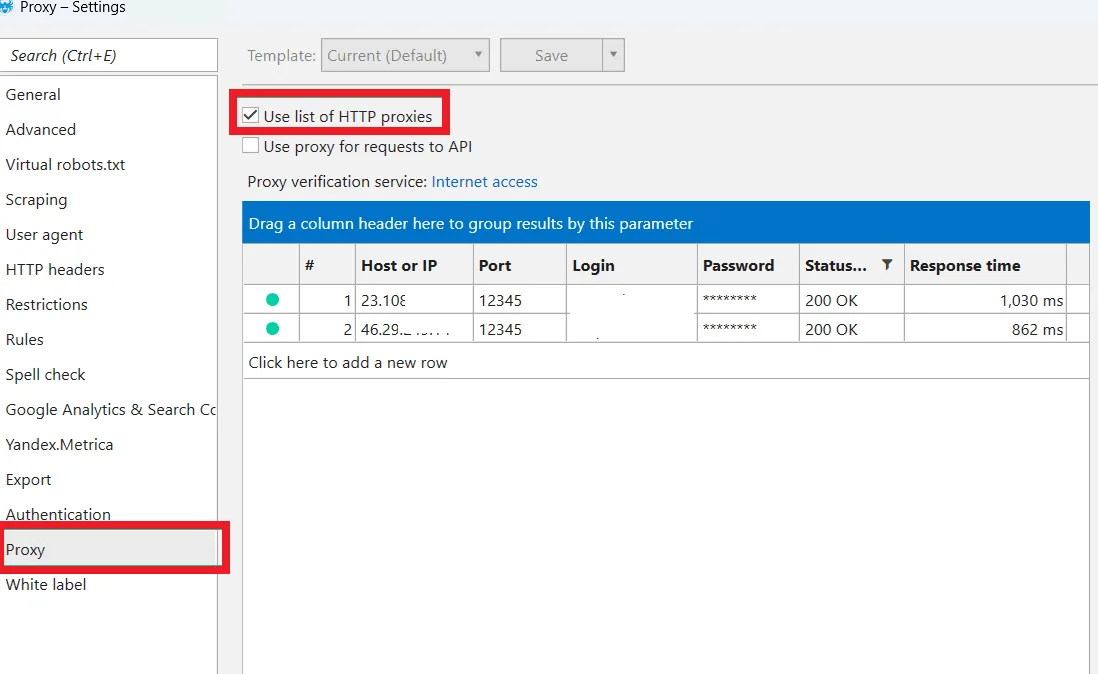
The table stays greyed out until you tick the checkbox for the HTTP proxy list at the top of the tab (Use a list of HTTP proxies).
Step 3. Fill In Your Addresses
Pick whichever input suits the size of your pool:
- a long export from the provider goes in fastest through the bulk input window (Enter manually, shortcut
Ctrl+D), where every line is one entry; - a couple of addresses are easy to type into a fresh table row (Add row, shortcut
Ctrl+N) with separate cells for host, port and credentials; - a list you have already copied elsewhere can be dropped in with Paste, the right-click menu or
Ctrl+V.
Step 4. Test Against the Right Target
A first test starts automatically as soon as entries appear in the table. For a repeat run press Check, and Netpeak asks what to test against: general connectivity (Internet access) or one of the search engines it supports, namely Google, Bing, Yahoo and Yandex. Pick the engine you are about to collect data from; a proxy that opens ordinary sites can still be refused by a search engine.
Step 5. Clean Up and Save
Use Delete to remove dead proxies (or all, or only the selected ones), then confirm the settings and start or resume the crawl.
Reading the Proxy Table
| Column or code | What it tells you | What to do |
|---|---|---|
| Status 200 | The proxy reached the test target | Keep it |
| Status 403 | The target refused access through this IP; credentials will not help | Drop it or test against another target |
| Status 407 | Authentication is required or the login and password are wrong | Fix the credentials or whitelist your IP |
| Response time | How long the target took to answer through the proxy | Remove the slowest entries; they hold threads hostage |
Threads and Rotation
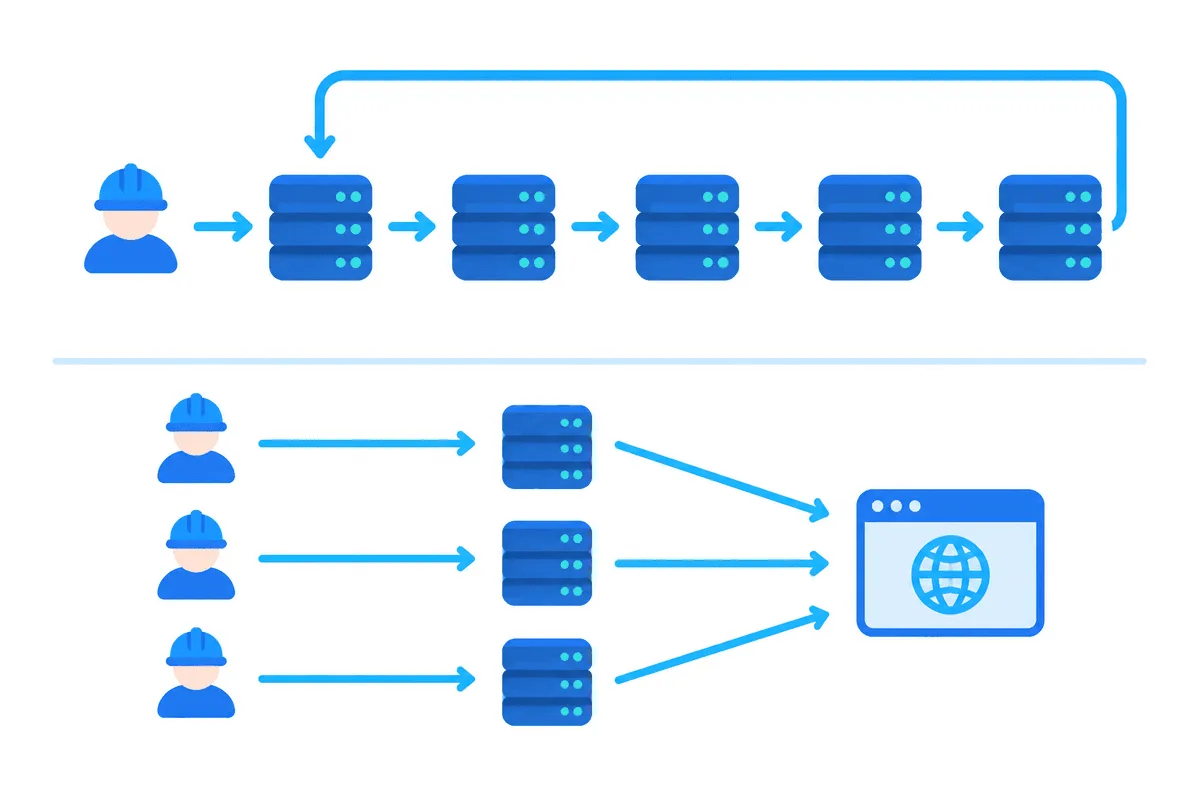
The thread count sits on the General tab. Unlike the rest of the options, it can be adjusted on the fly while a crawl keeps running. Rotation follows from it. Run Spider in a single thread, and each new URL is fetched via the next address in the table until the bottom is reached and the loop starts over from the top. Run it in several threads, and those threads hold different addresses at the same moment.
A practical starting point is no more threads than proxies, and fewer for strict targets. When Netpeak's own troubleshooting article deals with Google errors in Checker, its first suggestions are a Chrome user agent, a delay between requests tuned by trial, and a lower thread count; a private proxy list comes after that. Respect the search engine's terms and keep the volume to what the analysis really needs.
Proxies in Netpeak Checker
Checker gathers metrics for lists of URLs and domains from many sources, and only some of them hit a single host hard. The Google SERP parameters and the SE Scraper are the clear cases. Checker keeps its proxy list in its own settings window and takes the same line format as Spider. Netpeak's help center documents the proxy tab in detail only for Spider, so expect small differences in labels and check them in your build.
Tips specific to Checker:
- test the list against Google before a SERP job, not just against Internet access;
- for search data, a pool of residential proxies in the country you analyse gives results closer to what local users see;
- split huge URL lists into batches so one blocked run does not waste the whole job.
Limits to Know Before You Buy
- HTTP only. If your provider issues SOCKS5 endpoints exclusively, Netpeak cannot use them directly.
- IPv4 hosts. IPv6 proxies do not fit the host field.
- Per-request rotation. Spider changes the proxy from request to request, so sites that tie a session to an IP (logins, carts, some consent flows) may break. For those, use a single proxy or a sticky session from your provider; our piece on sticky vs rotating proxies compares the two modes.
- No per-proxy geo. The program does not group proxies by country; keep one list per region and switch it between crawls.
For crawls of your own or a client's site where only speed and stability matter, static proxies with a fixed address are usually enough and easy to whitelist on the server.

Troubleshooting
Every proxy shows 407. The login or password is wrong, or the provider expects IP authorisation. Re-enter the credentials or whitelist the computer's public IP.
Proxies pass Internet access but fail Google. The IPs are flagged by the search engine. Use fewer threads, add a delay or switch to residential exits.
Crawl slows down sharply after adding proxies. A few slow entries are holding threads. Sort by response time and delete the worst ones.
Logged-in pages lose the session. Rotation changed the IP mid-session. Use one proxy for that crawl.
Results differ from your browser. The proxy is in another country, so the site serves a regional version. Check the exit location with our proxy checker.
Netpeak proxy FAQ
Where are the proxy settings in Netpeak Spider?
Open the Settings menu and choose the Proxy tab. The table there unlocks once you tick the HTTP proxy list checkbox, and you can then paste a whole block, type rows one by one or drop in what is on your clipboard.
What proxy format does Netpeak accept?
Each line holds one entry: Host:Port, or Host:Port:Login:Password when the provider gives credentials. According to the help center, hosts are IPv4 addresses, and a missing port is treated as 80.
Can I use SOCKS5 proxies in Netpeak Spider?
Netpeak documents only HTTP proxies for this tab. Providers that sell both protocols usually let you switch the endpoint type, so pick HTTP for Netpeak.
Do I need proxies for Netpeak Checker?
Mainly for Google search data, the Google SE Scraper and large batches of the website traffic metric. Everyday metric checks normally run fine on your own connection.
How many threads should I use with proxies?
Begin with fewer threads than addresses in your table, and go lower still for search engines. Increase step by step while watching for 403, 429 and timeout responses.