Vision Browser Proxy Setup: Single and Bulk Import

Vision keeps proxies as separate objects: you add them on the Proxies tab (one by one with New Proxy or as a list with Mass Proxy Creation), test them with the built-in checker, and only then attach them to browser profiles. The proxy line goes into a single field, so host, port, login and password are pasted together rather than typed into four boxes.
That design is handy when a team juggles dozens of profiles: the address pool lives in one table with status, location and the number of profiles using each IP. Below is the full route through the Windows client, from the first folder to bulk import, plus the line formats Vision understands, what the IP-change link does and how to read the check result.
Mobile proxies with IP change
Carrier IPs with a change link you can store right in Vision
How Vision Organises Proxies
In Vision, work is grouped into folders. Each folder has its own tabs: Profiles, Proxies, Tags, Statuses and Extras. A proxy added to a folder can be reused by any profile in it. The sensible order is therefore:
- create a folder;
- fill its Proxies tab and check each address;
- create profiles and pick a proxy for each.
Supported protocols are HTTP, HTTPS, SOCKS5 and SSH. Keep at hand the server data from your provider: host, port, login, password and, for rotating plans, a link that triggers a new IP.
Adding One Proxy
Step 1. Open Browsers and Create a Folder
Launch Vision and click Browsers in the left menu. In the Folders column, press + and name the folder, for example by project or client. The empty folder offers Create profile, but leave profiles for later.
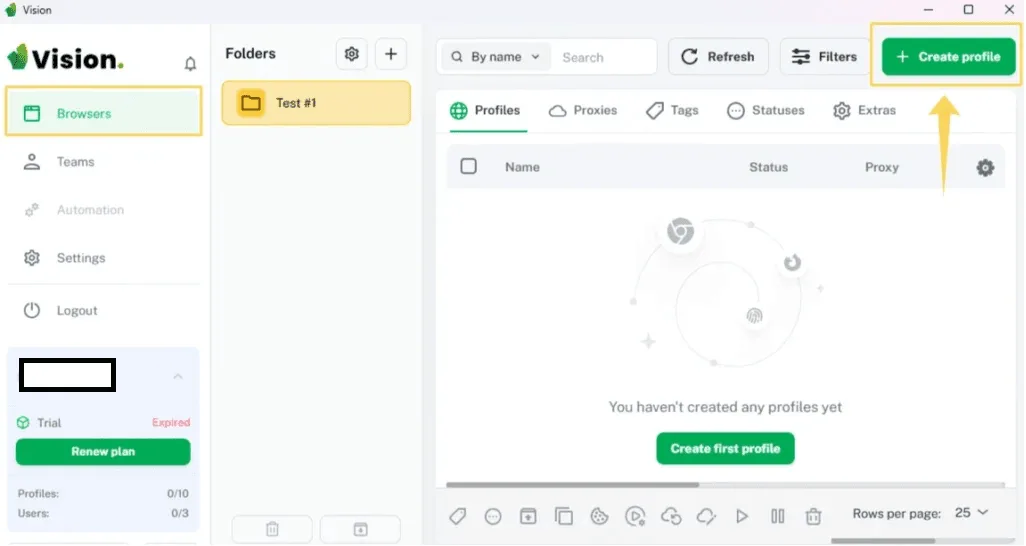
Step 2. Go to the Proxies Tab
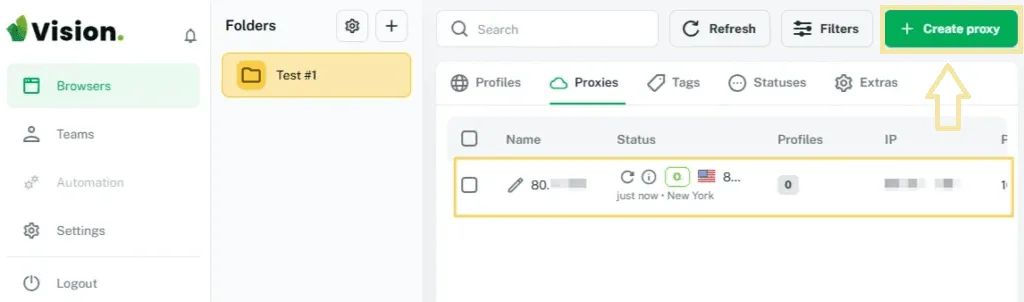
Switch to Proxies next to Profiles. In a new folder the table is empty and Vision suggests Create first proxy; later the same action sits under Create proxy at the top right.
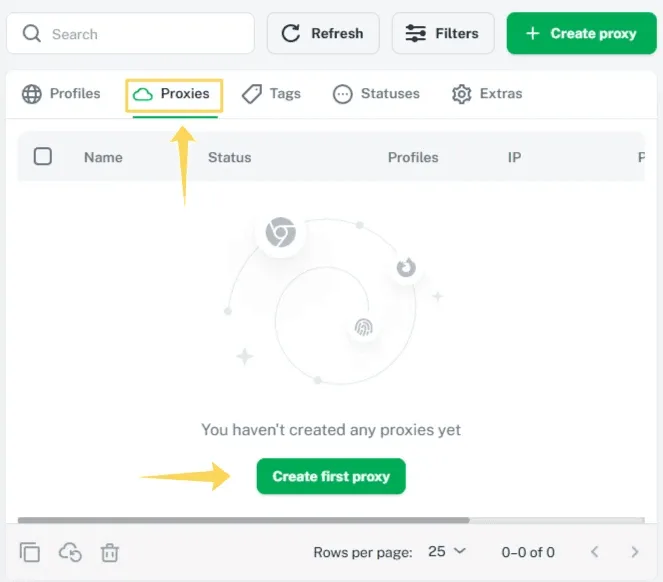
Step 3. Fill In the New Proxy Form
The form opens on New Proxy:
- Proxy name: a label you will recognise, such as country plus number;
- protocol buttons: HTTP, HTTPS, SOCKS5 or SSH;
- Proxy: the full connection line, for example
203.0.113.40:8000:user-4kq1:pass-9zt; - Link for changing IP: optional URL from your provider that rotates the address.
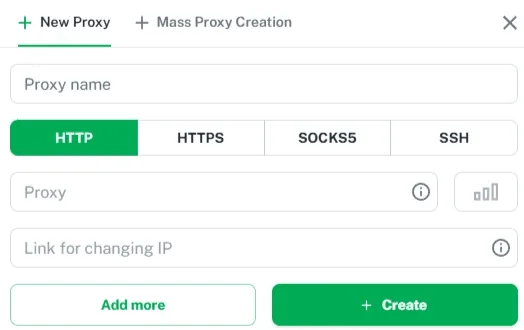
The rotation link only makes sense for plans that issue a new IP on request. Our mobile proxies support this, so the link can be stored right in the proxy card and used without leaving Vision.
Step 4. Run the Check
Press the button with signal bars to the right of the Proxy field. Within a couple of seconds Vision shows the flag, city with postcode, timezone and the connection type of the exit IP. Compare the location with what you ordered before saving.
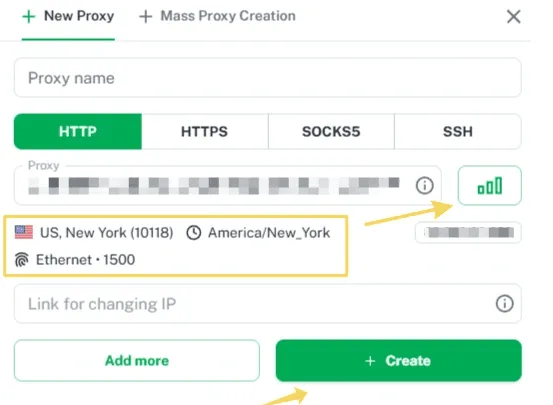
No data after the check usually means a typo in the line, the wrong protocol button or a server that is offline.
Step 5. Save With Create
Click Create. The proxy appears in the table with its name, status, the number of linked profiles and the IP. The refresh icon in the Status column re-runs the check later, which is helpful after the provider rotates or replaces an address. Add more keeps the form open for the next entry.
Assigning a Proxy to a Profile
Return to the Profiles tab and press Create profile. In the profile form, open the proxy setting and select one of the saved entries from the folder's list instead of typing data again. Save the profile; the Proxy column of the profile table will show the attached address.
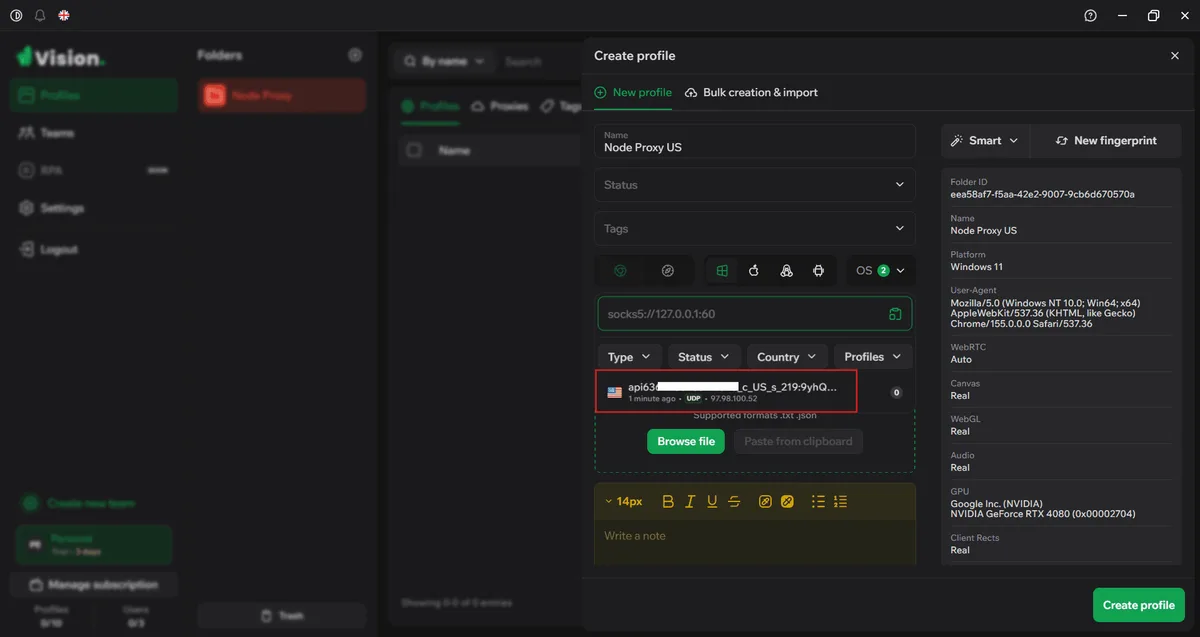
One rule worth keeping: one proxy per profile that holds a separate account. The Profiles counter in the proxy table makes overlaps easy to spot.
Bulk Import With Mass Proxy Creation
When a provider gives you a list, switch to the Mass Proxy Creation tab. Paste all lines into the Proxies box, one per line, and pick a protocol or leave Auto so Vision detects the scheme from each line.
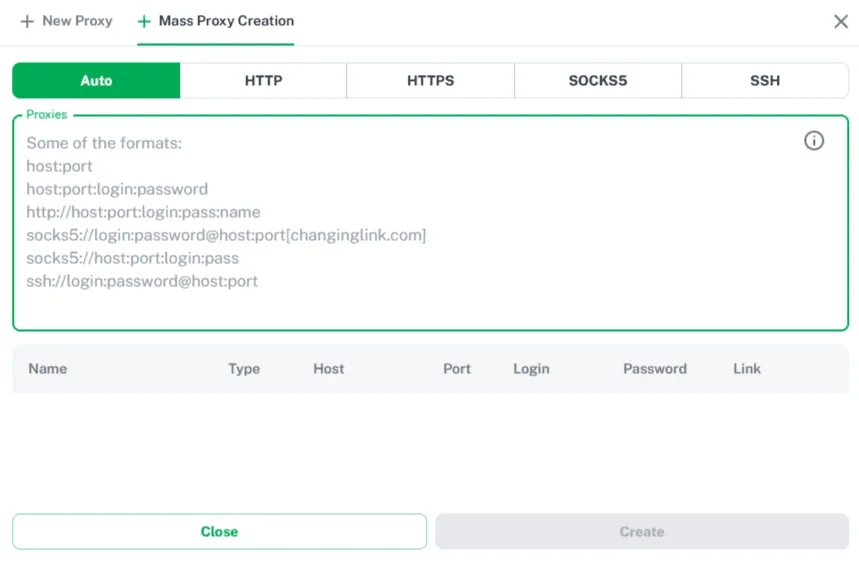
Formats Vision accepts include:
host:porthost:port:login:passwordhttp://host:port:login:pass:namesocks5://login:password@host:portwith an optional IP-change link in square brackets at the endsocks5://host:port:login:passssh://login:password@host:port
Below the box, Vision splits every line into Name, Type, Host, Port, Login, Password and Link. Look through this preview before pressing Create: if a column is shifted, the delimiter or the field order in your list differs from what Vision expects.
Checking a Running Profile
The built-in check confirms the server answers; the profile itself deserves a second look. Launch it and open an IP lookup site plus a WebRTC and DNS leak test. The IP, country and timezone should match the proxy, and no test should reveal your real address.
Choosing Addresses for Vision
- Residential: home-ISP addresses for platforms strict about server ranges.
- ISP: static addresses registered to internet providers, good for long sessions; our ISP proxy setup guide explains how they differ.
- Datacenter: fast and inexpensive, suitable for parsing and tests.
- Mobile: carrier IPs, convenient when you need on-demand rotation through a link.
Vision is popular with media buyers, so if you work in traffic arbitrage, plan one stable IP per ad account. Guides for other tools of this kind are collected in our antidetect browser proxy hub.
Troubleshooting
Check returns nothing. Verify host, port and protocol button. An SSH line saved under HTTP will never connect.
Credentials rejected. Look for spaces and for a swapped login and password in the line; in bulk lists the field order is the usual culprit.
Import splits lines incorrectly. Switch from Auto to the exact protocol, or bring the list to one of the formats above.
IP does not change through the link. Make sure the link belongs to the same proxy plan and opens without errors in a normal browser.
The proxy expired. Re-run the check from the Status column; a failing entry is easier to spot there than inside a profile.
Vision browser proxy FAQ
Which proxy types does Vision support?
HTTP, HTTPS, SOCKS5 and SSH. The protocol is set with buttons in the New Proxy form or detected automatically in bulk import.
How do I add many proxies to Vision at once?
Open Mass Proxy Creation, paste the list one proxy per line and keep Auto mode or choose a protocol. Check the parsed preview and press Create.
What is Link for changing IP in Vision?
It is an optional URL from your provider that forces a new exit IP. It suits rotating mobile and residential plans and stays empty for static addresses.
Can one proxy be used by several Vision profiles?
Yes, the Profiles column counts how many use it. For separate accounts it is better to keep one proxy per profile.
Why does a profile show the wrong country?
The provider may have replaced the IP. Re-check the proxy from the Status column and compare the location with your order.