How to Set Up Proxies in ZennoPoster: Set Proxy, ProxyChecker and Multithreading


In ZennoPoster, a proxy is attached to the browser with the Set proxy action in ProjectMaker: you place it before the first page load and enter a string such as http://login:password@host:port or socks5://login:password@host:port. For large lists there is ZennoProxyChecker, which imports, tests and hands out proxies to templates through the Get proxy action.
The connection itself is the easy part. The real work in a multithreaded template is deciding which thread gets which address, keeping account-bound proxies stable, catching dead servers before they stall a run and reading error 407 correctly. This guide covers all of that, plus the HTTP requests that ignore the browser proxy, something many tutorials skip.
Datacenter proxies
Fast datacenter proxies for multithreaded ZennoPoster templates
Choosing Proxies for ZennoPoster
Before buying, decide how the template will use the addresses:
- Short independent tasks (checking pages, collecting public data) work well with a rotating gateway or a large pool.
- Account sessions need one address per account for weeks; changing it mid-session causes repeated logins.
- High thread counts need enough addresses that threads do not queue up on the same IP.
| Type | Speed | Stability of the IP | Typical use in templates |
|---|---|---|---|
| Datacenter | Highest | Fixed | Fast parsing, technical checks |
| Residential rotating | Medium | Changes per request or session | Sites with strict anti-bot rules |
| ISP (static residential) | High | Fixed for months | Long account sessions |
| Mobile | Variable | Changes on rotation | Mobile-first platforms |
Fast, cheap datacenter proxies cover most parsing templates. Where a site is picky about IP origin, residential or ISP addresses fit better; our ISP proxy setup guide explains how they differ.
HTTP or SOCKS5
ZennoPoster understands both. HTTP(S) proxies suit browser and web-request traffic, which is most of what templates do. SOCKS5 passes any TCP connection and is useful when the same proxy also serves other tools. If a provider gives both ports, test each; the comparison of SOCKS5 and HTTP proxies helps you choose.
Adding a Single Proxy With Set Proxy
Step 1. Open the Template in ProjectMaker
Start ProjectMaker and open the project, or record a new one.
Step 2. Insert the Action Before the First Page Load
Right-click the canvas, choose Add action → Browser → Settings and select Set proxy. Connect it so it runs before any Go to page action; a page opened earlier will use the old connection.
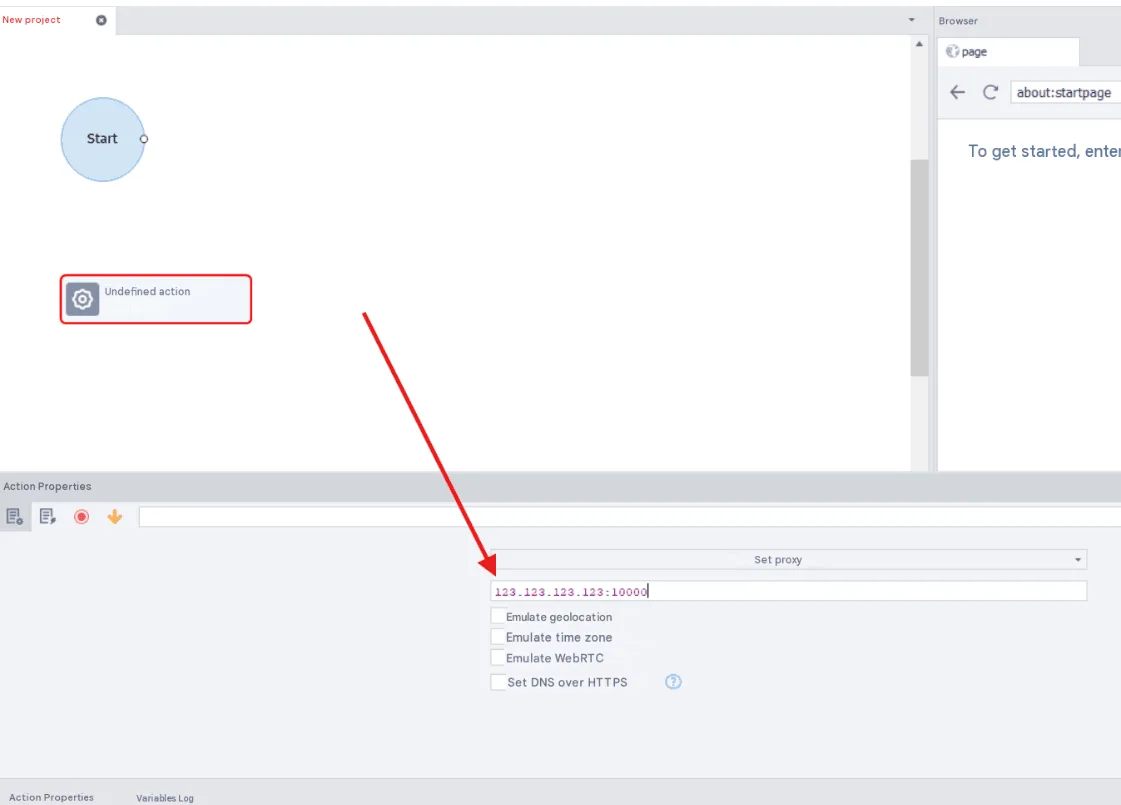
Step 3. Enter the Proxy String
ZennoLab's documentation lists these formats:
http://login:password@203.0.113.50:8000
socks5://login:password@203.0.113.50:1080
http://203.0.113.50:8000
login:password@203.0.113.50:8000
Without a protocol prefix, ZennoPoster assumes HTTP. The Other option opens separate fields for type, address, port, login and password if you prefer them. Every field accepts variables, so you can write {-Variable.proxy-} instead of a fixed value.
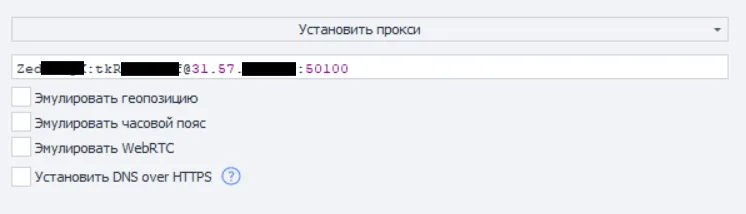
Step 4. Run a Test
Add Go to page with any what-is-my-IP site after Set proxy and run the project step by step. The page should show the proxy's address.
The Catch: HTTP Requests Use Their Own Proxy
Set proxy changes only the built-in browser. Actions that work without the browser, such as GET request and POST request, have their own proxy field. If your template mixes browser steps and direct requests, put the same variable into those fields, otherwise part of the traffic leaves from your real IP.
Bulk Lists With ZennoProxyChecker
ZennoProxyChecker ships with ZennoPoster and handles big lists:
- Prepare the file. One proxy per line:
ip:portfor open proxies orlogin:password@ip:portfor authenticated ones. Remove blank lines and stray spaces. - Add a source. On the Sources tab, add the file (or a web page with a list). In the source settings you can choose how proxies are parsed and checked.
- Create check rules. In advanced source settings, add a rule that opens a target URL through each proxy and looks for expected text. On the Rules tab, build filters such as anonymity level plus a passed URL test.
- Start checking on the Control tab.
- Take proxies into templates with the Get proxy action. Pick the rule, and tick Delete proxy from the live list if each address should go to only one thread.
You can test individual servers outside the program with our free online proxy checker.
Binding a Proxy to Each Account
For long sessions, store the proxy next to the account data: one row in a table or list per account with login, password and proxy string. At the start of the template:
- Take the account row with a Table or List operation.
- Parse it into variables, for example
{-Variable.acc_login-}and{-Variable.proxy-}. - Pass
{-Variable.proxy-}to Set proxy and to any GET or POST actions.
The account always comes back from the same address, which keeps sessions and security checks calm. Our overview of IP rotation explains when a fixed address is better than a changing one.
Distributing Proxies Across Threads
When twenty threads read one list at once, two of them can grab the same line. Ways to avoid that:
- Take and delete. In the List operation that fetches a proxy, enable deleting the line after reading; the next thread gets the next address.
- Lock the shared resource. If a C# snippet or global variable holds the pool, wrap access in a lock so only one thread changes it at a time.
- Pre-assign. Map proxies to accounts in advance and keep the mapping between runs.
- Gateway. With a rotating gateway, every thread can use the same entry address; the provider spreads connections over its pool.
Checking the Real IP Inside a Template
Add a check branch before the main logic: a GET request to an IP echo service through the same proxy, saving the answer in a variable and comparing it with the expected address. This catches a proxy that silently failed, a thread that got the wrong line and authentication that did not stick. Log the proxy, external IP, time, result and number of retries for every run.
Errors and Fixes
407 Proxy Authentication Required. Login or password is wrong, the string format is broken, or the provider expects IP allowlisting. Recheck the string character by character and the authorisation method in the dashboard.
Timeouts. The proxy or the target site is slow. Raise the timeout in the action settings, then compare a few other addresses from the pool to see whether one server is to blame.
Works in ProjectMaker, fails in ZennoPoster. Variables are filled differently in a real run, or threads share one line. Log the proxy value at the start of each thread.
Endless retries. Limit retries to two or three, then mark the proxy as bad and take another one so one dead server does not freeze the whole run.
Free lists. Public proxies are overloaded and short-lived; even after ProxyChecker filtering, few survive a long run.
ZennoPoster proxy FAQ
What proxy format does ZennoPoster accept?
protocol://login:password@ip:port for authenticated proxies and protocol://ip:port for open ones, where the protocol is http or socks5. Without a prefix, HTTP is assumed.
Does Set proxy apply to GET and POST requests?
No. It changes only the browser. Request actions have their own proxy field, so pass the same variable there.
How do I give each thread a different proxy?
Take proxies from a list with line deletion enabled, use Get proxy with Delete proxy from the live list, or bind proxies to accounts in a table.
Does ZennoPoster support SOCKS5?
Yes. Use the socks5:// prefix in Set proxy or choose the type in the Other fields.
Which proxies suit ZennoPoster best?
Datacenter proxies for fast parsing, ISP proxies for long account sessions and residential proxies for sites with strict anti-bot checks.