Proxy Setup in Antidetect Browsers: All Step-by-Step Guides

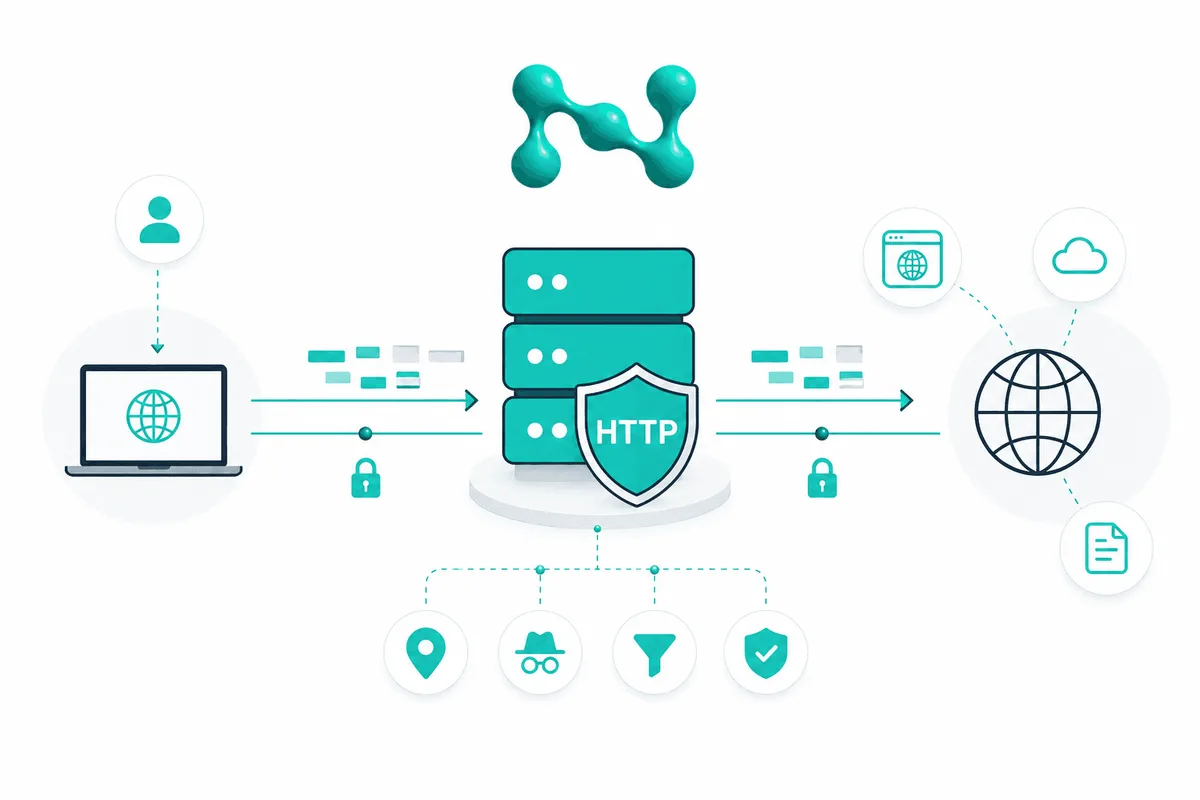
An antidetect browser keeps every profile separate, but each profile still needs its own proxy: without it, all accounts share one IP address and websites can link them. Below are our step-by-step guides on adding a proxy in popular antidetect browsers, regular browsers and extensions. Each guide shows where to find the proxy settings, how to enter the host, port, username and password, and how to check the connection.
Which Proxies to Use in an Antidetect Browser
For account work, use a separate IP address for each profile. Residential proxies use addresses of real internet providers and suit most tasks: social networks, marketplaces and ad accounts. Mobile proxies look like a smartphone connection and fit apps and platforms that are strict about mobile traffic. Common setup errors are covered in Common Mistakes When Using Proxies with an Antidetect Browser, and the basics of separate profiles in Multi-Accounting.
How to Add a Proxy in Any Antidetect Browser
The steps are almost the same in every antidetect browser:
- Get the proxy details from your provider: host, port, username and password, and the protocol (HTTP or SOCKS5).
- Create a new browser profile or open the settings of an existing one.
- Open the proxy section of the profile and choose a custom proxy.
- Select the protocol and enter the host, port, username and password. Many browsers also accept the whole proxy as one line.
- Click the built-in proxy check and make sure the IP address and country are the ones you expect.
- Save the profile and launch it. Each new profile gets its own proxy.
If you work with dozens of profiles, use bulk import: most browsers can load a proxy list and assign addresses to profiles automatically.
Antidetect Browsers
- AdsPower
- Accovod
- Aezakmi
- Afina
- AntBrowser
- Antik Browser
- BitBrowser
- Che Browser
- ClonBrowser
- Dolphin Anty
- Genlogin
- GoLogin
- Hidemyacc
- Incogniton
- Indigo
- Kameleo
- Lalicat
- Lauth Browser
- Linken Sphere
- Logii
- Maskfog
- MASQ
- Migrant Bird (MBbrowser)
- MoreLogin
- MuLogin
- NST Browser
- Octo Browser
- Omnilogin
- Surfinite
- Undetectable
- VMLogin
- VMMask
- X-Browser
Regular Browsers
- Google Chrome
- Mozilla Firefox
- Safari
- Opera
- Brave
- Vivaldi
- Waterfox
- Tor Browser
- Avant Browser
- Maxthon Cloud Browser
- Epic Privacy Browser
- Ghost Browser
Extensions and Multi-Session Tools
Antidetect Browser Proxy FAQ
Do I need a separate proxy for each browser profile?
Yes, if the profiles belong to different accounts. One IP address for many profiles lets websites link those accounts together.
Which protocol should I choose, HTTP or SOCKS5?
Most antidetect browsers support both. SOCKS5 handles any traffic and is a good default; HTTP is enough for regular web pages. Use the protocol your proxy provider issued.
How do I check that the proxy works in a profile?
Use the built-in check button if the browser has one, then open the profile and visit an IP checking service: the IP address and location should match the proxy.
Which proxies are best for antidetect browsers?
Residential and mobile proxies, because their IP addresses belong to real providers and operators and look natural to websites.