Wget with a Proxy: HTTP, HTTPS and SOCKS5 Setup on Linux, macOS and Windows

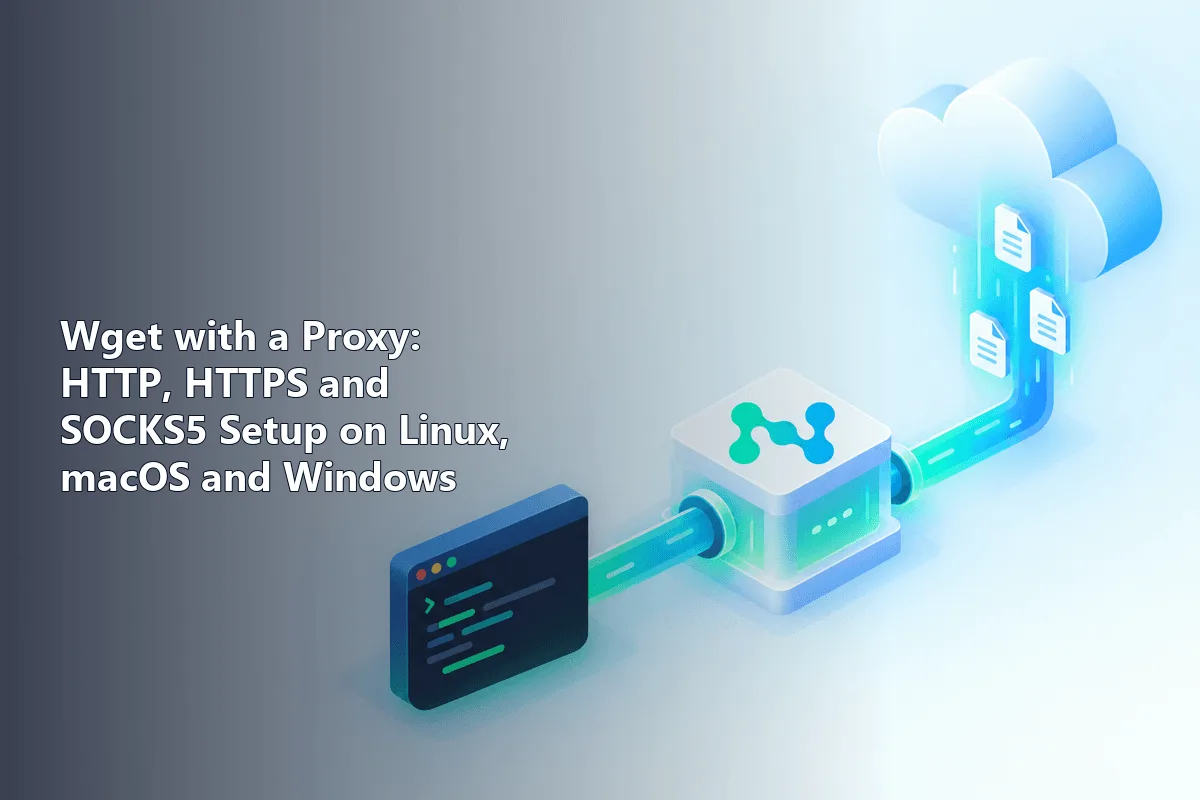
Tell GNU Wget about a proxy through one of three channels, the http_proxy and https_proxy variables in your shell, the .wgetrc config file or an inline -e switch, and every download it makes will be relayed. Credentials either ride inside the proxy URL or travel separately via --proxy-user and --proxy-password. One limitation shapes everything else: Wget only knows how to talk HTTP to a proxy, so reaching a SOCKS5 server takes a wrapper like proxychains-ng.
This guide covers each configuration route from throwaway to permanent, then authentication, fetching HTTPS pages through the relay, the SOCKS5 detour, a two-line IP check and the error messages people actually run into. Because the proxy switches are always combined with ordinary download commands, we begin with a compact Wget cheat sheet.
Proxies for command-line tools
HTTP and SOCKS5 proxies with a login and password that work in wget and curl
Wget Cheat Sheet
Wget is a downloader that needs no interaction: hand it a URL over HTTP, HTTPS or FTP and it fetches files or entire page trees, even after you log out of the terminal. Linux distributions almost always include it. macOS users get it via Homebrew with brew install wget; Windows users grab a native build through Chocolatey, Scoop or a similar package manager.
| Goal | Command |
|---|---|
| Grab a file, keep its original name | wget https://example.org/manual.pdf |
| Grab it under a name you choose | wget -O guide.pdf https://example.org/manual.pdf |
| Continue a download that broke off | wget -c https://example.org/distro.iso |
| Fetch every link listed in a text file | wget -i links.txt |
| Keep a single page readable offline, assets included | wget -p -k https://example.org/post |
| Copy a whole site section | wget --mirror -np -k -p https://example.org/kb/ |
| Throttle yourself politely | wget --wait=2 --random-wait --limit-rate=300k ... |
| Dump a page straight to stdout | wget -qO- https://example.org |
Recursive runs obey robots.txt unless you override it, which you should not; keep --wait in place and stay within the site rules.
Route 1. Inline Settings for One Run
-e feeds any .wgetrc directive to Wget for the current invocation only, leaving your shell and config untouched:
wget -e use_proxy=yes \
     -e https_proxy=http://198.51.100.7:3128 \
     -e http_proxy=http://198.51.100.7:3128 \
     -O feed.xml https://example.org/feed.xml
Two variables appear because Wget chooses a relay according to the scheme of the file you download: links starting with http go through http_proxy, links starting with https through https_proxy. Either way the connection to the relay is plain HTTP. For an HTTPS download, Wget sends a CONNECT request, the relay opens a raw tunnel, and TLS is negotiated end to end inside it, so the relay cannot read what you fetch. We dig into this in HTTP vs HTTPS proxies.
Route 2. Shell Variables
To proxy everything until you close the terminal, set the variables once:
PROXY_URL="http://198.51.100.7:3128"
export http_proxy="$PROXY_URL" https_proxy="$PROXY_URL"
export no_proxy="127.0.0.1,localhost,.corp.example"
wget -q -O - https://ifconfig.me/ip
Stick with lowercase names, since those are the ones Wget looks up. Entries in no_proxy are host names or domain endings, separated by commas, that should be contacted directly. Persist the lines in ~/.bashrc or ~/.zshrc if you want them in every session, and remember that curl, pip, apt and many other programs will pick them up too.
With the variables active, a single command can still go direct by adding --no-proxy.
Route 3. The .wgetrc File
A config file affects Wget alone, which keeps your environment clean. Your personal copy belongs at ~/.wgetrc. Builds also read a global file, typically /etc/wgetrc or /usr/local/etc/wgetrc. To use a file somewhere else, export WGETRC with its full path, which is also the least fiddly approach on Windows.
# personal Wget settings
proxy_user = scraper01
proxy_password = change-me
https_proxy = http://198.51.100.7:3128/
http_proxy = http://198.51.100.7:3128/
no_proxy = 127.0.0.1,localhost
use_proxy = on
A password now sits in plain text, so lock the file down with chmod 600 ~/.wgetrc. Flip use_proxy to off whenever you want direct connections back without erasing the other lines.

When the same setting appears in several places, the most specific one wins: switches typed on the command line beat the config file, and -e directives or --proxy-user override anything inherited.
Logging In to the Proxy
There are two interchangeable ways to hand Wget a login.
Embedded in the URL. Prefix the host with the credentials, as in http://scraper01:change-me@198.51.100.7:3128. Any character that is reserved in URLs, including the at sign, colon and hash, has to be percent-encoded; an at sign inside a password turns into %40.
As dedicated switches, which sidestep encoding altogether:
wget --proxy-user=scraper01 \
     --proxy-password='p@ss:with#symbols' \
     -e https_proxy=http://198.51.100.7:3128 \
     https://example.org/archive.tar.gz
Anything typed at the prompt is saved in shell history, and on a shared box other accounts can see full command lines in the process table. On multi-user servers keep the password in a protected .wgetrc, or ask your provider for IP-based authorization so the password disappears from the picture.
SOCKS5 and Wget: Working Around the Gap
GNU Wget 1.x contains no SOCKS client, and the published Wget2 options do not mention one either. Pointing https_proxy at a socks5 URL simply produces an error. Below are three workable alternatives; the trade-offs between the protocols are covered in SOCKS5 vs HTTP proxies.
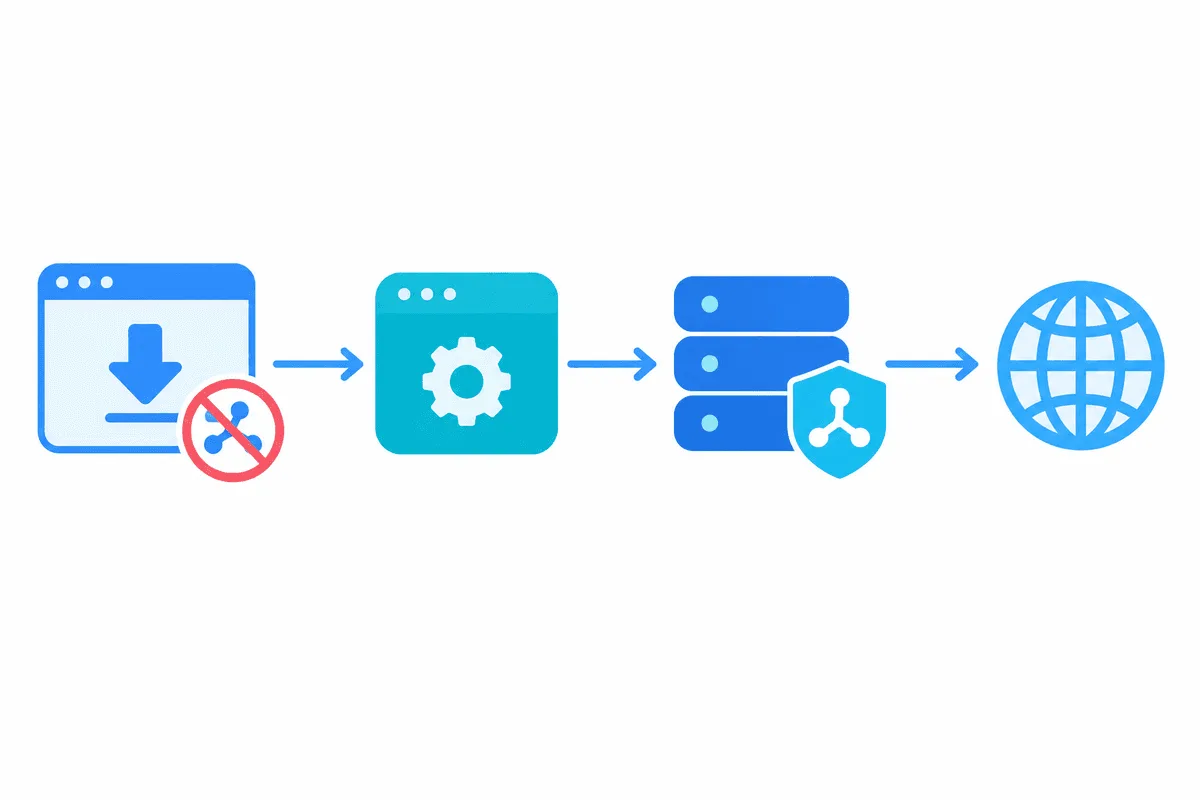
Alternative 1. Wrap Wget in proxychains-ng
New to the protocol? Our primer on what a SOCKS5 proxy is is a quick read. proxychains-ng hooks into the socket calls of dynamically linked programs and pushes the traffic through whatever relays its config lists. On Debian or Ubuntu the package is called proxychains4; Homebrew and Arch ship it as proxychains-ng. Write a private config file:
# ~/.config/pc-socks.conf
strict_chain
proxy_dns
tcp_connect_time_out 9000
tcp_read_time_out 20000

[ProxyList]
socks5  198.51.100.7  1080  scraper01  change-me
Then prefix the download:
proxychains4 -q -f ~/.config/pc-socks.conf wget -q -O - https://ifconfig.me/ipproxy_dns hands name resolution to the relay, so your provider's DNS servers never see the hostnames. The trick depends on library preloading: statically compiled binaries escape it, and on macOS, System Integrity Protection blocks it for programs shipped with the OS, though a Wget installed from Homebrew normally cooperates.
Alternative 2. tsocks or torsocks
tsocks belongs to the same family but has been abandoned for years; choose proxychains-ng on any modern system. torsocks targets Tor only and is not meant as a general SOCKS5 wrapper.
Alternative 3. An HTTP Port, or a Different Downloader
Plenty of providers publish the same exit on an HTTP port as well as a SOCKS5 one. If yours does, give Wget the HTTP endpoint and skip the wrapper; our SOCKS5 proxies offer both access types. Where SOCKS5 is mandatory, curl handles it natively through --socks5-hostname.
Confirming That the Proxy Is in Use
Compare the address the outside world sees in both modes:
wget -q -O - --no-proxy https://ifconfig.me/ip; printf '\n'
wget -q -O - https://ifconfig.me/ip; printf '\n'
The first line prints your own IP, the second the proxy exit. Add -S to dump response headers, or drop -q for the default verbose output, which names the host Wget connects to, and that host should be the relay rather than the target site.
Error Messages Decoded
| Output | Meaning | Remedy |
|---|---|---|
Proxy tunneling failed: Proxy Authentication Required | The relay refused to open the HTTPS tunnel without valid credentials | Recheck the login, percent-encode reserved characters |
407 Proxy Authentication Required | Same refusal on an http link | Supply --proxy-user and --proxy-password |
failed: Connection refused after the relay address | Wrong port, or the relay is down | Compare the port with the provider panel |
Unable to establish SSL connection | The tunnel broke, often right after a login failure | Fix authentication first; keep certificate checks on |
| Traffic still leaves from your own IP | Uppercase variable names, or use_proxy = off in the config | Use lowercase names, inspect .wgetrc |
Error parsing proxy URL ... Unsupported scheme | A socks5 address was supplied, which Wget cannot use | proxychains-ng or the HTTP port |
--no-check-certificate makes TLS complaints vanish by giving up protection against interception. Reserve it for a known lab host and never reach for it to paper over a proxy fault.
Notes for Windows Users
Windows PowerShell 5.1 maps the bare word wget to Invoke-WebRequest, an unrelated cmdlet with its own syntax. Type wget.exe to be sure the GNU tool runs. Proxy variables behave the same as on Linux: in PowerShell assign $env:https_proxy, in cmd use set https_proxy= followed by the relay URL. A config file can live in any folder once WGETRC points at it.
Bulk jobs that pull many files usually run fastest and cheapest over datacenter proxies, provided the source does not block hosting networks.
Wget Proxy FAQ
Can wget use a SOCKS5 proxy?
Not on its own, because GNU Wget speaks only HTTP to proxies. Wrap it in proxychains-ng, connect to the HTTP port of the same provider or use curl for jobs that must go over SOCKS5.
Why is my HTTPS_PROXY setting ignored by wget?
Wget checks the lowercase variables https_proxy and http_proxy. Make sure your config file does not say use_proxy = off, since that line disables proxying whatever the environment holds.
How do I handle a password with special characters?
Percent-encode the reserved characters when the password sits inside the URL, or pass it through --proxy-password wrapped in single quotes, where no encoding is required.
How can wget skip the proxy for certain hosts?
Put those hosts or domain suffixes into no_proxy, or append --no-proxy to an individual command.
How do I see which IP address wget is using?
Fetch https://ifconfig.me/ip with the proxy configured, then repeat with --no-proxy; the two outputs should differ.