GeeLark Proxy Setup: Adding a Proxy to a Cloud Phone Profile

In GeeLark, a proxy is attached to each profile in the Proxy settings block of the New Profile form: pick Custom, choose the protocol, paste the host, port, login and password, hit Check proxy and save with OK. From then on, the cloud phone behind that profile goes online only through the server you entered.
GeeLark is not a classic antidetect browser. Every profile is a virtual Android (or iOS) device running on GeeLark's servers, which you control from a desktop client, so the proxy governs the whole phone: its apps, its browser and the region it reports. That changes a few details compared with browser-based tools, and the guide below covers them: which fields matter, what IP query channel and Change IP URL do, how saved proxies work and why a phone sometimes keeps showing the wrong country.
Mobile proxies for cloud phones
Carrier IPs with IP rotation that fit GeeLark cloud phone profiles
What a Cloud Phone Needs From a Proxy
Before opening GeeLark, collect the connection data from your provider's dashboard:
- Protocol: SOCKS5, HTTP or HTTPS. GeeLark offers all three.
- Host and port, for example
203.0.113.24:7000. - Login and password, unless the provider authorises you by a whitelisted IP.
- An IP rotation link, only if your plan includes one.
Since the device imitates a smartphone, the most coherent pairing is a phone-carrier address. Our mobile proxies give the cloud device an IP that belongs to a real cellular network, which matches what apps expect from an Android handset. Residential IPs are a sound second choice; datacenter ranges are cheaper but look odd coming from a "phone". If you are still weighing whether a virtual handset suits your task better than a browser profile, our comparison of a cloud phone and an antidetect browser explains the trade-offs.
Setting Up the Proxy Step by Step
Step 1. Open the New Profile Form
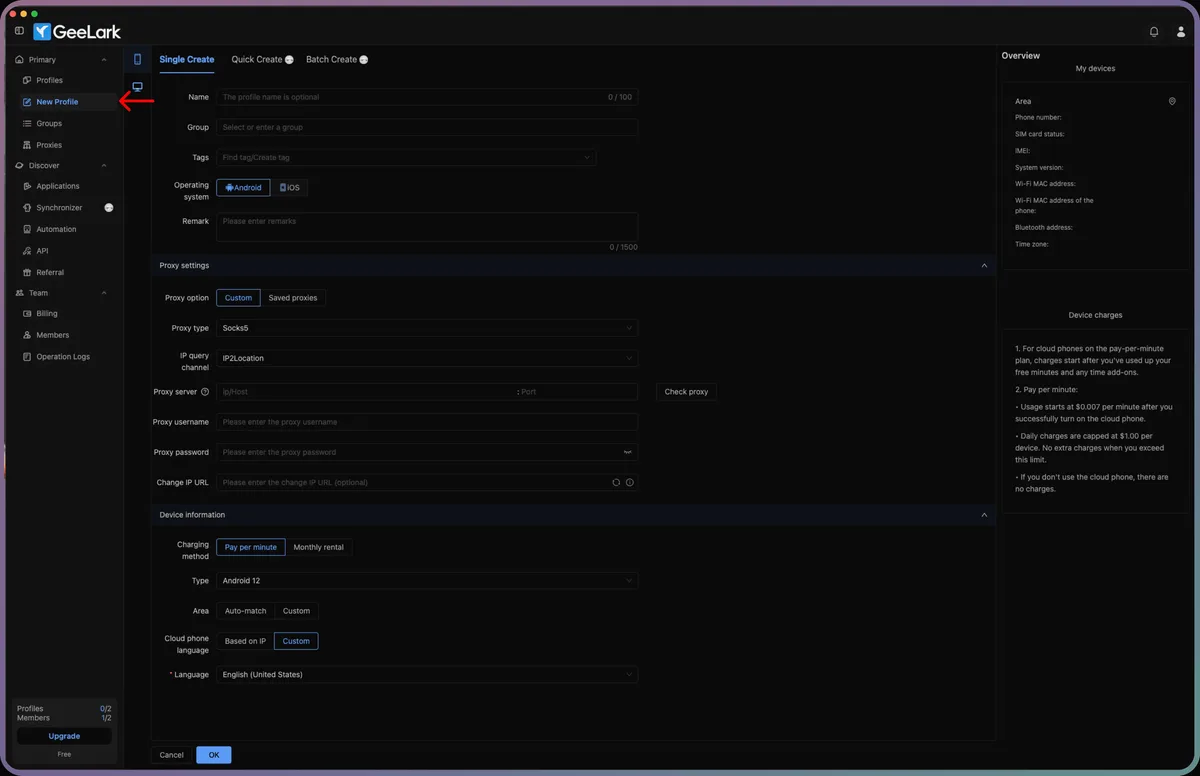
Sign in to the GeeLark desktop client. In the left sidebar, under Primary, click New Profile. The Single Create tab opens with the profile fields at the top: Name (optional), Group, Tags, Operating system (Android or iOS) and Remark.
Give the profile a recognisable name and, if you run many devices, put it in a group right away. Tidy naming saves time later, when dozens of phones share one list.
Step 2. Choose Custom in Proxy Settings
Scroll down to Proxy settings. The Proxy option switch has two positions:
- Custom: type the server details right here, just for this profile;
- Saved proxies: pick a server you stored earlier on the Proxies page.
For a first setup, select Custom.
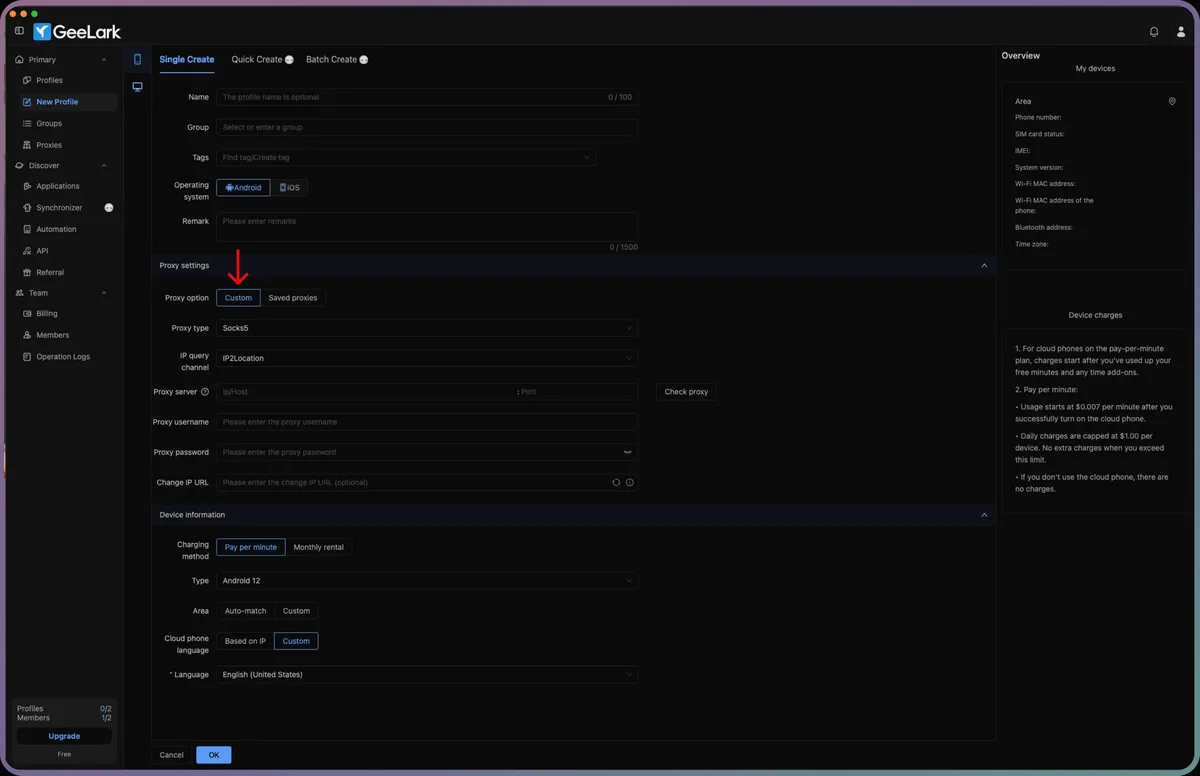
Step 3. Select the Proxy Type
Open the Proxy type list. Besides Socks5, HTTPS and HTTP, it shows presets for several proxy vendors with built-in integrations. If your server comes from another provider, ignore the presets and choose the protocol that matches your credentials.
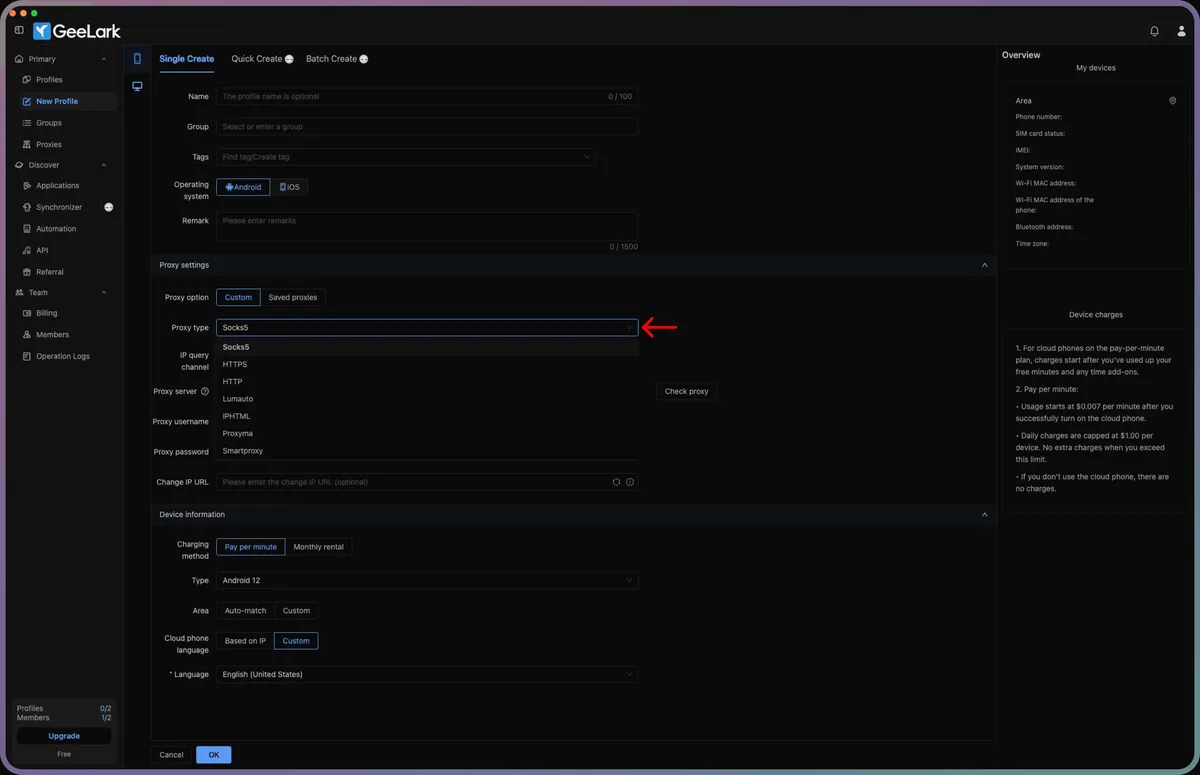
Below it sits IP query channel, the lookup service GeeLark uses to locate the exit IP (IP2Location by default). Changing it is useful when one database places your proxy in the wrong city.
Step 4. Fill In Server, Login and Password
- Proxy server: the host goes in the left part of the field, the port in the right part after the colon.
- Proxy username and Proxy password: credentials from the dashboard. With IP whitelisting, leave both empty.
- Change IP URL (optional): a link that forces the provider to issue a new address. Rotating mobile plans usually include one; with a static IP the field stays blank.
Type values without leading or trailing spaces. A pasted space in the password is the most frequent reason a correct proxy fails the check.
Step 5. Run Check Proxy
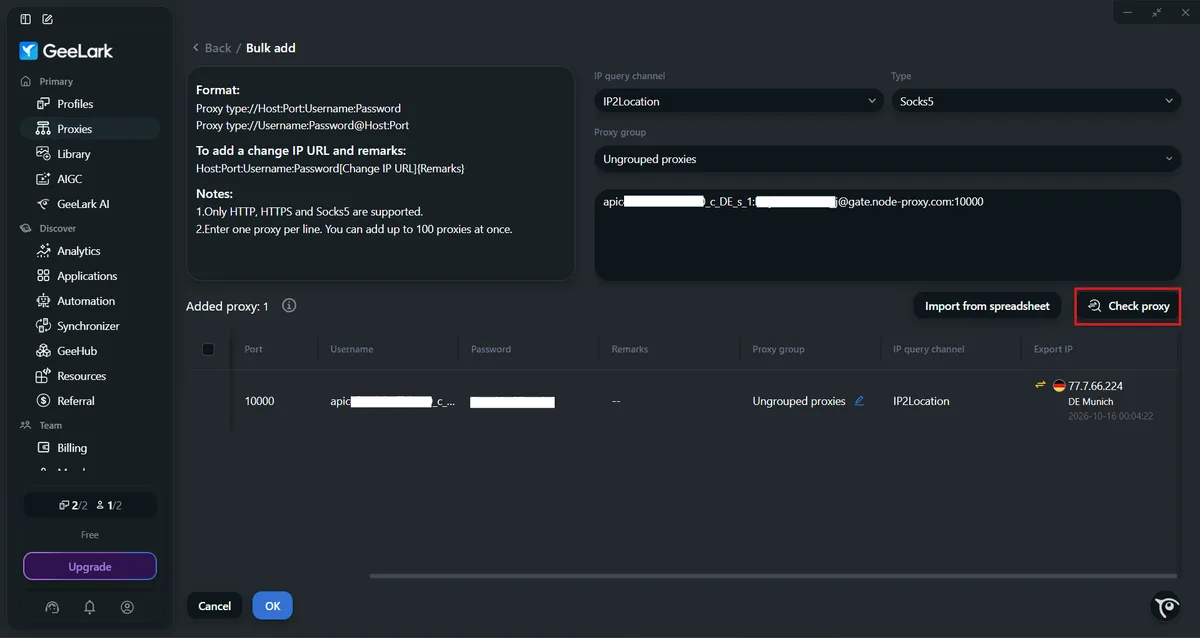
Click Check proxy to the right of the server field. On success, GeeLark prints the country code, the exit IP and the ISP name under the button in green. If the country is not the one you ordered, sort it out now: the cloud phone will inherit that location.
Step 6. Set Device Information and Save
The Device information block below the proxy defines the phone itself. Two options interact with the proxy:
- Area: Auto-match takes the device region from the proxy's exit IP, so the timezone and locale do not contradict the address;
- Cloud phone language: Based on IP sets the system language from the proxy location, Custom lets you choose it.
Here you also pick the Android version and the charging method; note that billing for pay-per-minute devices starts only when the phone is turned on. When everything is filled in, press OK at the bottom of the form.
Saved Proxies for Many Devices
When you manage a fleet of phones, retyping servers gets old quickly. Open Proxies in the sidebar and add your servers there once; afterwards, every new profile can use Saved proxies instead of Custom. Keep one IP per device: two phones sharing an address look linked to the platforms they log into.
Checking the IP Inside the Phone
Start the profile from the Profiles list and wait for the Android screen to load. Open the phone's browser and visit any IP lookup page. Three things must match the proxy: the address, the country and the connection type (mobile carrier for mobile proxies). If you want to test the server separately from GeeLark, run it through our free proxy checker.
Then glance at the device's clock and language. With Auto-match and Based on IP enabled, they should agree with the proxy region.
When the Proxy Fails
Check proxy returns an error. Compare host and port with the dashboard character by character, then the protocol: a SOCKS5 port selected as HTTP will not answer.
Authentication refused. Retype the login and password. If the provider works by IP whitelist, add the address GeeLark connects from; your home IP is not what reaches the provider.
The phone shows the wrong country. Switch the IP query channel and re-check, or ask the provider whether the server's geolocation was recently changed. Recreate the profile with Area on Auto-match if the device was built with a manual region.
Change IP URL does nothing. The link must come from the same proxy plan. Open it once in a regular browser to confirm it returns a success message.
Apps behave as if they are on Wi-Fi from a data centre. That is the address type, not GeeLark. Switch to a mobile or residential IP.
Picking a Proxy for GeeLark Tasks
GeeLark is mostly used for running mobile app accounts at scale: social networks, marketplaces, messengers. For short-video platforms, read our notes on TikTok proxies before buying addresses. Background on how a virtual handset works is in the cloud Android phone explainer, and setups for desktop tools are gathered in our antidetect browser proxy guides. Whatever you choose, follow the rules of each platform: a proxy changes the network route, not the terms you agreed to.
GeeLark proxy FAQ
Is GeeLark an antidetect browser?
Not exactly. Its core product is a cloud phone: a virtual Android or iOS device hosted remotely. The proxy you assign covers the whole device, not just a browser window.
Which proxy type works best with GeeLark?
Mobile proxies fit best because the device presents itself as a smartphone. Residential IPs also work well; datacenter addresses are acceptable for testing.
Can several GeeLark profiles share one proxy?
Technically yes, but the profiles then share an IP and look connected. Give each device its own address.
What is the Change IP URL field for?
It stores a rotation link from your provider. GeeLark calls it to get a fresh IP for the device without editing the profile.
Why does Check proxy pass but apps still fail?
Usually the proxy blocks some ports or protocols, or the address type does not suit the app. Test the server in a browser inside the phone and try a mobile IP.