How to Set Up a Proxy in Hidemium: Profile-by-Profile Guide

To give a Hidemium profile its own IP, click Add Profile, go to step 2. Proxy of the Create Profile wizard, open the Your Proxy tab, choose HTTP or SOCKS5, fill in IP address, port, username and password, press Check Proxy and finish with Create and run profile. The proxy then applies to that profile only; every other profile keeps its own route.
Hidemium is a Chromium-based antidetect browser built around isolated profiles: each one stores its own cookies, local storage, fingerprint and network settings. This guide follows the current desktop client (version 4.x) screen by screen, explains the less obvious fields such as Format Proxy, Check Proxy Host and the pre-launch check, and lists the errors people hit most often.
Static proxies for Hidemium
Stable HTTP and SOCKS5 addresses for long-lived Hidemium profiles
What to Have Ready
Hidemium needs four values from your proxy dashboard plus the protocol:
- IP address or hostname of the server;
- Port;
- Username and Password;
- Protocol: HTTP or SOCKS5. The client accepts both, but the choice must match the port you were given.
For profiles that hold accounts for weeks, an address that never changes is the safer base. Static proxies keep the same IP across sessions, so a platform sees a consistent login location every time the profile opens.
Configuring the Proxy in Hidemium
Step 1. Start a New Profile
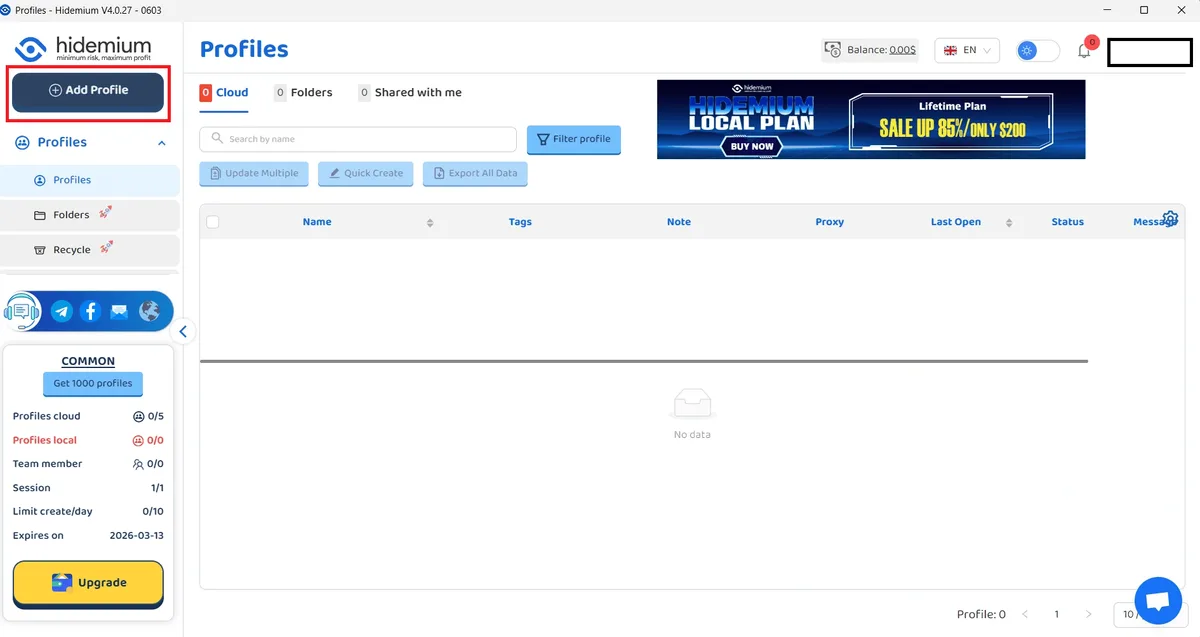
Install Hidemium for Windows or macOS, sign in and open the Profiles page. Above the navigation on the left, click Add Profile. The profile list in the middle has a separate Proxy column, which later shows which address each profile uses.
Step 2. Fill In Base Info
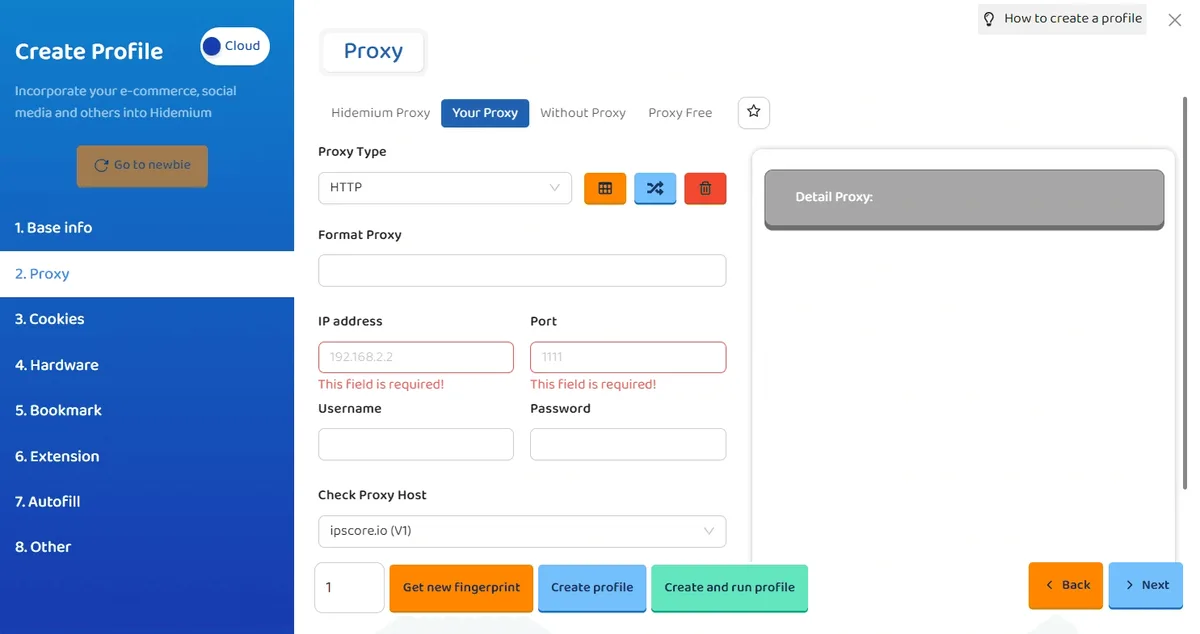
The Create Profile window opens on 1. Base info. Name the profile, choose the operating system and browser parameters you need, and note the Cloud switch in the top-left corner: it decides whether the profile is stored in Hidemium's cloud or locally. Then go to 2. Proxy in the left column or press Next.
Step 3. Choose Your Proxy and the Protocol
The proxy step has four tabs:
- Hidemium Proxy: addresses sold inside Hidemium;
- Your Proxy: a server from any external provider;
- Without Proxy: a direct connection through your own network;
- Proxy Free: free addresses offered in the app, not suitable for work accounts.
Open Your Proxy. In Proxy Type, select HTTP or SOCKS5 to match your credentials. Not sure which one your task needs? Our explainer on what a SOCKS5 proxy is compares the two.
Step 4. Enter Connection Details
| Field | What goes in it |
|---|---|
| Format Proxy | Optional: paste one complete proxy line instead of typing each field |
| IP address | Host or IP of the server, for example 203.0.113.58 |
| Port | Port number from the dashboard |
| Username | Proxy login |
| Password | Proxy password |
| Check Proxy Host | Service used for the check, ipscore.io by default |
IP address and Port are mandatory, and Hidemium highlights them in red until filled. Copy credentials straight from the dashboard: one wrong character or a stray space is enough for a failed connection.
Step 5. Press Check Proxy
Click Check Proxy. The Detail Proxy panel on the right fills with the exit IP, coordinates, organisation, city, region, country, timezone, ASN, ISP, connection type and a risk score. Read it before going further: the country should be the one you ordered, and the timezone shows what the profile will report.
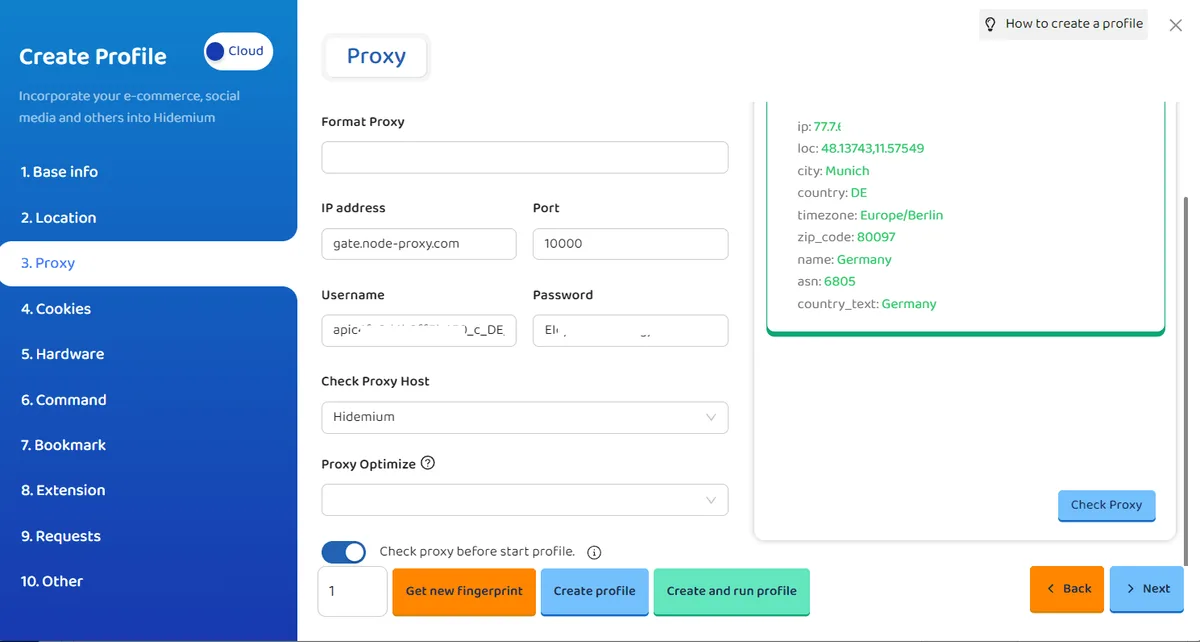
Below the check service you will also find Proxy Optimize and a toggle called Check proxy before start profile. Keep the toggle on: Hidemium will then test the server on every launch and stop a profile from opening on a dead connection.
Step 6. Create and Launch the Profile
At the bottom of the wizard:
- Create profile saves it to the list without launching;
- Create and run profile saves it and opens the browser immediately;
- Get new fingerprint regenerates the device parameters if you want a different set.
The number field to the left of these buttons sets how many profiles are created at once; leave it at 1 when each profile needs its own proxy.
Verifying the Result
Once the browser window opens, visit an IP lookup site. The address, country and timezone must agree with the Detail Proxy panel. If the profile shows your home IP, you most likely saved it on the Without Proxy tab. Open the profile settings and switch to Your Proxy.
When one profile works and another does not, the problem sits in that profile's own settings, not in Hidemium as a whole.
Frequent Mistakes
Wrong protocol. HTTP selected for a SOCKS5 port, or the reverse. The check fails although host and port are right.
Typo in the port. A correct IP with a wrong port means no answer at all. Copy host and port together from the dashboard.
Credentials incomplete. With login authorisation both fields are required; filling only one gets the connection refused.
Expired or replaced address. If a profile that used to work suddenly cannot connect, check the proxy status in your provider's panel.
Edited the wrong profile. Proxy settings are tied to a single profile. With many similar names, it is easy to fix one and launch another.
A wider list of pitfalls, from shared IPs to timezone mismatches, is collected in our article on mistakes with proxies in antidetect browsers.
Which Proxy Type Suits Hidemium
- Datacenter: fast and inexpensive; fine for scraping, testing and tasks without strict platform checks.
- Residential: home-ISP addresses for platforms that treat server IPs with suspicion.
- Mobile: carrier IPs shared by many real users, useful for social networks and app-heavy services.
Advertising and social accounts, for instance, are sensitive to address quality; our page on Facebook proxies covers what that platform reacts to. For other browsers in the same category, see our hub of antidetect browser proxy guides.
Hidemium proxy FAQ
Which proxy protocols does Hidemium support?
On the Your Proxy tab, Hidemium works with HTTP and SOCKS5. Pick the one that matches the port your provider issued.
Can I paste a proxy as a single line in Hidemium?
Yes. The Format Proxy field accepts a complete proxy string, so you do not have to fill IP address, Port, Username and Password one by one.
What does Check proxy before start profile do?
It tests the proxy every time the profile launches. If the server does not answer, the profile does not open with a broken connection.
Why does Hidemium show my real IP after setup?
The profile was probably saved with the Without Proxy tab selected, or the proxy was added to a different profile. Reopen its settings and check the Proxy step.
Should every Hidemium profile get its own proxy?
Yes, if the profiles hold separate accounts. Shared IPs make otherwise isolated profiles look related to the sites you visit.