Gmail Session Expired: Why It Happens and How to Fix It

When Gmail tells you the session has expired, Google has stopped trusting the sign-in token held by your browser or app and wants a fresh login. Seeing it once in a while, for instance right after a password change, is perfectly normal. Seeing it every few hours, or each time the browser starts, means something keeps wrecking the session: cookie rules, an add-on, a cleanup utility, a jumping IP address or a time cap set by your employer.
This article explains what a Gmail session actually consists of, sorts the triggers by where they originate, gives a repair order that starts with the quickest checks and ends with habits that keep you logged in.
Stable proxies
Static proxies that keep one IP address all day, so Google sessions stay put
What Keeps You Logged In
Right after sign-in, Google drops session cookies into the browser, or hands a token to the mobile app. Each later visit to Gmail presents them as proof that you already authenticated. The session dies when those cookies vanish or get corrupted, and also when Google concludes they no longer fit the circumstances under which they were issued, as happens after a password reset or a sign-in from an odd location.
That is why the message almost never signals a Gmail outage. Nine times out of ten the cause sits on your device, in your network or in your account settings, and a bit of elimination finds it.
Usual Suspects
Cookies That Get Wiped or Blocked
This tops the list. A browser may be configured to erase site data whenever it closes, a privacy add-on may strip Google's cookies, and a "PC optimiser" may sweep them away on a timer. Blocking cookies for the Google accounts domain prevents sign-in outright, while wiping them at exit produces the familiar "logged out every single morning" pattern.
Add-ons in the Browser
Ad and script blockers, cookie managers and certain antivirus plug-ins break Google's login scripts. When the problem lives in one browser only, start your search among its add-ons.
An IP Address or Location That Keeps Moving
Google compares each request with the conditions of the original sign-in. A VPN bouncing between countries, a rotating proxy assigning a new address every few minutes, or a phone constantly flipping between Wi-Fi and cellular can all make Google ask you to log in again. A single change is harmless; a stream of them looks like a stolen session.
Security Events on the Account
A password change signs you out of your other devices. So does a suspicious-activity alert, removing a gadget from the Your devices list under Security, or using the option that ends every other session. These logouts protect you; they are not faults.
Limits Set by an Organisation
Google Workspace administrators can define how long a session lasts, in the Admin console under Security, then Access and data control, then Google session control. If coworkers are kicked out at the same interval, talk to IT; no browser tweak overrides that policy.
Old Software or a Clock That Is Off
Outdated browsers can lag behind current sign-in technology, and a wrong system date or time makes security tokens appear invalid. Both are quick to exclude.
Repairing It Step by Step
Step 1. Log In Once More and Note the Timing
Sign in and pay attention to when the warning comes back: on browser restart, after a fixed interval, after a network change or seemingly at random. That timing usually names the culprit and spares you from trying every fix blindly.
Step 2. Inspect the Cookie Rules
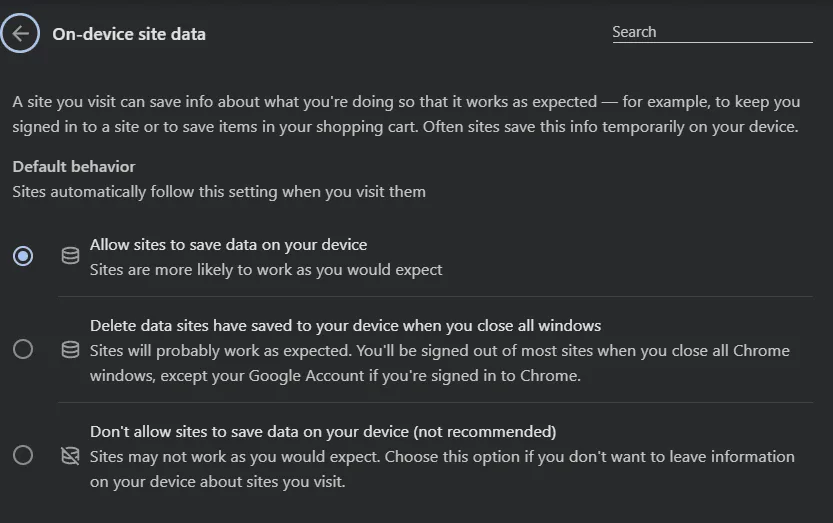
In Chrome, the relevant switch lives in Settings, section Privacy and security, then Site settings, Additional content settings and finally On-device site data. The option that erases data once all windows close should be off. If you want it on for the rest of the web, list [*.]google.com among the sites permitted to keep data. Firefox users open Settings, choose Privacy & Security and look at the cookies block: untick the erase-on-close box or add Google under Manage Exceptions.
Step 3. Remove Google's Data Alone
Corrupted cookies are cured by deleting them. With Gmail open, click the small icon at the start of the address bar, choose Site settings and press Delete data, then log in again. It is a far lighter touch than clearing the whole browsing history.
Step 4. Test Without Add-ons
Open Gmail in a private window, where add-ons are normally inactive, or disable them all from the extensions page. If the session now holds, re-enable them one by one until the warning reappears and the offender reveals itself.
Step 5. Update the Browser, Check the Clock
Install the newest browser release and restart it properly. Then make sure the system clock synchronises automatically and the time zone is right.
Step 6. Calm the Network Down
Disable VPN apps and proxy rotation and see whether the logouts stop. If you do need a proxy for a sound reason, such as a corporate gateway or a home-country IP while abroad, choose one that keeps a single address for the whole day. Static proxies hold one IP for weeks, and on rotating plans a long sticky session does the same job, as our comparison of sticky and rotating proxies explains.
Step 7. Audit Account Security
In your Google Account, go to Security and read Recent security activity and Your devices. Unknown sign-ins mean the logouts were Google defending you: change the password and remove strange devices. If everything listed is yours, approve any pending prompts so Google stops treating the session as risky.
Step 8. Refresh the Mobile App
On Android or iOS, update Gmail from the app store first. If that changes nothing, remove the Google account from the phone (Android keeps it under Settings, Accounts) and add it back, which issues a brand-new token.
When the Warning Refuses to Go Away
Three quick comparisons narrow things down:
| Comparison | Outcome | Probable source |
|---|---|---|
| A second browser on the same PC | No logouts | Settings, add-ons or stored data of the first browser |
| Same browser, different network | No logouts | VPN, proxy rotation or a shaky connection |
| Another device on the same network | Logouts continue | Account security events or a Workspace policy |
For network-related cases, the access log at the foot of the Gmail inbox helps too: the Details link beside the last account activity line lists the IP addresses and countries of recent sessions. A list hopping across borders confirms the network is at fault. If you route mail through a proxy deliberately, our Gmail proxy setup guide shows how to pin one address to each account.
Habits That Keep You Signed In
- Allow Google's cookies and shield them from automatic cleanups.
- Run a current browser with only the add-ons you really use.
- Avoid VPNs and proxies that swap your IP or country during the day.
- Keep recovery phone and email current so security checks pass quickly.
- After a password change, sign in again on each device you rely on.
- Never read mail via free public proxies: crowded addresses provoke checks and the operator can watch your traffic, as our article about free proxies describes.
Gmail session expired FAQ
Why does Gmail keep saying my session expired?
Most often the browser deletes cookies on exit, an add-on blocks them, the IP keeps changing or the account belongs to an organisation with a short session limit. Note when the logout happens and the reason usually becomes clear.
Will I lose emails if my Gmail session expires?
No. Messages live on Google's servers. An expired session just means logging in again; a draft you were typing at that moment may need saving once more.
Can a VPN or proxy cause the Gmail session expired error?
Yes, when the address or country shifts mid-session. A stable IP in the country where you usually use the account does not create this problem.
How long does a Gmail session last?
Personal accounts stay signed in for a long time, as long as cookies survive and nothing suspicious happens. For Workspace accounts, the administrator may impose a fixed duration.
Does clearing the cache fix the error?
Deleting Google's site data often helps when cookies are damaged. If a setting erases cookies at every exit, cleaning changes nothing and the setting itself has to be switched off.