How to Set Up a Proxy for Gmail on a Computer, Android and iPhone

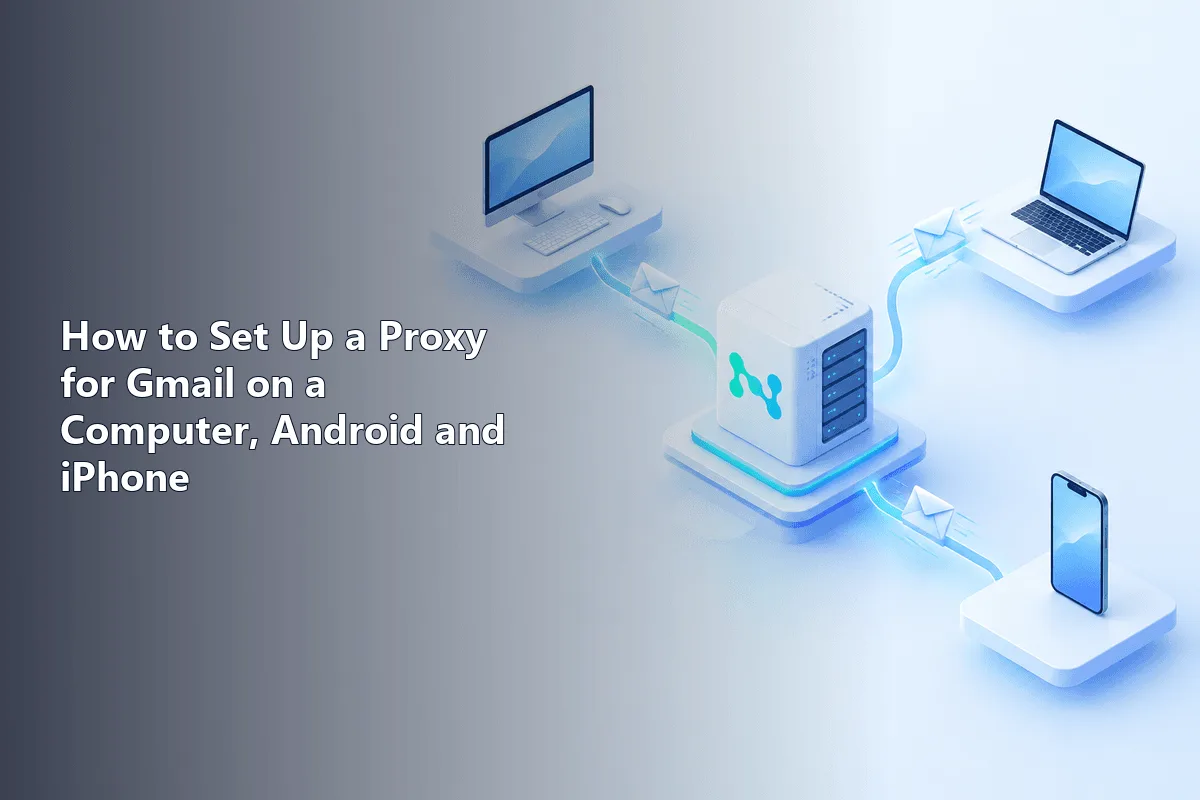
Gmail has no network settings of its own, so a proxy for it is configured wherever the connection begins: inside the browser, in Windows or macOS networking, in a desktop mail program like Thunderbird or in a phone's Wi-Fi profile. Once that layer forwards traffic through the proxy server, Google records the proxy's address for your mailbox instead of your home one.
Here we look at sensible reasons to read mail through a proxy, the kind of IP that keeps Google's security system relaxed, configuration on each common platform and, finally, a built-in Gmail page that reveals exactly which address Google logged for your session.
Static proxies for email
Static residential and ISP proxies that keep one address for your Gmail sessions
Good Reasons to Put Gmail Behind a Proxy
Typical legitimate cases look like this:
- a shared team mailbox is opened by colleagues in several cities, and the company prefers every sign-in to arrive from one known address;
- an office network lets traffic out only via a corporate gateway;
- frequent travel would otherwise mean a new hotel Wi-Fi address every few days, while a home-country IP keeps the mailbox history tidy;
- work and personal accounts are kept apart, each always arriving from its own network environment.
None of this suspends Google's rules. A proxy will not help mass-produce accounts, push bulk mail or revive a suspended mailbox, and such attempts end in blocks. Google watches where sign-ins originate, so the guiding principle is short: one account, one steady address.
Picking the IP Type
| Type | What Google sees | Suitability for Gmail |
|---|---|---|
| Static residential or ISP | A home or carrier address that never moves | Top pick for a mailbox you use daily |
| Residential, sticky session | A home address reserved for a set period | Fine while the session outlasts your work |
| Rotating residential | A fresh address per request or per interval | Weak: every hop risks a security prompt |
| Datacenter | A hosting-company address, quick and cheap | Usable for reading, but expect more checks |
For a mailbox opened every morning, static proxies are the calmest option: the address survives for weeks, so the account's sign-in log looks consistent. On a rotating plan, choose the longest sticky period offered; in that mode the address is held for a fixed time rather than replaced with every request.
Match the location to where the account normally lives. A mailbox that has always been used from Germany and abruptly appears from Brazil will almost certainly meet the "Verify it's you" page.
Before Configuring Anything
- Host (IP or domain name) together with the port.
- The protocol: HTTP covers most browser and system forms, SOCKS5 is required by Thunderbird and a few apps.
- Credentials, or your own IP placed on the provider's allowlist.
- Your recovery phone or second factor nearby, in case Google wants to confirm the new location.
Chrome: A Proxy Just for the Browser
An add-on is the tidiest choice because it affects Chrome alone and leaves the rest of the computer alone. Chrome's built-in proxy entry merely launches the Windows or macOS network dialog.
Step 1. Pick a Trustworthy Proxy Manager
Choose an extension with a large user base and a visible developer, for example ZeroOmega, the maintained fork of SwitchyOmega; our Proxy SwitchyOmega guide shows each of its screens. Steer clear of obscure add-ons demanding wide permissions for no clear reason.
Step 2. Fill In a Profile
Create a proxy profile with HTTP chosen as its protocol, enter host plus port, and hand the login pair to the little lock symbol sitting at the row's right edge. Chrome extensions cannot log in to SOCKS5 servers, so when a password is involved, an HTTP port is the one to use.
Step 3. Activate, Verify, Then Sign In
Choose the profile from the toolbar menu, run the IP test explained later in this article, and visit mail.google.com only once it passes. A one-time confirmation from the new address is normal. Avoid hopping between profiles in the middle of a session.

Windows: System-Wide Proxy
The Windows setting reaches Edge, Chrome and most programs that follow system networking.
- With
Win+Iopen the settings window, select Network & internet and then the Proxy entry. - Inside the manual section, the line about using a proxy server has a Set up button; click it.
- Move the switch to On, paste the server into the left box and its port number into the right one, and confirm with Save.
- Relaunch the browser. Should your proxy require a login, Chromium-based browsers pop up a small sign-in dialog the moment the first tab loads.
Once finished, return to that dialog and move the switch back; otherwise every app on the PC keeps routing through the proxy.
Android: Proxy Attached to a Wi-Fi Network
On Android, a hand-entered proxy is stored per Wi-Fi network rather than globally:
- Pure Google firmware keeps Wi-Fi under Network & internet, then Internet; Samsung uses Connections, then Wi-Fi. Tap the cog beside your current network.
- Locate Proxy, which some phones tuck inside Advanced, and replace None with Manual.
- Type the host name and the port, then confirm.
That form offers no password field, applies only on the network you edited and stops working on cellular data. Android even warns that apps may ignore it. For an authenticated proxy or full coverage of every app, a client application is the better route; we compare several in our article on proxies for Android.
iPhone and iPad
- In Settings, open Wi-Fi and press the small "i" beside the network you are on.
- Scroll almost to the end of that screen; under HTTP Proxy, tick the Manual mode.
- Provide server and port. If your plan uses credentials, enable Authentication and add them.
Exactly as with Android, Apple stores this value inside the one Wi-Fi network you edited. Our iPhone proxy guide walks through every screen and also covers apps that work on cellular data.
Thunderbird and Other Desktop Mail Clients
Desktop clients talk to Gmail over IMAP and SMTP, not through web pages, so a browser add-on never touches them. Thunderbird has a dedicated option: in Settings stay on the General page, scroll down to the network and disk space area, press the Settings… button for the connection, select manual proxy configuration and fill in the SOCKS Host line and its port with version 5 chosen. IMAP and SMTP cannot travel over a plain HTTP proxy, which is why Thunderbird asks for SOCKS in this dialog.
When Thunderbird first connects to Gmail, Google's OAuth sign-in window opens, and it too travels through the proxy. Keep the client and the browser where you approve sign-ins on the same address.
Seeing the Address Google Records
Before touching your mailbox, open an IP lookup page and confirm it reports the proxy's address and the intended country. Our free proxy checker can test the server on its own as well.
Once inside, Gmail can confirm the route itself. Scroll to the very bottom of the inbox in a desktop browser and click Details beside the Last account activity line. A window lists recent access types, such as browser, mobile or IMAP, each with its IP address and country, and the current session should carry the proxy's address. The Security section of your Google Account, under Your devices, offers the same picture per device.
Typical Problems
Google keeps demanding verification. The IP or the country changes too often, or many strangers share the same address. Switch to a static IP in the account's home country and keep it all day.
"Couldn't sign you in: this browser or app may not be secure". Google rejects sign-ins from automated or embedded browsers. Use an ordinary, current browser; a proxy is rarely behind this particular message.
Gmail never finishes loading. Re-examine host, port and protocol. Describing an HTTP port as SOCKS5, or the reverse, breaks the connection at once.
Attachments crawl. The proxy server is distant or overloaded. Choose a closer city in the same country and compare speeds with the proxy disabled.
You get logged out on your own. Changing IPs, wiped cookies and conflicting add-ons cause most of these cases; our guide to the Gmail session expired error goes through them one by one.
Several Accounts on One Computer
Google lets one person keep several accounts, for instance a work one and a private one. Give each its own Chrome profile with its own add-on configuration, so every account always appears from the same proxy. For other Google services through a proxy, see our page on proxies for Google.
Gmail proxy FAQ
Can I set a proxy inside Gmail settings?
No. Gmail exposes no network options at all. Set the proxy one layer down: in Chrome or another browser, in Windows or macOS, in Thunderbird or on the phone's Wi-Fi screen.
Which proxy type works best for Gmail?
A static residential or ISP address located in the country where you normally use the account. A fixed IP keeps the sign-in record consistent and cuts down on security prompts.
Why does Google ask for verification after I connect a proxy?
Google noticed an unfamiliar IP or country. Confirm the sign-in once from the new address and then stay on that same proxy.
Can I use a free proxy for Gmail?
Better not. Free servers are crowded, their addresses change constantly and whoever runs them can read what passes through, a serious worry for an inbox where reset links and contracts land.
Does the Gmail app on Android use the Wi-Fi proxy?
Possibly, but Android itself cautions that apps may disregard the Wi-Fi proxy. For dependable coverage, use a client app that sends all traffic through the system VPN interface.