How to Set Up a Residential Proxy in Lauth Browser


To set up a proxy in Lauth Browser, create a profile, open the Connection and Proxy tab, enable Browse using proxy, choose HTTP, HTTPS or SOCKS5, enter the IP address, port and login details, then check the connection with Test Proxy.
What Lauth Browser Is
Lauth Browser is an anti-detect browser designed for working with multiple profiles and isolated sessions. Each profile receives a separate digital device fingerprint: browser, system, and network environment parameters are generated independently from one another. This reduces the likelihood of accounts being linked together by various platforms.
The browser is intended for online use and supports proxy server connections for routing traffic through separate IP addresses. In addition, Lauth includes built-in ad tracker blocking, cookie restriction features, and a system of regular security updates.
The browser interface is minimalist and not overloaded with unnecessary elements. The application runs quite fast and does not require a large amount of system resources, which is especially important when running multiple profiles simultaneously.
Why Use Proxies in Lauth
Proxy integration in Lauth allows assigning a separate network connection to each profile. This helps to:
- separate working environments between accounts;
- use IP addresses from different regions;
- reduce the likelihood of restrictions from websites;
- improve stability during multi-profile usage;
- isolate the network activity of individual profiles.
Residential or private proxies with support for HTTP, HTTPS, or SOCKS5 are most commonly used for such tasks.
HTTP & SOCKS5 Proxies for Any Task
Choose the protocol you need and work through reliable residential IPs with a high trust level.
Creating a Profile in Lauth
Before configuring a proxy, you need to register an account and install the browser.
Step-by-step procedure:
1. Go to the official Lauth Browser website.
2. Create an account by providing an email address and password.
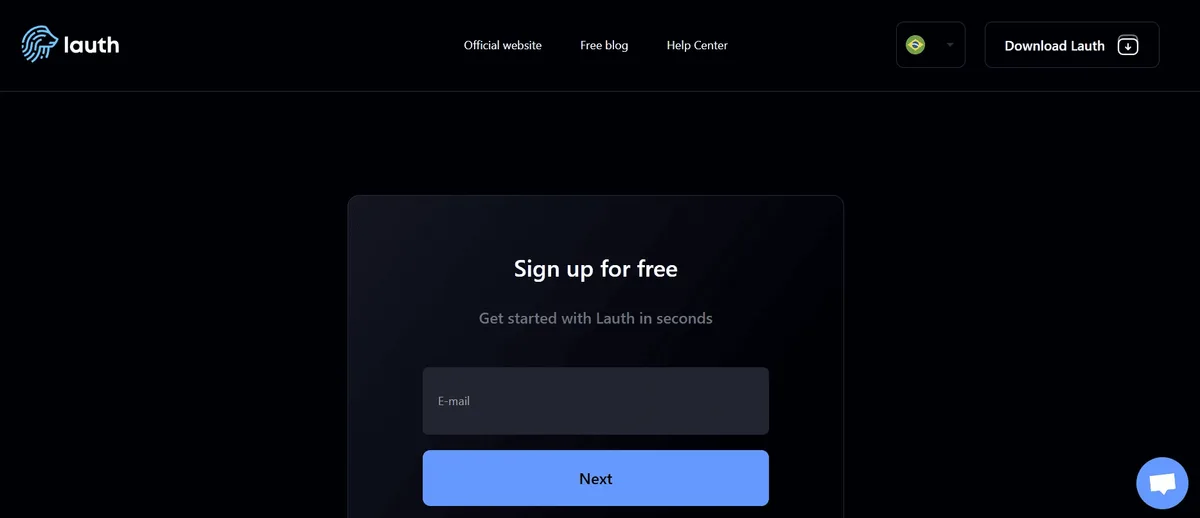
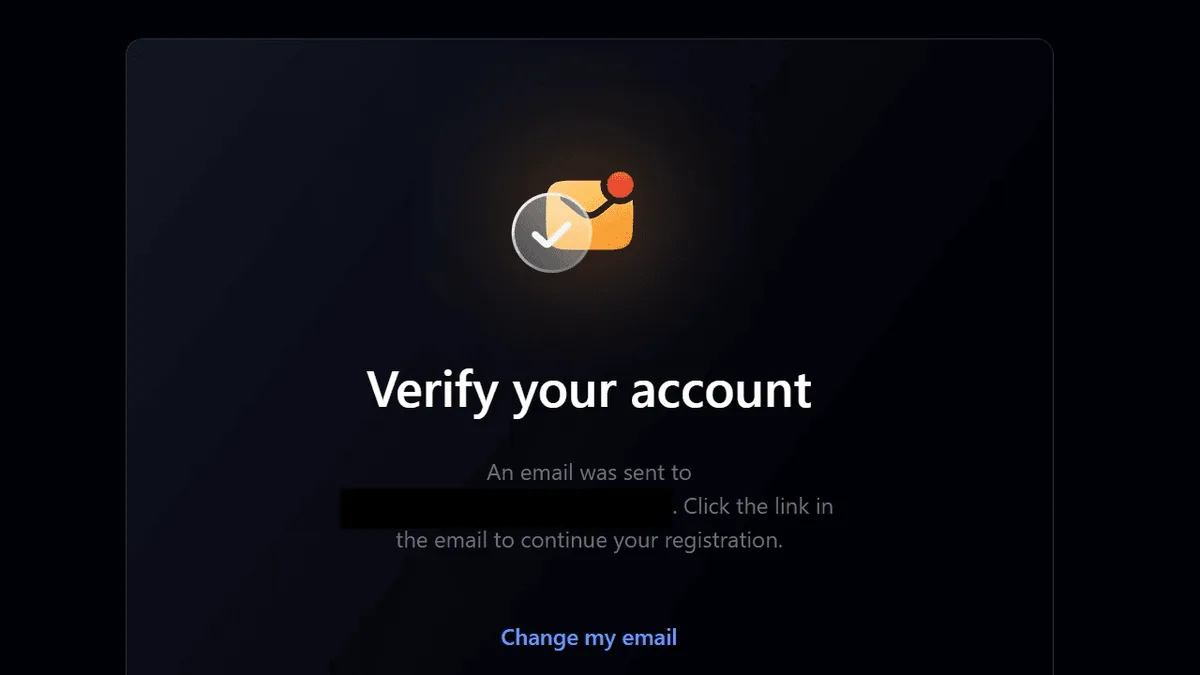
3. Confirm registration through the email message.
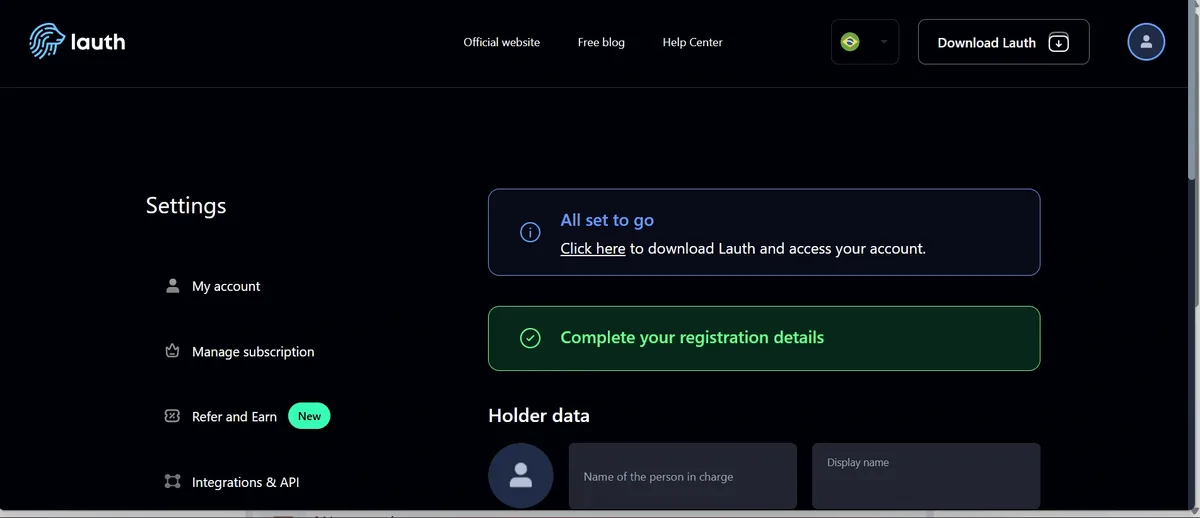
4. Download the application for your operating system.
5. After installation, open the browser and create a new profile through the Create my first profile section.
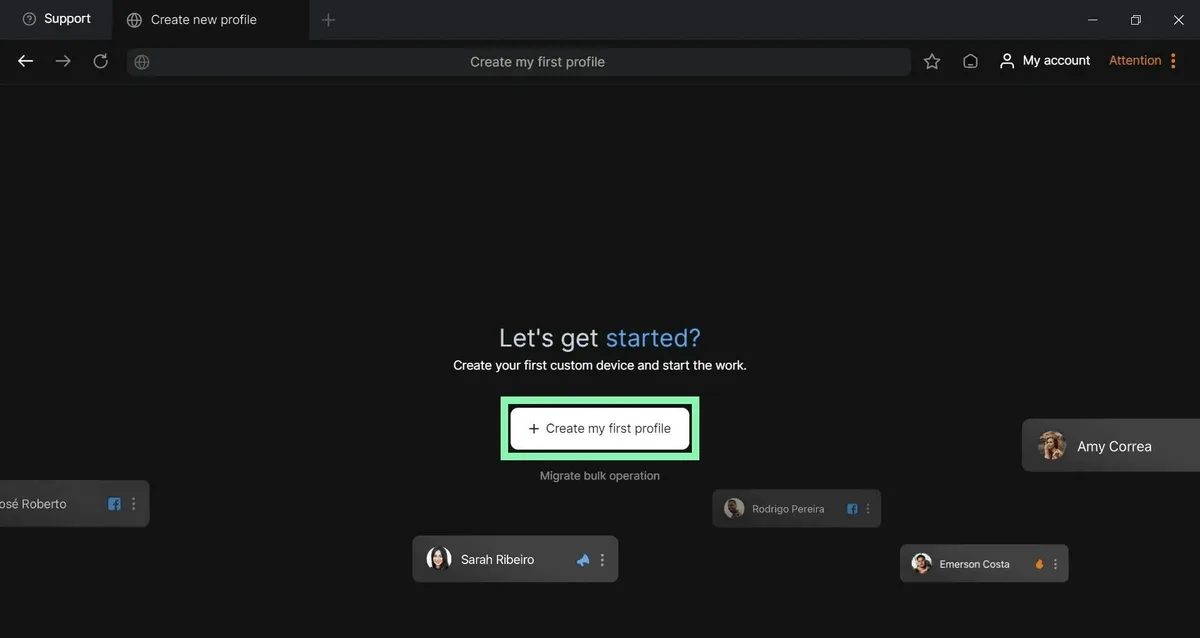
During profile creation, you will need to specify:
- profile name;
- platform type;
- operating system;
- project group or tag (optional).
Additionally, Lauth allows importing cookie files from existing sessions if required for work.
Obtaining a Proxy
A prepared proxy server is required for connection.
The following parameters are available in the Node Proxy client panel:
- IP address;
- port;
- protocol type;
- username and password for authorization.
Setting Up a Proxy in Lauth Browser
After creating a profile, open the connection settings section.
How to Connect a Proxy
1. Go to the Connection and Proxy tab.
2. Enable the Browse using proxy option.
3. Select the connection type:
- HTTP;
- HTTPS;
- SOCKS5.
4. Enter the proxy IP address and port.
5. If necessary, specify the username and password.
6. Save the profile settings.
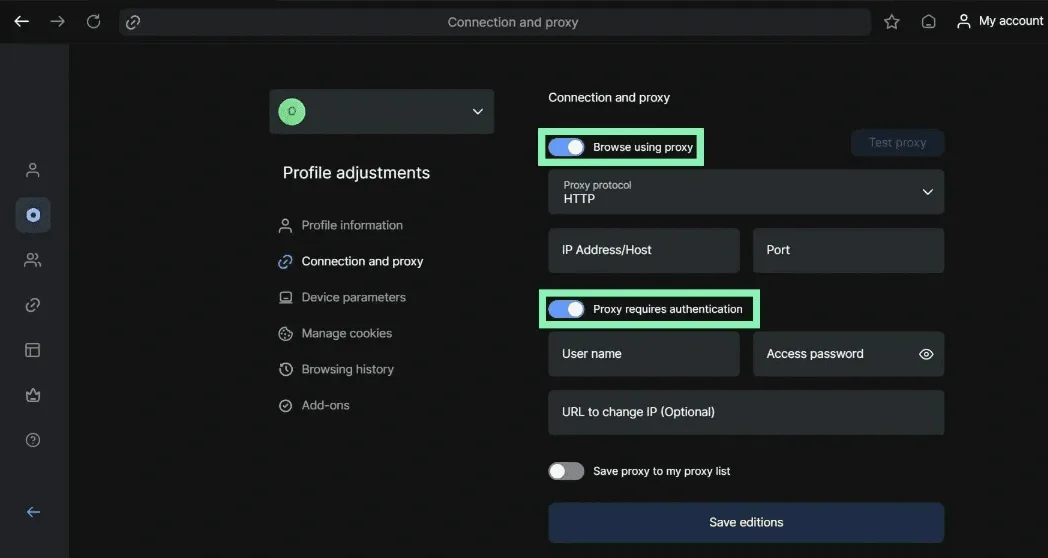
Before launching, it is recommended to use the Test Proxy button to verify the connection. If the connection is configured correctly, the browser will confirm connection stability.
After that, the profile will operate through the specified IP address.
Checking the Profile and Digital Fingerprint
After launching the profile, Lauth automatically applies digital fingerprint parameters for the selected configuration. Inside the browser, you can additionally check:
- network IP address;
- WebRTC parameters;
- browser fingerprint;
- profile system characteristics.
This allows you to verify that the profile uses a separate network environment and is properly isolated from other sessions. You can also test the proxy itself with the free proxy checker, which shows whether it is alive, its exit IP and location.
Features of Lauth Proxy Operation
Lauth supports simultaneous operation with multiple profiles, while each profile can use its own proxy server. This approach helps separate tasks and reduces the likelihood of conflicts between sessions.
The browser’s main capabilities include:
- profile isolation;
- manual proxy configuration;
- cookie and tracker management;
- support for various protocols;
- work with project groups;
- low system resource consumption;
- regular security updates.
With proper proxy and profile configuration, the browser ensures stable operation of separate sessions and more flexible management of network connections.
Lauth Browser Proxy FAQ
How do I add a proxy in Lauth Browser?
Open the profile settings, go to the Connection and Proxy tab, enable Browse using proxy, choose HTTP, HTTPS or SOCKS5, enter the IP address and port, add the username and password if needed and save the profile.
Which proxy types does Lauth Browser support?
Lauth supports HTTP, HTTPS and SOCKS5 proxies. Residential or private proxies are most often used for multi-profile work.
Can each Lauth profile use its own proxy?
Yes. Every profile has its own connection settings, so you can assign a separate proxy and IP address to each profile and keep their network activity isolated.
How do I check that the proxy works in Lauth?
Use the Test Proxy button before launching the profile. After launch, check the IP address and WebRTC parameters inside the browser to make sure the profile uses the proxy.