How to Set Up a Proxy in MultiBrowser for Cross-Browser Testing

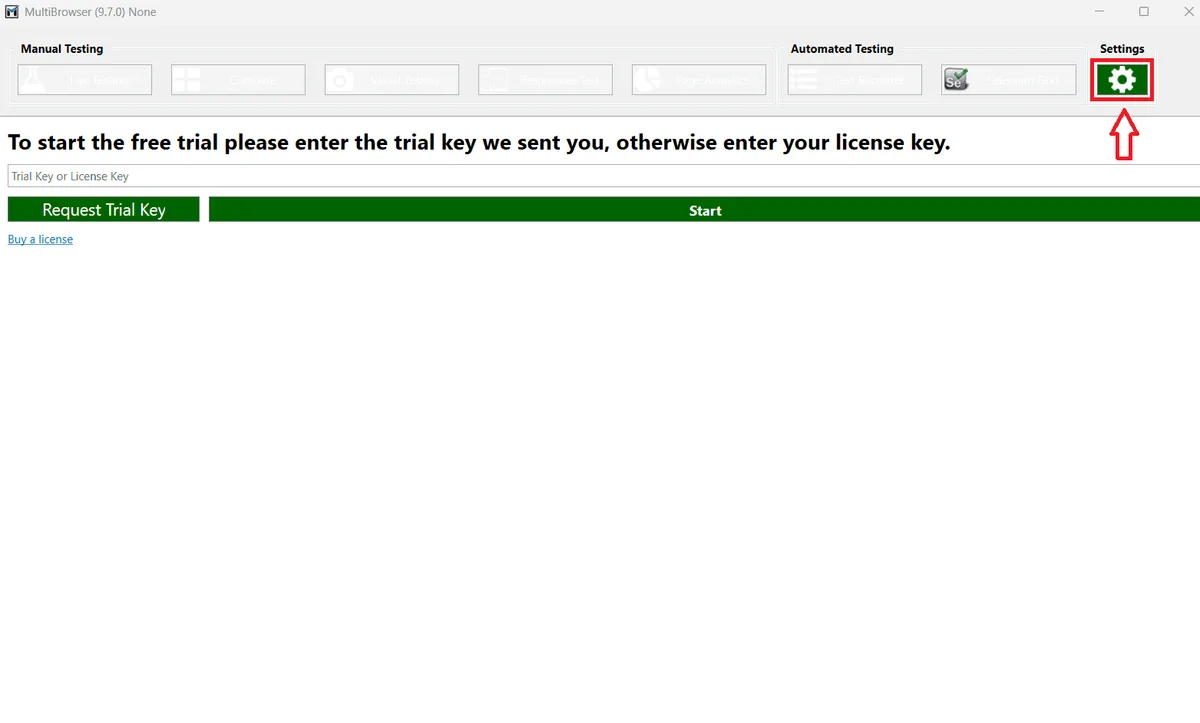
In MultiBrowser every test session reads its proxy from a single spot — the Settings page opened by the green gear at the right end of the toolbar. Tick the radio button labelled Manual proxy configuration, put the host into Address, the number into Port, fill Username and Password for an authorized proxy, and you are done: MultiBrowser applies edits instantly, without a Save step. A Live Testing session with an IP-lookup site then proves the new route works.
The guide below covers where each field lives in MultiBrowser 9.7, what the neighbouring options such as Proxy Configuration Script, Proxy VM connections and Resolution actually do, how to verify the proxy and how to deal with typical connection failures.
Proxies for testing
Datacenter and residential proxies in dozens of countries for checking sites from any region
What MultiBrowser Is and Why Testers Add a Proxy
MultiBrowser is a desktop cross-browser testing tool for Windows, macOS and Linux. Instead of keeping a dozen browsers installed by hand, you pick a version from its catalogue and open a site in it. The start screen groups the tools into two blocks:
- Manual Testing — Live Testing, Compare, Visual Testing, Responsive Test and Page Analytics;
- Automated Testing — Test Recorder and Selenium Grid.
Keep in mind that this is a QA product rather than an antidetect browser. Fingerprint profiles do not exist here, and one proxy value serves all test sessions at once. Anyone who needs an individual proxy for each account profile should look through our guides to proxies in antidetect browsers instead.
Testers attach a proxy for practical reasons:
- the office network only lets traffic out through a corporate proxy that MultiBrowser does not detect automatically;
- a site shows different prices, languages or banners per country, and you need to see the version a visitor from another region gets;
- a staging server accepts connections only from a whitelisted IP.
For regional checks the exit country is what matters. A German address, for example, comes from proxies in Germany; how websites map an address to a location is explained in our article on IP geolocation.
What You Need Before Starting
- MultiBrowser with an active key. On first launch the program asks for a trial or licence key; the Request Trial Key button sends one by email, and Enter Licence Key in Settings lets you change it later.
- An HTTP or HTTPS proxy. The official documentation describes the proxy option as a manual HTTP/HTTPS setting, so a SOCKS-only port is the wrong fit. Fast, inexpensive datacenter proxies are usually enough for test traffic.
- Server data: host or IP, port number, plus login credentials when your plan uses them.
Entering the Proxy in MultiBrowser
Step 1. Click the Gear Icon
Click the green gear button in the Settings block at the right end of the top toolbar. The button is available even on the trial key screen.
Step 2. Find the Proxy Block
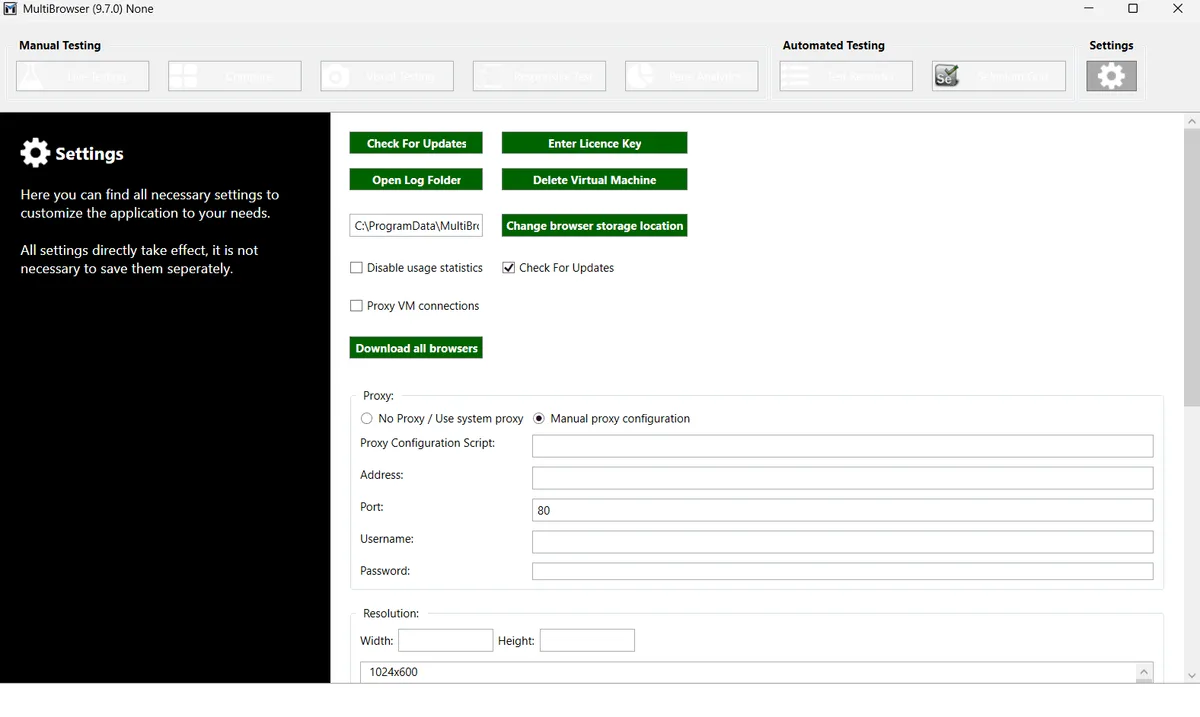
The Settings page opens with service buttons on top: Check For Updates, Enter Licence Key, Open Log Folder, Delete Virtual Machine, Change browser storage location and Download all browsers. A note on the left reminds you that every setting takes effect immediately and does not need saving.
Scroll a little lower to the Proxy block. Out of the box the radio button sits on No Proxy / Use system proxy: traffic either goes straight out or follows whatever proxy Windows or macOS already has.
Step 3. Switch to Manual Configuration and Fill In the Fields
Move the radio button to the manual option. The block holds five inputs:
| Field | What to enter |
|---|---|
| Proxy Configuration Script | URL of a PAC file, only if your network uses one |
| Address | Proxy host, for example 198.51.100.14 |
| Port | Port number; the default value 80 must be replaced |
| Username | Proxy login, if authorization is on |
| Password | Proxy password |
With an ordinary host-and-port proxy the PAC line stays blank. A PAC script is a file with routing rules typical for corporate networks; our explainer on proxy script addresses shows how such files work.
Step 4. Decide on Proxy VM Connections
Some old browser versions in the catalogue run inside virtual machines. Judging by its name, the Proxy VM connections checkbox extends the proxy to those sessions too. If a browser launched in a virtual machine still shows your own IP, tick this box and start the session again.
Step 5. Optional: Set the Window Resolution
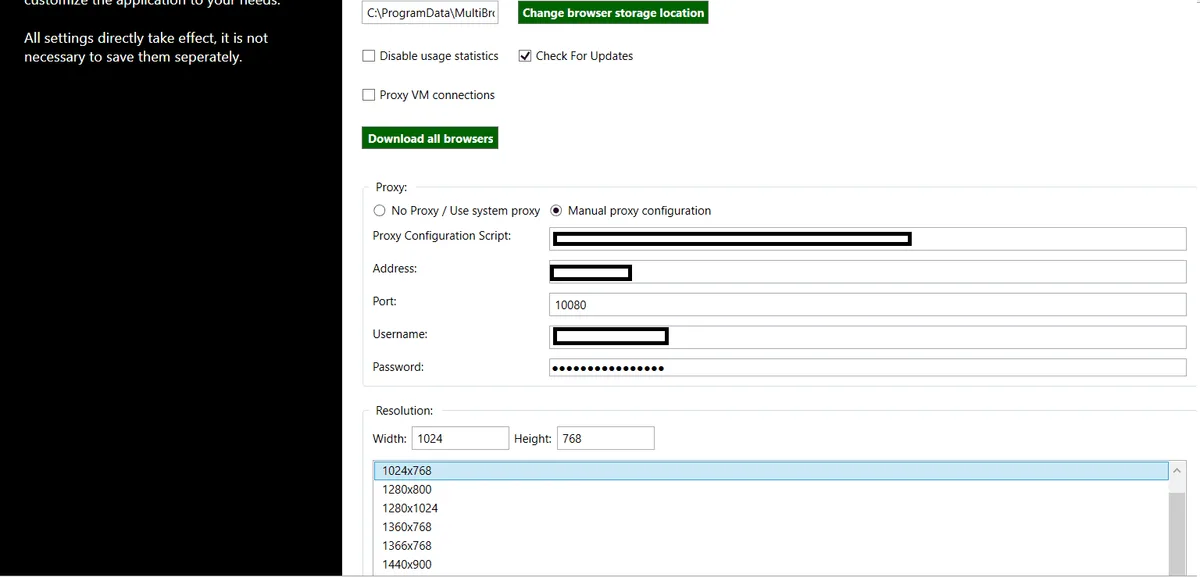
The Resolution block below the proxy settings defines the window size for tests. Pick a preset from the list, for example 1024x768, or type Width and Height manually. This has nothing to do with the network: the proxy works with any resolution, but a fixed size makes screenshots from different sessions easier to compare.
Checking the Proxy with Live Testing
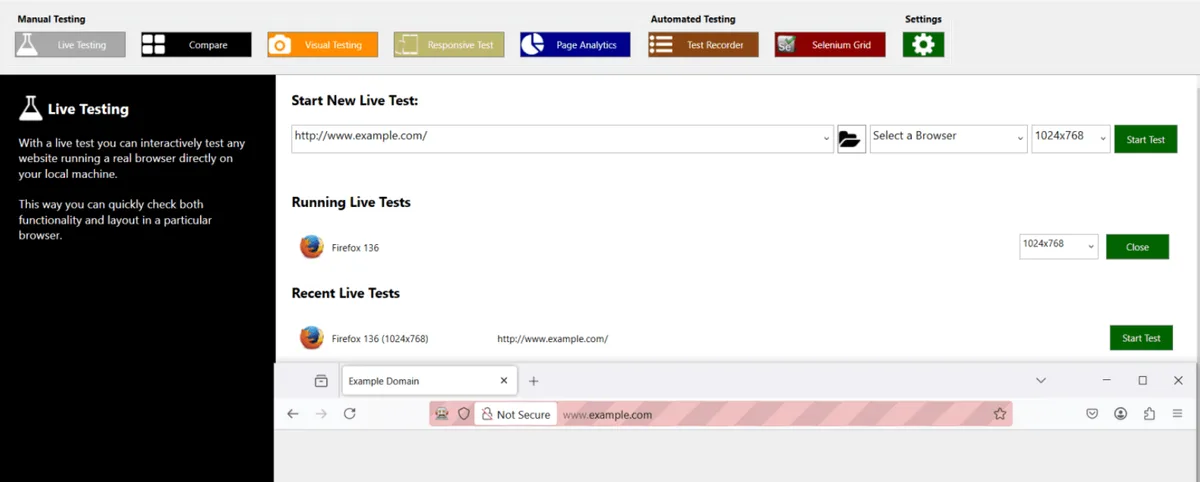
- Return to the main toolbar and click Live Testing.
- Choose a browser and version, for example Firefox 136.
- Enter the address of any IP checker, such as 2ip.io or a similar service, and press Start Test.
- Wait until the page loads inside the test window.
The page must show the proxy IP and the expected country. Seeing your home address means the session bypassed the proxy; revisit the Settings page, and for virtual-machine browsers enable the VM checkbox.
Troubleshooting
Pages do not load at all. The most common cause is a typo in Address or Port, or the default port 80 left in place. Re-copy both values from your proxy dashboard.
The proxy requires a login, but the fields are empty. Without Username and Password the server answers with an authorization error. Fill them in or whitelist your IP in the provider's panel.
Wrong protocol. MultiBrowser expects an HTTP or HTTPS proxy. A SOCKS5-only port will not work here; ask your provider for an HTTP port of the same proxy. The practical difference between the two web protocols is covered in HTTP vs HTTPS proxies.
Still your own IP. Check that Manual proxy configuration is selected and not No Proxy / Use system proxy. For browsers that run in a virtual machine, enable Proxy VM connections.
Something else is off. Open Log Folder shows MultiBrowser logs, which help when you contact the developer's support.
MultiBrowser Proxy FAQ
Can each browser version get its own proxy?
No. A single proxy value lives on the Settings page and covers every session at once. For a look from another country, swap the values and open a fresh session.
Does MultiBrowser support SOCKS5?
The documentation describes the manual proxy option for HTTP and HTTPS. Use an HTTP or HTTPS port from your provider for reliable results.
Do I need to save the proxy settings?
No. As the Settings page states, all options take effect immediately; just start a new Live Testing session afterwards.
Does the resolution setting affect the proxy?
No. Resolution only sets the size of the test window. It is useful for consistent screenshots, but the proxy works with any value.
How do I return to a direct connection?
Open Settings and select No Proxy / Use system proxy. MultiBrowser will again connect directly or through the proxy configured in the operating system.