How to Set Up a Proxy in Multilogin X: Custom Proxy per Profile

To attach your own proxy in Multilogin X, open New profile, switch the Proxy block from Multilogin to Custom, pick HTTP, HTTPS or SOCKS5, paste host, port, login and password into Proxy details, press Check proxy and save with Create profile. The whole job takes about two minutes per profile once your connection data is ready.
Below you will find each of those screens, the reasoning behind the protocol and proxy type you choose, a quick way to make sure the browser really exits through the new address, and fixes for the failures people hit most often, including the "Agent disconnected" warning that blocks launching.
Proxies for Multilogin
Static, residential and mobile proxies with login and password for Multilogin X profiles
Multilogin X in Brief: Profiles, Cores and the Built-In Proxy
Multilogin X is the current generation of the Multilogin antidetect platform. Every browser profile stores its own cookies, cache, local storage and fingerprint parameters, so two profiles opened side by side on one computer share nothing at the browser level. Profiles run on one of two cores: Mimic X (Chromium-based) or Stealthfox X (Firefox-based).
What a profile cannot isolate on its own is the network. If ten profiles leave through your home connection, websites still see ten sessions from one IP. That gap is closed by the Proxy block of each profile, which offers three modes:
- Multilogin — the vendor's own residential traffic, billed by the megabyte (the counter in the top bar shows what remains);
- Custom — any third-party proxy you already pay for;
- None — direct connection, useful only for testing.
This guide covers the Custom mode. If you are comparing several tools before settling on one, our overview of proxy setup in antidetect browsers collects guides for dozens of them.
Which Proxy Type Suits a Multilogin Profile
There is no single winner; the right choice follows from how long a profile lives and what it does.
| Proxy type | Strong side | Weak side | Fits best |
|---|---|---|---|
| Static residential / ISP | One home-network IP for weeks | Fewer addresses per budget | Long-lived profiles with a fixed location |
| Rotating residential | Huge pool, fresh IP on demand | Address may change mid-session | Data collection, quick checks |
| Mobile | Carrier IP shared by many real users | Slower, pricier | Mobile-first services and apps |
| Datacenter | Fast and inexpensive | Easily recognised as hosting | Testing, tasks where reputation matters little |
For a profile you open daily, a fixed address is usually the calmer option: static proxies keep the same exit IP, so the session history and the location stay consistent. Rotation makes sense for short sessions; the trade-offs are explained in our comparison of sticky and rotating sessions. When a service checks for carrier networks, look at mobile proxies instead.
What to Have Ready
Collect five values from your proxy dashboard before opening Multilogin:
- host (IP address or domain name);
- port;
- username;
- password;
- protocol: HTTP, HTTPS or SOCKS5.
The protocol must match the port. A SOCKS5 port entered under HTTP will fail the check even if every other value is correct. Also make sure the Multilogin desktop agent is installed and running: the web dashboard creates profiles, but launching them happens through the local agent.
Adding a Custom Proxy Step by Step
Step 1. Start a New Profile
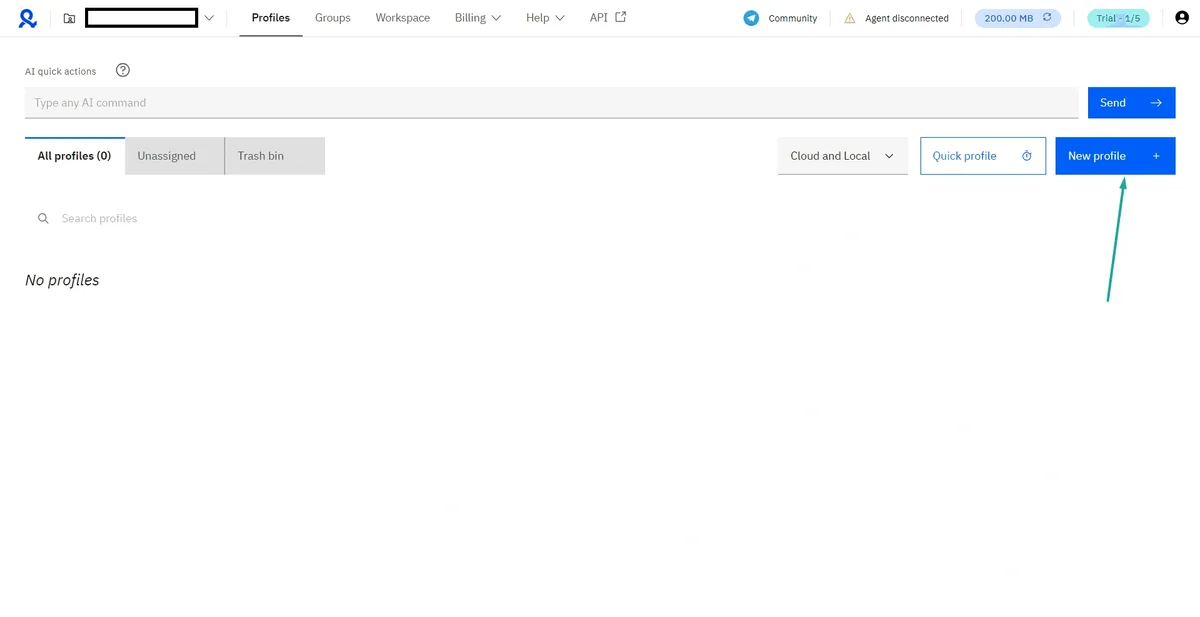
Sign in to Multilogin X and stay on the Profiles tab. Click the blue New profile button on the right. The neighbouring Quick profile button launches a throwaway profile with random settings, so it is not the place for a permanent proxy.
Step 2. Fill In Essentials and Choose the Browser Core
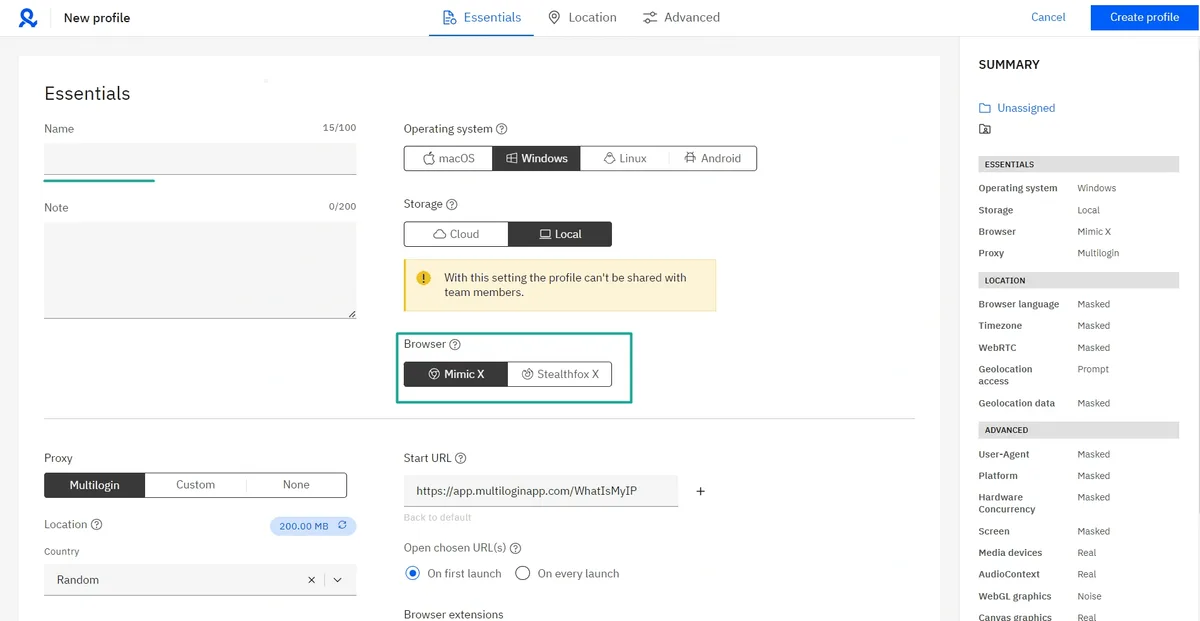
The Essentials tab opens first. Give the profile a name you will recognise later, then set:
- Operating system — macOS, Windows, Linux or Android, matching the device you want the profile to resemble.
- Storage — Cloud keeps the profile on Multilogin servers and lets teammates open it; Local keeps it on your computer only.
- Browser — Mimic X or Stealthfox X.
The Summary panel on the right updates live, so you can glance at the resulting configuration at any moment.
Step 3. Switch the Proxy Block to Custom
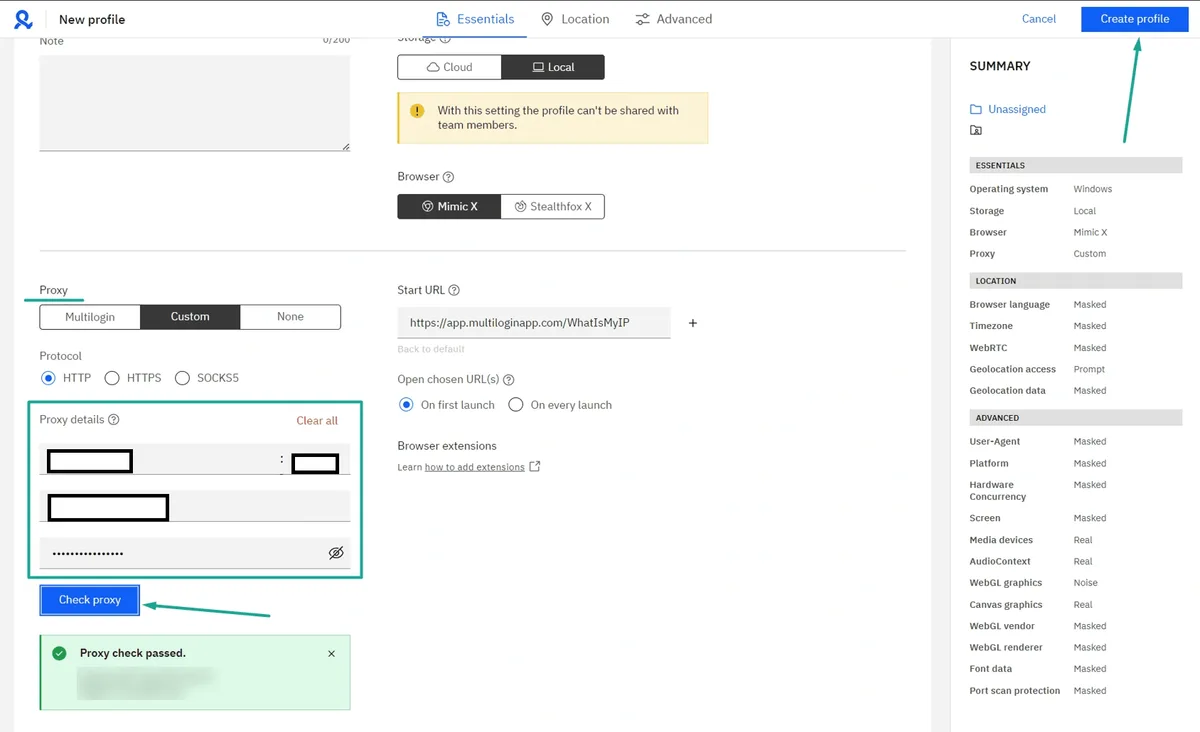
Scroll down to Proxy and click Custom. A Protocol row appears with three radio buttons: HTTP, HTTPS and SOCKS5. Select the one your provider issued for this port.
Step 4. Enter the Proxy Details
The Proxy details box has three inputs:
- The first line holds host and port separated by a colon, for example
203.0.113.24:10800. - The second line is the username.
- The third line is the password; the eye icon reveals it so you can spot a typo.
Watch for spaces picked up while copying: a single trailing space in the username is enough for the server to refuse the login. Clear all wipes the box if you need to start over.
Step 5. Run Check Proxy and Save
Press Check proxy. A green Proxy check passed notice with the external IP and region means Multilogin reached the server and received location data. Only then click Create profile in the top right corner.
Matching Location Settings to the Proxy
A passed check confirms connectivity, not consistency. Open the Location tab of the profile: by default Browser language, Timezone, WebRTC and Geolocation data are set to Masked, which means Multilogin derives them from the proxy IP. Keep it that way unless you have a reason to override them manually, because a German IP paired with a Pacific timezone looks odd to any site that compares the two.
After launch, the default start page app.multiloginapp.com/WhatIsMyIP shows the address the profile is using. It should show the proxy IP and country, never your own. A short list of other slip-ups is in our article on mistakes with proxies in antidetect browsers.
One Proxy per Profile: Organising Several Identities
Multilogin stores the proxy inside each profile, so distributing addresses is simply a matter of repeating the steps above with different credentials. A practical routine:
- assign one IP to one profile and do not reuse it elsewhere;
- note the proxy ID or port in the profile Note field to find it fast;
- keep long-lived profiles on fixed addresses and avoid swapping their IP without a reason;
- use folders and Groups to keep profiles of different projects apart.
Running separate profiles is legitimate for agencies, QA teams and sellers who manage client or brand accounts, but each platform has its own rules on multiple accounts, so read them before scaling.
Troubleshooting Common Proxy Errors
"Failed to get IP data: can't connect through proxy." The host, port or protocol is wrong, or the proxy is offline. Re-copy the values and confirm in your dashboard which protocol that port speaks.
Check passes, but the profile will not start. Look at the top bar: an "Agent disconnected" warning means the local agent is closed or blocked by antivirus. Start the agent and allow it through the firewall.
The site shows your real IP. Most likely you launched another profile, or the proxy was edited but not saved. Reopen the profile settings, confirm Custom is selected and save the changes before launching again.
Constant CAPTCHAs. The address may have a poor history, or the location settings contradict the IP. Ask your provider for another address and keep the Location tab on Masked.
Multilogin Proxy FAQ
Does Multilogin X support SOCKS5 proxies?
Yes. When the Proxy block is set to Custom, the Protocol row offers HTTP, HTTPS and SOCKS5. Choose the one that matches the port issued by your provider.
Do I have to use the built-in Multilogin proxy?
No. The built-in traffic is optional and billed separately. Selecting Custom lets you plug in any third-party proxy with a login and password.
Can several profiles share one proxy?
Technically yes, but websites will then see all of them on one IP, which defeats the purpose of separate profiles. One stable address per profile is the cleaner setup.
Where can I see which IP a profile is using?
Launch the profile: its default start page, WhatIsMyIP, displays the exit address and location. The Check proxy result in the profile settings shows the same data before launch.
Why does Check proxy pass while the profile shows no internet?
The check only proves the proxy answers; the browser itself is started by the local agent on your computer. Restart the agent, close conflicting VPN apps and launch the profile again.