Amazon "Sorry, Something Went Wrong" Error: Causes and How to Fix It

Amazon's "Sorry! Something went wrong" page is a catch-all screen: the store failed to complete your request and chose not to say why. In most cases the fix is quick, such as reloading, clearing Amazon cookies or signing in again, but the same message can also hide an outage, a broken session or a temporary limit on your IP address.
Below you will find how to tell these situations apart in a couple of minutes, a fix order that starts with the cheapest checks, separate notes for the mobile app and for people who open Amazon through a proxy or run monitoring tools, and the cases where only Amazon support can help.
Proxies for Amazon
Clean residential IPs in the country of your Amazon marketplace
What the Error Looks Like and What It Means
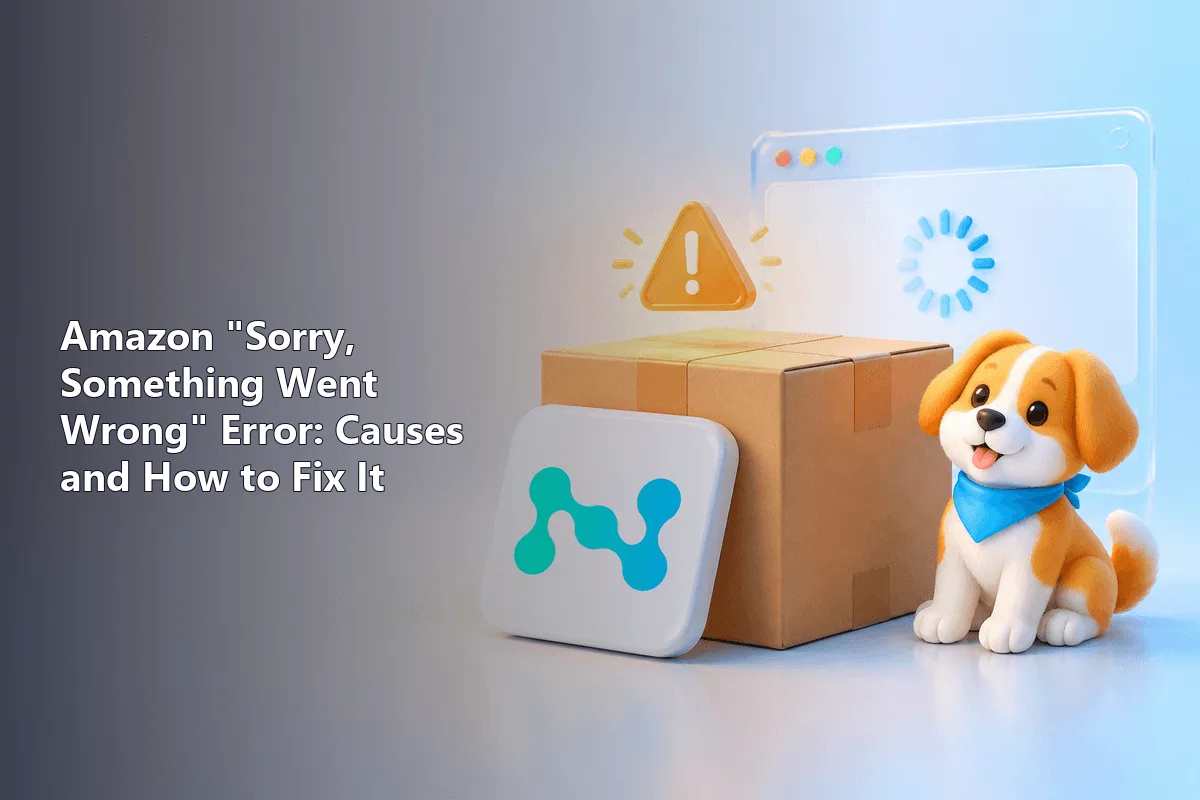
On the desktop site the message usually comes with one of the photos of "the dogs of Amazon" and a short line suggesting you go back or return to the home page. The mobile app shows a plainer version with a retry button. Both say the same thing: the server could not build the page or finish the action for this particular request.
Typical moments when it shows up:
- opening a product page, search results or the cart;
- signing in or confirming a one-time code;
- proceeding to checkout or changing the delivery address;
- reloading the same pages many times in a row, by hand or with a tool.
The message is generic on purpose, so the page itself tells you little. What helps is context: when it appears, on which device, and whether other people see it too.
Quick Diagnosis: Is It You or Amazon?
Spend a minute on these checks before changing anything:
| What you notice | Most likely cause | Where to go next |
|---|---|---|
| Many users complain at the same time, status trackers spike | Outage on Amazon's side | Wait, don't hammer the reload button |
| Error only in one browser | Cookies, cache or an extension | Clear site data, try a private window |
| Error only after signing in | Session or account issue | Sign out everywhere, sign in again |
| Error on all devices on your home network, fine on mobile data | Network or IP | Restart the router, check VPN or proxy |
| A "not a robot" check appears before or after the error | Too many requests from your address | Slow down, keep cookies enabled |
Large outages do happen. Product pages, carts and even Prime Video have failed together during incidents, and no local setting fixes that. A related server-side failure is described in our guide to the HTTP 503 error, which Amazon's infrastructure also returns under heavy load.
Fixes in Order of Effort
Work through the list from the top and test Amazon after each step. Changing one thing at a time shows which step actually helped.
Step 1. Reload Once, Then Pause
Refresh the page a single time. If the message returns, wait five to ten minutes. Rapid repeated reloads add requests from your address and can turn a short glitch into a bot check.
Step 2. Check Your Connection
Open two or three unrelated sites. If they also stall, the problem is your Wi-Fi or provider: reconnect, restart the router or switch to mobile data for a test. A dropped packet in the middle of checkout often produces exactly this error.
Step 3. Clear Amazon Cookies and Cache
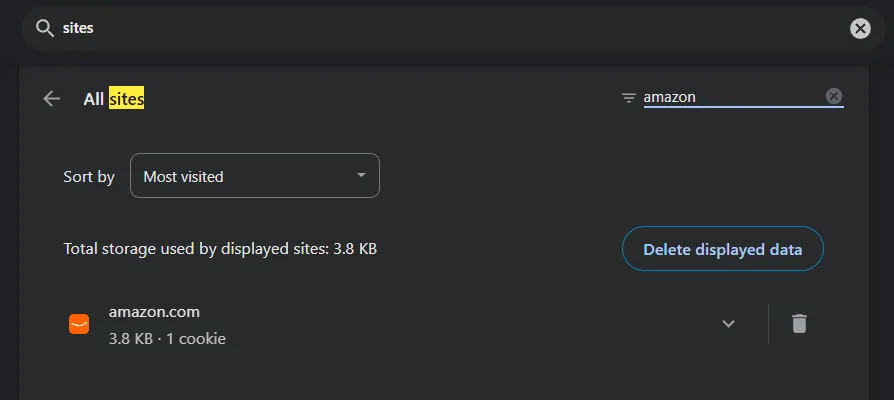
Delete site data only for Amazon rather than your whole browsing history. In Chrome, click the icon to the left of the address bar, open Site settings and choose Delete data. Another route: Settings → Privacy and security → Site settings → View permissions and data stored across sites, search for amazon and press Delete displayed data. Then close the tab, reopen the store and sign in again.
Step 4. Sign Out and Back In
A stale login token can break checkout and account pages while browsing still works. Sign out, close the browser completely and sign in fresh. While you are there, open Your Account → Login & security and confirm that your email, phone number and two-step verification settings are what you expect.
Step 5. Test a Private Window and Another Browser
A private window starts without extensions and saved cookies. If Amazon works there, the cause sits in your main profile. Coupon finders, price trackers, ad blockers and script blockers are the usual suspects. Turn them off, then re-enable one at a time to find the conflict.
Step 6. Update or Reinstall the App
In the Amazon Shopping app, install the latest version first. On Android you can also clear the app cache in the system app settings; on iPhone, deleting and reinstalling the app does the same job. Make sure the date and time on the phone are set automatically, since a wrong clock breaks secure connections.
Step 7. Try Another Device or Network
If the error follows your account to every device, look at the account. If it stays on one network, look at the network. This simple split saves a lot of guessing.
Step 8. Contact Amazon Customer Service
When nothing above helps and Amazon is up for others, contact support through Customer Service in the site menu. Describe the page, the time and what you clicked. Mention whether it happens in the app, on the website or both.
When the Error Comes with a Robot Check
Amazon protects its pages with automated traffic filters. A page saying it needs to make sure you're not a robot, followed by the generic error, means your address or browser looks unusual. Common reasons:
- dozens of tabs with product pages opened at once;
- browser settings that block or wipe cookies on every visit;
- a VPN or free proxy whose shared IP is used by thousands of people;
- price-tracking or automation tools sending frequent requests.
For ordinary shoppers, allowing Amazon cookies and closing the VPN for a test usually ends the checks. If you work with Amazon professionally, read on.
Notes for Sellers, Marketers and Analysts
Sellers checking their listings, agencies verifying ads and analysts tracking prices often view Amazon through proxies from other countries. In this setup the error frequently points to the connection rather than the store.
- Shared or low-quality IPs. Addresses from free lists and cheap pools are often already flagged. Clean residential proxies look like regular home connections and trigger checks far less often.
- Changing IP mid-session. If the address rotates while you are signed in, Amazon sees a session jump between cities and may reject the request. For logged-in work, keep one address per session; our comparison of sticky and rotating modes explains when each fits.
- Region mismatch. An IP from Germany combined with a US delivery ZIP and a US account is a confusing mix. Pick the exit country to match the store you need. Ready-made proxies for Amazon let you choose the location in the dashboard.
- Request rate. Pauses between requests and a limit on parallel sessions matter more than the number of IPs. Amazon's Conditions of Use restrict automated data collection, so prefer official sources such as Seller Central reports and SP-API where they cover your needs. Our guide on reducing blocks during scraping covers rate limits in detail.
How to set up a proxy correctly in a browser, on Windows, macOS and phones is explained step by step in setting up a proxy for Amazon.
How to Keep the Error from Coming Back
- Keep the browser and the Amazon app updated.
- Don't set the browser to wipe Amazon cookies on exit.
- Avoid opening dozens of product tabs at once.
- Use one stable connection per account instead of jumping between networks.
- Keep extensions to the ones you actually use.
- For tools that query Amazon, add delays and cap concurrency.
Amazon error FAQ
Why does Amazon keep showing the something went wrong page?
Repeated errors usually come from stale cookies, a broken login session, a conflicting extension or a flagged IP address. If the message appears on every device and network at once, Amazon itself is most likely having an outage.
Is my Amazon account blocked if I see this error?
Not necessarily. A blocked or restricted account normally gets a specific notice or an email, while this message is generic. Sign in from another device: if your orders and account pages open there, the account is fine.
How do I fix the error in the Amazon app?
Update the app, clear its cache on Android or reinstall it on iPhone, check that the phone's time is set automatically and switch between Wi-Fi and mobile data. Then sign out and back in.
Can a VPN or proxy cause the Amazon error?
Yes. Shared VPN addresses and public proxies are often used by many people and draw bot checks, and an IP that changes mid-session confuses login checks. Turn the VPN off for a test or use a dedicated proxy with a fixed address.
How long does an Amazon outage usually last?
Most incidents are resolved within minutes to a few hours. During an outage, avoid repeating the order many times, because it may go through later; check Your Orders before trying again.