How to Set Up a Residential Proxy in Kameleo


Kameleo is a browser that allows you to create and use separate browser profiles with different digital fingerprints. This helps with multi-accounting and flexible management of network settings through proxies. To set up a proxy in Kameleo, create a profile, switch the Proxy section to With Proxy, choose HTTP/S or SOCKS5, enter the server, port, username, and password, and click Test Proxy. For the browser to work correctly and for the profile to match the selected geography and device type, the proxy must be configured properly.
Be Local Anywhere.
Residential IPs from 195+ locations worldwide.
Step 1. Launch Kameleo and Create a New Profile
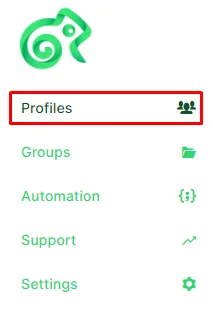
Open Kameleo, then go to the Profiles tab and click + New on the main screen. After that, the new profile creation window will open.
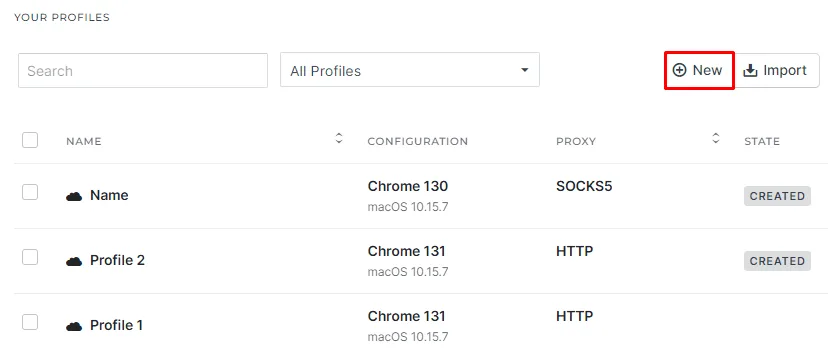
At the first stage, you need to select a Base Profile — a template on the basis of which your browser profile will be created. This is the basic configuration that includes browser, operating system, and device parameters.
Step 2. Specify the Profile Parameters and Proxy Settings
In the profile creation window, fill in the basic settings:
- Profile Name — enter the profile name;
- Device Type — select the device type: Desktop or Mobile;
- OS / Browser — specify the required operating system and browser combination, for example Chrome on Windows or Safari on iOS.
Scroll down to the Proxy section of the network settings.
If the default mode is set to Without Proxy, switch it to With Proxy. After that, select the connection type and enter the proxy server details.
You need to specify the following details. If you use Node Proxy residential proxies, you will find them in the client panel.
- Server — IP address or host;
- Port — port;
- Username — username, if the proxy requires authorization;
- Password — password, if the proxy requires authorization.
Kameleo supports different types of proxy connections. In practice, the choice depends on the specific task.
HTTP/S proxies are suitable for standard web browsing, account management, and scenarios where correct handling of encrypted traffic is important.
SOCKS5 proxies are often used in more demanding scenarios. They support different types of traffic, work faster in a number of cases, and are suitable for tasks related to transferring large volumes of data, streaming, automation, and gaming services.
If you need a universal option for stable operation and greater flexibility, SOCKS5 is often chosen. If the task comes down to regular browser activity and authorization on websites, HTTP/S can be used.
Step 3. Test the Proxy Connection
After entering all the parameters, click the Test Proxy button.
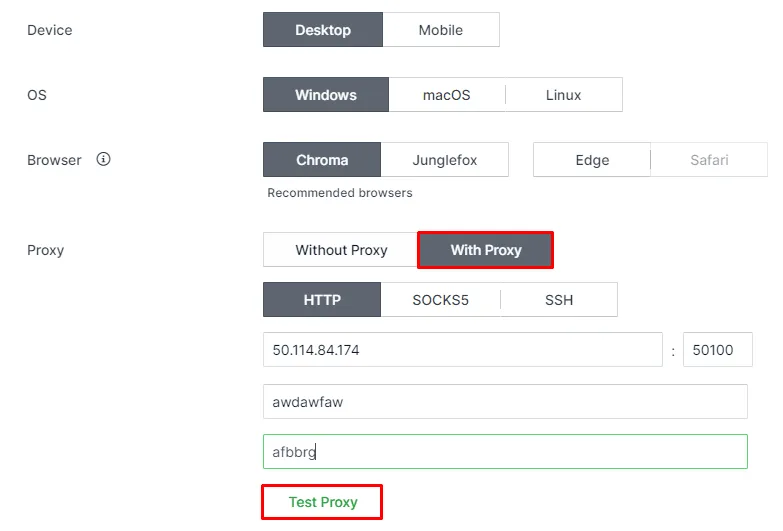
Kameleo will perform a built-in connection check and display the main results:
- whether the proxy is working;
- whether the geolocation is being detected;
- whether websites are accessible through the specified connection.
The status is usually displayed as Live or Dead. If the check is successful, you will see confirmation, as well as information about the proxy’s country and region. To confirm the result independently, paste the address into our free proxy checker, which shows the status, exit IP, country and city.
At this stage, it is important to make sure that the detected geolocation matches the one you intended to use.
If the test is successful, click Save or Start. After that, the profile will appear in the list of Kameleo profiles and will be available for further work.
When the browser window is launched, Kameleo automatically adjusts some profile parameters to match the IP address in use, including:
- time zone;
- language;
- browser geolocation.
This is important for digital fingerprint consistency. If the proxy points to one country, while the browser is operating with settings from another, this may look suspicious to websites and services.
Practical recommendations for working with proxies in Kameleo
For the connection to work stably and not cause unnecessary issues, it is worth taking a few rules into account.
Before launching, always check that the username and password are correct. Errors in authorization data are one of the most common reasons for a non-working connection.
It is also important that the proxy type, IP geography, device parameters, and profile settings do not contradict one another. For example, if you create a profile for one country, but the proxy belongs to a different network and a different geography, this reduces profile consistency.
Using proxies in automation
Proxies in Kameleo are used not only for manual work but also for automated scenarios. They help automation tools and bots work more reliably, especially if it is necessary to bypass request limits and IP blocks.
Kameleo Proxy FAQ
How do I add a proxy in Kameleo?
When creating a profile, scroll to the Proxy section, switch from Without Proxy to With Proxy, choose the connection type, and enter the server, port, username, and password. Then click Test Proxy and save the profile.
Which proxy types does Kameleo support?
Kameleo supports HTTP/S and SOCKS5 proxies. HTTP/S suits regular browsing and website logins, while SOCKS5 is often chosen for more demanding tasks.
How do I check a proxy in Kameleo?
Click Test Proxy after entering the details. Kameleo shows whether the proxy is Live or Dead and which country and region it detects.
Why does Kameleo change the time zone and language of a profile?
When the profile starts, Kameleo adjusts the time zone, language, and browser geolocation to the proxy IP so that the fingerprint stays consistent with the location of the address.
What proxies provide in Kameleo
Proxies increase flexibility when working with multiple accounts, automated tasks, data collection, and testing various scenarios on the web. With proper configuration, this makes Kameleo a more convenient tool for long-term and large-scale work.