DICloak Proxy Setup: Saving a Proxy and Linking It to a Profile

Getting a proxy into DICloak is a two-part job. Part one stores the server in the built-in library (IP Proxies, green Create Proxy button): pick the protocol, type the server and its port, put credentials into Proxy account and Proxy password, test with Checking proxy, finish with Confirm. Part two links the stored entry to a browser profile, and from that moment the profile reaches every website through that address.
Both parts are shown below on screenshots of the current build. You will also learn what the Exit IP and Usage profile columns tell you, where Batch import pays off, and which mistakes keep a profile offline.
Proxies for DICloak
SOCKS5 and HTTP proxies with authorization for DICloak browser profiles
DICloak at a Glance
Think of DICloak as a control room for many sealed-off browser profiles under one login. Each profile has its own fingerprint parameters, cookies and storage, and profiles can be shared with teammates under role-based access. The left sidebar reflects that structure:
- Browsers — the list of profiles;
- IP Proxies — the proxy library;
- Automation and Extensions — scripts and browser add-ons for profiles;
- Team — Members, Groups and Operation log for shared work;
- Billing — plans, starting from a free tier.
Keeping proxies in a separate library has a practical advantage: one entry can be edited in a single place, and the table shows which profile uses which address. If you also work with other tools, our collection of antidetect browser proxy guides covers dozens of them, including Multilogin.
What to Prepare
From your proxy provider you need:
| Value | Example |
|---|---|
| Proxy type | HTTP, HTTPS or SOCKS5 |
| Host | 203.0.113.88 or a domain name |
| Port | 10800 |
| Login | user-7f3k |
| Password | your proxy password |
If the provider gives one line such as IP:PORT:LOGIN:PASSWORD, split it into four parts before typing them into the dialog. For profiles that should keep one location for a long time, choose a fixed address; SOCKS5 proxies with login authorization work in DICloak without extra tweaks.
Step 1. Get the App Running
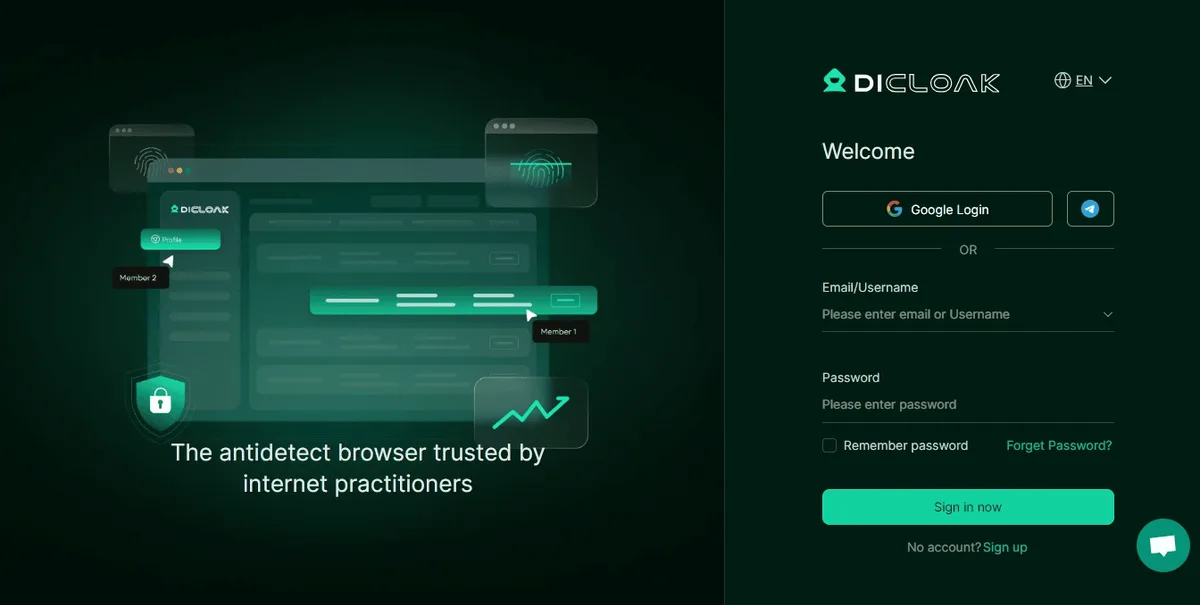
Grab the Windows or macOS build from the vendor's site, run the installer, then open the program. On the welcome screen sign in with Google Login, Telegram or an email and password; new users create an account through Sign up.
Step 2. Store the Proxy
Go to the Proxy Page
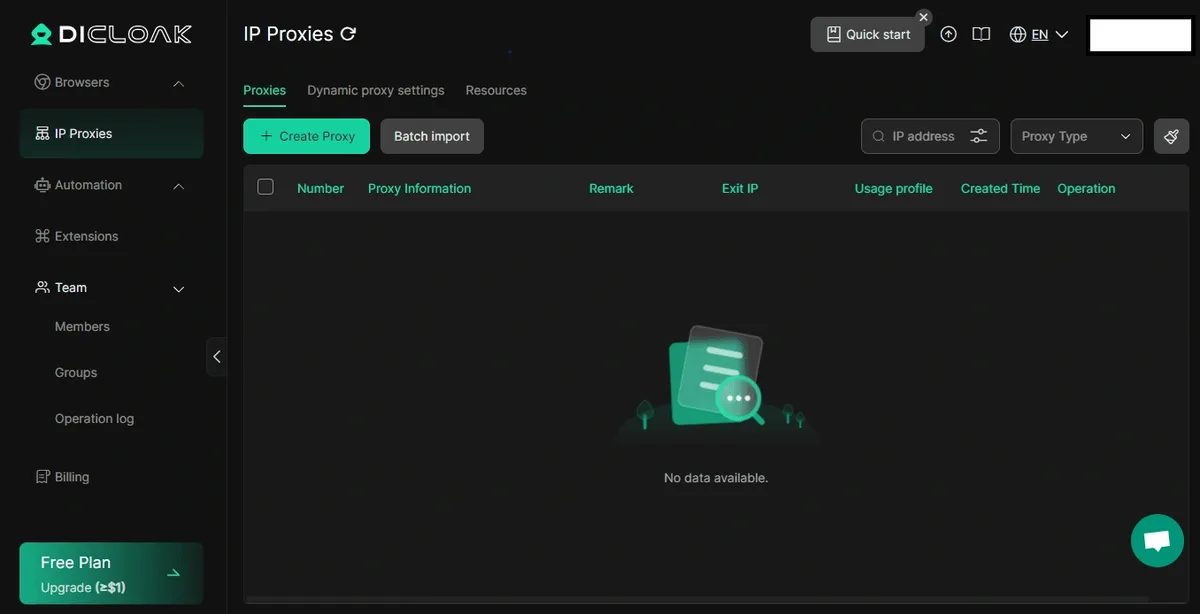
The sidebar item you need is IP Proxies. The page has three tabs: Proxies, Dynamic proxy settings and Resources. Stay on Proxies. A fresh account shows an empty table with the columns Number, Proxy Information, Remark, Exit IP, Usage profile, Created Time and Operation.
Press the green Create Proxy button above the table. Batch import next to it accepts many proxies at once and is handy when you load a whole list from your provider.
Complete the Dialog
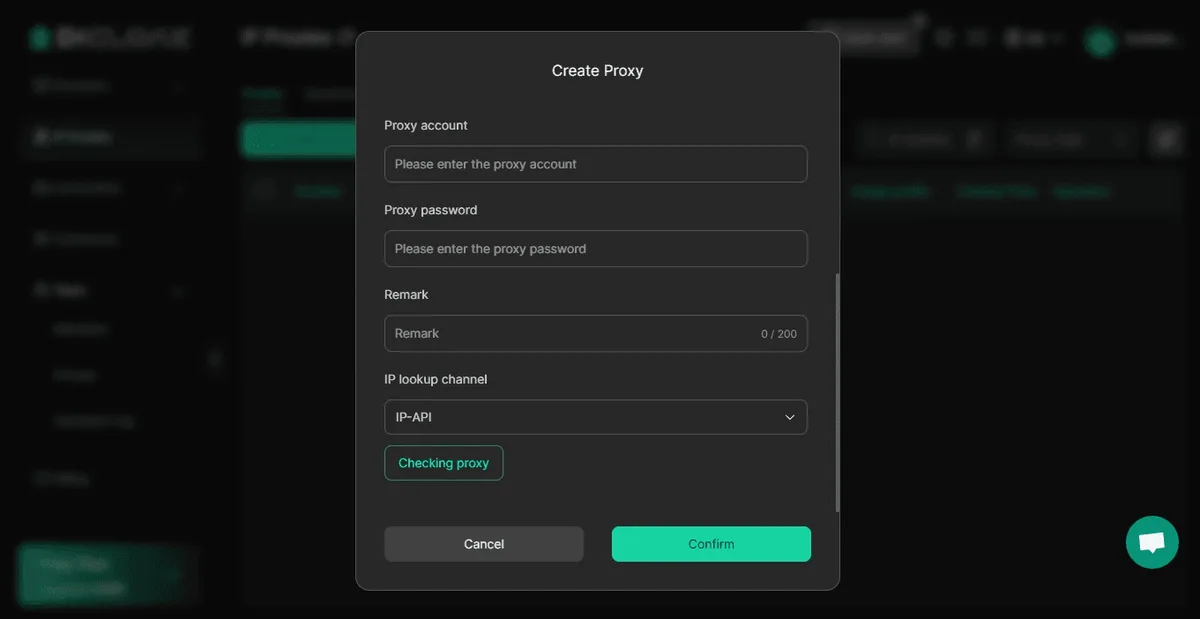
- At the top of the window, mark the protocol your provider issued — HTTP, HTTPS or SOCKS5.
- Put the IP or domain into the host input and the number into the port input.
- Type the login into Proxy account and the password into Proxy password.
- In Remark add a label you will recognise later, for example the country and project name.
- Leave IP lookup channel on the default IP-API. It is the service DICloak queries to find out the exit IP and its location; switch to another channel only if the default one is unavailable from your network.
- Press Checking proxy. A successful check returns the exit address and region.
- Click Confirm to save.
A row for the proxy now sits in the table. Its Exit IP cell shows the external address websites will see, and Usage profile stays empty until you link the proxy to a profile.
Step 3. Link the Entry to a Profile
Stored proxies stay idle until some profile points to them. Switch to Browsers, find the profile in the list and open its proxy dialog, Edit proxy. Set Proxy mode to Saved Proxies, pick the entry you just stored, press Checking proxy and confirm. A new profile offers the same choice in its creation form.
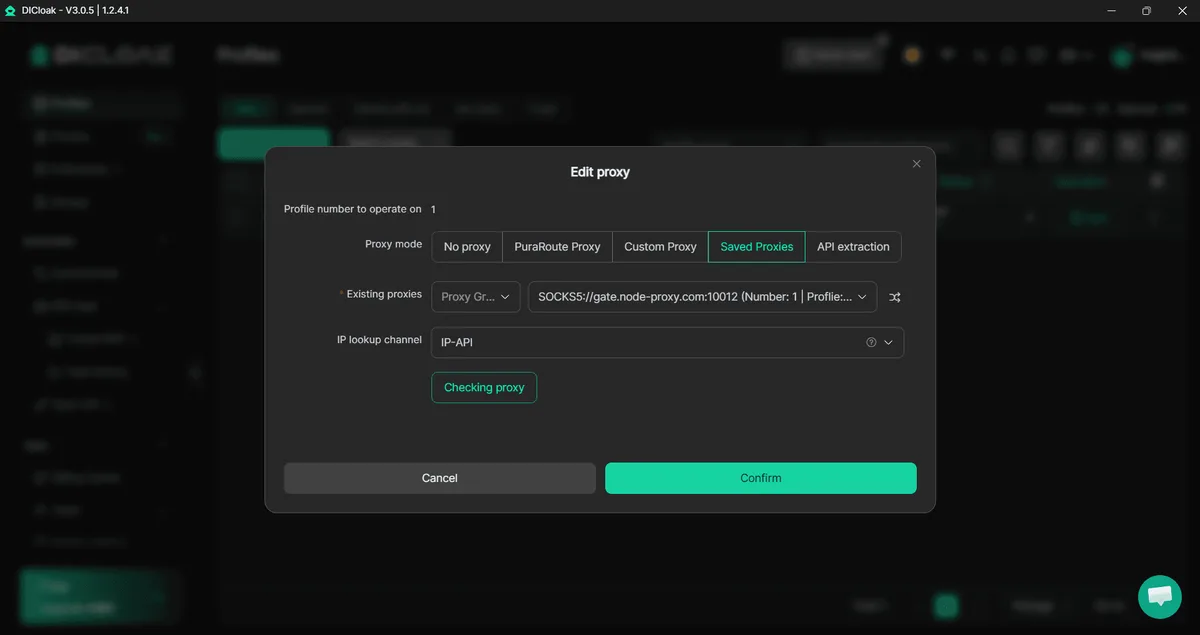
Before launching, double-check:
- protocol and port belong together;
- this profile points to the intended entry, not a neighbouring one;
- the profile's time zone and language follow the proxy location instead of your own.
Return to IP Proxies: the Usage profile cell now carries the profile name. A glance at that column reveals any address that two profiles share by accident.
Step 4. Verify the Connection
Launch the profile and open any IP-checking page. It must show the same address as the Exit IP column and the expected country. Mismatched time zone or language usually means the profile was created before the proxy was attached; refresh its geo settings and restart it. Our article on checking proxy geolocation explains why IP databases sometimes disagree about a location.
Troubleshooting
- Wrong protocol. A SOCKS5 port saved as HTTP fails the check. Edit the entry and pick the correct type.
- Typo in host or port. One wrong digit is enough to break the connection. Copy the values again from the provider panel.
- Authorization error. Re-enter Proxy account and Proxy password; watch for spaces at the end.
- Proxy works elsewhere, fails in DICloak. Try another IP lookup channel: sometimes the lookup service is blocked, not the proxy.
- Profile goes online without the proxy. The entry exists in the library but is not attached. Check the profile settings and the Usage profile column.
- Proxy fails everywhere. The problem is on the provider side; check that the plan is active.
More pitfalls are described in our list of common mistakes with proxies in antidetect browsers. Remember that every platform sets its own rules on multiple accounts, so separate profiles are a tool for team and client work within those rules.
DICloak Proxy FAQ
Which proxy types does DICloak support?
HTTP, HTTPS and SOCKS5 can be added through Create Proxy. Choose the type that matches the port your provider issued.
Can I import many proxies at once?
Yes. The Batch import button on the IP Proxies page loads a list of proxies in one go instead of creating each entry by hand.
What does the Exit IP column show?
It is the external address that websites see when a profile uses the proxy, as detected through the selected IP lookup channel.
Is it fine to share one address between profiles?
DICloak allows it, but websites will see those profiles on the same IP. For independent work, give each profile its own address and check the Usage profile column.
Is DICloak free?
There is a free plan with basic limits; paid plans in the Billing section add more profiles and team seats.